What running n8n in production means
Running n8n in production means the automation platform stops being one process on one box and becomes a stack that shares work and survives a restart. The single container from the self-host n8n on a VPS guide runs the editor, the triggers and the workflow executions all in the same node process, which is fine while n8n is a toy and a problem the day it is not.
This guide takes that container and turns it into the production shape: a main process that serves the editor and holds the triggers, a Redis queue in the middle, and a pool of dedicated workers that actually run the executions.
This is for the person whose n8n has quietly become business-critical. The workflows now move real orders, sync real customers, and page real people, so a run that dies because one container was busy, or an instance that comes back empty after a reboot, is no longer an annoyance. The fix is queue mode: executions go onto a Redis queue and workers pull them off, so a slow workflow no longer blocks the editor and you can add capacity by adding a worker rather than a bigger box.
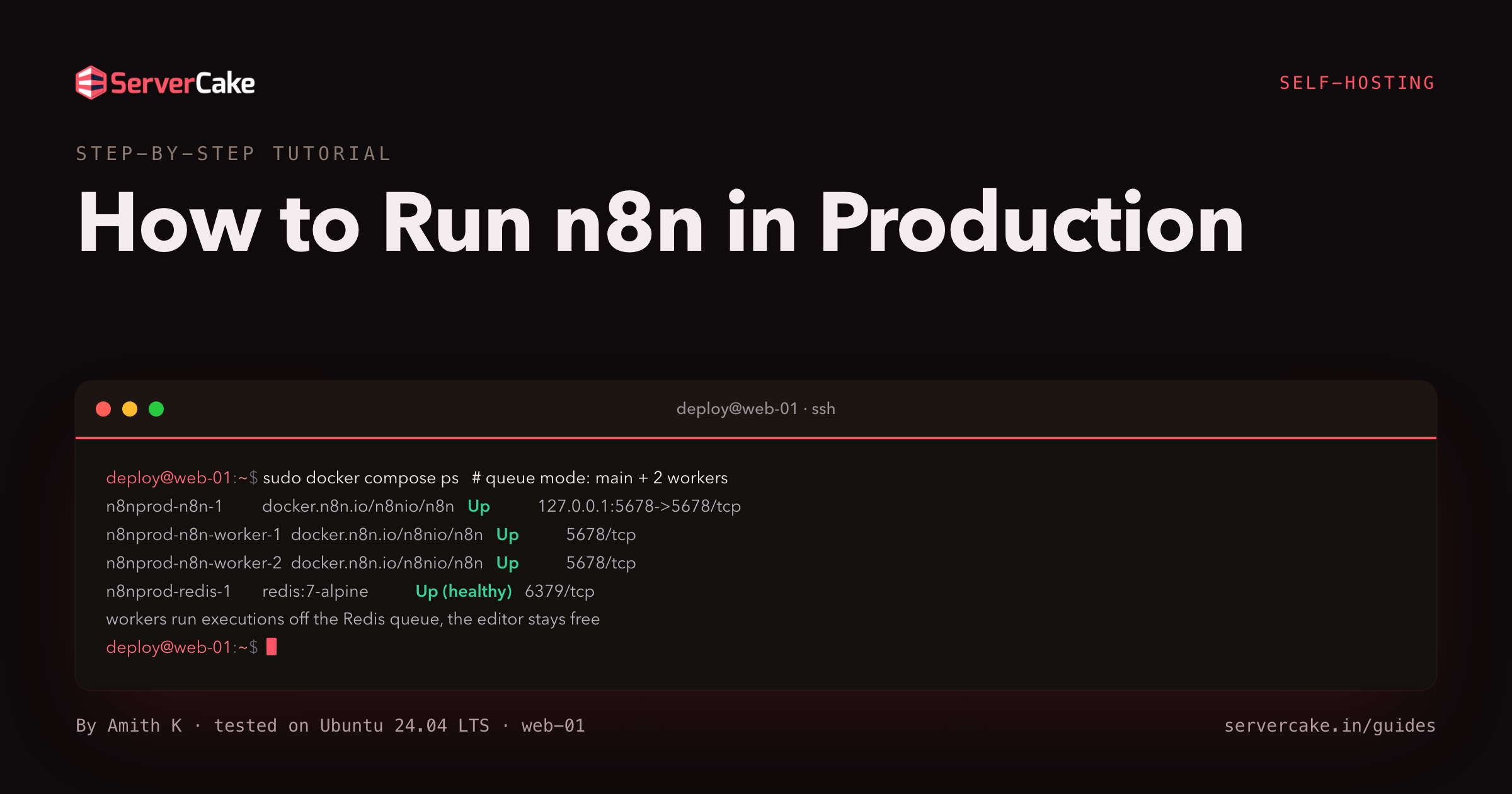
Here is the destination. The stack below is the real one we stood up for this guide: the main n8n process, two dedicated workers, the Redis that carries the queue, and the Postgres that holds every workflow and execution.
sudo docker compose ps
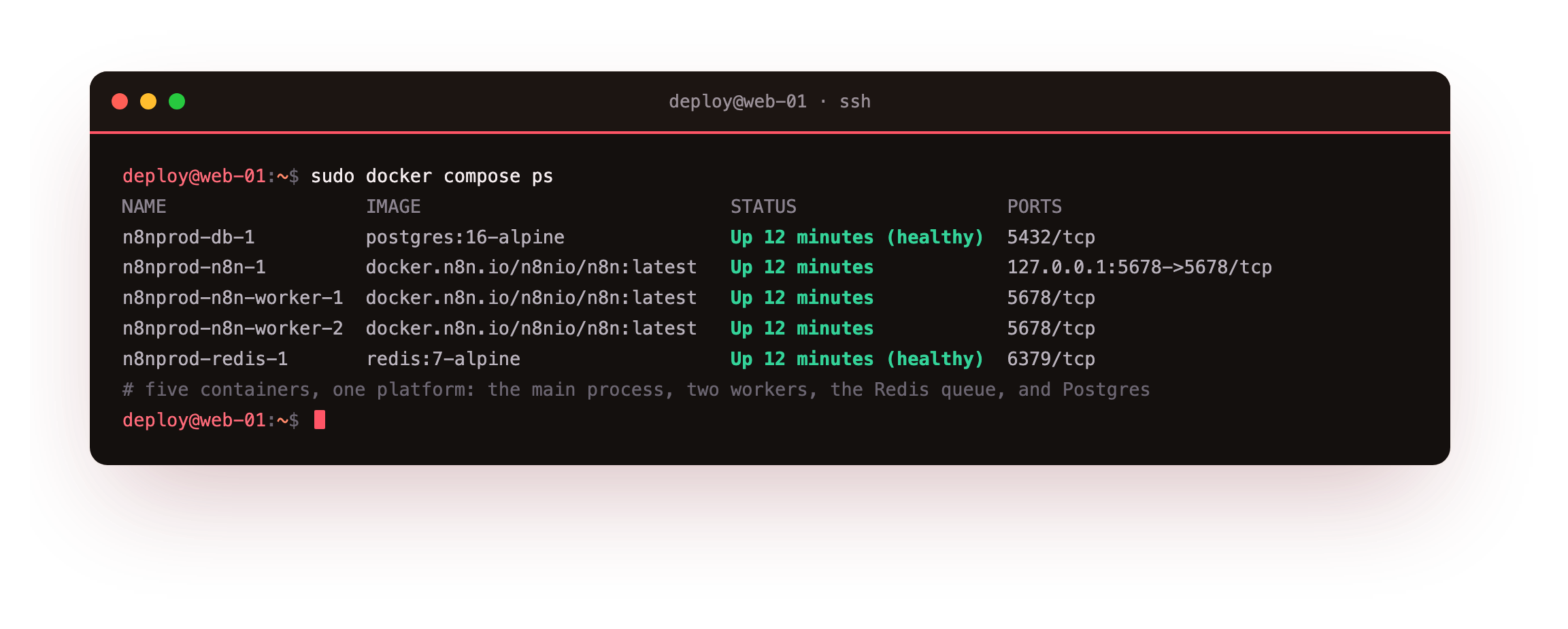
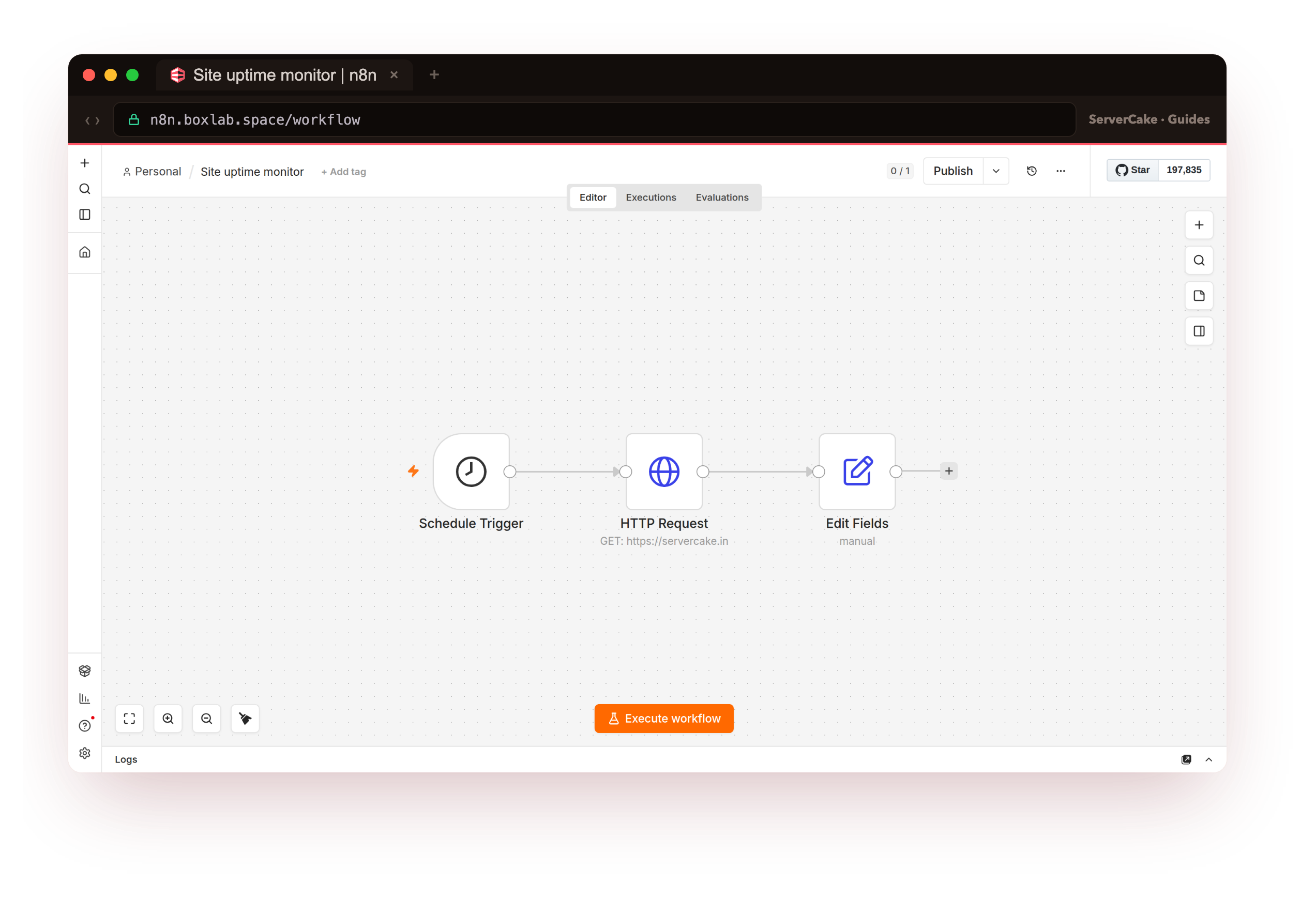
Five containers, one platform. Everything durable lives in named volumes, so the last thing we do is prove it: take the whole stack down, bring it back, and watch the workflows, the past executions and the encrypted credentials all return. Every screenshot in this guide is genuine, captured on that live box.
- Why a single container runs the editor, triggers and executions in one process, and why that caps you.
- Queue mode: setting
EXECUTIONS_MODE=queue, adding Redis, and running a dedicated worker pool. - Proving the queue works: a worker executes the job, Redis holds it, and the main process stays responsive.
- A real
.envfor the encryption key, database and Redis secrets, kept out of the Compose file. - Surviving a restart with restart policies, then proving workflows and executions come back intact.
Before you begin
This guide starts where the install pillar ends, so it assumes a little rather than starting from a bare box.
- A working self-hosted n8n from the install guide: n8n in Docker Compose, backed by Postgres, behind nginx over real HTTPS. This guide changes how that stack runs, so a working single-container setup is the starting line.
- SSH access to the slice as a user with
sudo, and the working directory that holds yourdocker-compose.ymland.env. - A slice with room to grow. Queue mode runs more processes, so 2 vCPUs and 4 GB of RAM is a comfortable size once a worker pool is involved, rather than the 2 GB a single container is happy on.
- Your
N8N_ENCRYPTION_KEYfrom the install. The whole point of this exercise is a stack that restarts cleanly, and it can only do that if the key stays the same across every container.
Everything below runs as a normal sudo user over SSH, from the directory that holds the Compose file.
Why a single container is not production
The default n8n container does three jobs at once. It serves the editor UI, it holds the active triggers and schedules, and it runs every workflow execution, all inside one node process. While traffic is light this is invisible.
It stops being invisible the moment a single heavy workflow, a large data transform or a slow external API, ties up that process: the editor lags, other executions wait their turn, and a burst of webhooks can push the whole thing over. One process is also one point of failure, and it can only ever use one box worth of CPU.
The production shape splits those jobs. The main process keeps the editor and the triggers, but it no longer runs executions itself. Instead it puts each execution onto a queue, and a separate pool of worker processes pulls jobs off that queue and runs them. The queue lives in Redis.
This is what n8n calls queue mode, and it buys three things: the editor stays responsive because executions run elsewhere, you scale throughput by adding workers instead of resizing the box, and a worker crashing takes its one job with it rather than the whole instance. The trade is one more moving part, Redis, and a few more containers to run, which is exactly what the rest of this guide sets up.
Queue mode with Redis and workers
Queue mode is three changes to the stack you already have: tell n8n to use the queue with EXECUTIONS_MODE=queue, add a Redis service for the queue to live in, and add a worker service you can scale. The workers run the same n8n image as the main process, just started with the worker command, and they read their configuration from the same environment. Because both share one encryption key and one database, they behave as one instance split across processes.
Here is the full Compose file. It keeps the Postgres from the install, adds Redis, and defines the main n8n service plus an n8n-worker service. A YAML anchor holds the environment both n8n services share so there is one place to edit it.
# /opt/n8n-prod/docker-compose.yml
name: n8nprod

x-n8n-env: &n8n-env
  N8N_HOST: n8n.example.com
  N8N_PROTOCOL: https
  N8N_EDITOR_BASE_URL: https://n8n.example.com/
  WEBHOOK_URL: https://n8n.example.com/
  N8N_ENCRYPTION_KEY: ${N8N_ENCRYPTION_KEY}
  DB_TYPE: postgresdb
  DB_POSTGRESDB_HOST: db
  DB_POSTGRESDB_DATABASE: n8n
  DB_POSTGRESDB_USER: n8n
  DB_POSTGRESDB_PASSWORD: ${POSTGRES_PASSWORD}
  EXECUTIONS_MODE: queue
  QUEUE_BULL_REDIS_HOST: redis
  QUEUE_BULL_REDIS_PORT: "6379"
  QUEUE_BULL_REDIS_PASSWORD: ${REDIS_PASSWORD}
  QUEUE_HEALTH_CHECK_ACTIVE: "true"
  OFFLOAD_MANUAL_EXECUTIONS_TO_WORKERS: "true"
  N8N_PROXY_HOPS: "1"
  N8N_RUNNERS_ENABLED: "true"
  GENERIC_TIMEZONE: Asia/Kolkata
  EXECUTIONS_DATA_PRUNE: "true"
  EXECUTIONS_DATA_MAX_AGE: "336"
  EXECUTIONS_DATA_PRUNE_MAX_COUNT: "10000"

services:
  db:
    image: postgres:16-alpine
    restart: unless-stopped
    environment:
      POSTGRES_USER: n8n
      POSTGRES_PASSWORD: ${POSTGRES_PASSWORD}
      POSTGRES_DB: n8n
    volumes:
      - db_data:/var/lib/postgresql/data
    healthcheck:
      test: ["CMD-SHELL", "pg_isready -U n8n -d n8n"]
      interval: 5s
      timeout: 5s
      retries: 12

  redis:
    image: redis:7-alpine
    restart: unless-stopped
    command: ["redis-server", "--requirepass", "${REDIS_PASSWORD}", "--appendonly", "yes"]
    volumes:
      - redis_data:/data
    healthcheck:
      test: ["CMD", "redis-cli", "-a", "${REDIS_PASSWORD}", "ping"]
      interval: 5s
      timeout: 5s
      retries: 12

  n8n:
    image: docker.n8n.io/n8nio/n8n:latest
    restart: unless-stopped
    ports:
      - "127.0.0.1:5678:5678"
    environment:
      <<: *n8n-env
    depends_on:
      db:
        condition: service_healthy
      redis:
        condition: service_healthy

  n8n-worker:
    image: docker.n8n.io/n8nio/n8n:latest
    restart: unless-stopped
    command: worker
    environment:
      <<: *n8n-env
    depends_on:
      n8n:
        condition: service_started
      redis:
        condition: service_healthy

volumes:
  db_data:
  redis_data:
A few lines carry the whole design. EXECUTIONS_MODE: queue is the switch that turns off in-process execution and sends every run to Redis. The three QUEUE_BULL_REDIS_* values point n8n at the Redis service and authenticate to it, because the queue holds your execution data in flight and should not be open.
OFFLOAD_MANUAL_EXECUTIONS_TO_WORKERS: "true" sends even the manual "Execute workflow" runs from the editor to the workers, so nothing executes in the main process. The main service still publishes to 127.0.0.1:5678 for nginx to proxy, while the workers publish nothing: they only talk to Redis and Postgres.
Now bring it up, with two workers, in one command. The --scale n8n-worker=2 flag runs two copies of the worker service so jobs can run in parallel.
sudo docker compose up -d --scale n8n-worker=2
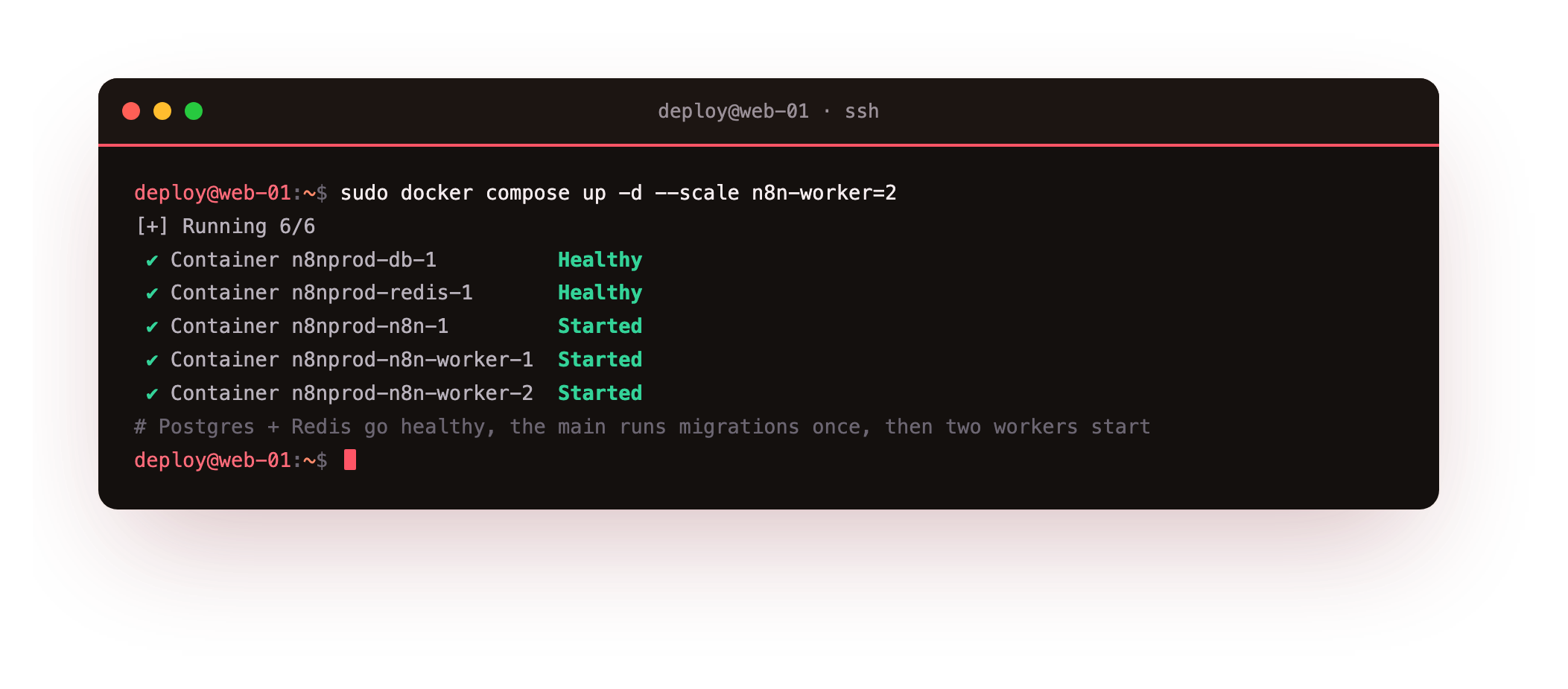
Compose starts Postgres and Redis, waits for both to report healthy, starts the main n8n so it can run the database migrations once, and then starts the two workers. Give it a moment and check the stack. You should see five containers: the database, Redis, the main process published on loopback, and two workers.
sudo docker compose ps
curl -s http://127.0.0.1:5678/healthz
db and redis healthy, the n8n main published on 127.0.0.1:5678, and two n8n-worker containers with no published port. A {"status":"ok"} from the health endpoint means the main process is up and connected to Postgres and Redis. If a worker keeps restarting, check that it can reach Redis with the password from the shared environment.Prove the queue works
Queue mode is only real if a worker actually runs the executions, so prove it rather than assume it. Build a small production-style workflow in the editor: a Schedule Trigger set to run every minute, an HTTP Request that fetches a URL, and an Edit Fields node that shapes the result into a tidy record.
Give it a name like "Site uptime monitor", then toggle it Active. An active workflow with a Schedule Trigger is a production execution, which in queue mode means the main process enqueues it and a worker runs it.
Watch a worker take a job. Follow the worker logs and wait for the next minute to tick over.
sudo docker compose logs --tail=40 n8n-worker
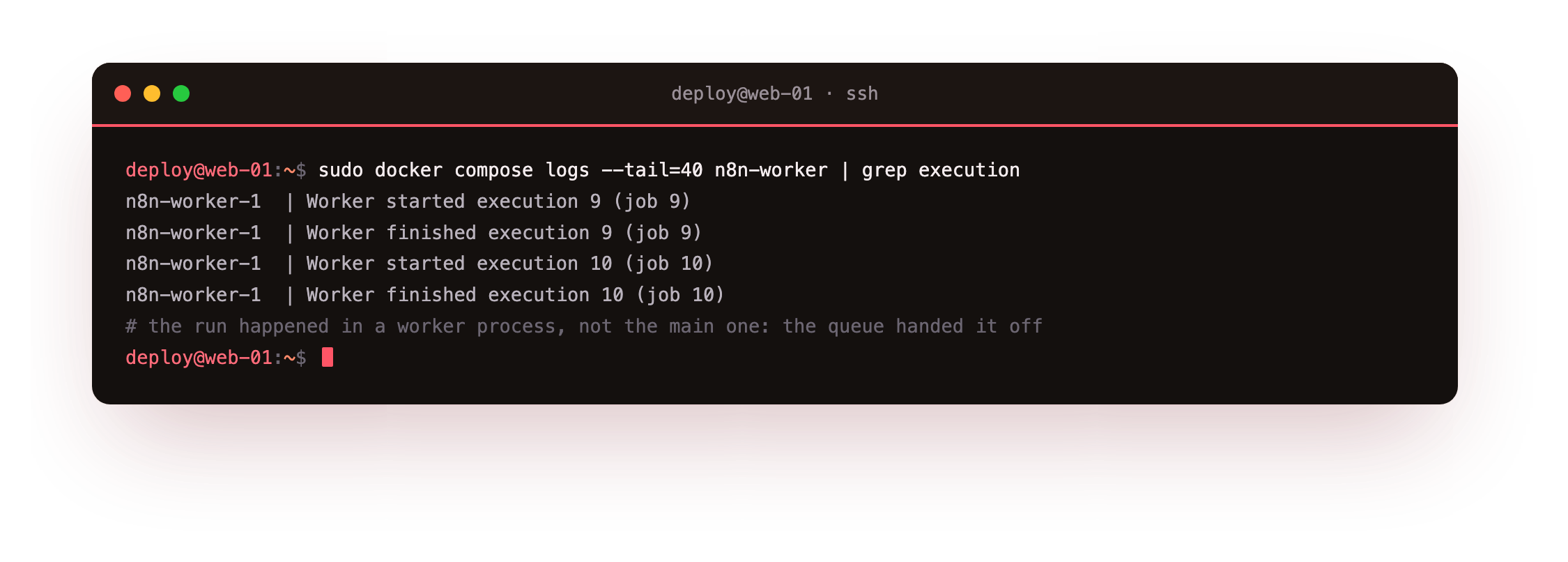
Each run prints a matched pair in the worker log: a line that the worker started the job with its id, and a line that the same job finished successfully. That is the execution running in a worker process, not in the main one. The main process only handed the job to Redis and moved on, which is why the editor stays quick while workflows run.
Look at the queue itself. Redis is holding the Bull queue that carries the jobs, and you can list its keys straight from the Redis container.
sudo docker compose exec redis \
     redis-cli -a "$REDIS_PASSWORD" --no-auth-warning keys 'bull:*'
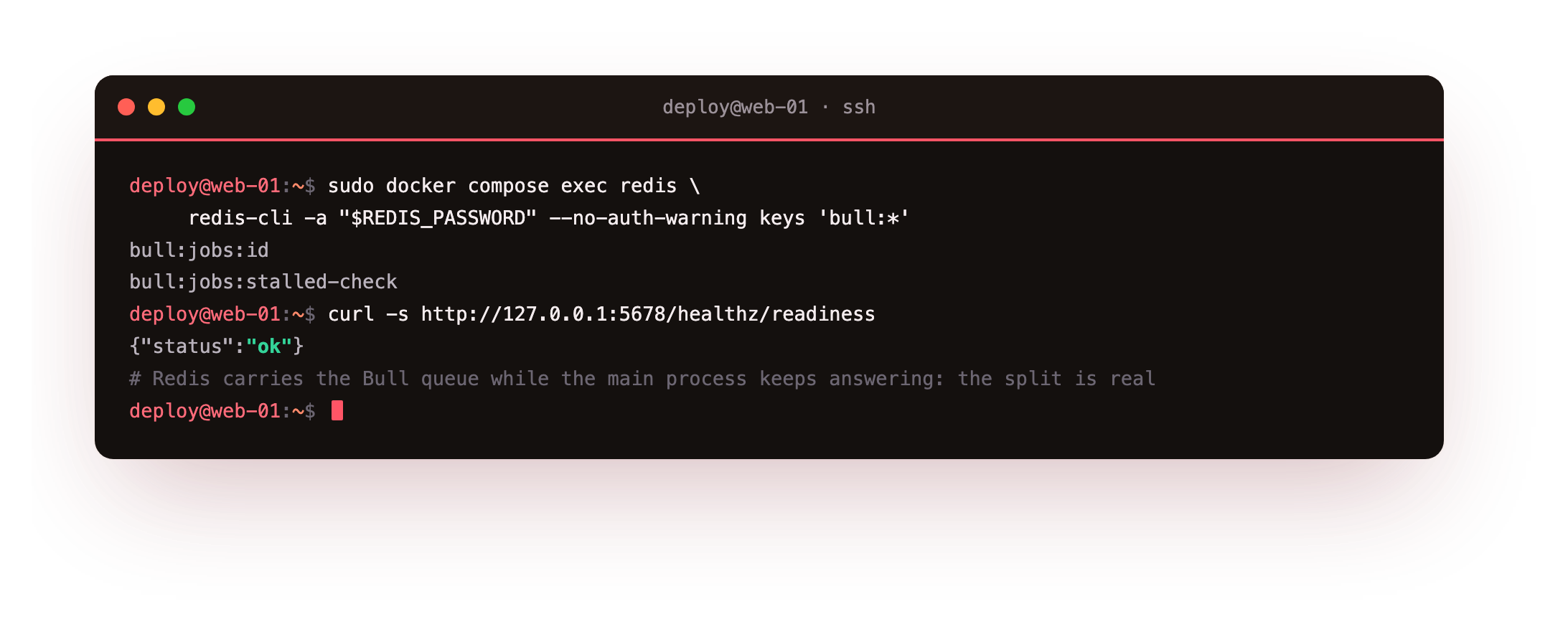
Those bull:jobs:* keys are n8n's execution queue: the completed set, the id counter, and the metadata Bull uses to hand work to whichever worker is free. While the main process keeps serving the editor, confirm it is still answering its health endpoint, so you can see the split for what it is: the editor responsive on one side, the workers busy on the other.
curl -s http://127.0.0.1:5678/healthz/readiness
Every run is recorded. n8n stores its executions in Postgres, so you can confirm the scheduled workflow is landing rows by asking the database directly.
sudo docker compose exec db \
     psql -U n8n -d n8n -c \
     "select id, status, mode, finished from execution_entity order by id desc limit 5;"
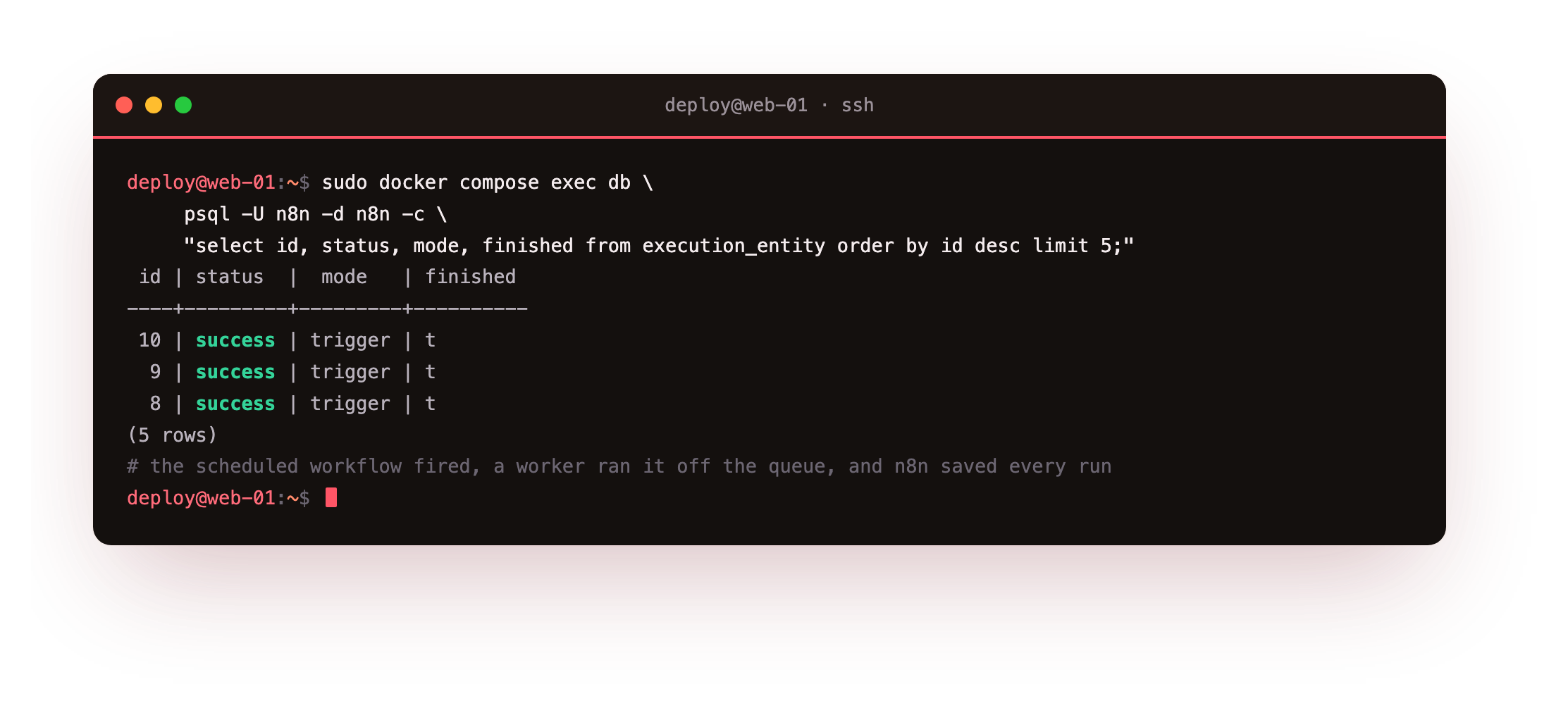
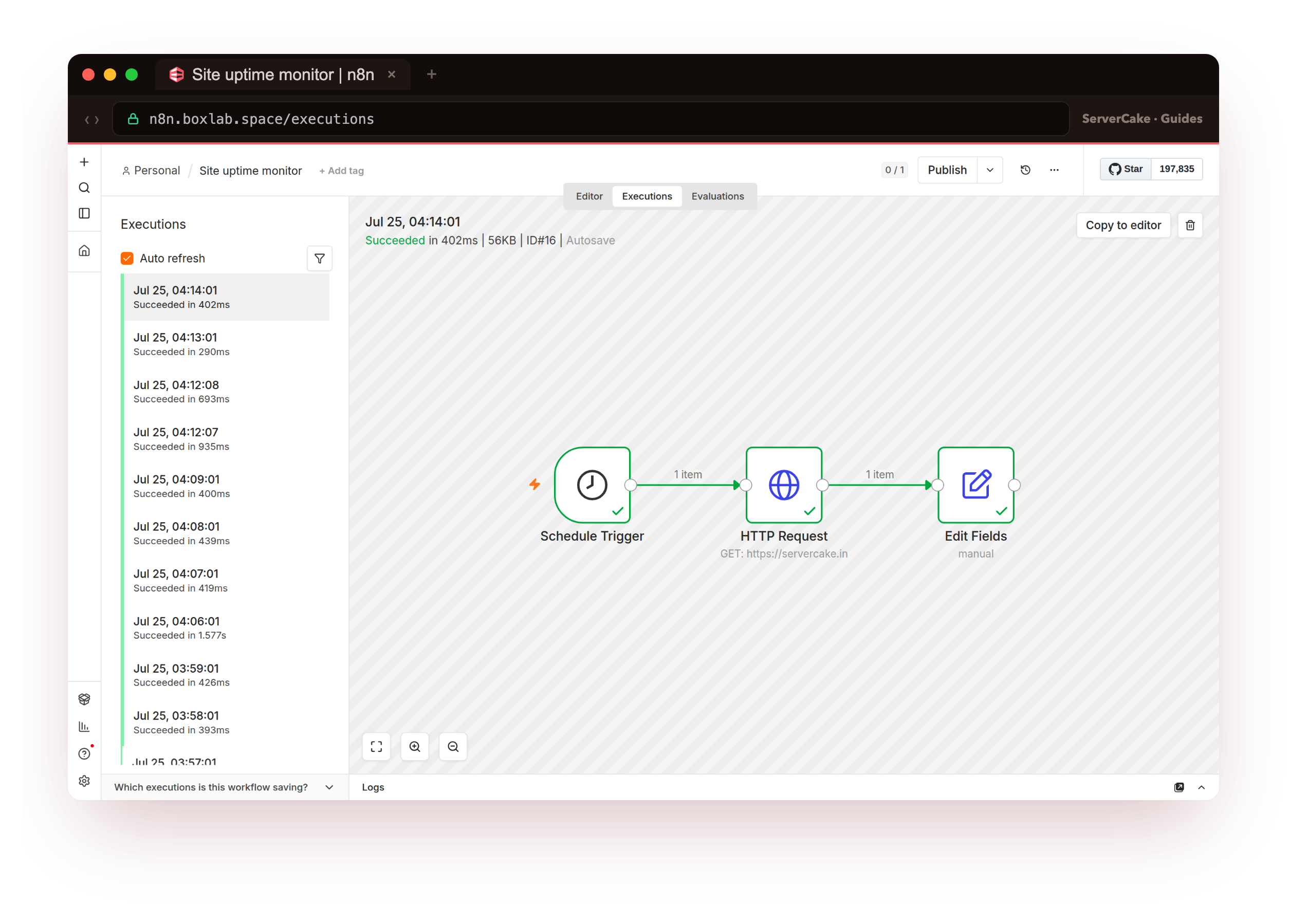
Rows with status = success and mode = trigger are your proof: the scheduled workflow fired, a worker ran it off the queue, and n8n saved the result. The Executions tab in the editor shows the same runs.
Environment and secrets done right
The Compose file above never contains a single secret. Every sensitive value is a ${...} reference that Compose fills in from a .env file sitting beside it, which means the Compose file is safe to commit and the secrets are not. This matters more in queue mode than it did with one container, because now three services, the database, Redis and n8n, each need a credential, and the encryption key has to be identical across the main process and every worker.
Create the .env with strong random values, and lock it down so only its owner can read it.
cd /opt/n8n-prod
echo "POSTGRES_PASSWORD=$(openssl rand -hex 24)"  | sudo tee    /opt/n8n-prod/.env
echo "REDIS_PASSWORD=$(openssl rand -hex 24)"     | sudo tee -a /opt/n8n-prod/.env
echo "N8N_ENCRYPTION_KEY=$(openssl rand -hex 24)" | sudo tee -a /opt/n8n-prod/.env
sudo chmod 600 /opt/n8n-prod/.env
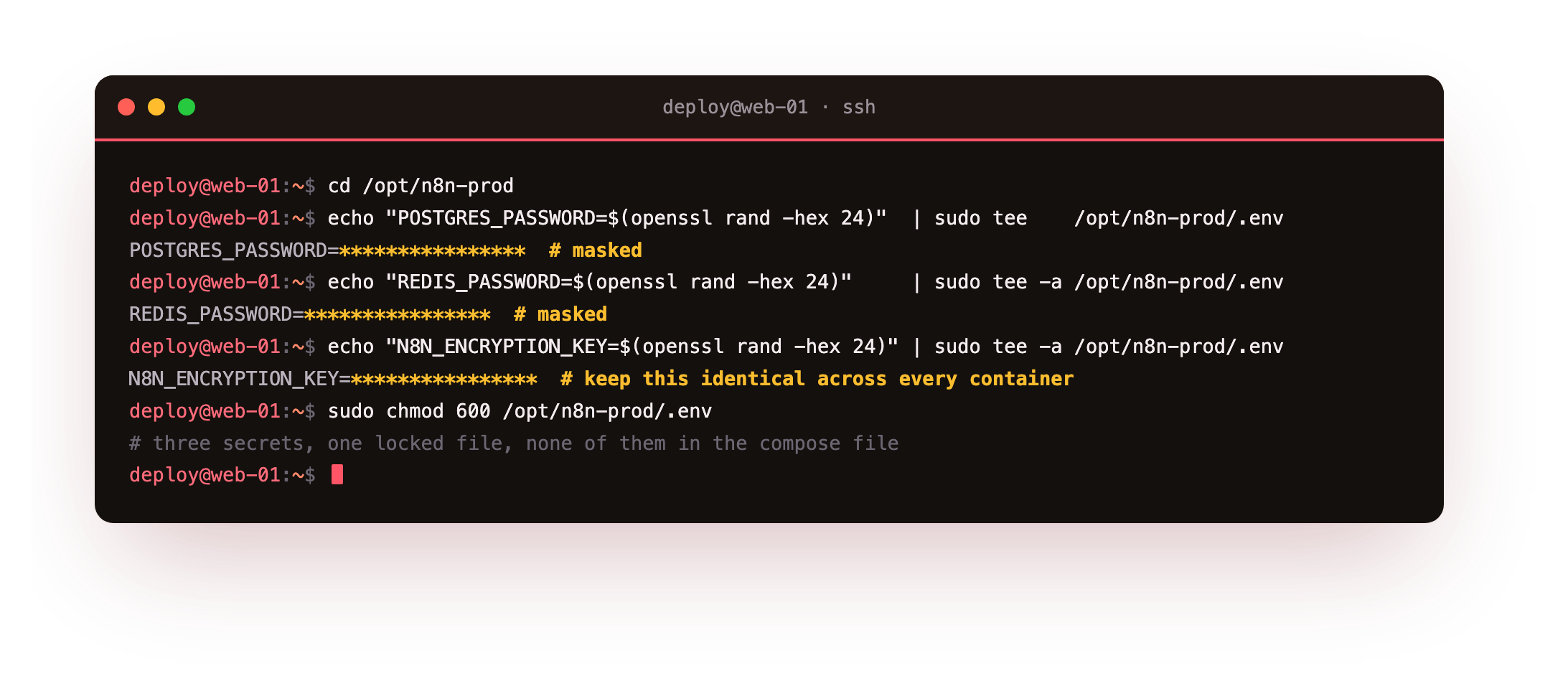
N8N_ENCRYPTION_KEY must be the same value it was on your single-container install, and the same across the main process and both workers. n8n encrypts every stored credential with it. Change it, or let one worker start without it, and those credentials become unreadable. Copy the existing key across rather than generating a fresh one on a stack that already holds credentials.Least privilege applies here too. The Postgres user is scoped to the one n8n database, not a superuser; the Redis password keeps the queue private; and the whole .env is mode 600 so a second account on the box cannot read your secrets. None of these values appear in the Compose file, the process list, or any log line.
Survive a restart
This is the payoff, and the reason queue mode alone is not production: a real deployment has to come back after it stops. Two things make that happen. The restart: unless-stopped policy on every service means Docker brings each container back after a reboot or a crash, on its own. And the named volumes, db_data for Postgres and redis_data for Redis, mean the data outlives the containers. Confirm the restart policy is in force across the stack.
sudo docker inspect -f '{{.Name}} {{.HostConfig.RestartPolicy.Name}}' \
     $(sudo docker compose ps -q)
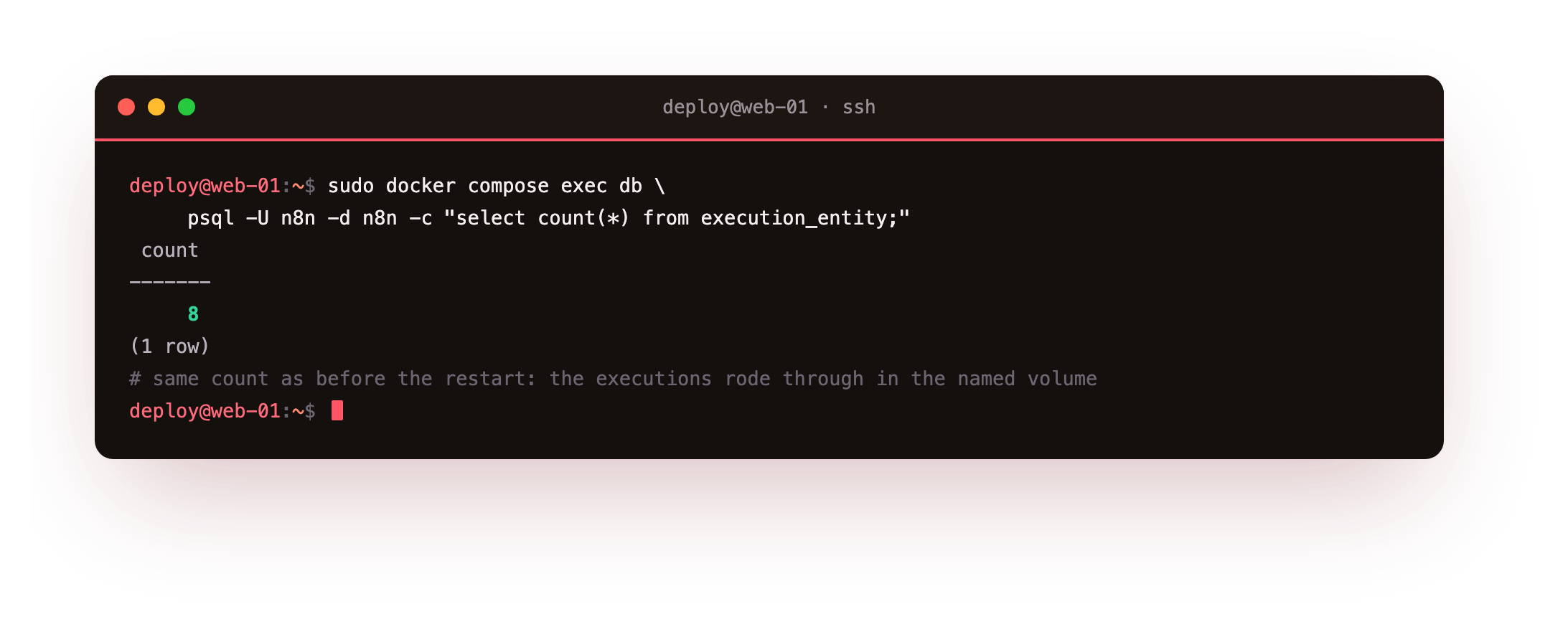
Now the real test. Note how many executions the database holds, then take the entire stack down, containers and network gone, and bring it straight back up.
sudo docker compose down
sudo docker compose up -d --scale n8n-worker=2
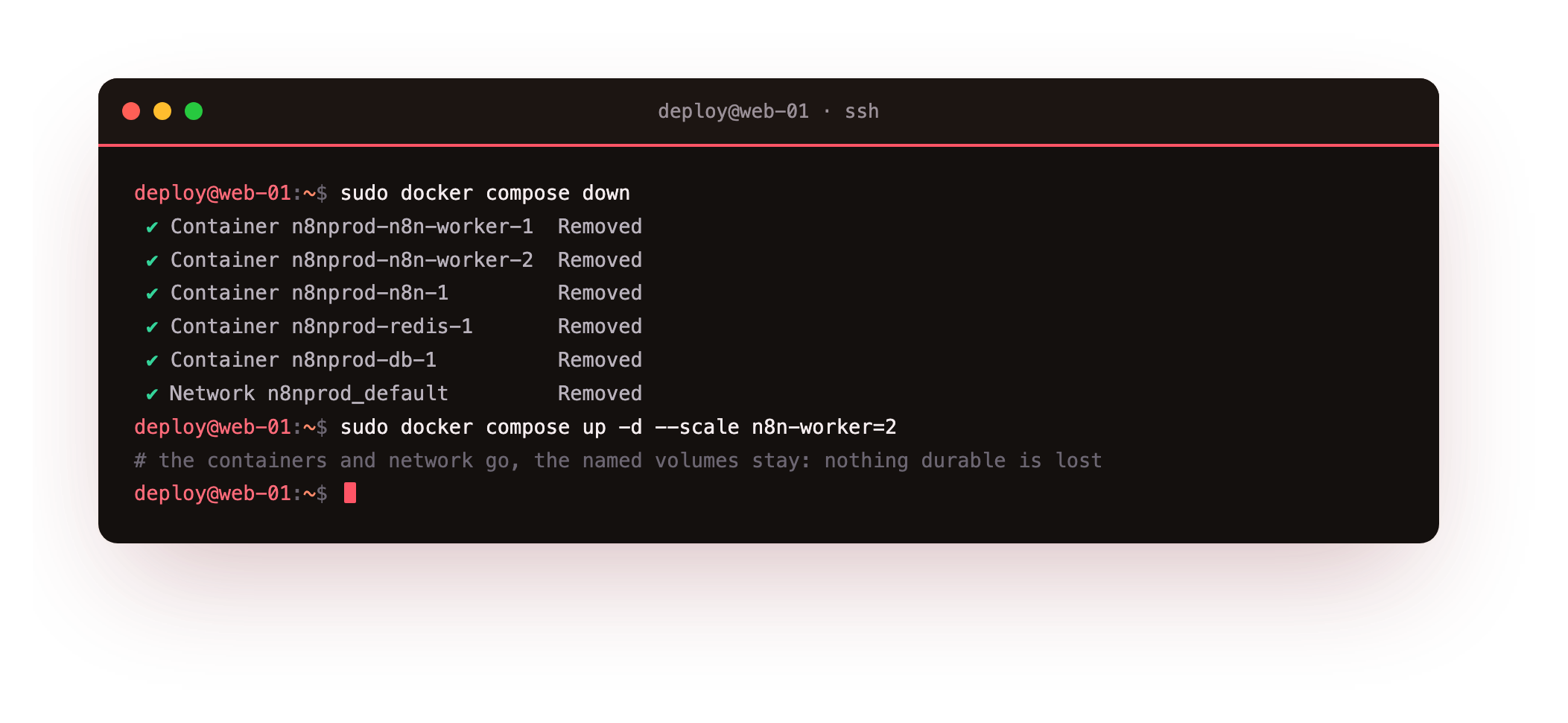
docker compose down stops and removes every container and the network, but it leaves the named volumes alone, so nothing durable is lost. When the stack comes back, the same encryption key from .env loads into the main process and both workers, the migrations are already applied, and Postgres still holds every row. Check that the executions from before the restart are still there.
sudo docker compose exec db \
     psql -U n8n -d n8n -c \
     "select count(*) from execution_entity;"
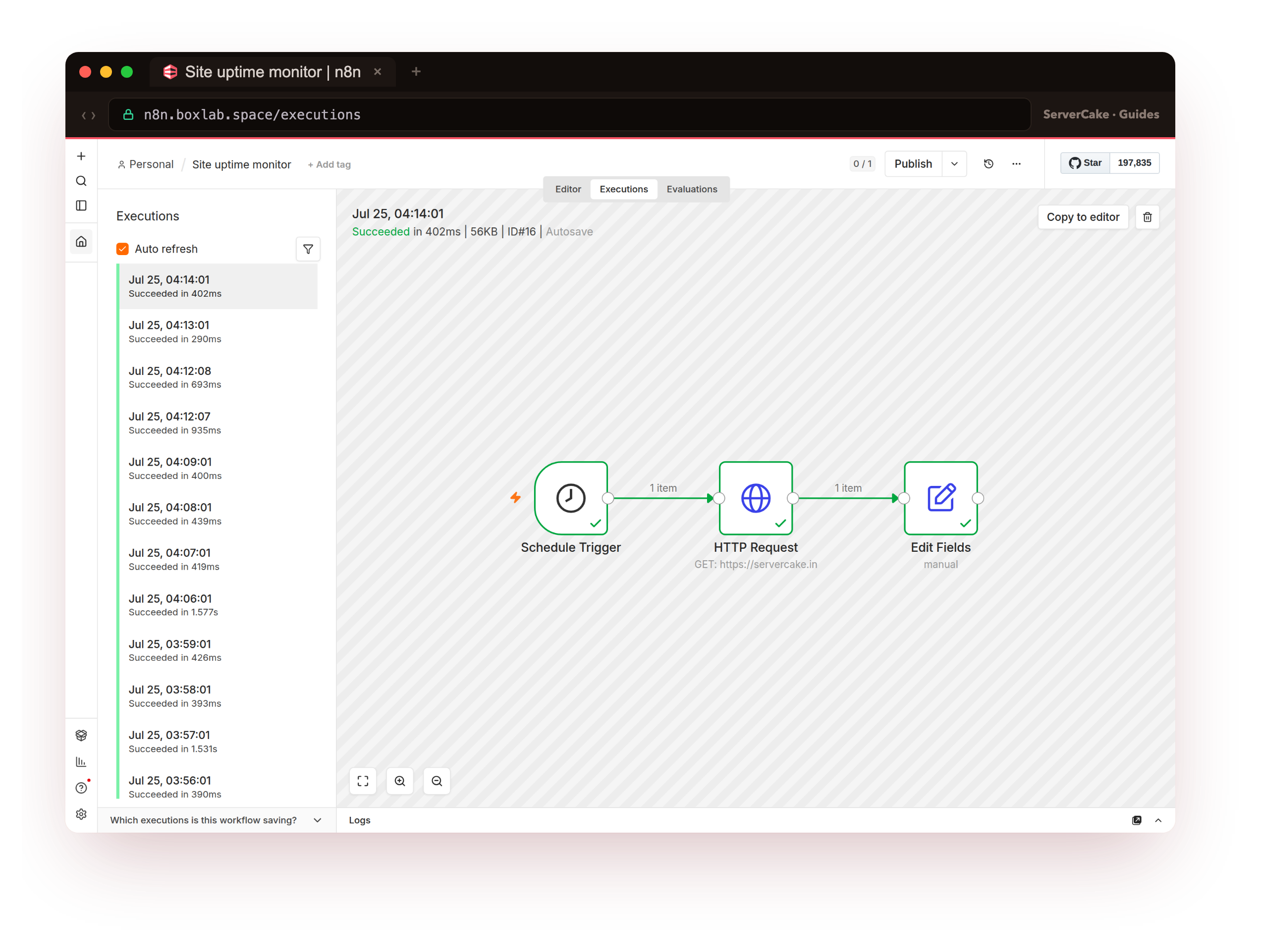
N8N_ENCRYPTION_KEY in .env and recreate the stack.The editor tells the same story. Open the Executions list and the runs from before the restart are still listed alongside the new ones, each one green, because the database and the encryption key both survived the stack going down and coming back.
Operate it: pruning, updates and backups
A production stack needs a little upkeep, and queue mode does not change much of it. The first habit is pruning. Execution history grows every minute a scheduled workflow runs, and left alone it will fill the database. The EXECUTIONS_DATA_PRUNE and EXECUTIONS_DATA_MAX_AGE values in the shared environment tell n8n to delete executions older than a window, 336 hours here, which is fourteen days. Confirm the setting reached the container.
sudo docker compose exec n8n \
     printenv EXECUTIONS_DATA_PRUNE EXECUTIONS_DATA_MAX_AGE
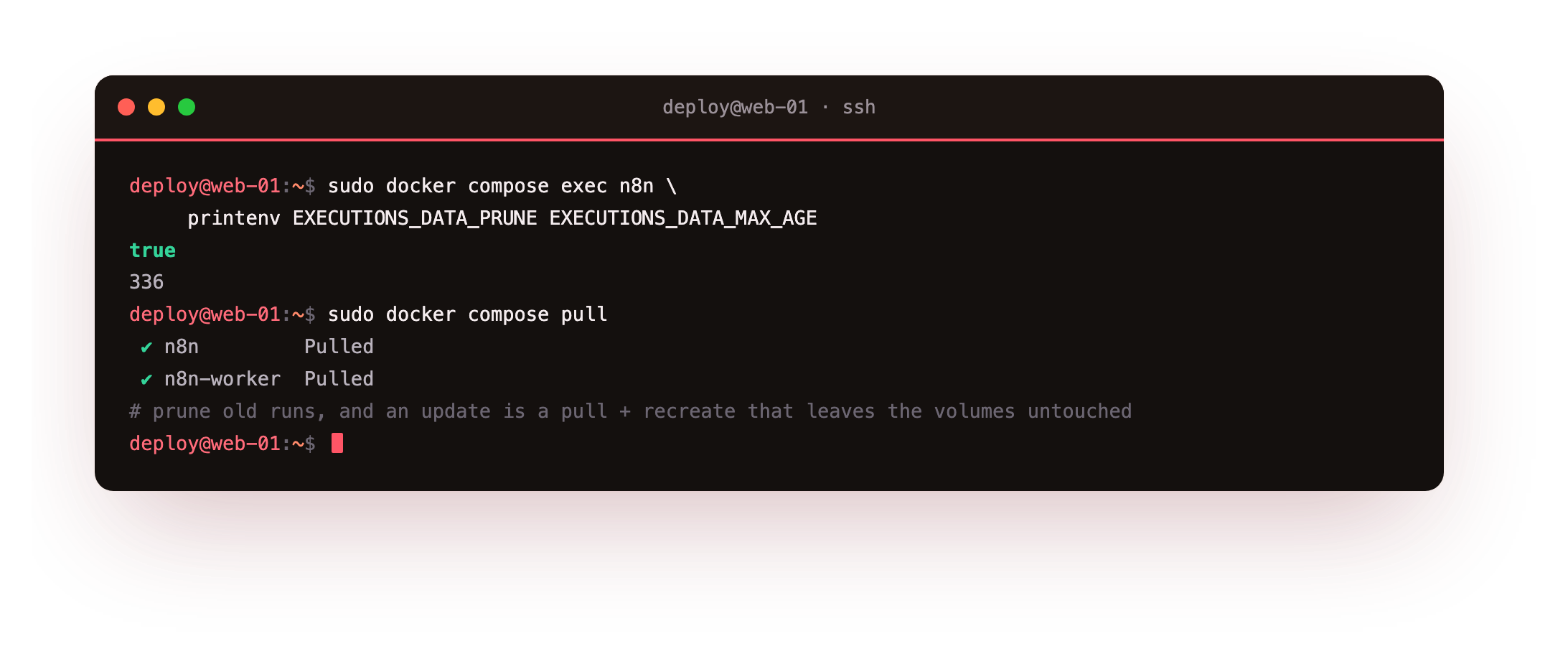
Updating is a pull and a recreate, and it applies to every n8n container at once because they share one image. Compose fetches the newer image, replaces the containers whose image changed, and leaves the volumes untouched, so your workflows and credentials ride through.
sudo docker compose pull
sudo docker compose up -d --scale n8n-worker=2
Backups are the same two things they were on the single container, because queue mode adds no new source of truth: the Postgres database holds your workflows and executions, and the N8N_ENCRYPTION_KEY decrypts the credentials inside it. Redis only carries jobs in flight, so it does not need backing up. Dump the database and keep the key beside it, then copy both off the slice.
sudo docker compose exec -T db pg_dump -U n8n n8n \
     | gzip > n8n-db-$(date +%F).sql.gz
sudo grep N8N_ENCRYPTION_KEY /opt/n8n-prod/.env > n8n-key.txt
That is a production n8n: a main process serving the editor, a Redis queue in the middle, a pool of workers running the executions, secrets in a locked .env, and a stack that comes back whole after it stops. From here the next step is securing it, tightening authentication, the firewall and how you expose webhooks, which the secure n8n work builds directly on top of the stack you now have.
Frequently asked questions
When do I actually need queue mode to run n8n in production?
The moment executions start competing with each other or with the editor. A single container runs the editor, the triggers and every execution in one process, so a heavy workflow or a burst of webhooks makes the editor lag and other runs wait. Queue mode moves executions onto a Redis queue that workers pull from, so the editor stays responsive and you add throughput by adding a worker. If your n8n runs a handful of light workflows a day, one container is genuinely fine; switch when runs get heavy, frequent, or business-critical.How many workers should I run, and how do I add more?
Start with two and watch. Each worker runs several executions at once, so two workers already give you parallelism and a spare if one crashes. You add capacity with the same command, raising the number:docker compose up -d --scale n8n-worker=3 runs three. Size it by watching worker CPU and how long jobs wait in the queue rather than by guessing; add a worker when jobs queue up, and give the slice enough RAM, since every worker is a full node process.
Does Redis hold anything I need to back up?
No. In n8n's queue mode Redis is the transport for jobs in flight, not the system of record. Your workflows, credentials and execution history all live in Postgres, and the encryption key in.env decrypts the credentials. So the two things to back up are the Postgres database and the encryption key, exactly as on a single container. If Redis is wiped it comes back empty and the queue simply refills; the appendonly file in the Redis volume only smooths a restart, it is not a backup you depend on.
My credentials read as broken after a restart. What happened?
The encryption key changed between runs. n8n encrypts every stored credential withN8N_ENCRYPTION_KEY, and if the main process or a worker starts with a different key, or a fresh random one, it cannot decrypt what the old key wrote. Pin the exact key in .env so every container reads the same value, and make sure it matches the key your single-container install used. Restore the database with the wrong key and the workflows return but the credentials do not, which is why the key travels with every backup.
Running n8n in production means owning the whole platform: the editor, the queue, the workers, the data and the secrets, with no per-execution bill and no black box. To put it into service, take a ServerCake slice, a clean Ubuntu 24.04 box hosted in India and billed in rupees with GST, and run the queue-mode stack above on hardware that answers only to you.