The two ways a backup system rots
restic retention and systemd automation are what turn the last three chapters into a backup that runs itself. A forget policy prunes old snapshots to a sensible window, and a systemd timer takes the backup every night with no human in the loop.
- A restic forget policy keeps a shape of history (recent dailies, some weeklies, a few monthlies) and prune reclaims the storage the removed snapshots used.
- With retention running, the repository settles into a bounded size instead of growing without end.
- A systemd timer takes the backup and prune every night, with Persistent=true so a server that was off catches up on the next boot.
- Automated backups must fail loudly; set -euo pipefail plus an OnFailure alert stops a silent failure becoming false confidence.
A backup system that needs a human is a backup system that eventually stops. Someone forgets to run it, or goes on leave, or the one line in a runbook gets skipped during a busy week, and the gap in the history is exactly where the disaster lands. And a backup repository that only ever grows will, given enough time, fill its storage and start failing silently.
The two things that keep a backup system alive are retention, deciding what history to keep and pruning the rest, and automation, taking the backup on a schedule with no human in the loop. This chapter sets up both on Ubuntu 24.04 LTS, and turns everything from the last three chapters into something that runs itself and that you can trust while you are asleep.
Let's build.
Prerequisites
- The S3 restic repository from the earlier parts, with the four environment variables available to the backup script.
- Root or sudo on an Ubuntu 24.04 LTS server, so you can install a systemd service and timer.
- A working backup command from part one and, ideally, a tested restore from part three.
- Somewhere to send failure alerts, such as a chat webhook, if you want to be notified when a run breaks.
Retention: keep a shape, not everything
You do not want to keep every backup forever, but you also do not want to keep only the last one. The sensible middle is a shape of history: several recent daily backups, a few weeks of weekly ones, maybe some monthly ones going back further. restic expresses this directly with a forget policy, which decides which snapshots to keep and, with --prune, actually deletes the data no kept snapshot needs:
restic forget --keep-daily 7 --keep-weekly 4 --keep-monthly 6 --prune
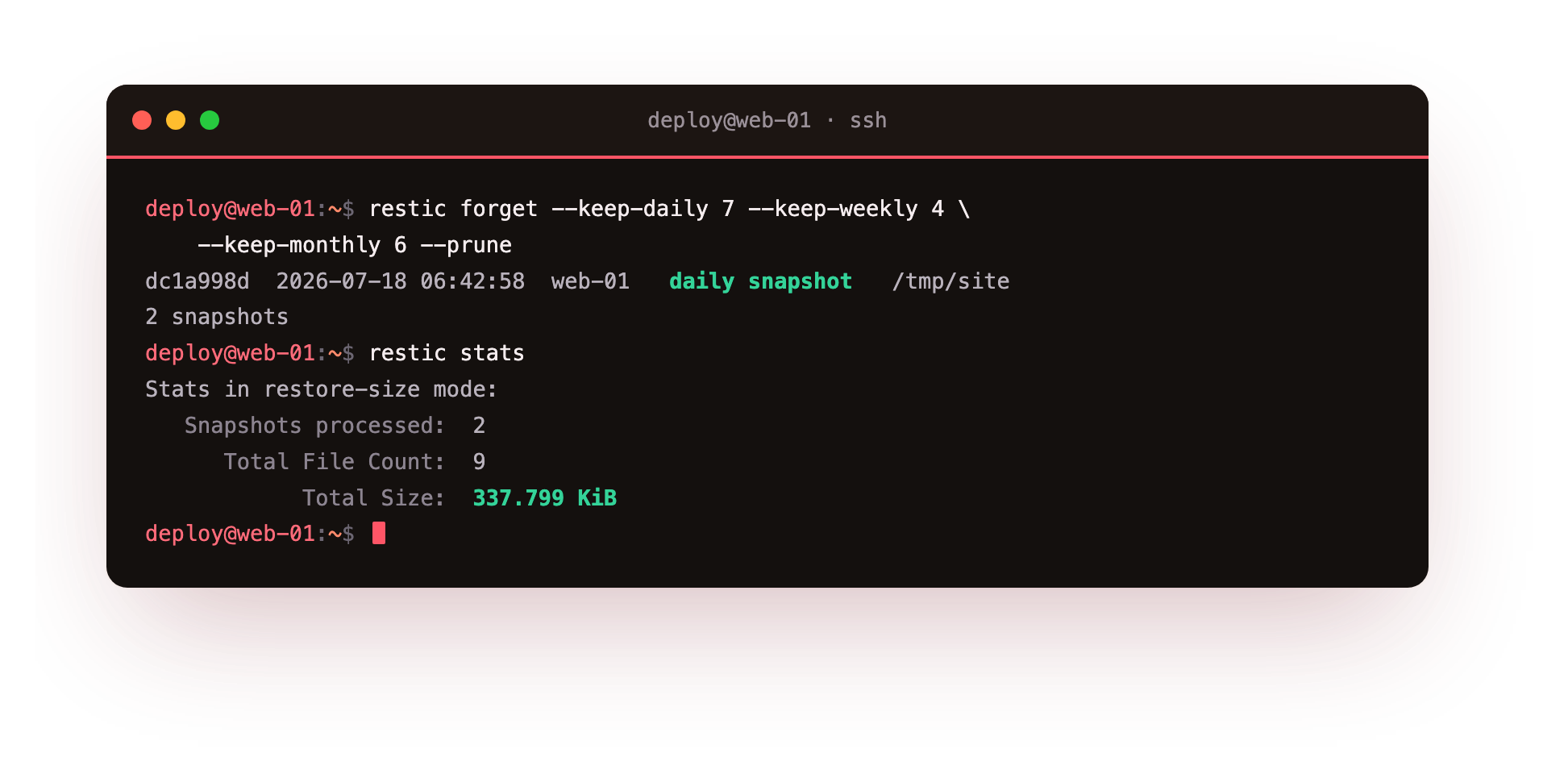
Read that as a retention shape: keep the last 7 daily snapshots, the last 4 weekly, and the last 6 monthly. restic works out which snapshots satisfy that (one snapshot can count as both a daily and a weekly) and removes the rest, then --prune reclaims the storage that only the removed snapshots were using.
The output tags each surviving snapshot with why it was kept, daily snapshot, weekly snapshot, so you can see the shape taking effect. Run this after each backup and your repository settles into a stable size: a rich recent history, thinning out as it goes back, never growing without bound.
The specific numbers are yours to choose from how much you would lose and how far back you might need to reach. A common, sane starting policy is --keep-daily 7 --keep-weekly 4 --keep-monthly 6: a week of daily granularity for recent mistakes, a month of weekly for the ones you catch late, and half a year of monthly for the truly slow-burning problems. Adjust to your data's value, not to a rule someone posted online.
Watch the repository stay bounded
You can see the effect on size at any time:
restic stats
It reports the snapshots processed and the total size, and with retention running this number stops climbing. That is the whole goal: a repository that holds a useful history in a predictable amount of storage, whether that storage is your MinIO bucket or a cloud provider you are paying by the gigabyte. Between restic's deduplication and a forget --prune policy, a long, useful backup history costs a fraction of what a naive "keep everything" approach would, and it never surprises you by filling up.
Layer this with the object-storage lifecycle rules from the previous series and you have defence in depth: restic prunes at the snapshot level, and the bucket's lifecycle rule is a backstop that expires anything left behind. Belt and braces, for the data you least want to lose.
restic retention and automation with a systemd timer
Now remove yourself from the loop. Wrap the backup and the retention prune into a small script:
#!/usr/bin/env bash
set -euo pipefail
export RESTIC_REPOSITORY=s3:http://127.0.0.1:9000/backups/restic
export AWS_ACCESS_KEY_ID=... AWS_SECRET_ACCESS_KEY=... RESTIC_PASSWORD=...

pg_dump -Fc -d shopdb -f /var/backups/shopdb.dump
restic backup /var/backups /var/uploads --tag nightly
restic forget --keep-daily 7 --keep-weekly 4 --keep-monthly 6 --prune
Then run it on a schedule with a systemd timer, the modern, observable replacement for a cron line. A timer is two small units, a service that runs the script and a timer that fires it nightly:
# backup.timer
[Timer]
OnCalendar=*-*-* 02:30:00
Persistent=true

[Install]
WantedBy=timers.target
enable --now the timer and your backup now runs every night at 2:30, takes an encrypted deduplicated snapshot to off-server object storage, and prunes to your retention shape, with nobody awake.
Persistent=true means that if the server was off at 2:30, the backup runs at the next boot instead of being silently skipped, so a rebooted server does not quietly miss a night. Because it runs under systemd, every run's output lands in the journal (journalctl -u backup), so you can see exactly what happened and when, which a cron job emailing into the void never gave you.
The one thing automation must not hide: failure
Automated backups have a specific, dangerous failure mode: they fail silently, and you find out only when you try to restore. So the last piece is making failure loud. A backup script should shout when it breaks, not when it succeeds. The set -euo pipefail at the top means the script stops on the first error rather than blundering on and reporting success.
Beyond that, wire a notification on failure: systemd can run an OnFailure unit that sends you an alert, or the script can curl a message to a chat webhook if any step fails. What you are protecting against is the worst backup outcome of all, worse than no backups: the false confidence of a system that reports success every morning while quietly backing up nothing.
Pair that with the restore drill from the last chapter, run on a schedule, and you have closed the loop completely: backups take themselves, prune themselves, alert you when they break, and get periodically restore-tested so you know they work.
Troubleshooting the timer
The timer never fires. It was created but not enabled. Run systemctl enable --now backup.timer, then systemctl list-timers to confirm the next run is scheduled.
Backups stopped but nothing alerted you. The script is not stopping on error, or there is no failure notification wired up. Confirm set -euo pipefail is at the top and add an OnFailure unit or a webhook call so a broken run is loud.
The nightly run works by hand but fails under systemd. The service runs with a minimal environment, so the RESTIC_ and AWS_ variables the script needs may be missing. Set them inside the script or the unit, not just in your login shell.
forget --prune is slow or times out. Pruning rewrites repository metadata and can take a while on a large repository over S3. Let it finish, and consider pruning less often than you back up, for example weekly.
Frequently asked questions
What retention policy should I start with?
keep-daily 7, keep-weekly 4, keep-monthly 6 is a sane default: a week of daily granularity, a month of weekly, and half a year of monthly. Tune the numbers to what your data is worth.
Why a systemd timer instead of cron?
A timer logs every run to the journal, supports Persistent=true to catch runs missed during downtime, and can trigger an OnFailure alert. A bare cron line gives you none of that.
How do I know the nightly backup actually ran?
Check journalctl -u backup for the last run, and list snapshots to confirm a new one appeared carrying tonight's timestamp and the nightly tag.
Does prune need to run every night?
No. You can back up nightly and run forget with prune less often, since pruning is the expensive part. Just run it often enough to keep the repository bounded.
What you have built
Step back and look at the whole series. You started with the vague intention to "set up backups properly." You now have an encrypted, deduplicated backup repository living in object storage off your application server; snapshots you understand and can restore, in full or a single file; a verified restore proving the data actually comes back; a retention policy that keeps a useful history in bounded storage; and a systemd timer that runs the whole thing nightly and shouts if it fails. Every command ran on one small VPS.
That is disaster recovery you can actually rely on, which is a rarer thing than it should be. Combined with the object-storage series that gave it a home and the PostgreSQL series that gave it data worth protecting, you now have the full chain: real data, stored safely, backed up encrypted and off-site, and proven to restore. That is the part of running your own infrastructure that lets you sleep.