The app that dies when you look away
To keep a Node app running on a VPS, you write a systemd service unit for it. systemd starts the app on boot, restarts it when it crashes, and captures its logs, so the app keeps running whether or not you are watching.
- A unit file at /etc/systemd/system/shopapp.service tells the system how to run your app.
- Restart=always with RestartSec=2 brings the app back two seconds after any crash.
- enable --now starts the service now and registers it to start on every boot.
- systemd streams your app's stdout and stderr to the journal; read it with journalctl -u shopapp.
Right now your app is alive for one reason: you started it in a terminal and that terminal is still open. Close the SSH session and, depending on how you started it, the app may die with it. Reboot the Ubuntu 24.04 server and it is gone. Let it hit an unhandled error at 2 AM and it stays down until a customer emails you. This is the state every deployment passes through, and the ones that stay there are the ones with the mysterious downtime.
The tools people reach for to fix this are often the wrong ones. You do not need pm2, forever, supervisor, screen, or nohup. Every Linux server already ships with a battle-tested process manager that starts services on boot, restarts them when they die, captures their logs, and runs them safely locked down.
It is systemd, it is already running your SSH daemon and your database, and it should run your app too. This chapter writes a proper service unit for your app and then proves it by killing the app and watching systemd bring it straight back.
Let's build.
Prerequisites
- An Ubuntu 24.04 LTS server, where systemd is already the init system.
- Your app's files on the server, for example under /opt/shopapp.
- The Node runtime installed, so a path like /usr/bin/node exists (check with
which node). - A sudo-capable user to install and manage the service.
A systemd service unit for your Node app, line by line
A systemd service is a small text file that tells the system how to run your app. Create it at /etc/systemd/system/shopapp.service:
[Unit]
Description=shopapp (demo Node service)
After=network.target

[Service]
User=ubuntu
WorkingDirectory=/opt/shopapp
Environment=APP_VERSION=v1
ExecStart=/usr/bin/node /opt/shopapp/server.js
Restart=always
RestartSec=2

[Install]
WantedBy=multi-user.target
Every line earns its place. After=network.target waits for networking before starting. User=ubuntu runs the app as an unprivileged user, never as root, so a compromise of the app is not a compromise of the machine. WorkingDirectory and ExecStart say where to run and what to run. Environment is how you pass configuration, and it is where things like NODE_ENV=production and secrets belong rather than hard-coded in your app. WantedBy=multi-user.target is what makes it start on boot.
The two lines that end your on-call pages are Restart=always and RestartSec=2. Together they tell systemd: if this process ever exits, for any reason, wait two seconds and start it again. That is your app becoming self-healing.
Turn it on, and turn it on at boot
Two commands bring it to life. daemon-reload tells systemd to read your new file, and enable --now both starts the service immediately and registers it to start on every boot:
sudo systemctl daemon-reload
sudo systemctl enable --now shopapp
Now ask systemd how it is doing. status is the command you will run more than any other, because it answers "is my app up, and if not, why" in one screen:
systemctl status shopapp
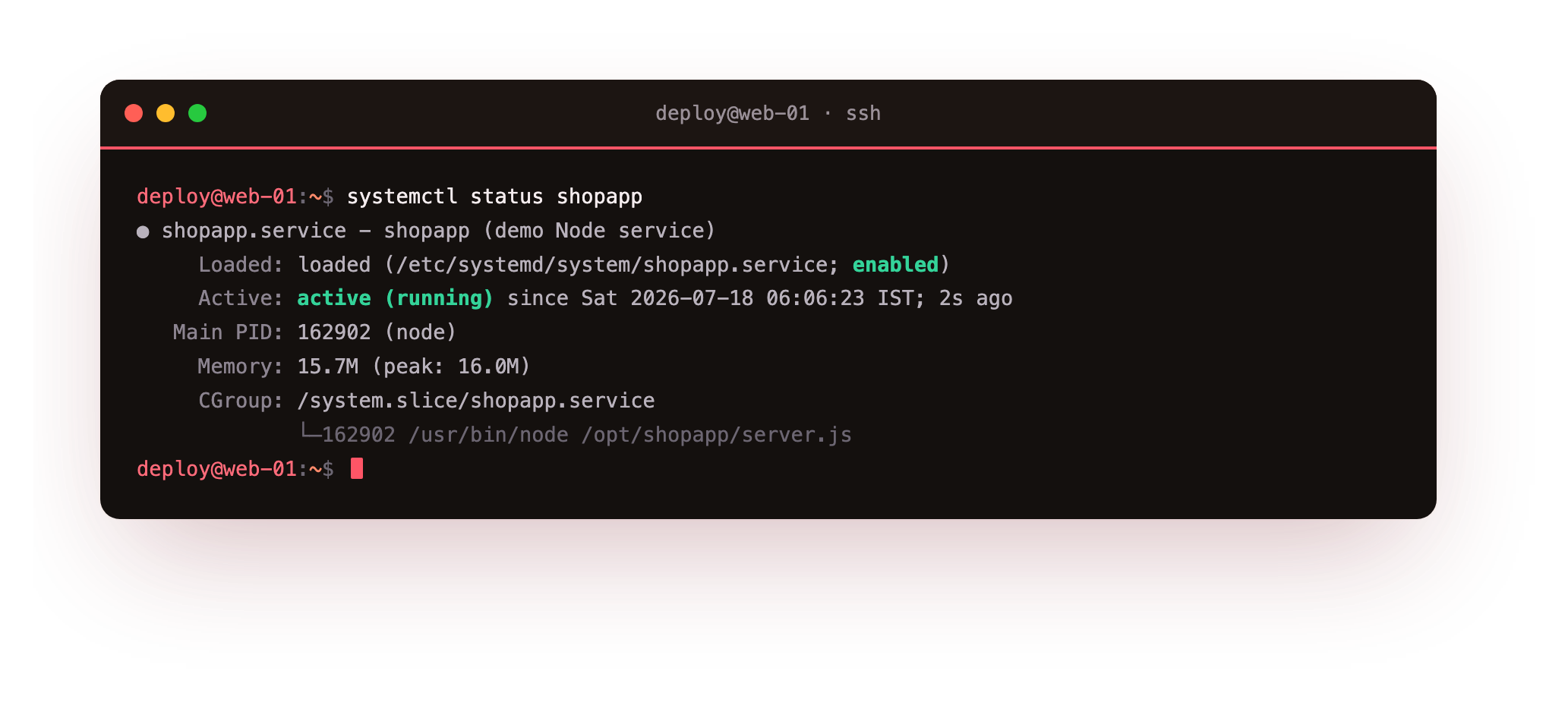
Active: active (running) is what you want to see, along with the main process ID, how long it has been up, and its memory use. That last number is worth a glance: this whole app is using about 16 MB, which on a small VPS is nothing, and systemd shows it to you without any extra tooling. If the service had failed to start, this same screen would show failed and the last few log lines explaining why, which is usually enough to fix it on the spot.
Prove it heals: kill the app and watch it come back
A restart policy you have not tested is a restart policy you are trusting on faith. So do not trust it, test it. Find the running process and kill it as violently as possible, a kill -9 that gives the app no chance to clean up, simulating a hard crash:
sudo kill -9 $(systemctl show -p MainPID --value shopapp)
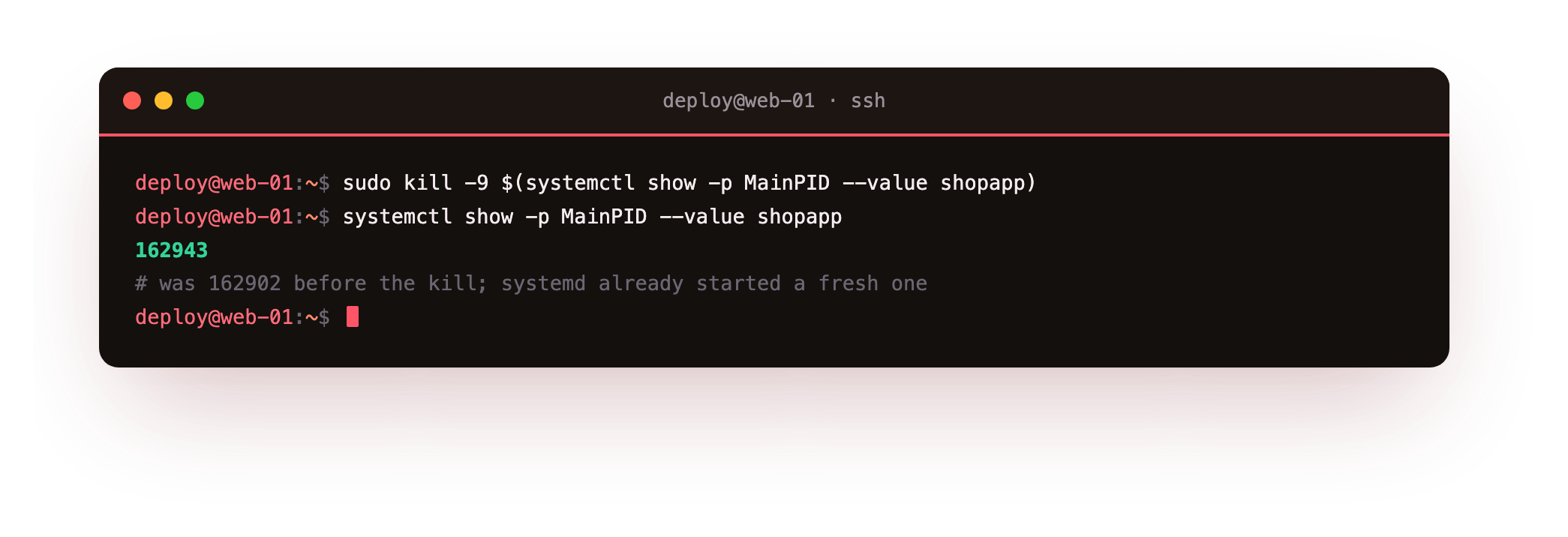
Wait two seconds, then check the process ID again:
systemctl show -p MainPID --value shopapp
The process ID has changed. The app you killed is gone, and systemd has already started a fresh one in its place, because Restart=always did exactly what it promised. Your app just survived a crash with no human involved and a two-second gap. Reboot the whole server and the same thing happens: systemd brings the app back because you enabled it at boot. This is the difference between a process and a service.
How do you read logs without a log file?
You may have noticed your app does not write a log file anywhere, and you did not set one up. That is deliberate. systemd captures everything your app prints to standard output and error into the system journal, and you read it with one command:
sudo journalctl -u shopapp -f
The -u shopapp scopes it to your service and -f follows it live, like tail -f but for a service that might restart. This is where your app's startup messages, errors, and crash output all land, timestamped and searchable, with no log-rotation config to get wrong because the journal handles that for you. When something breaks, journalctl -u shopapp since the last restart is usually the first and last place you need to look.
One more layer: lock the service down
Because systemd runs your app, it can also confine it, and a few extra lines turn your service into a sandbox with almost no effort. These are worth adding to the [Service] section:
NoNewPrivileges=true
ProtectSystem=strict
ProtectHome=true
PrivateTmp=true
ReadWritePaths=/opt/shopapp
NoNewPrivileges stops the app from ever gaining new privileges, so even a successful exploit cannot escalate. ProtectSystem=strict makes the entire filesystem read-only to the app except the paths you explicitly allow with ReadWritePaths. ProtectHome hides every user's home directory, and PrivateTmp gives the app its own throwaway /tmp that cannot be used to snoop on or attack other services.
Your app almost certainly does not need to write anywhere except its own directory, so this costs you nothing and shrinks the blast radius of a compromise dramatically. After editing the unit, daemon-reload and restart.
Troubleshooting a service that will not start
The status shows code=exited, status=203/EXEC. systemd could not execute the ExecStart command, almost always because the path to node or to your script is wrong. Confirm the real path with which node and check the absolute paths in the unit.
A permissions error, or status=200. The User in the unit cannot read WorkingDirectory or the app files. Check ownership of /opt/shopapp and that the user can read it.
Failed with result 'start-limit-hit'. The app crashed so fast, so many times, that systemd stopped retrying. Find the real crash with journalctl -u shopapp, fix it, then run sudo systemctl reset-failed shopapp and start it again.
Edits to the unit file seem to be ignored. systemd reads unit files into memory, so a change on disk does nothing until you reload. Run sudo systemctl daemon-reload after every edit, then restart.
Frequently asked questions
Do I still need pm2 or forever if I use systemd?
No. systemd already restarts on crash, starts on boot, and captures logs, which is most of what those tools add. On a Linux server systemd is the built-in, simpler choice, and it is already managing your SSH daemon and database.
Where do environment variables and secrets go?
In the unit's Environment= lines, or in an EnvironmentFile= pointing at a file only root can read. Keep them out of your application code and out of version control.
How do I see why the service failed to start?
systemctl status shopapp shows the last few log lines inline, and journalctl -u shopapp shows the full output since the last start. Between them that is almost always enough to find the cause.
Will the app really come back after a full reboot?
Yes. enable --now registered the service against multi-user.target, so systemd starts it automatically on every boot, the same way it starts the rest of the system's services.
What you have, and what is still in the clear
Your app is now a real service: it starts on boot, restarts itself on crash, runs as an unprivileged and sandboxed user, and streams its logs to the journal. You could reboot this server right now and everything would come back up on its own. That is production behaviour, and you got it from tools already on the machine.
But every byte between your users and this app is still travelling as plain text over port 80. The next chapter fixes that: a TLS certificate, an automatic HTTP-to-HTTPS redirect, and the small amount of nginx configuration that turns the padlock on and keeps it on.