The pain Compose removes
This chapter puts your app and its Postgres database into one Docker Compose file, brought up together with a single command. The two services run on a private network and find each other by name, with the database's data kept safe in a volume.
- One
compose.yamldescribes every service, its configuration, and how the services connect to each other. - Services reach each other by service name over a private network, so the app connects to the database at the host
db. - A named volume keeps the database's files outside the container, so the data survives being recreated or upgraded.
docker compose up -dstarts the whole stack in order;downstops it while keeping your volumes intact.
Your app needs a database. Running it by hand means: start a Postgres container with the right environment, create a network, start your app container on that network, pass it the database address, get the startup order right so the app does not race ahead of the database, and remember every one of those flags the next time. Do that across a laptop, a staging box, and production and you will get it subtly wrong somewhere.
Docker Compose replaces all of that with a single file that describes your whole stack: which containers make it up, how they are configured, and how they connect. You write it once, commit it to your repository, and bring the entire stack up or down with one command. Compose is where Docker stops being a way to run one container and becomes a way to run an application.
This chapter writes a compose.yaml for the app plus a Postgres database and brings it up on a live Ubuntu 24.04 LTS server, then shows the two things that make a multi-container app actually work: service networking and volumes.
Let's build.
Prerequisites
- Docker with the Compose plugin on your Ubuntu 24.04 LTS server. Confirm it with
docker compose version. - The app image from the previous chapter, buildable from a
Dockerfilein your project directory. - A project directory that holds your
compose.yaml, so thedocker composecommands run against it.
The Docker Compose file: app and database
Here is the whole stack in one file. Two services, a volume, and the wiring between them:
services:
  app:
    build: .
    environment:
      DATABASE_URL: postgres://app_user:secret@db:5432/shopdb
    ports:
      - "127.0.0.1:3100:3000"
    depends_on: [db]
    restart: unless-stopped
  db:
    image: postgres:16-alpine
    environment:
      POSTGRES_DB: shopdb
      POSTGRES_USER: app_user
      POSTGRES_PASSWORD: secret
    volumes:
      - dbdata:/var/lib/postgresql/data
    restart: unless-stopped
volumes:
  dbdata:
Read it top to bottom and it is almost English. The app service is build: ., meaning "build it from the Dockerfile in this directory," so your image from the last chapter. The db service uses the official postgres:16-alpine image directly. Each gets an environment block for its configuration. The app maps a port to the host; the database does not, because nothing outside the stack should talk to it directly. And depends_on: [db] tells Compose to start the database before the app.
Two lines deserve a closer look, because they are the ideas that make the whole thing work.
How do containers find each other by name?
Look at the app's database URL: postgres://app_user:secret@db:5432/shopdb. The host is db. Not an IP address, not localhost, just db, the name of the other service. This works because Compose puts every service on a private network and gives each one a DNS name matching its service name. The app can reach the database at db and Compose resolves that to whichever IP the database container happens to have.
You can see this from inside the running app container:
docker compose exec app getent hosts db
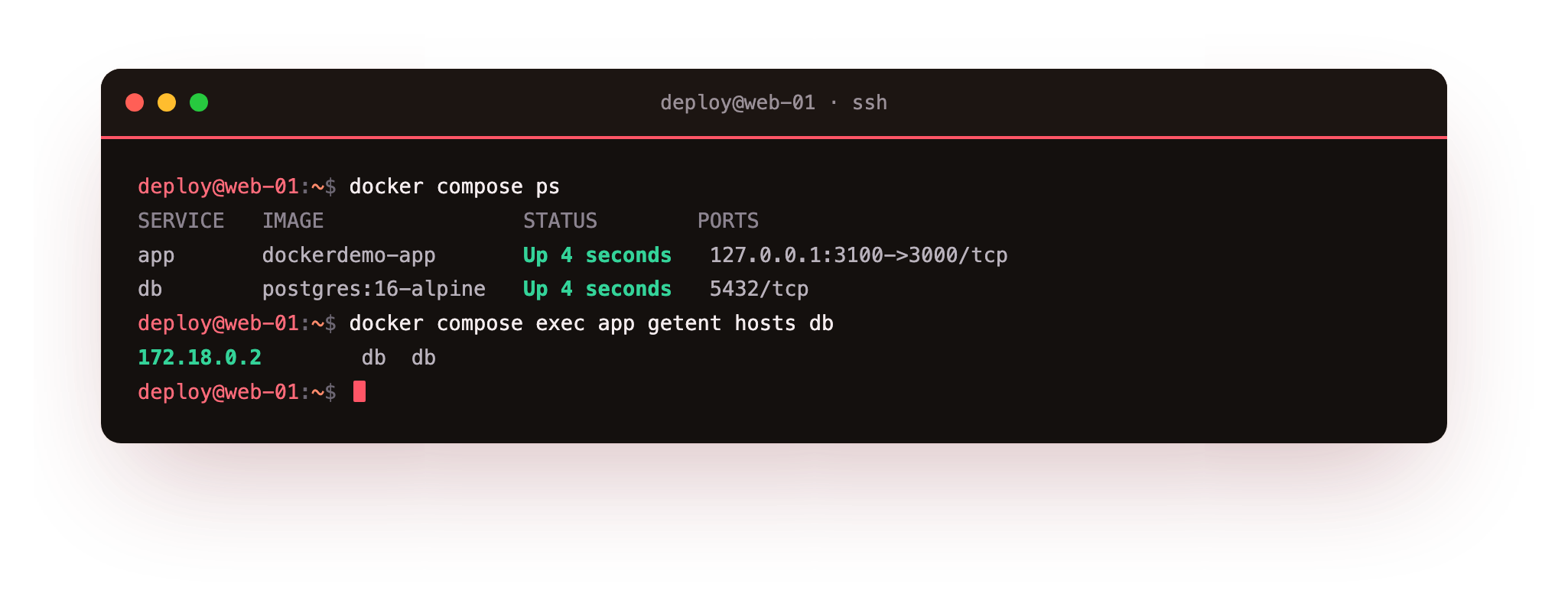
The name db resolves to 172.18.0.2, the database container's address on the private network Compose created. Your app never has to know or care what that IP is; it just connects to db and it works, on your laptop and on the server alike.
This is the single most convenient thing Compose does. Add a Redis service called cache and your app reaches it at cache:6379 with zero networking configuration.
And because this network is private to the stack, the database is reachable by the app but not from the host's other processes or the internet, which is exactly the isolation you want.
Volumes: the data that must survive
The other line that matters is the database's volume: dbdata:/var/lib/postgresql/data. Remember from the first chapter that containers are disposable; throw one away and everything inside it is gone. That is fine for your stateless app, and a disaster for your database, whose entire job is to remember things.
A volume solves this. It is storage that lives outside the container's disposable filesystem and survives the container being destroyed and recreated.
Here, Postgres writes its data to /var/lib/postgresql/data inside the container, and the dbdata volume maps that path to persistent storage Docker manages on the host.
Now you can stop the stack, upgrade the Postgres image, recreate the container, and your data is still there, because it never lived in the container in the first place. Forget the volume and the first time you recreate the database container you lose everything, which is a mistake people make exactly once.
Bring the stack up
One command starts everything, in the right order, on the right network:
docker compose up -d
Compose builds the app image if needed, creates the network and the volume, starts the database, then starts the app. Check what is running:
docker compose ps
Both services show Up: the app with its port mapped to 127.0.0.1:3100, the database on its internal port with nothing exposed to the host. The whole stack came up from one file with one command, and it will come up identically on any machine with Docker, which is the entire promise delivered.
The commands you will actually use
A handful of Compose commands cover almost everything day to day:
docker compose up -d          # start the whole stack in the background
docker compose ps             # what is running
docker compose logs -f app    # follow one service's logs
docker compose down           # stop and remove containers + network (keeps volumes)
docker compose down -v        # ...and delete the volumes too (destroys data)
docker compose down -v deletes the named volumes along with the containers, which erases your database. The plain down keeps volumes. Reach for -v only when you actually want to wipe the data.
The distinction between down and down -v is worth burning into memory. down stops the stack but leaves your volumes, so your database data survives. down -v also deletes the volumes, wiping your data. On a laptop down -v is a handy reset; on production it is a resignation letter. Compose does not ask twice, so know which one you are typing.
Troubleshooting the Compose stack
The app starts before Postgres is ready and crashes. depends_on waits for the database container to start, not for Postgres to accept connections. Add a healthcheck to the db service with depends_on: db: condition: service_healthy, or have the app retry its first connection.
You changed POSTGRES_PASSWORD but the old password still works. Postgres reads those variables only when it initialises an empty data directory. Your dbdata volume already holds the old credentials. Change it with ALTER USER inside Postgres, or remove the volume to reinitialise, which erases the data.
docker compose up fails with "port is already allocated." Another process or an old container holds 127.0.0.1:3100. Run docker compose down first, or change the host port in the app's ports: mapping.
The app cannot resolve the host db. The two services are not on the same Compose project or network. Run both from the one compose.yaml and check docker compose ps lists them together.
Frequently asked questions
How is depends_on different from waiting for the database to be ready?
depends_on only controls start order: it starts the database container before the app. It does not wait for Postgres to accept connections, so add a healthcheck condition or let the app retry its first connection.
Where does a named volume actually live?
Docker manages it under /var/lib/docker/volumes on the host. You do not edit those files by hand. Back the data up with pg_dump, or by archiving the volume while the database container is stopped.
Can the database be reached from outside the stack?
No, as written. The db service has no ports: mapping, so only other services on the private network can reach it. Adding a port mapping would expose it, which you should avoid in production.
What does depends_on do if the database container fails to start?
Compose still starts the app, because plain depends_on only orders startup and does not gate on health. Add a healthcheck with condition: service_healthy to hold the app back until the database reports it is ready.
What you have, and the last step
You have described your entire application, app and database and the network between them, in one file, and brought it up on a live server with a single command. Your data persists in a volume, your services find each other by name, and the whole thing is reproducible anywhere.
But there is a difference between "it runs" and "it is ready for production." The final chapter covers that gap: making the stack restart itself after a server reboot, capping how much memory and CPU it can consume so one container cannot starve the others, putting nginx in front for HTTPS, and the security habits, non-root, no exposed database, no mounted Docker socket, that keep a compromised container from becoming a compromised server.