The gap that bites you later
This chapter turns a Docker Compose stack into a production setup: it restarts itself after a reboot, caps each container's memory and CPU, serves HTTPS through nginx, and applies the security defaults that contain a breach. Each is a few lines that a small VPS needs before it faces real traffic.
restart: unless-stoppedbrings containers back after a crash or reboot while respecting a deliberate stop.- Memory and CPU limits cap each service, so one runaway container fails alone instead of taking the server down.
- nginx terminates TLS on the host and proxies to the container on localhost, so nothing in the stack faces the internet.
- Non-root containers, no exposed database, and no mounted Docker socket keep a container breach from reaching the host.
A Compose stack that runs on your laptop is not the same as one ready to face real traffic on a live Ubuntu 24.04 LTS server, and the gap is made of things that are invisible right up until they hurt.
The server reboots and your stack does not come back. One container has a memory leak and slowly starves the database until the whole box grinds to a halt. The database is quietly reachable from the internet because of a port you exposed while debugging. A compromised container turns out to have root on the host because of a convenience someone added a year ago.
None of these are exotic. They are the ordinary ways container deployments go wrong, and all of them are prevented by a handful of lines and habits. This chapter closes the gap: restart policies, resource limits, a front door with HTTPS, and the security defaults that keep a container breach from becoming a server breach. Every one of these is cheap, and every one has saved someone a bad night.
Let's build.
Prerequisites
- A working Compose stack from the previous chapter, running the app and database on your Ubuntu 24.04 LTS server.
- nginx installed on the host, and a domain with TLS if you want real HTTPS (see the deploying an app guide).
- Root or
sudoaccess to install a systemd unit and reload nginx.
Restart policies: come back after a reboot
You already saw restart: unless-stopped in the compose file. It is worth understanding exactly what it buys you, because it is the line that makes your stack survive the things that take servers down. With it, Docker restarts a container automatically if it crashes, and brings it back up when the Docker daemon itself starts, which happens on every reboot. So a server reboot at 4 AM, for a kernel update or a power blip, brings your whole stack back with no human awake.
The choice is between unless-stopped and always, and the difference is small but real: always restarts the container even if you deliberately stopped it, the next time Docker starts, whereas unless-stopped respects your decision to stop it. unless-stopped is almost always what you want, because "I turned this off on purpose" should stay off. You can confirm the policy is actually in place:
docker inspect -f '{{.HostConfig.RestartPolicy.Name}}' <container>
It reports unless-stopped, and now your stack is self-healing across crashes and reboots alike.
Resource limits: stop one container from eating the server
By default a container can use all the memory and CPU on the host. On a shared box, that means one runaway container, a memory leak, a traffic spike, a bad query, can starve every other container and take the whole server down with it. The fix is to cap each service, so a misbehaving container hits its own ceiling and fails alone instead of dragging everything with it. In Compose:
services:
  app:
    deploy:
      resources:
        limits:
          memory: 128M
          cpus: "0.50"
Watch the limits do their job with docker stats, which shows live resource use per container:
docker stats --no-stream
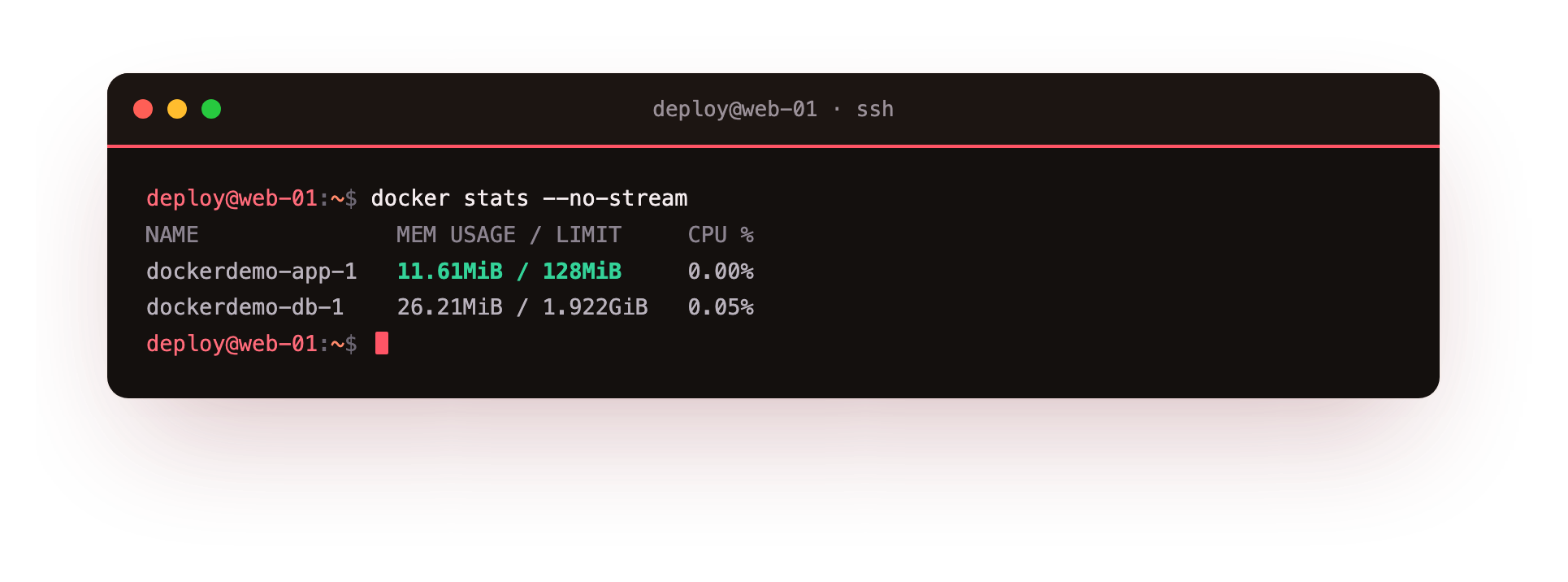
The app is using about 12 MB against its 128 MB ceiling, with plenty of headroom, and the database is comfortable too.
The number that matters is the limit: if the app ever leaked memory, it would be killed and restarted at 128 MB instead of consuming the whole 1.9 GB box and taking the database down with it.
You size these from what your services actually use in docker stats under load, plus a margin, not from guesses. On a small VPS this one habit is the difference between one sick container and a dead server.
How do you put HTTPS in front of a container?
Notice that your app's port is mapped to 127.0.0.1:3100, reachable only from the server itself, and your database is not exposed at all. That is deliberate. Nothing in the stack faces the internet directly. The public front door is nginx, exactly as in the deployment guide, sitting on the host and reverse-proxying to the app's local port:
location / {
    proxy_pass http://127.0.0.1:3100;
    proxy_set_header Host              $host;
    proxy_set_header X-Forwarded-Proto $scheme;
}
This is the same pattern as before and it composes cleanly with containers: nginx terminates TLS with your Let's Encrypt certificate on the host, and forwards plain HTTP to the container on localhost. You get HTTPS, a single public entry point, and the freedom to run many stacks on one server, each on its own local port behind its own server_name. The container does not need to know TLS exists, and your database stays completely unreachable from outside.
Start the stack on boot
restart: unless-stopped brings containers back when Docker starts, but on a fresh reboot something has to start the stack the very first time in its project directory. The clean way is a tiny systemd unit that runs docker compose up for your project, so the stack is a proper system service:
[Unit]
Description=shopapp stack
Requires=docker.service
After=docker.service

[Service]
Type=oneshot
RemainAfterExit=yes
WorkingDirectory=/opt/shopapp
ExecStart=/usr/bin/docker compose up -d
ExecStop=/usr/bin/docker compose down

[Install]
WantedBy=multi-user.target
enable it and your whole stack now comes up on boot and shuts down cleanly on systemctl stop, managed alongside every other service on the machine.
Shipping a new version
Deploying an update is two commands, and Compose only recreates what changed:
docker compose pull      # get new versions of image-based services
docker compose up -d      # recreate only the containers that changed
For your own app, rebuild and bring it up: docker compose up -d --build. Compose compares the desired state to the running state and touches only what differs, leaving the database container alone if only the app changed. Your volume keeps the data safe across the swap. For genuinely zero-downtime updates you would put two app replicas behind nginx as in the deployment guide, but for most stacks the brief recreate of a single stateless app container, with the database untouched, is perfectly acceptable.
Docker Compose security habits for production
Three defaults separate a container deployment that contains a breach from one that hands over the whole server. None cost anything.
Run as non-root inside the container. Your Dockerfile already has USER node. This matters because a process that breaks out of a container running as root can be root on the host; a non-root process cannot. Always drop to an unprivileged user.
Never expose the database. Your db service has no ports: mapping, so it is reachable only by other containers in the stack, never from the host or the internet. The moment you add ports: ["5432:5432"] to "just check something," your production database is on the public internet with a password you probably chose quickly. Do not. If you must reach it, use docker compose exec db psql or an SSH tunnel.
Never mount the Docker socket into a container. You will see tutorials that mount /var/run/docker.sock into a container for convenience. That socket is root on the host: a container with it can create new containers, mount the host filesystem, and own the machine. A compromise of that one container is a compromise of everything. Unless you deeply understand the trade-off, never do it.
Troubleshooting the production stack
The stack does not come back after a reboot. restart: unless-stopped only helps once Docker has started a container at least once this boot. On a fresh reboot something has to run docker compose up. Install and systemctl enable the systemd unit above so the stack starts on boot.
A container is repeatedly killed as "OOMKilled." Its memory limit is below what it actually uses. Check real usage with docker stats under load, then raise the memory: limit with a margin. A limit set too tight causes a restart loop.
nginx returns 502 Bad Gateway. nginx cannot reach the app on its local port. Confirm the container is up with docker compose ps, that the proxy_pass port matches the published host port, and that the app is bound to 127.0.0.1.
The memory limit seems to be ignored. On some hosts the kernel cgroup memory controller is not enabled. Check docker info for a warning, and enable cgroup memory at the kernel command line as your distribution documents if limits do not apply.
Frequently asked questions
What is the difference between restart: unless-stopped and restart: always?
Both restart a crashed container and bring it back when Docker starts. always also restarts a container you stopped by hand the next time Docker starts, while unless-stopped leaves it stopped. Most stacks want unless-stopped.
How do I choose memory and CPU limits?
Measure real usage with docker stats under load, then set the limit above the peak with a margin. Too low and the container is OOM-killed in a loop; too high and the limit no longer protects the other containers.
Does the app need its own TLS certificate?
No. nginx on the host terminates TLS and proxies plain HTTP to the container on localhost. The container never handles certificates, so you add HTTPS once at the edge for every stack behind that nginx.
How do I deploy a new version without editing running containers by hand?
Run docker compose pull then docker compose up -d, or docker compose up -d --build for your own image. Compose recreates only the containers that changed and leaves the database and its volume alone.
What you have built
Step back and look at the whole series. You started not knowing the difference between an image and a container. You now have your own application packaged into a small, non-root, reproducible image; a whole stack of app and database described in one file, connected by name, with data safe in a volume; and that stack running in production with automatic restarts, resource caps, HTTPS out front, boot persistence, and the security defaults that keep a container breach contained. Every command ran on one small VPS.
That is Docker in production, done properly, and it is the same foundation whether you are running one stack or twenty. When you outgrow a single box, the concepts carry directly to an orchestrator, but the mental model, images, containers, compose, volumes, limits, is exactly what you have here, and most applications never need more than this.