What Docker containers solve, for a beginner on a VPS
This chapter is a beginner's introduction to Docker on a VPS: you run your first container in a single command and learn the one distinction, image versus container, that trips people up. By the end you have run a real web server in isolation on a live server, then removed it cleanly.
- An image is a read-only template; a container is a running instance of it, and one image can run many containers.
docker runpulls an image and starts it as a container in a single command, with no build step of your own.- Binding a port to
127.0.0.1keeps a container off the public internet until you deliberately put a reverse proxy in front. - Containers are disposable:
docker rm -fremoves one cleanly and leaves the image and the host untouched.
You have heard the phrase "works on my machine," usually said with a shrug while something breaks in production. It happens because your laptop, your colleague's laptop, and your server are three subtly different computers: different library versions, different Node or Python, different system packages, different everything. Your code depends on all of it, silently, and the differences are where deployments break.
A container fixes this by shipping your code together with the exact environment it needs, as one sealed unit. Not a whole virtual machine with its own operating system, which is heavy and slow, but a lightweight box that shares the host's kernel while keeping its own filesystem, its own processes, and its own view of the world. The container that runs on your laptop is byte-for-byte the same one that runs on the server. "Works on my machine" becomes "works everywhere, because it is literally the same machine, packaged."
This chapter runs your first container on a live Ubuntu 24.04 LTS server and, along the way, makes concrete the one distinction that confuses everyone at the start: the difference between an image and a container.
Let's build.
Prerequisites
- An Ubuntu 24.04 LTS server, any small VPS is fine, with a user that can run
sudo. - Docker Engine installed. Confirm it with
docker --version. - Your user added to the
dockergroup, or the habit of prefixing these commands withsudo.
What is the difference between an image and a container?
Almost every early Docker confusion traces back to blurring these two words, so pin them down now.
An image is the sealed, read-only template: your code plus its environment, frozen. It is like a class in programming, or a cookie cutter. It sits on disk doing nothing until you use it.
A container is a running instance of an image. It is the object created from the class, the cookie cut from the cutter. You can run many containers from one image, each isolated from the others, and when a container stops it can be thrown away without touching the image it came from.
You build an image once and run it as containers many times. Hold that and the rest of Docker stops being mysterious.
Run something real in one command
You do not need to build anything to see this work. There are millions of prebuilt images on Docker Hub, and you can run one immediately. Run the nginx web server, in the background, with its port 80 mapped to port 8080 on the server:
docker run -d -p 127.0.0.1:8080:80 --name web nginx:alpine
Every flag here teaches something. nginx:alpine is the image to run, pulled automatically if you do not have it. -d runs it detached, in the background, so you get your terminal back. --name web gives the container a friendly name instead of a random one. And -p 127.0.0.1:8080:80 is the important one: it maps port 8080 on the server to port 80 inside the container, so requests to the server on 8080 reach nginx inside.
Notice the 127.0.0.1: in front. Just like an app, a container should not expose itself to the whole internet unless you mean to. Binding to 127.0.0.1:8080 makes it reachable only from the server itself, so nginx sits safely behind your firewall until you deliberately put a reverse proxy in front. -p 8080:80 without the address would open it to the world.
Ask Docker what is running:
docker ps
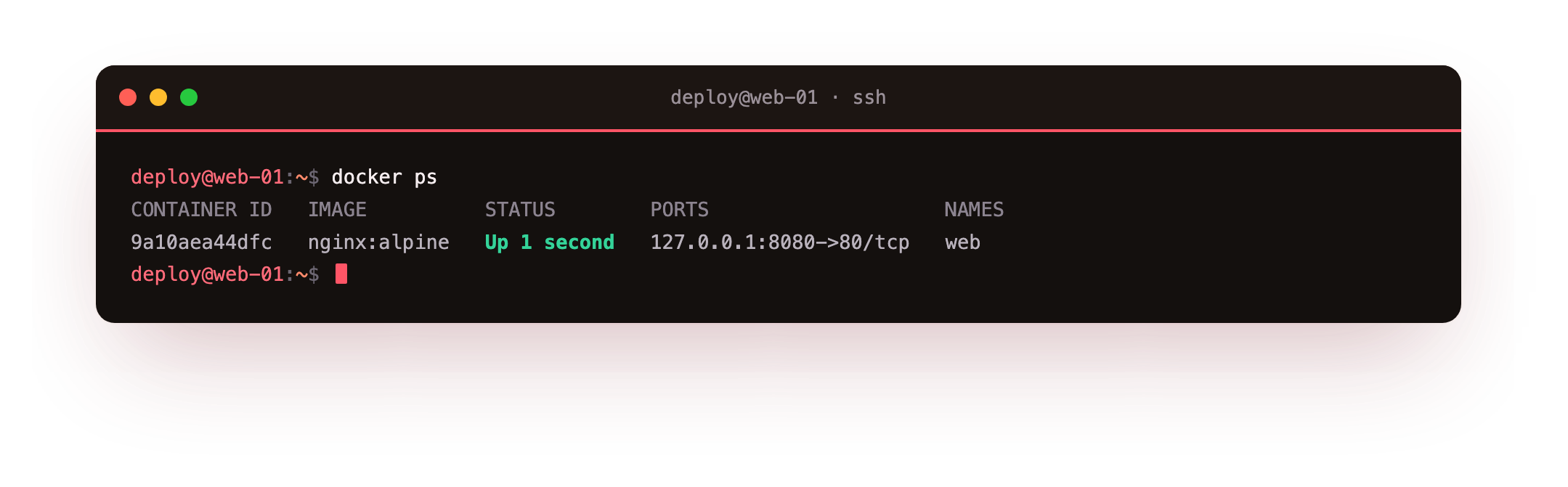
There is your container: the web name, the nginx:alpine image, its status, and the port mapping 127.0.0.1:8080->80/tcp. It has been running for less than a second and it is already serving. Confirm it:
curl -sI http://127.0.0.1:8080/
You get HTTP/1.1 200 OK and a Server: nginx header. A full web server, running in isolation on your box, from a single command, with nothing installed on the host except Docker itself. If you ran that same command on your laptop, you would get the identical nginx, because it is the identical image.
Containers are disposable, and that is the point
Here is the mental shift that makes containers powerful: they are cattle, not pets. You do not lovingly maintain a container, patch it, and nurse it back to health. You throw it away and start a fresh one from the image. Stop and remove this one:
docker rm -f web
It is gone completely, with no trace left on the host, no leftover config, no half-uninstalled packages. The image is untouched, sitting on disk, ready to produce a new identical container the instant you run it again. This disposability is why containers are so good for deployment: shipping a new version is not "carefully update the running thing," it is "stop the old container, start a new one from the new image." No drift, no accumulated cruft, no surprises.
Anything that needs to survive a container being thrown away, like a database's data, is kept deliberately outside the container in a volume, which is exactly what the compose chapter sets up. Everything else is disposable by design.
Where images come from, and a word of caution
The nginx image you just ran came from Docker Hub, the public registry of prebuilt images. It is enormously useful and also a supply-chain surface you should treat with some care. A few habits that cost nothing and save you:
Pin to a specific tag rather than latest. nginx:alpine is better than nginx, and nginx:1.27-alpine is better still, because latest silently changes underneath you and turns "it worked yesterday" into a debugging session.
Prefer official images (the ones without a publisher prefix, like nginx or postgres) and well-known publishers over random ones.
And prefer -alpine variants when they exist: they are built on a tiny Linux base, so they are smaller to pull, faster to start, and have less installed to attack. The nginx you ran is a fraction of the size of the full one for exactly this reason.
Troubleshooting your first container
docker run fails with a "permission denied" error on the Docker socket. Your user is not in the docker group. Either run the command with sudo, or add yourself with sudo usermod -aG docker $USER and open a fresh login shell so the new group membership takes effect.
The run fails with "port is already allocated." Something already listens on 8080. Pick another host port, for example -p 127.0.0.1:8081:80, or stop whatever is holding 8080.
docker: conflict, the container name "web" is already in use. You already have a container by that name from an earlier run. Remove it with docker rm -f web and try again, or choose a different --name.
curl http://127.0.0.1:8080/ refuses the connection or hangs. The container may have exited. Run docker ps -a to see its real status and docker logs web to read why it stopped.
Frequently asked questions
Do I need to install anything besides Docker to run a container?
No. docker run pulls the image from Docker Hub and starts it, so a server with only Docker Engine can run nginx, or any public image, without installing that software on the host itself.
What is the difference between docker stop and docker rm?
docker stop halts a running container but keeps it, so you can start it again later. docker rm deletes a stopped container for good. docker rm -f does both in one step.
Is a container the same as a virtual machine?
No. A virtual machine runs its own full operating system, which is heavy. A container shares the host kernel and isolates only its filesystem and processes, so it starts in a fraction of a second and uses far less memory.
Where does the nginx image go after I pull it?
Docker caches it on the server's disk, so the next docker run starts instantly with no download. Run docker images to list what is cached and docker rmi to remove an image you no longer need.
What you have, and what comes next
You now understand the two words that matter, images and containers, and you have run a real service on a live server with a single command, mapped to a safe local port, and thrown it away cleanly. That is the whole basic loop: pull an image, run it as a container, dispose of it.
But you did not run your app, you ran someone else's nginx. The next chapter builds an image of your own application: a Dockerfile that packages your code and its dependencies into that sealed, portable unit, so that your app becomes one of these run-anywhere images too.