Which question actually matters?
To detect a server compromise you watch the things a break-in disturbs: the logs, the audit trail, and the files that should never change. This chapter sets up that visibility, using real attack data from a live server.
- Assume a break-in will eventually happen; detection answers "would I even know?" rather than "am I secure?"
journalctlalready shows the real, ongoing SSH attack traffic, andauditdrecords who ran what and which files changed.- A file-integrity tool such as AIDE flags a file that should never change, one of the quietest signs of a compromise.
- Detection is worthless without alerting and long-enough retention; keeping 180 days of logs also satisfies India's CERT-In rule, so you set it once.
Every chapter so far has been about keeping attackers out. This one starts from a harder, more honest place: assume one gets in anyway.
Because they might. A new vulnerability, a leaked credential, a mistake at 2am. Hardening lowers the odds, it does not make them zero. So the real question is not "is my server secure?" It is "if something got in right now, would I ever know?"
For most servers, the answer is no. They have no idea what is happening on them until something is obviously, catastrophically wrong. This chapter is about being able to see. Everything here is shown on Ubuntu 24.04 LTS.
Prerequisites
- A running Ubuntu 24.04 LTS server you can reach with
sudo, ideally hardened as in the earlier chapters. - SSH exposed to the internet, so the auth log already has real attempts to read; a brand-new box may need an hour or two online first.
- Room to install a few packages (
auditd,aide,rkhunter) as the chapter goes.
You are already under attack, and the log proves it
Your server writes down every login attempt. Most people never read it. Look at yours:
sudo journalctl -u ssh | grep -iE "invalid user|failed password" \
  | grep -oE "from [0-9.]+" | sort | uniq -c | sort -rn | head
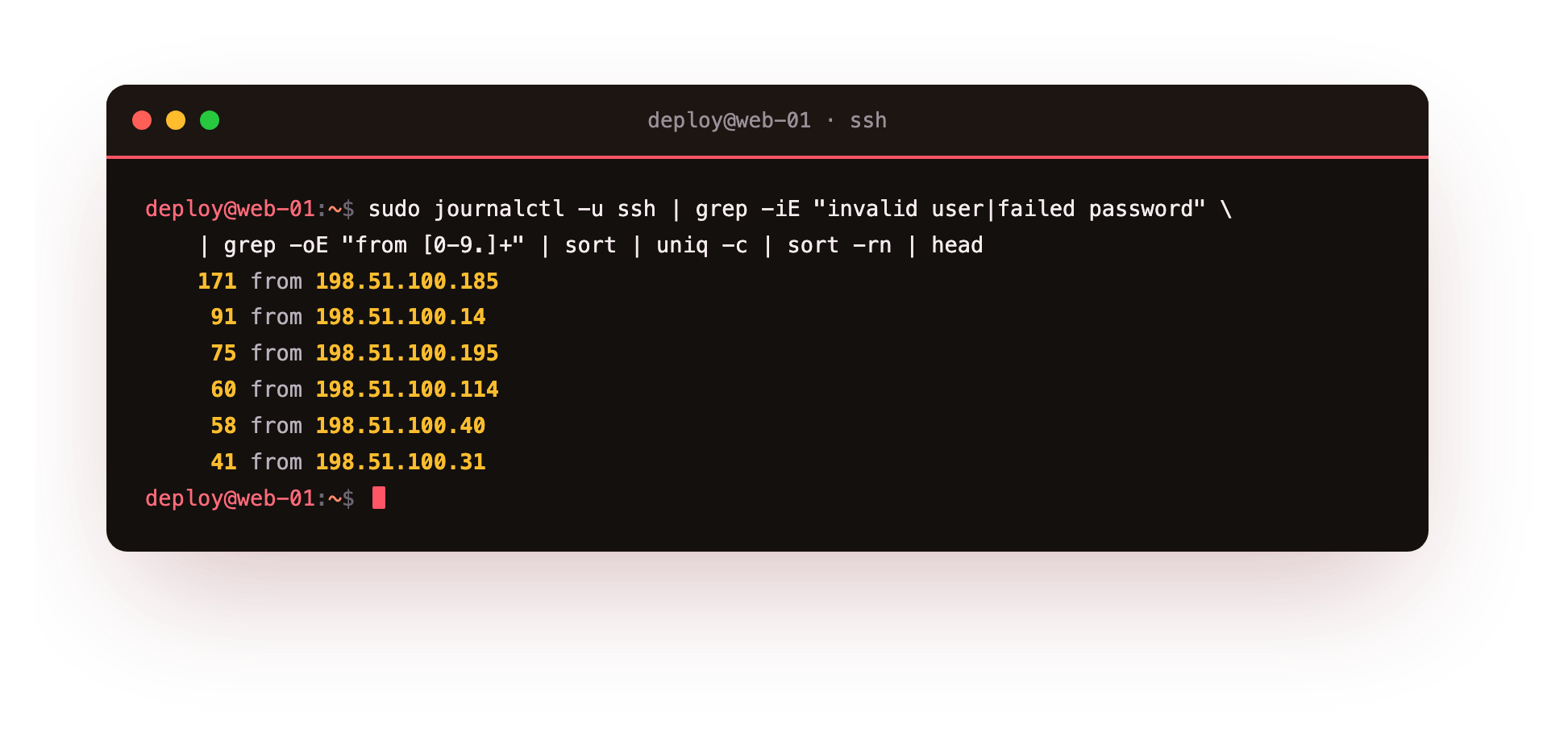
On our test server, quietly online for a few hours, this is what came back: one IP with 171 attempts, another with 91, another with 75, and a long tail behind them. Thousands of tries, all failed, all automated, all logged. Look at what they were guessing:
sudo journalctl -u ssh | grep -i "invalid user" | tail
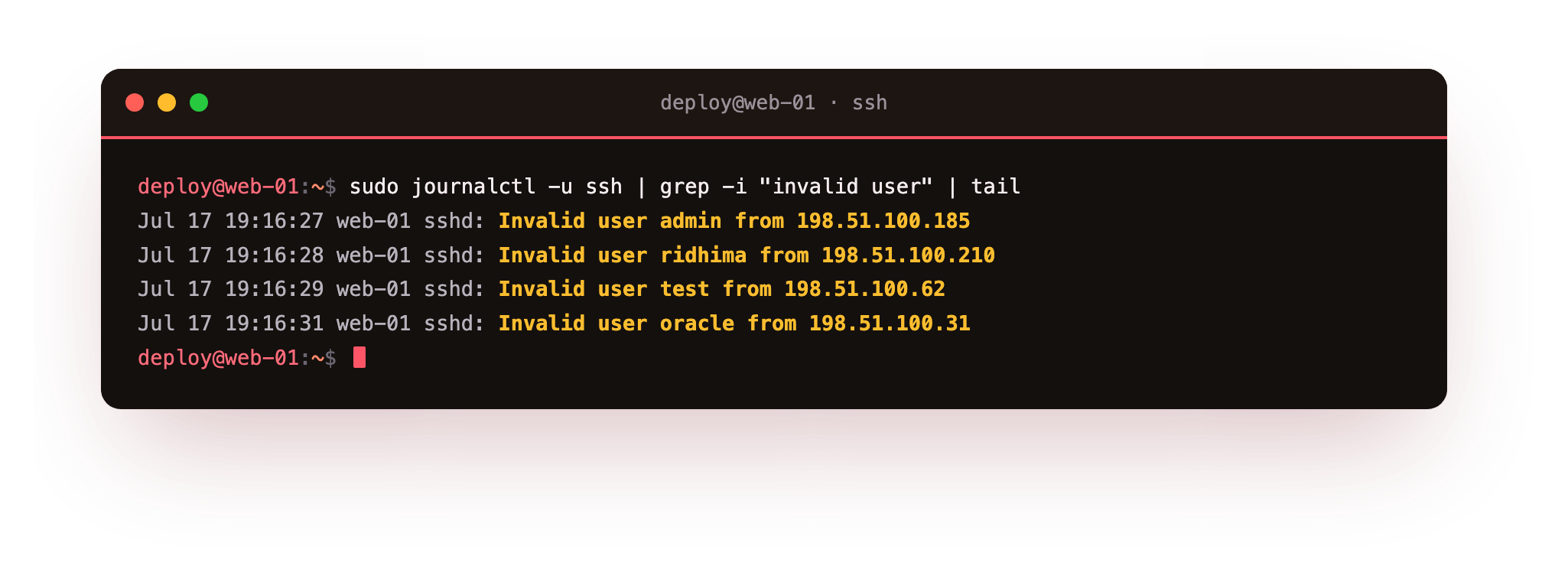
admin, ridhima, test, oracle, ubuntu, a dictionary of hopeful usernames. None of them got in, because of the first chapter. But the point is this: it was all recorded, in real time, and you can read it. A log you never open is a security camera pointed at a wall.
Install the flight recorder
The system journal captures logins. For everything else, auditd is the flight recorder: it records who ran what, which files were touched, and when, in a tamper-evident log.
sudo apt install auditd
sudo systemctl status auditd
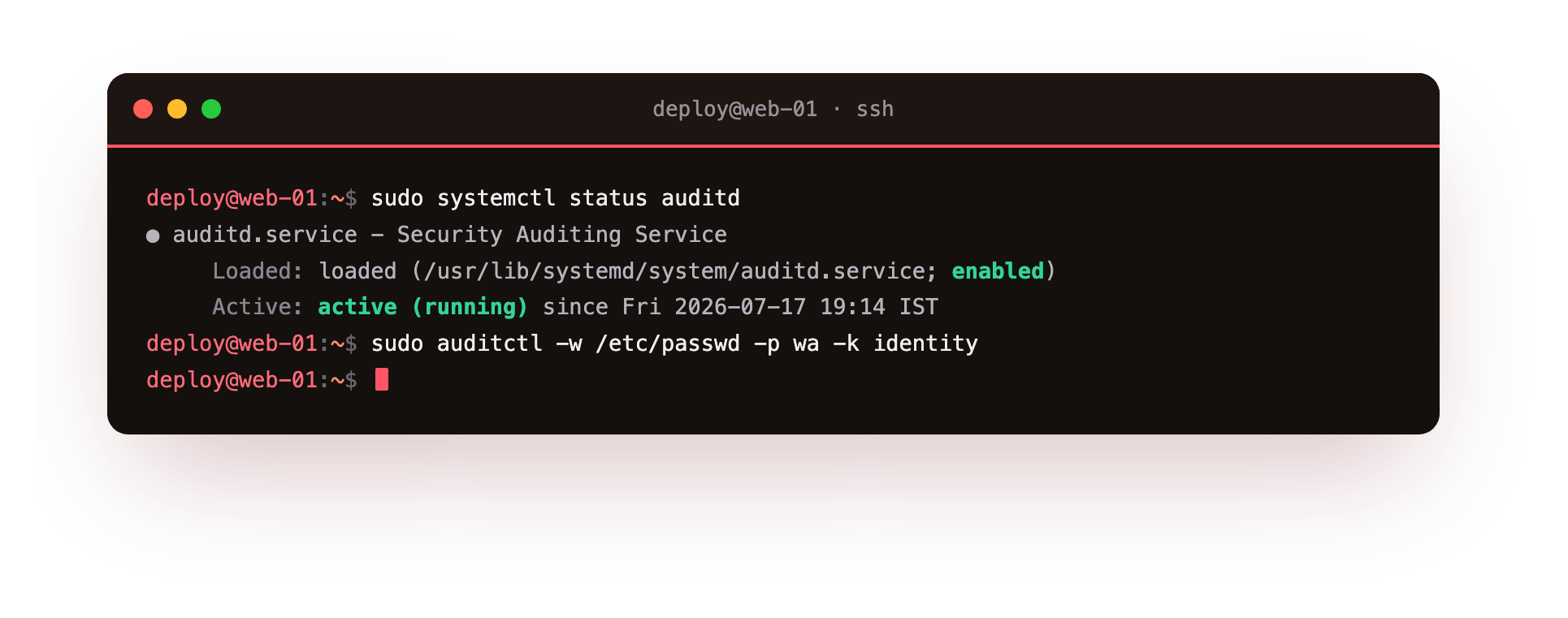
It reports active and starts recording immediately. Out of the box it watches system calls; you add rules for the things that matter to you. Two worth having on any server, watch for changes to the password file and to the SSH config:
sudo auditctl -w /etc/passwd -p wa -k identity
sudo auditctl -w /etc/ssh/sshd_config -p wa -k sshd_config
Now if anyone, or anything, modifies those files, there is a dated, attributed record of it. After an incident, that record is the difference between "we think" and "we know."
Know when a file changes that should not
Most of a server never changes. Your system binaries, your config files, your web root between deploys, they should be static. When one of them changes on its own, that is a signal.
A file-integrity tool takes a fingerprint of the files that should stay put, then tells you when one of them differs. AIDE is the standard on Debian and Ubuntu: you build a baseline once, then run a check on a schedule. A changed hash on /bin/ls or an unexpected new file in your web root is exactly the kind of quiet sign that a break-in leaves behind, and exactly the kind of thing you will never notice by eye.
Learn the shape of "normal"
You cannot spot wrong if you do not know what right looks like. Four quick checks tell you most of what you need, and they are worth running when the server is healthy so you know its baseline:
- What is listening?
sudo ss -tulpn, from the first chapter. A port you do not recognise is the clearest sign of an unwanted guest. - What is running?
ps aux --sort=-%cpu | head. A process you cannot explain, especially one burning CPU, is worth chasing (crypto-miners are the classic). - Who has an account?
cut -d: -f1 /etc/passwd. A user you did not create is a red flag. - What runs on a schedule?
sudo crontab -landls /etc/cron.*. Attackers love a cron job for persistence, so they survive a reboot.
None of these takes a minute. Run them when things are calm, and the abnormal jumps out later.
The specific signs of a break-in
Vague advice to "look for anything unusual" is useless under pressure. Here is what a compromise concretely leaves behind, and how to check for each:
- A new program that runs itself as root. Attackers plant SUID binaries so they can regain root at will. Find any that appeared recently:
sudo find / -perm -4000 -type f -newermt "7 days ago" 2>/dev/null. Anything in the list you cannot explain is a serious signal. - A scheduled task you did not write. Persistence often hides in cron. Check every user's crontab and the system directories:
sudo ls -la /etc/cron.* /var/spool/cron/crontabs/ 2>/dev/null. - A file changed that never changes. If you set up file integrity earlier, its report is the first place to look. Without it,
sudo find /etc -newermt "2 days ago" -type fshows what changed in your config directory recently. - An outbound connection you did not start. Miners and data exfiltration both phone home.
sudo ss -tnp state establishedlists every live connection with its process; a connection to a foreign IP from a process you do not recognise is the clearest red flag there is.
For a second opinion, a dedicated scanner like rkhunter (sudo apt install rkhunter && sudo rkhunter --check) compares your system against known-rootkit signatures and flags suspicious file changes. It produces false positives, so read its output rather than trusting the headline, but it catches the well-known kits that hand-checking can miss.
Keep the logs long enough to matter
There is a second reason to care about logs, beyond catching things in the moment: you often only realise you were compromised weeks after it happened, and by then the evidence has to still exist. A journal that rotates away after a few days leaves you blind about anything older.
Set a real retention window. In /etc/systemd/journald.conf, cap the journal by size and age rather than letting the default quietly discard history:
[Journal]
SystemMaxUse=2G
MaxRetentionSec=180day
Six months is not an arbitrary number here: as the next chapter covers, it is also what India's CERT-In directions require you to keep. Setting it now means your detection and your compliance are the same setting, done once.
Logs nobody reads are just disk usage
Here is the trap. You can set all of this up, generate perfect logs, and still be blind, because nobody is looking at them. Detection only works if something surfaces the signal to a human before the damage is done.
That means alerting: a rule that watches the logs and messages you when a threshold is crossed, a burst of sudo failures, a new listening port, a file-integrity mismatch. It can be as simple as a script that emails you, or a proper stack (we run Prometheus, Loki, and Alertmanager). The tool matters less than the fact that a person finds out while it still matters, not a week later from a customer.
Troubleshooting detection
Your auditctl rules vanished after a reboot. Rules added with auditctl -w are live but not persistent. To survive a restart, write them into a file under /etc/audit/rules.d/ (for example audit.rules) and reload with sudo augenrules --load. Confirm they are active again with sudo auditctl -l.
There is nothing in the journal to investigate. If the log only goes back a day or two, the default rotation discarded the rest. That is exactly why you set SystemMaxUse and MaxRetentionSec in /etc/systemd/journald.conf before you need the history, then run sudo systemctl restart systemd-journald. You cannot investigate a week-old event with a two-day journal.
rkhunter reports warnings on a clean server. Some warnings are expected: a package update legitimately changes a binary's hash, and a few checks flag normal system files. After any deliberate change, run sudo rkhunter --propupd to re-baseline, then read each remaining warning rather than trusting the summary line. Treat it as a prompt to look, not a verdict.
What detecting a server compromise still does not do
Detection tells you something happened. It does not fix it, and it does not watch itself.
An alert at 3am is only useful if someone sees it and acts. A file-integrity report is only useful if someone reads it. The logs will faithfully record your breach in real time and do absolutely nothing to stop it, if no one is on the other end.
This is the honest limit of doing it yourself, and it is where our own thinking landed years ago. You can install every tool in this chapter in an afternoon. Keeping watch, actually being the person who wakes up to the alert and knows what to do next, is not a task, it is a rota.
We had a client whose server was quietly mining crypto for a week before anyone noticed the bill. Everything to catch it was installable. Nobody was watching. That gap, between "we could have known" and "someone knew, and acted," is the entire value of a monitored service. It is the part that does not fit on a checklist, and the part we carry so you do not have to be awake for it.
Key facts
- Your server logs every login attempt.
journalctl -u sshshows the real, ongoing attack traffic; on a fresh server it is already hundreds of failed tries. auditdrecords who ran what and which files changed, the tamper-evident record you need after an incident.- File-integrity tools (AIDE) alert you when a file that should be static changes, a quiet sign of compromise.
- Learn your server's "normal": listening ports, running processes, user accounts, cron jobs. The abnormal only stands out against a known baseline.
- Logs with no alerting are useless. Detection works only when a human is told in time to act.
Frequently asked questions
If my server is hardened, do I still need monitoring?
Yes, more than ever. Hardening reduces the chance of a break-in; monitoring is how you find out about the one that gets through anyway. Assuming you are un-hackable is how breaches go unnoticed for months.
Isn't reading logs a full-time job?
Reading them by hand is. That is why alerting exists: you define what "abnormal" looks like once, and you only get pulled in when it happens. The setup is a few hours; the watching is what a monitored service handles.
What is the single most useful check?
sudo ss -tulpn, to know exactly what is listening. An unexpected open port is the most common and clearest sign that something is on your server that should not be.
How would I know if I'd already been compromised?
The four baseline checks (ports, processes, users, cron) plus a look through auditd and the auth logs for activity you cannot explain. If you have no baseline and no logs, the honest answer is that you would not know, which is the reason to set this up before you need it.