What you will have
This tutorial shows you how to back up WordPress on a VPS in a way you can trust, because it ends with a restore you have actually done rather than a folder of archives you hope would work. A backup you have never restored is not a backup, it is a guess, and the whole point of what follows is to turn that guess into proof.
By the end you will have a single script that dumps your database and files into one timestamped archive, sends it to offsite object storage, runs itself every night, and prunes old copies. Then you will break the site on purpose and bring it back from that archive.
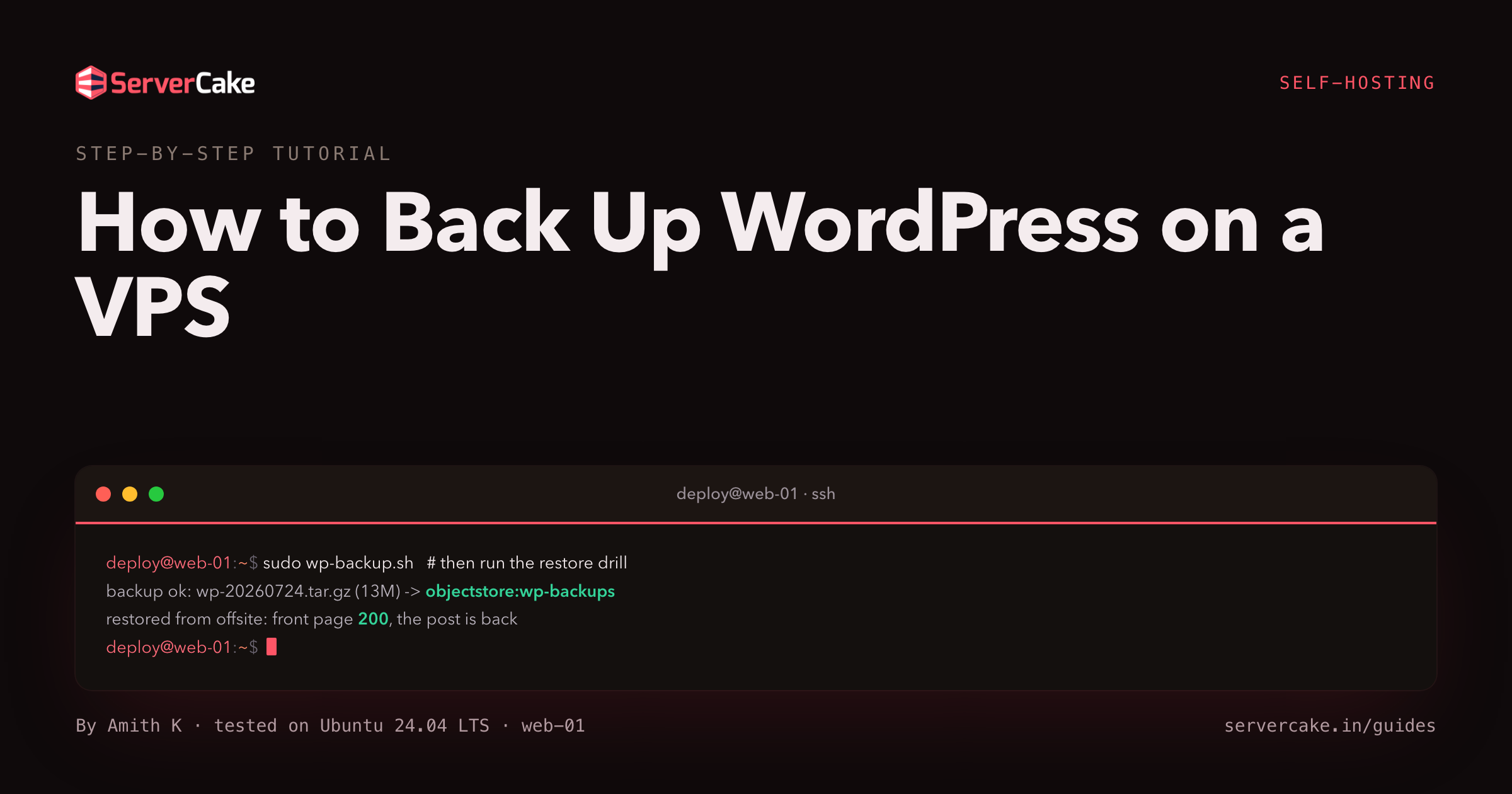
Here is the destination, shown first. This is the exact arc captured on the site we protected while writing this, a small slice running WordPress behind nginx.
# the payoff: a backup runs, then a restore proves it
sudo /usr/local/bin/wp-backup.sh
# ... then simulate a disaster and restore from the offsite copy  (prove a backup by restoring it)
curl -s -o /dev/null -w 'before   %{http_code}\n' https://your-domain/    # 200
# drop the database, wipe wp-content, restore from offsite, then:
curl -s -o /dev/null -w 'restored %{http_code}\n' https://your-domain/    # 200
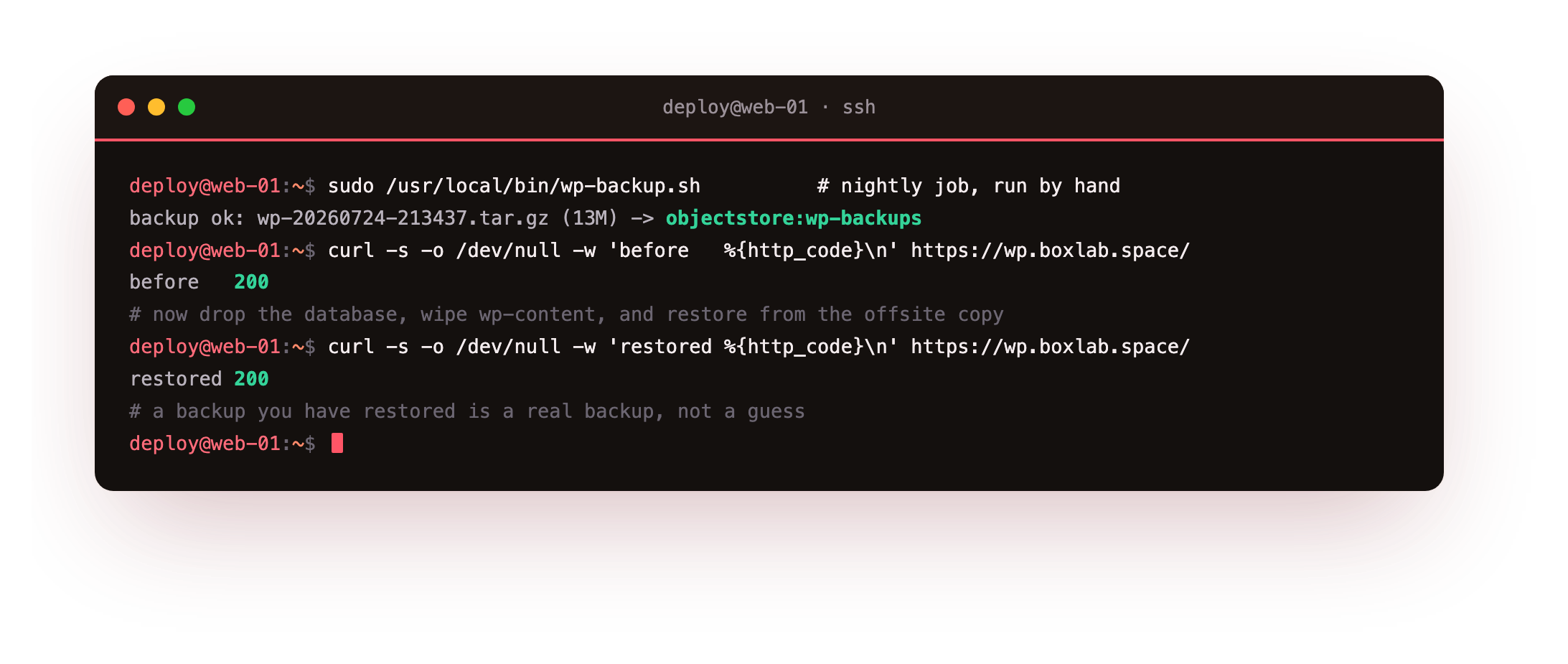
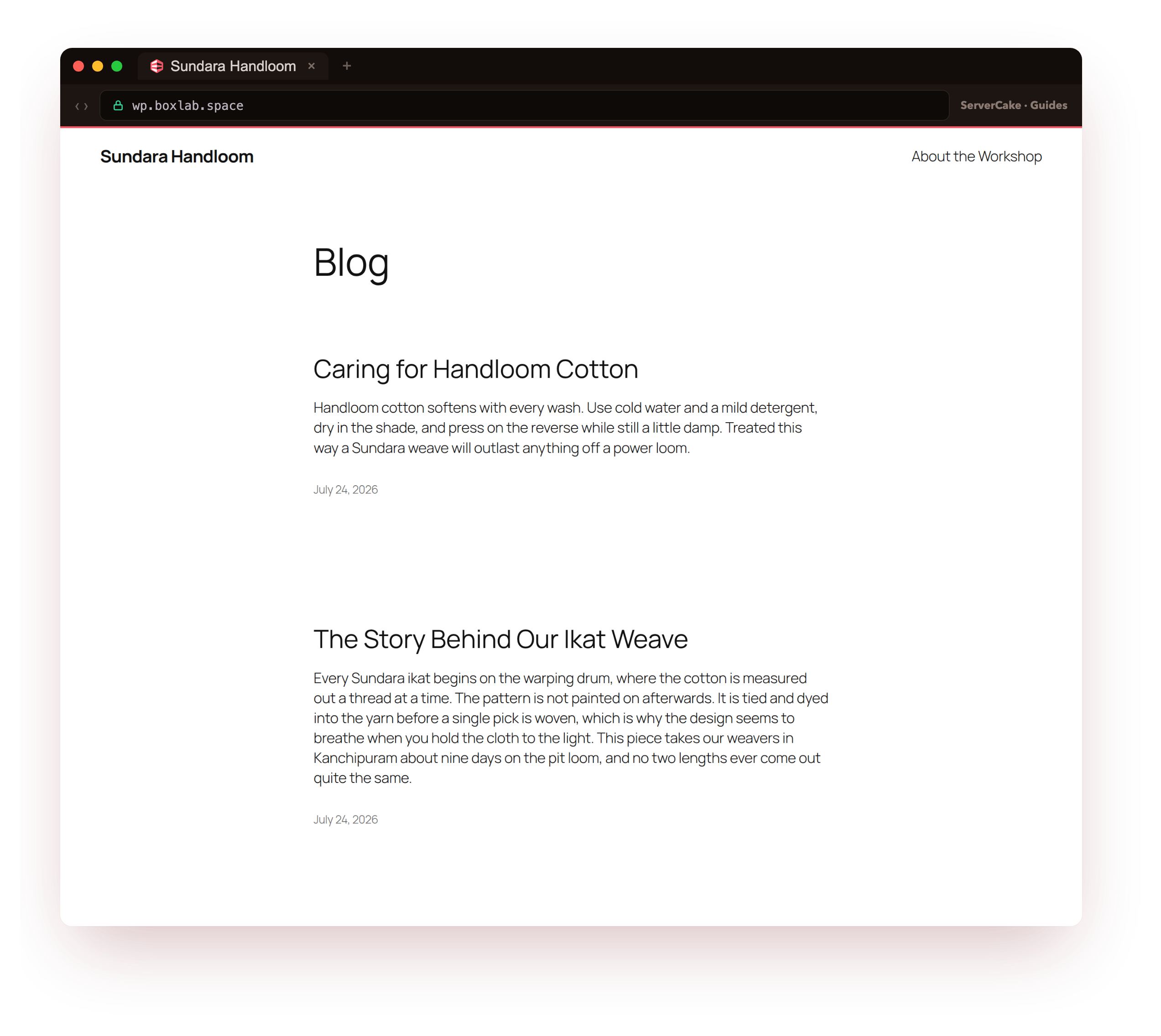
On our box that backup wrote a 13M archive and pushed it offsite, and after we dropped the database and deleted the files, the restore brought the site back to a 200 with every post in place. That is the difference between a backup you own and a backup you assume.
- What actually needs backing up: the database, the files in wp-content, and wp-config.php.
- A clean backup script that dumps the database with mysqldump and tars the files into one archive.
- Pushing each archive offsite to S3-compatible object storage with rclone.
- Automating it with a systemd timer and setting retention so old copies get pruned.
- A real restore drill: break the site, restore from the offsite archive, and verify a post is back.
The theme running through all of it is that a backup only counts once you have restored from it. Anyone can schedule a tar. The work is in sending it somewhere safe and in rehearsing the recovery so that on the day you need it, you are running a routine and not an experiment.
Before you begin
This tutorial protects a site that already runs, so it assumes you have one to work on.
- A live WordPress site on a slice, served over HTTPS by nginx and PHP-FPM, set up with how to install WordPress on a VPS. The steps here assume that same Ubuntu 24.04 stack of nginx, PHP 8.3-FPM and MariaDB.
- SSH access to the slice as a normal user cleared for
sudo. - An object-storage bucket to hold the offsite copies. We use ServerCake Object Storage, which speaks the S3 API, so the same commands work with any S3-compatible target.
Every command below runs over SSH as an ordinary user who has sudo rights on the slice. Steps that need root call sudo where they need it. Swap your-domain, /var/www/wp and the database names for your own as you go.
How to back up WordPress on a VPS
There is no single button that makes a WordPress site safe, so the job is a short sequence of parts that each remove one excuse not to have a backup. You will back up WordPress on a VPS by working through them in order:
- Decide what to back up: the database, the files, and the config that ties them together.
- Write one script that turns those into a single timestamped archive.
- Send every archive offsite, because a copy on the same disk dies with the disk.
- Automate the script nightly and set retention so it does not fill the disk.
- Rehearse the restore, so recovery is a drill you have run and not a page you have read.
Each part builds on the one before it, and the last part is the one that matters, so do not skip the restore drill at the end just because the archives look healthy.
What to back up: the database and the files
A WordPress site is two very different things stored in two very different places, and a backup that misses either one is useless. The database, held in MariaDB, contains every post, page, comment, user and setting. The files, held on disk under wp-content, contain your uploads, themes and plugins. Tying them together is wp-config.php, which holds the database name and password plus the secret keys, so it belongs in the backup too.
# the three things a WordPress backup must capture
du -sh /var/www/wp/wp-content                                   # 1. files: uploads, themes, plugins
mysql -N -e 'SELECT COUNT(*) FROM information_schema.tables WHERE table_schema="wp_sundara"'  # 2. database tables
stat -c '%a %n' /var/www/wp/wp-config.php                        # 3. the config that connects them
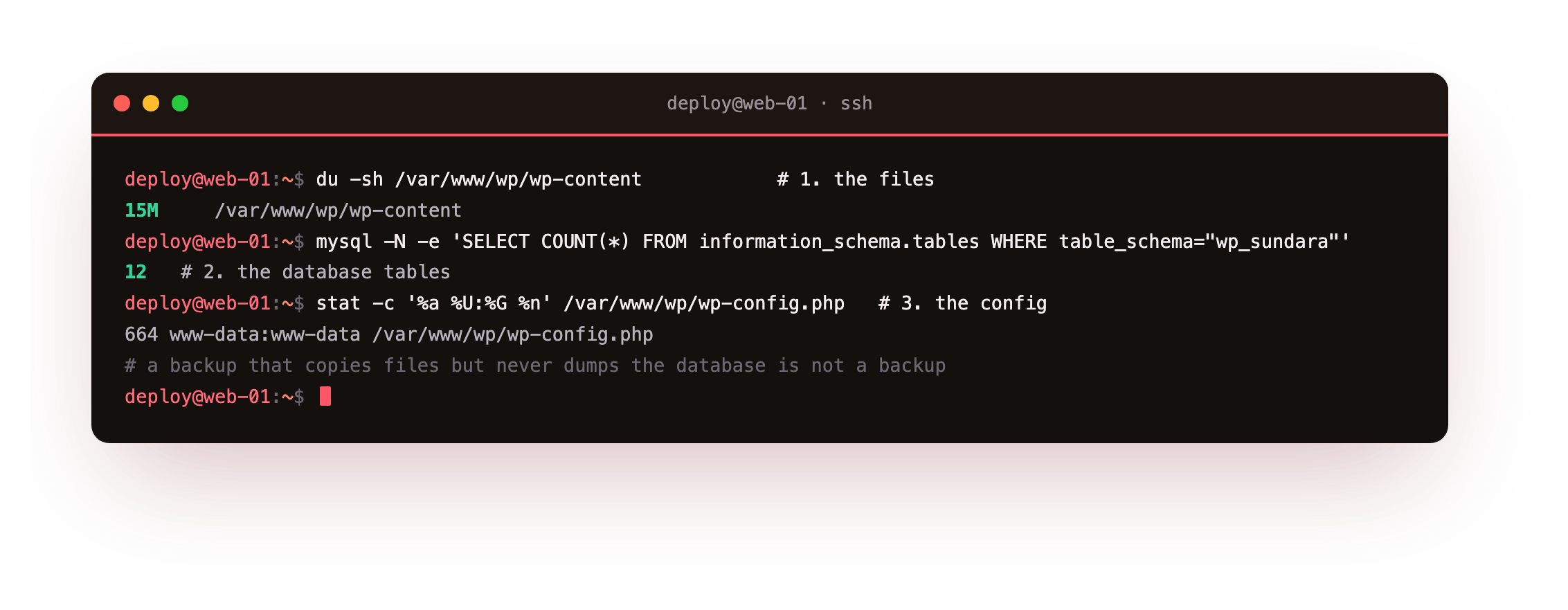
On our box wp-content was 15M, the database held 12 tables, and wp-config.php was the small file that makes the other two mean something. Core WordPress files, the ones in wp-admin and wp-includes, are not in this list on purpose, because they are identical for every site and you can re-download them in seconds. Backing up the database and the files, and skipping replaceable core, keeps each archive small and every restore fast.
wp-content directory, plus wp-config.php. If a backup tool only copies files and never touches the database, it is not backing up your content.Write the backup script
The backup itself is one script. It reads the database credentials straight out of wp-config.php so nothing is duplicated, dumps the database with mysqldump, and rolls the dump together with the files into a single archive named by the date and time. Save this as /usr/local/bin/wp-backup.sh.
#!/usr/bin/env bash
# Back up a WordPress site: database + files into one timestamped archive.
set -euo pipefail
WPROOT=/var/www/wp
WORK=/var/backups/wordpress
STAMP=$(date +%Y%m%d-%H%M%S)
mkdir -p "$WORK"

# read the database credentials straight out of wp-config.php (no second copy to drift)
cfg() { sed -n "s/.*define( *'$1', *'\([^']*\)'.*/\1/p" "$WPROOT/wp-config.php"; }
DB_NAME=$(cfg DB_NAME); DB_USER=$(cfg DB_USER); DB_PASS=$(cfg DB_PASSWORD); DB_HOST=$(cfg DB_HOST)

# 1. database -> a consistent SQL dump, without locking the live site
mysqldump --single-transaction --quick --default-character-set=utf8mb4 \
  -h"$DB_HOST" -u"$DB_USER" -p"$DB_PASS" "$DB_NAME" > "$WORK/db-$STAMP.sql"

# 2. files (wp-config + wp-content) + the dump -> one archive
tar -czf "$WORK/wp-$STAMP.tar.gz" -C "$WPROOT" wp-config.php wp-content -C "$WORK" "db-$STAMP.sql"
rm -f "$WORK/db-$STAMP.sql"
echo "archive: $WORK/wp-$STAMP.tar.gz"
Two flags on mysqldump earn their place. --single-transaction takes the dump inside one transaction so the site keeps serving and the data stays consistent, and --quick streams rows instead of buffering the whole table in memory, which matters once a site has grown. Make the script executable and run it once.
sudo chmod +x /usr/local/bin/wp-backup.sh
sudo /usr/local/bin/wp-backup.sh
ls -lh /var/backups/wordpress/
tar -tzf /var/backups/wordpress/wp-*.tar.gz | head
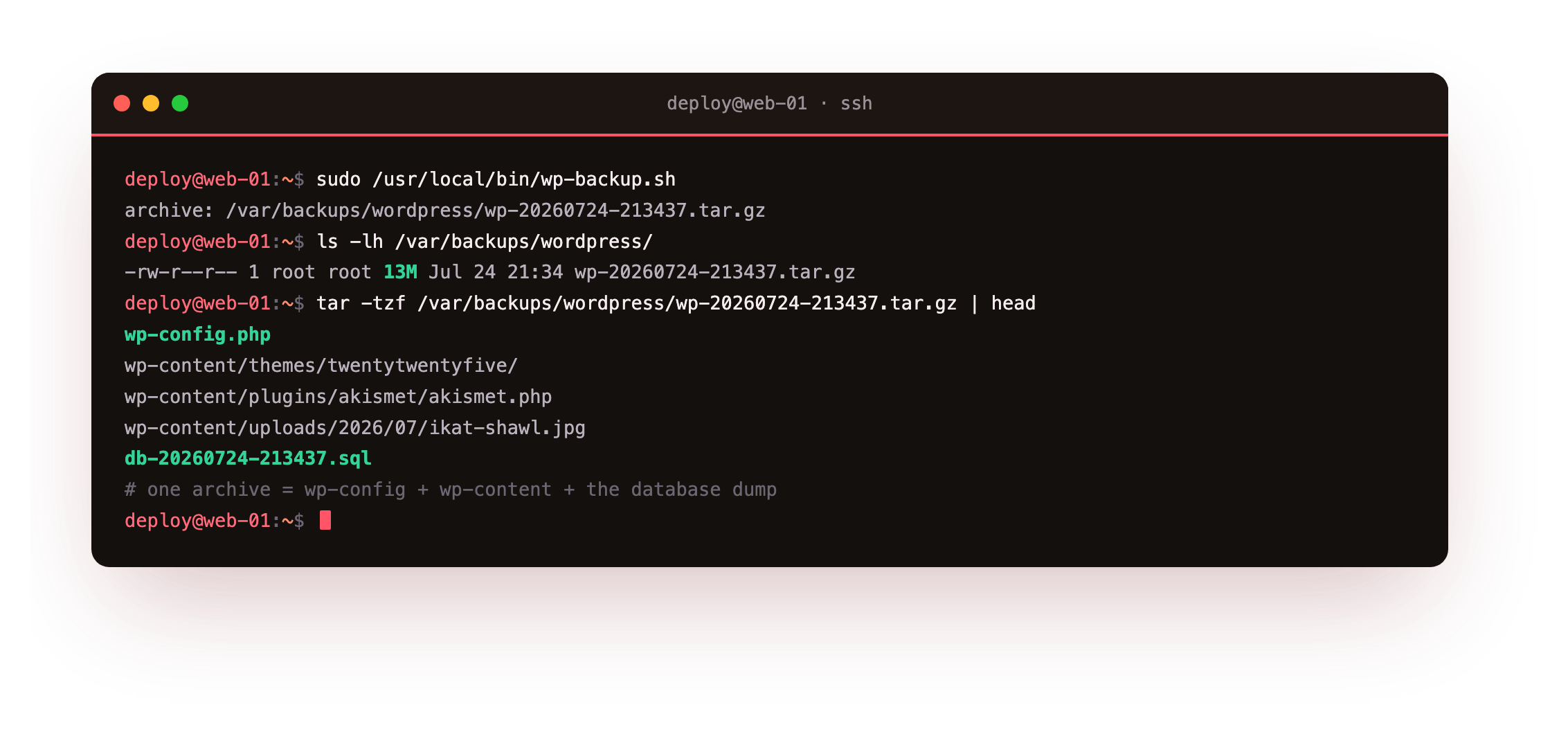
On our box that produced a single wp-20260724-213437.tar.gz of about 13M, and listing the archive showed exactly what a restore will need: wp-config.php, the whole wp-content tree of themes, plugins and uploads, and the db-*.sql dump at the end. One file now holds a complete, self-contained copy of the site.
tar -tzf on the new archive should list wp-config.php, a wp-content/ tree, and a db-*.sql file. If the SQL dump is missing or zero bytes, your database credentials are wrong, so re-check that cfg DB_PASSWORD returns the password from wp-config.php.Send the backup offsite
An archive next to the site is not a backup, because the failure that takes the site (a dead disk, a wrong rm, a compromised box) usually takes the archive with it. The copy has to leave the machine. We push each archive to object storage with rclone, a single binary that speaks the S3 API, so the target can be ServerCake Object Storage or any S3-compatible bucket. Install it and define the remote once with your bucket credentials.
sudo -v ; curl https://rclone.org/install.sh | sudo bash    # one static binary
# define the S3 remote once (endpoint + access key + secret from your bucket)
rclone config create objectstore s3 provider Other \
  endpoint https://blr.objects.servercake.io \
  access_key_id AKIA****************  secret_access_key **************** \
  region blr acl private
With the remote defined, copying an archive up is one command, and listing the bucket proves the object landed. Add the copy and a retention prune to the end of the backup script so every run ships offsite automatically.
# add to /usr/local/bin/wp-backup.sh, after the archive is built:
rclone copy "$WORK/wp-$STAMP.tar.gz" objectstore:wp-backups/ --s3-no-check-bucket
find "$WORK" -name 'wp-*.tar.gz' -mtime +14 -delete   # keep 14 days on local disk
# confirm the object is really in the bucket
rclone ls objectstore:wp-backups
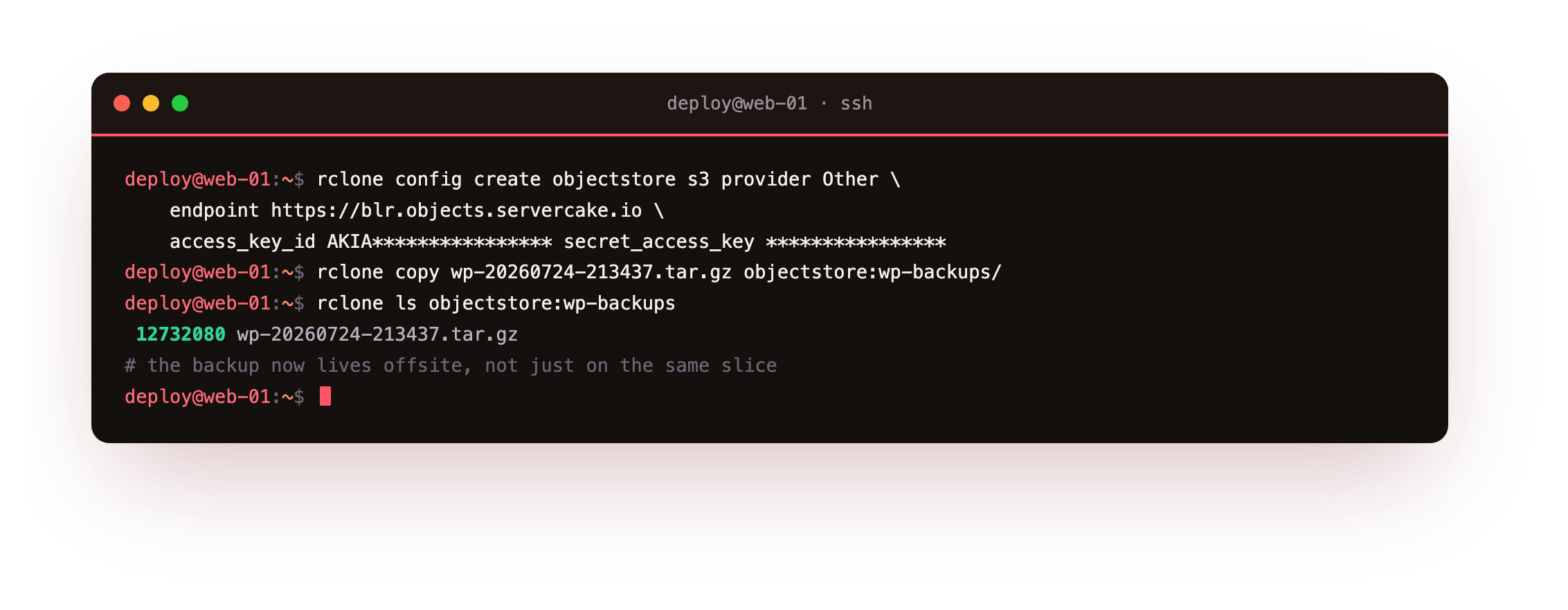
On our box the upload finished in under a second and rclone ls objectstore:wp-backups listed the archive by name and byte count, 12732080 wp-20260724-213437.tar.gz. The backup now exists in two places at once, one on the slice for a fast restore and one offsite for the day the slice is gone.
Automate it and set retention
A backup you have to remember to run is a backup you will forget to run, so hand it to the system. A systemd timer is the clean way to do this on a modern slice, giving you a service that runs the script and a timer that fires it nightly. Create the two units.
# /etc/systemd/system/wp-backup.service
[Unit]
Description=WordPress backup (database + files, offsite)
After=network-online.target mariadb.service
[Service]
Type=oneshot
ExecStart=/usr/local/bin/wp-backup.sh
# /etc/systemd/system/wp-backup.timer
[Timer]
OnCalendar=*-*-* 02:30:00
Persistent=true
[Install]
WantedBy=timers.target
Persistent=true matters: if the slice is asleep or rebooting at 02:30, the timer runs the backup as soon as it can rather than skipping the night. For retention offsite, let the bucket expire old copies for you with a lifecycle rule, which is more reliable than deleting from the client. Enable the timer, set the rule, and confirm the schedule.
sudo systemctl enable --now wp-backup.timer
# offsite retention: expire archives older than 14 days at the bucket
mc ilm rule add --expire-days 14 objectstore/wp-backups
systemctl list-timers wp-backup.timer
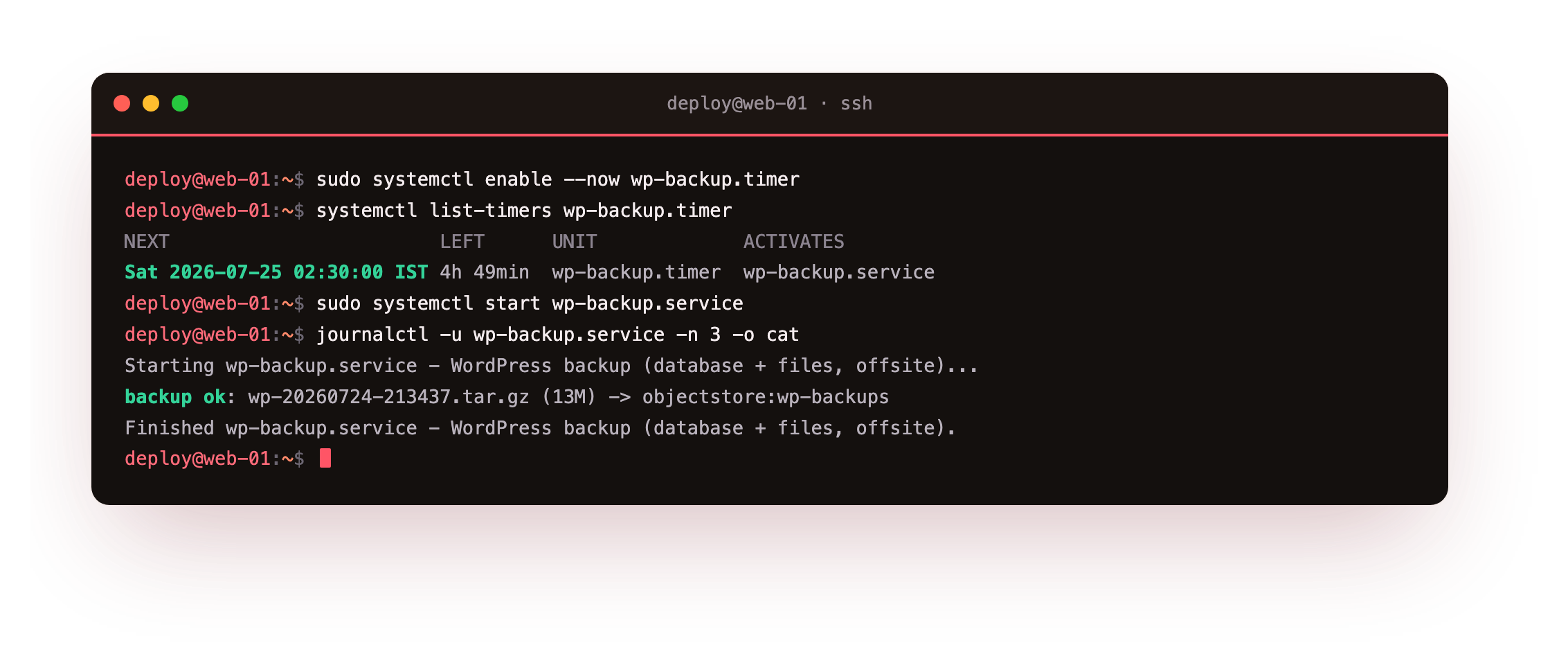
On our box systemctl list-timers showed the next run scheduled for 02:30:00 the following morning, and the bucket lifecycle rule reported a 14-day expiry, Enabled. Now prove the automation actually works instead of trusting the schedule. Run the unit by hand and read the journal.
sudo systemctl start wp-backup.service
journalctl -u wp-backup.service -n 3 -o cat
On our box the journal showed the service starting, the script reporting backup ok, and the unit finishing cleanly, and a fresh archive appeared in the bucket. A backup that runs itself and that you can see in the logs is one you no longer have to think about.
systemctl list-timers should list wp-backup.timer with a real NEXT time, and after systemctl start the journal should show backup ok. If the service fails, run /usr/local/bin/wp-backup.sh by hand to see the error, since the script prints the same output the journal captures.The restore drill
This is the part almost everyone skips and the only part that proves the rest worked. You are going to break the site the way a real failure would, then bring it back from the offsite archive alone. Do this the first time on a staging slice if the idea of dropping a production database makes you nervous, which is a healthy instinct. First, note the good state so you can confirm the recovery later.
# BEFORE: the site is healthy and a known post is present
curl -s -o /dev/null -w 'front page -> %{http_code}\n' https://your-domain/
sudo -u www-data wp post get 4 --field=post_title --path=/var/www/wp
Now simulate the disaster. Drop the database and delete the files, which together are as bad a day as a slice usually has. The front page should stop working immediately.
# DISASTER: drop the database and wipe the files
sudo mysql -e 'DROP DATABASE wp_sundara'
sudo rm -rf /var/www/wp/wp-content
curl -s -o /dev/null -w 'front page -> %{http_code}\n' https://your-domain/   # now 500
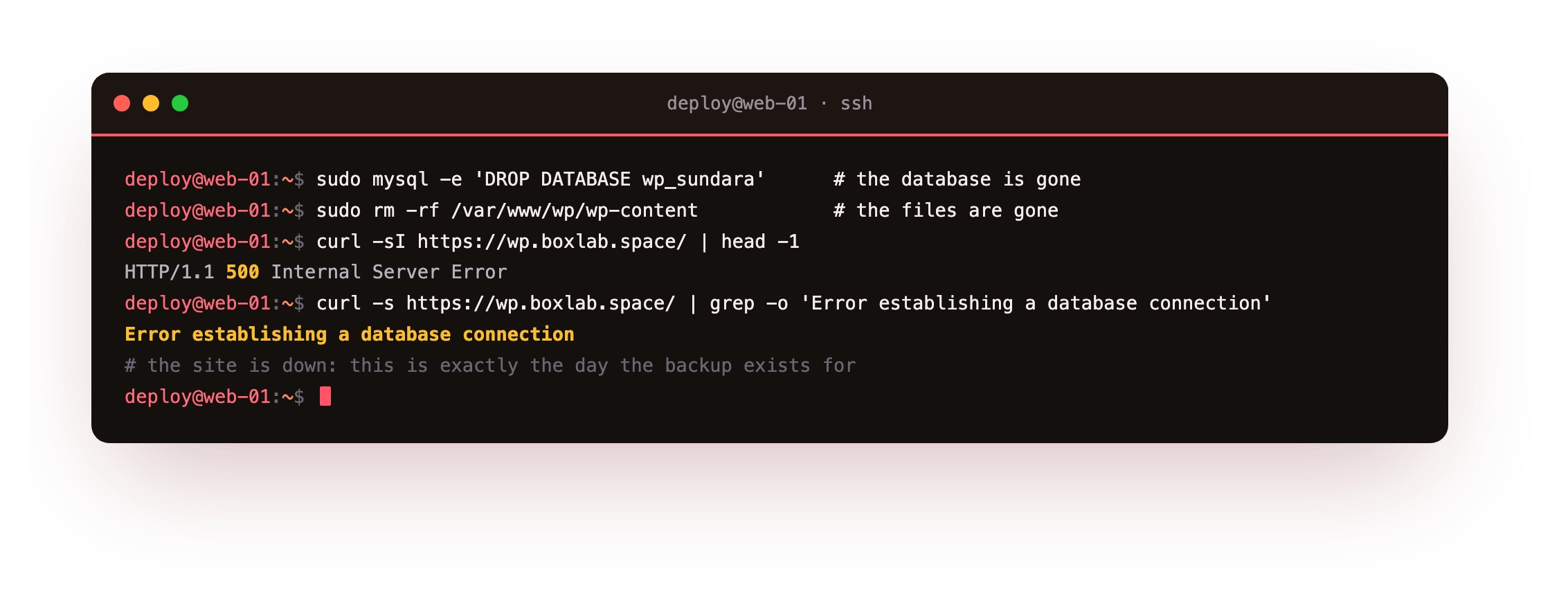
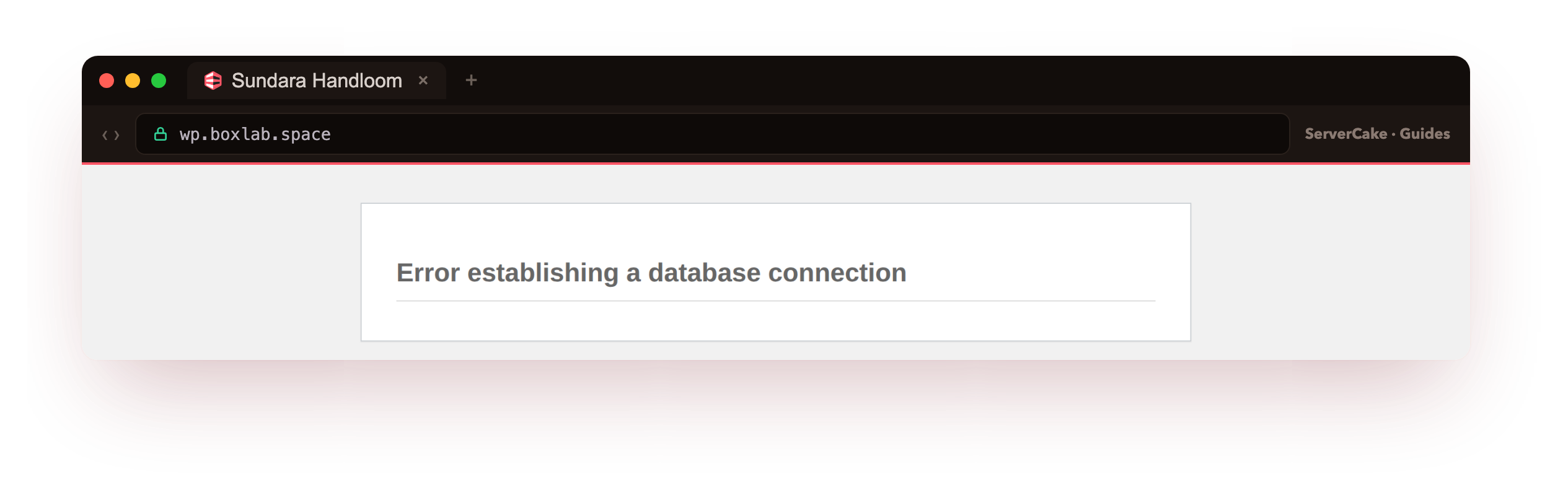
On our box the front page went straight to HTTP 500 and rendered the WordPress line every site owner dreads, "Error establishing a database connection", because the database it needs is gone. This is exactly the situation your backup exists for. Now recover from the offsite copy: pull the newest archive, unpack it, recreate and import the database, and put the files back.
# RESTORE: pull the latest archive from offsite and unpack it
cd /var/restore
LATEST=$(rclone lsf objectstore:wp-backups | sort | tail -1)
rclone copy "objectstore:wp-backups/$LATEST" .
tar -xzf "$LATEST"          # yields wp-config.php, wp-content/, db-*.sql
# put the files back, recreate the database, and import the dump
sudo cp -a wp-config.php wp-content /var/www/wp/ && sudo chown -R www-data:www-data /var/www/wp
sudo mysql -e "CREATE DATABASE wp_sundara; GRANT ALL ON wp_sundara.* TO 'wp_sundara'@'localhost'"
sudo mysql wp_sundara < db-*.sql
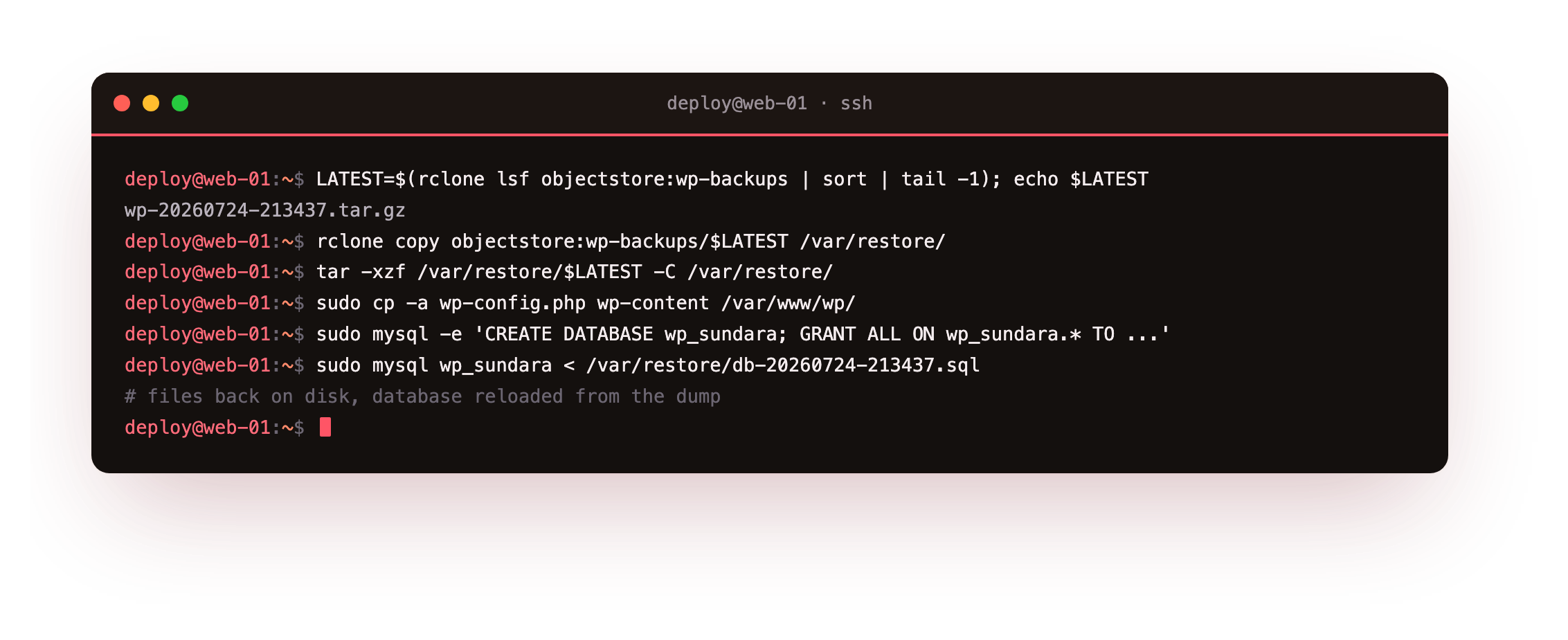
With the files back on disk and the database reloaded from the dump, the site should be exactly as it was at the last backup. Verify it the same way you checked the good state, and confirm the specific post is back at its permalink.
# AFTER: the site serves again and the exact post is back
curl -s -o /dev/null -w 'front page -> %{http_code}\n' https://your-domain/   # 200 again
sudo -u www-data wp post get 4 --field=post_title --path=/var/www/wp
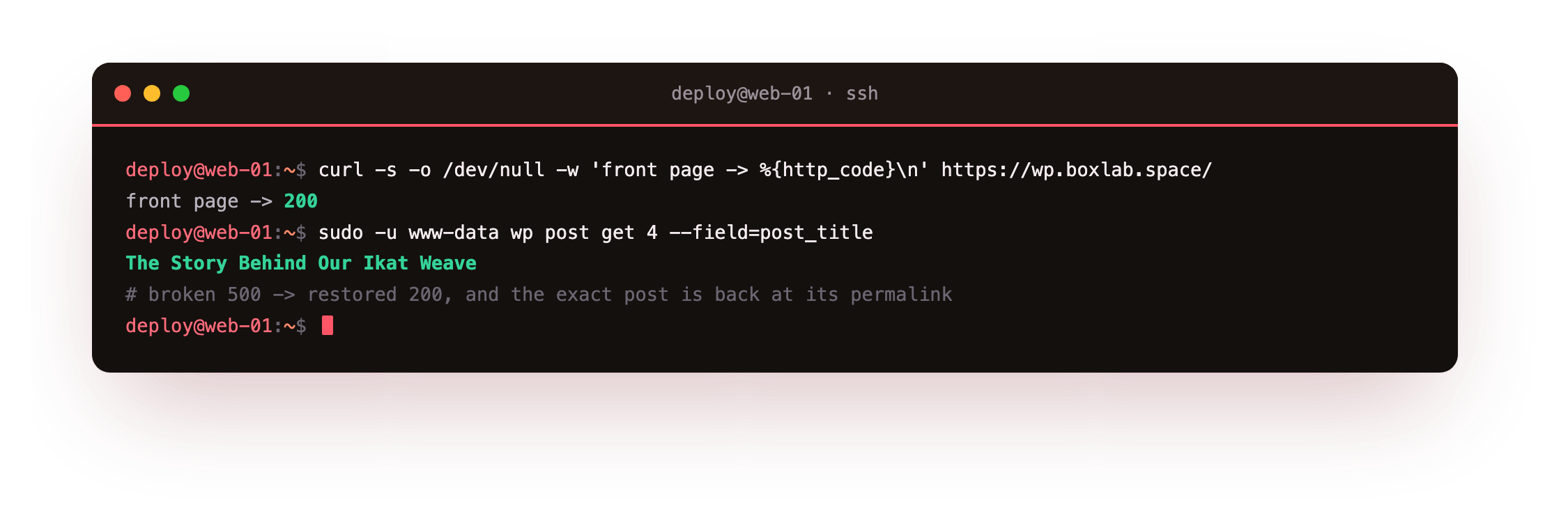
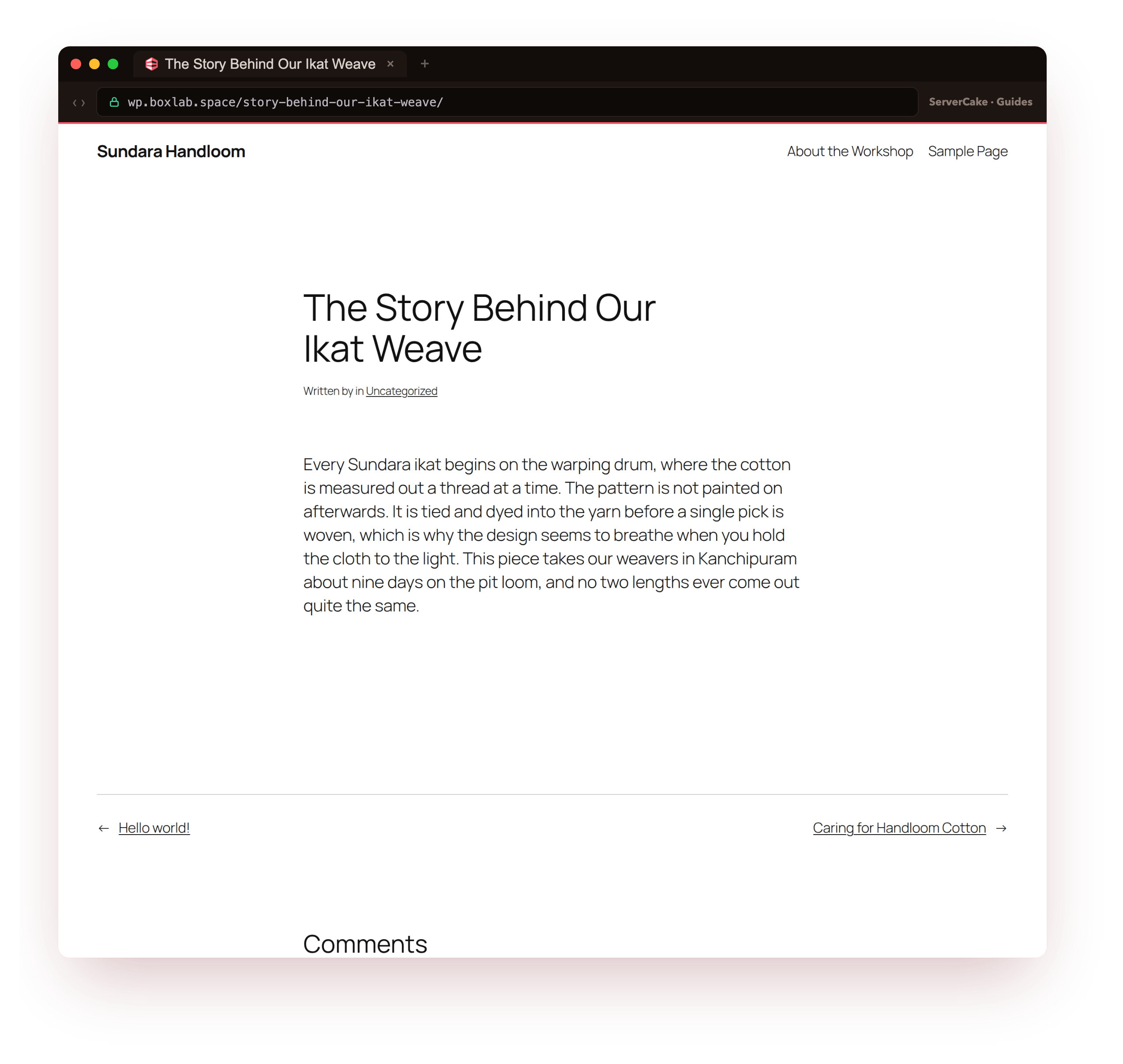
On our box the front page returned to 200 and wp post get printed "The Story Behind Our Ikat Weave", the same title we noted before the disaster, at the same permalink. The site went from a 500 and a dropped database to fully restored, from the offsite archive alone. That is a backup you have proven, and it is the only kind worth keeping.
200 and your known post should load at its old URL. If posts are back but images are broken, the wp-content/uploads tree did not restore, so re-extract the archive and confirm uploads is present before copying it into place.Keep your backups reliable
A restore you ran once is a good start, and a restore you run on a schedule is what keeps the backup trustworthy as the site changes. Two habits do most of the work. First, put a reminder in place to repeat this drill, ideally against a staging slice you restore the latest archive onto every month, so a broken backup is caught by you and not by an outage.
Second, watch that the backup is actually happening, because a timer that silently stopped firing is worse than no backup, since it feels safe. A short check that the newest offsite archive is recent will tell you.
# monitor: alert if the newest offsite backup is older than a day
/usr/local/bin/wp-backup-check.sh
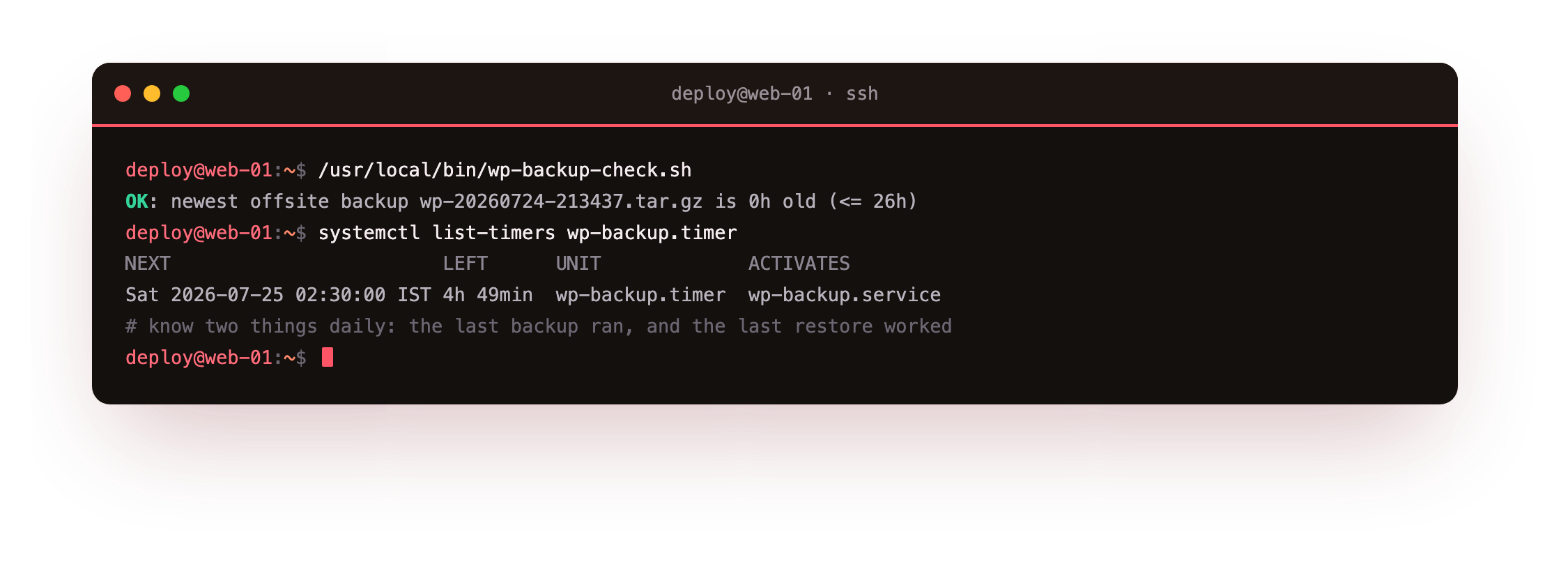
On our box that check reported OK: newest offsite backup ... is 0h old, and wiring its non-zero exit into whatever already pages you (a cron mail, a webhook, an uptime monitor) turns a stale backup into an alert instead of a surprise. Between a scheduled restore test and a freshness check, the backup stops being a thing you set up once and forgot, and becomes a thing you know is working.
Frequently asked questions
How often should I back up WordPress?
Match the schedule to how much work you are willing to lose. A brochure site that changes monthly is fine with a nightly backup, since a day of loss is nothing. A busy shop or a site with daily posts and comments wants more, either several backups a day or a plugin that logs database changes continuously so you can roll forward. The nightly timer in this tutorial is a sensible floor for most sites, and you raise the frequency by changing one OnCalendar line. Whatever you choose, the offsite copy and the restore test matter more than the interval.Do I need a backup plugin if I have this script?
Not for the backup itself, and a server-level script has real advantages: it does not slow the site, it keeps running if WordPress is broken, and it stores archives off the box where a compromised site cannot reach them. A plugin like UpdraftPlus is friendlier if you would rather click than script, and its scheduled restore-to-staging is genuinely useful. On a VPS the two are not exclusive, but the recovery you can run from an SSH session, without a working dashboard, is the one that saves you when the dashboard is the thing that is down.Where should the offsite backups actually live?
Anywhere that is not the same machine, and ideally not the same provider account, so one compromised login cannot delete both the site and its backups. Object storage is a natural fit because it is cheap, it speaks the S3 API that every tool supports, and you can set a lifecycle rule to expire old copies automatically. Keeping the bucket in the same region as the slice, such as ServerCake Object Storage in India, keeps restores fast and data residency simple, while a scoped access key limited to the backup bucket keeps the blast radius small.How do I restore to a different server or domain?
The archive restores the same way on a new slice: install WordPress core, drop in the wp-config.php and wp-content from the archive, and import the database dump. If the domain changes, run a search-replace across the database after importing so old URLs are rewritten, which the migrate WordPress to a VPS tutorial walks through in full. That is also why the restore drill is worth doing regularly: the muscle memory it builds is exactly what a migration needs, so the two skills reinforce each other.Running WordPress on your own slice means the backups are yours, stored where you choose, and restored on your schedule rather than a host's. When you want a box where you can script all of this and prove it with a real restore, a ServerCake slice gives you a clean Ubuntu 24.04 server in India, billed in rupees with GST, with object storage a bucket away for the offsite copy.