
What you will have
This tutorial shows you how to speed up Nextcloud on a VPS by adding the pieces a fresh install leaves off: an APCu memory cache, Redis for file locking and the distributed cache, a tuned PHP OPcache and php-fpm pool, background jobs on a real system cron, and HTTP/2 on the wire.
It is written for the person running a working Nextcloud that feels heavy, where the admin overview is covered in yellow warnings and the interface stalls under any load. You will clear those warnings and measure the result so you know the gain is real.
Here is the destination, shown first, with the honest numbers from the instance we tuned while writing this. Every figure below was measured on our lab box, a single small 2 vCPU slice, not estimated.
# one Nextcloud login page, before and after, on the same slice
ab -n 200 -c 10 -k https://your-domain/login
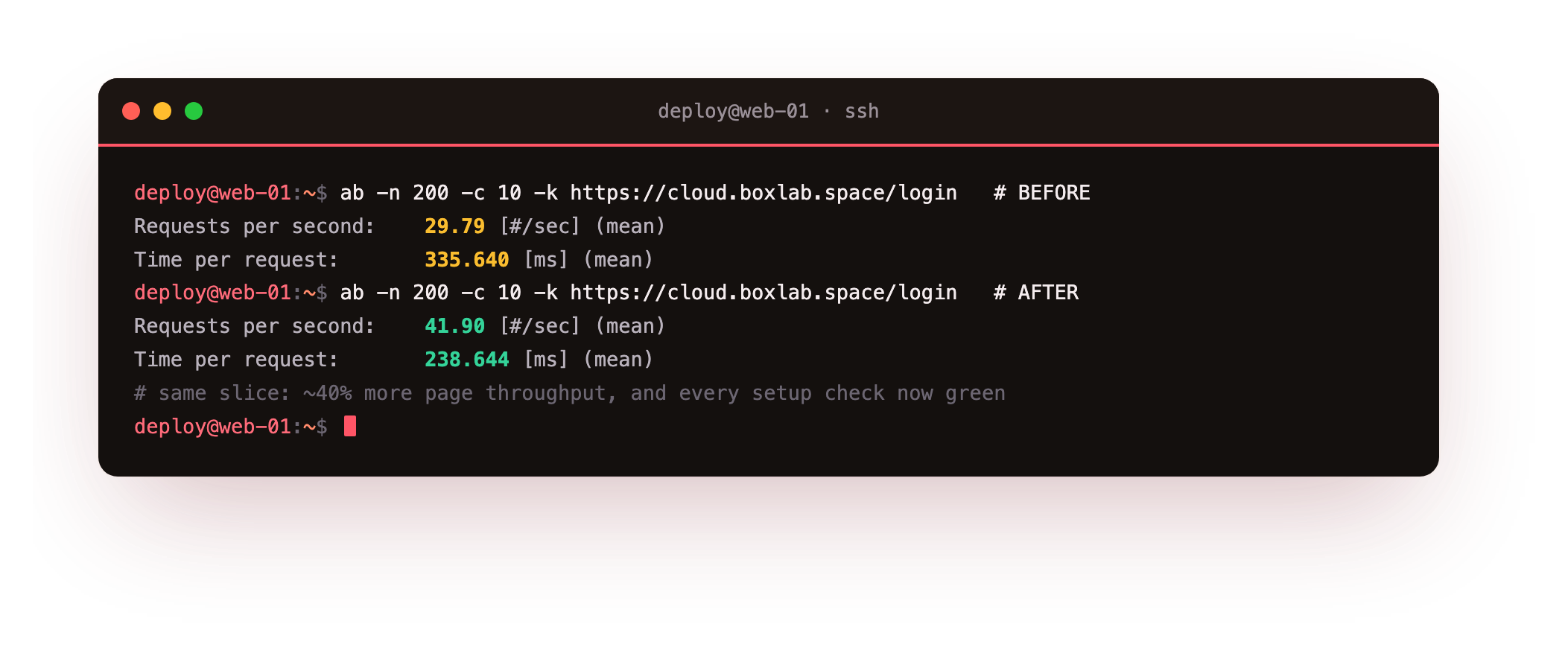
On that box the same login page went from 29.79 requests per second to 41.90 under identical load, with time-to-first-byte dropping from about 68 milliseconds to about 52, and every recommended setup check moving from warning to green. That page throughput gain is real, and it is honest to say up front that it is a solid improvement rather than a tenfold one. On Nextcloud the bigger wins are structural: the database stops carrying file locks, the cache stops going to disk, and the housekeeping jobs actually run.
- Baselining the un-tuned instance so the before and after numbers are honest.
- Tuning the PHP OPcache and sizing the php-fpm pool for the box.
- Adding an APCu local cache and Redis for transactional file locking plus the distributed cache.
- Moving background jobs from unreliable AJAX to a real system cron.
- Turning on HTTP/2 and gzip, then measuring again and keeping it healthy.
Every layer here does the same kind of thing: it takes work Nextcloud was repeating on each request, or offloading to the wrong place, and moves it somewhere faster. APCu holds the app list and config in memory, Redis holds the file locks and the distributed cache, OPcache keeps the compiled PHP resident, and HTTP/2 stops the browser queuing on Nextcloud's many small assets.
Before you begin
This tutorial tunes an instance that already runs, so it assumes you have one to work on.
- A working Nextcloud on an Ubuntu 24.04 slice, served by nginx and PHP-FPM over HTTPS, following how to install Nextcloud on a VPS. This tutorial builds directly on that stack (nginx, PHP 8.3-FPM, MariaDB) and the same
occcommand line. - SSH access to the slice as a normal user cleared for
sudo, and the habit of runningoccas thewww-dataweb user. - About an hour, plus the patience to load-test the instance at the start and the finish so the gain is measured rather than assumed.
Every command here is run over SSH as an ordinary sudo user on the slice. Where a step needs root it calls sudo, and where it touches Nextcloud's own files it runs as www-data, the same conventions as the install tutorial.
How to speed up Nextcloud on a VPS
The whole job is five steps, and it helps to see them before you start. You will speed up Nextcloud on a VPS by measuring first, then adding the caches and cron a fresh install skips:
- Baseline the instance so every later number has something to beat.
- Tune the PHP OPcache and size the php-fpm pool for the box.
- Add an APCu local cache and wire Redis in for file locking and the distributed cache.
- Move background jobs off AJAX onto a real system cron.
- Turn on HTTP/2 and gzip, then measure again.
Work in that order. The caches give the biggest structural change, and measuring at both ends is the only way to know the tuning did what you think it did.
Baseline the un-tuned instance
You cannot claim a speedup you did not measure, so measure the slow instance before you touch it. A fresh Nextcloud tells you plainly what is missing: run the built-in checks and you will see no memory cache, database file locking, and a background cron that has never run.
# measure BEFORE you tune anything
sudo -u www-data php occ config:system:get memcache.local
sudo -u www-data php occ setupchecks | grep -iE 'memcache|locking|cron'
ab -n 200 -c 10 -k https://your-domain/login
curl -sk -w 'ttfb=%{time_starttransfer}s\n' -o /dev/null https://your-domain/login
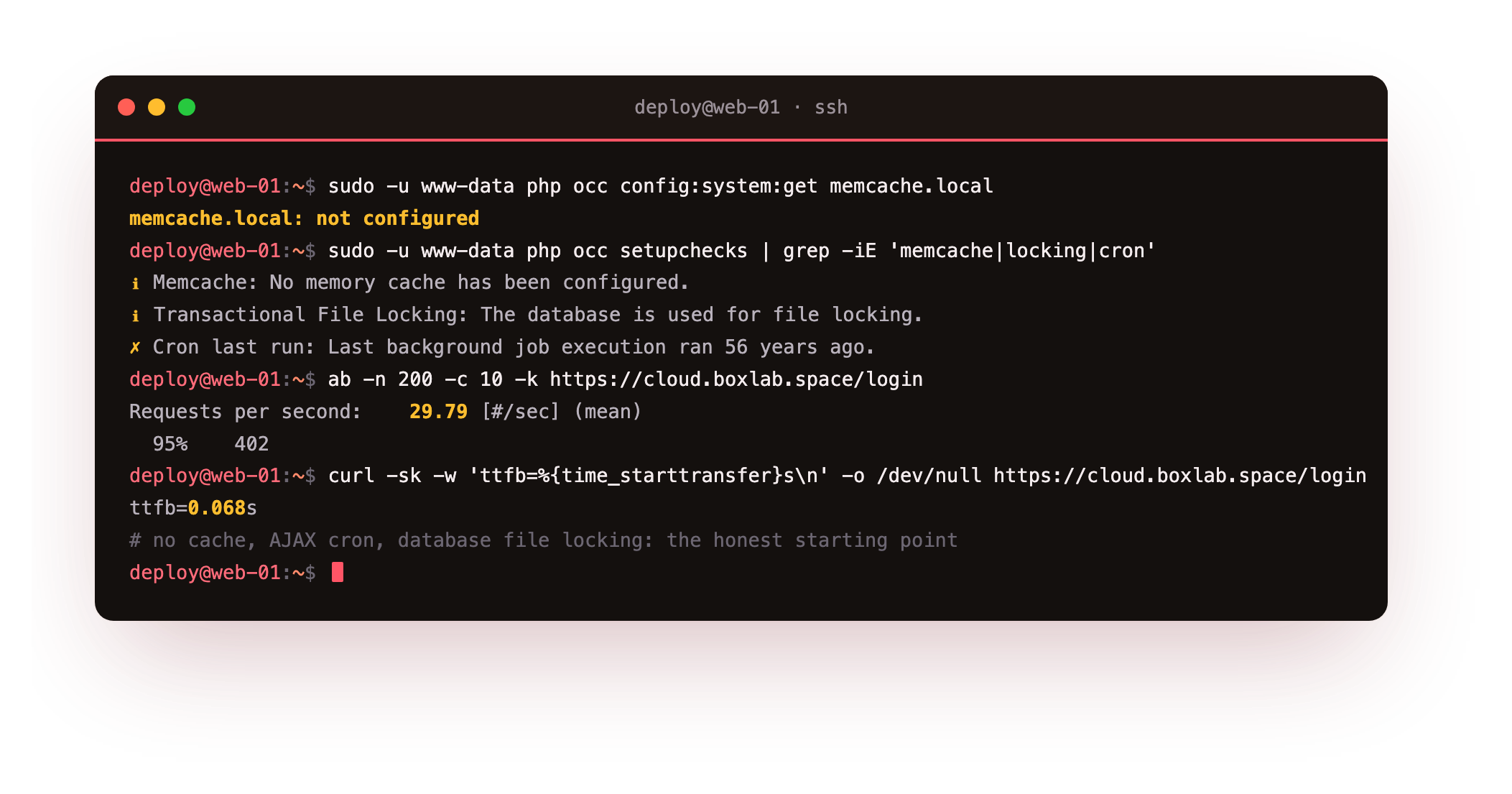
On our lab box the checks reported no memory cache configured, the database in use for transactional file locking, and a last background job that "ran 56 years ago" because AJAX cron only fires when someone loads a page. The login page managed 29.79 requests per second under ten concurrent readers, with a time-to-first-byte of about 68 milliseconds. That is the starting line, and those three warnings are the honest reason the instance feels heavy.
ab, the TTFB from curl, and which checks are yellow in Settings then Administration then Overview. You will compare against these exact numbers at the end.Tune the PHP OPcache and pool
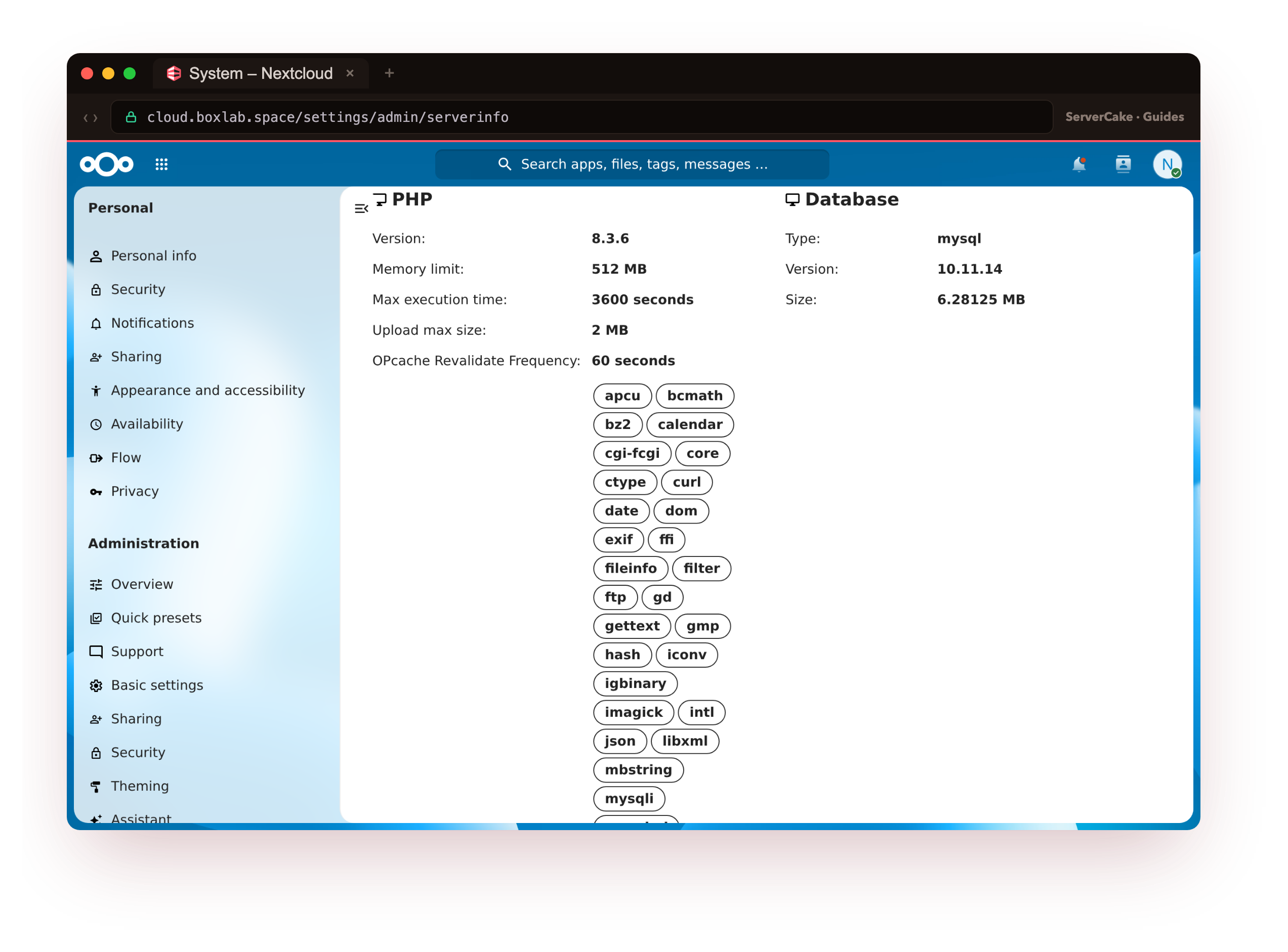
Every Nextcloud request executes PHP, and OPcache keeps that code compiled in shared memory so the work happens once. Ubuntu ships OPcache enabled, but its default ceiling of 10,000 files is the catch: Nextcloud ships more PHP files than that, so under real use OPcache starts evicting and recompiling, which is the slow path. Raise the ceilings, and raise PHP's memory limit to the 512 MB Nextcloud recommends, in one small drop-in.
; /etc/php/8.3/fpm/conf.d/99-nextcloud.ini
memory_limit = 512M
opcache.memory_consumption = 256
opcache.interned_strings_buffer = 16
opcache.max_accelerated_files = 16000
opcache.revalidate_freq = 60
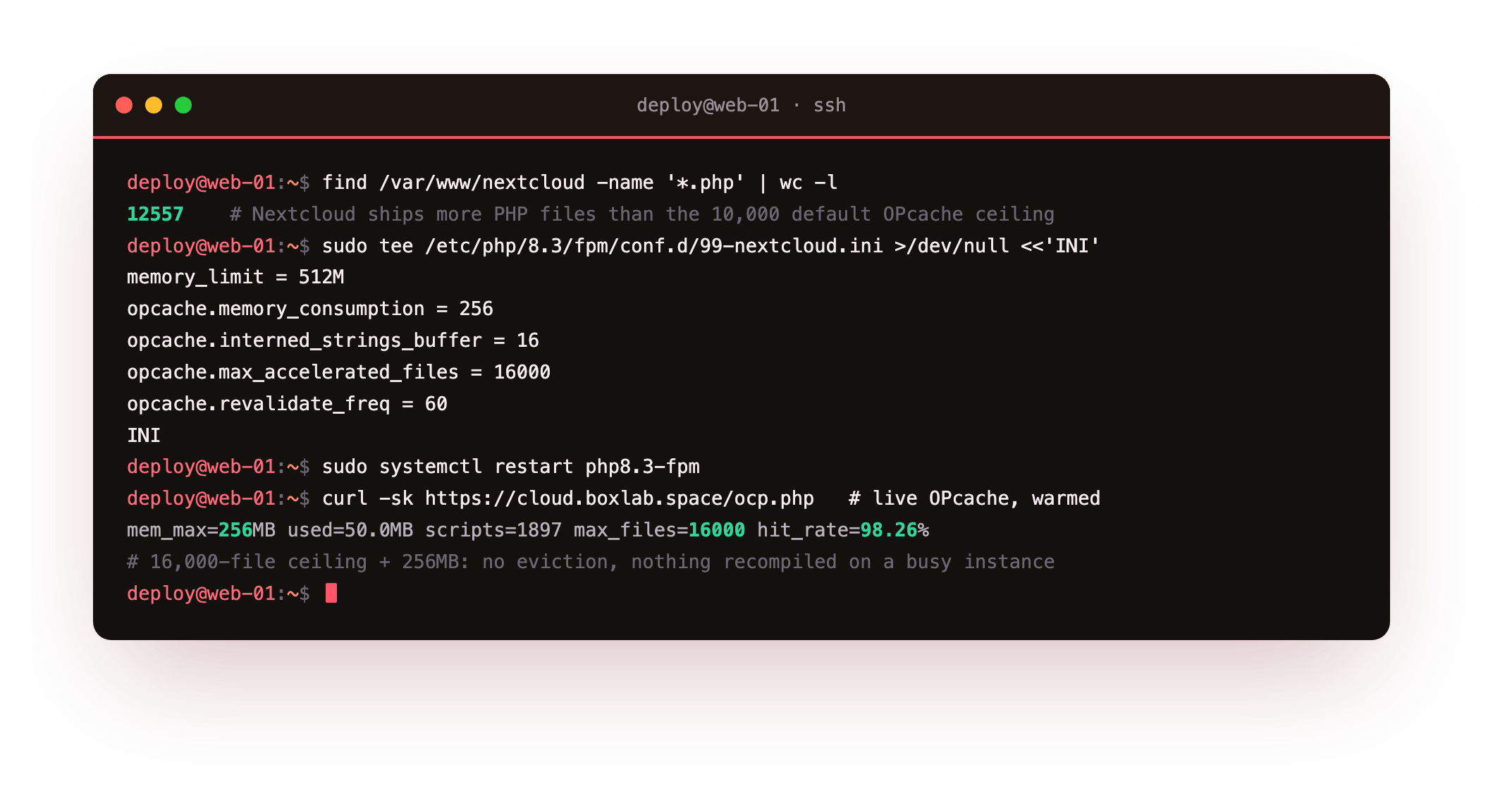
The 16000 file ceiling clears the 12,557 files Nextcloud ships with headroom to spare, and revalidate_freq=60 tells OPcache to check for changed files only once a minute instead of on every request. After a restart and a little traffic, our OPcache held its scripts in a 256 MB pool at a 98 percent hit rate, with no evictions.
sudo systemctl restart php8.3-fpm
curl -sk https://your-domain/ocp.php   # a small status probe, deleted after
The other half of the runtime is the php-fpm pool. The default pool allows only five worker processes, so the sixth concurrent request waits in line. Size it to the box: a real Nextcloud worker uses roughly 68 MB, so on a 2 GB slice a dozen workers fits with room for MariaDB and Redis.
sudo sed -i 's/^pm.max_children = 5/pm.max_children = 12/' \
     /etc/php/8.3/fpm/pool.d/www.conf
grep -E '^pm(\.|)' /etc/php/8.3/fpm/pool.d/www.conf
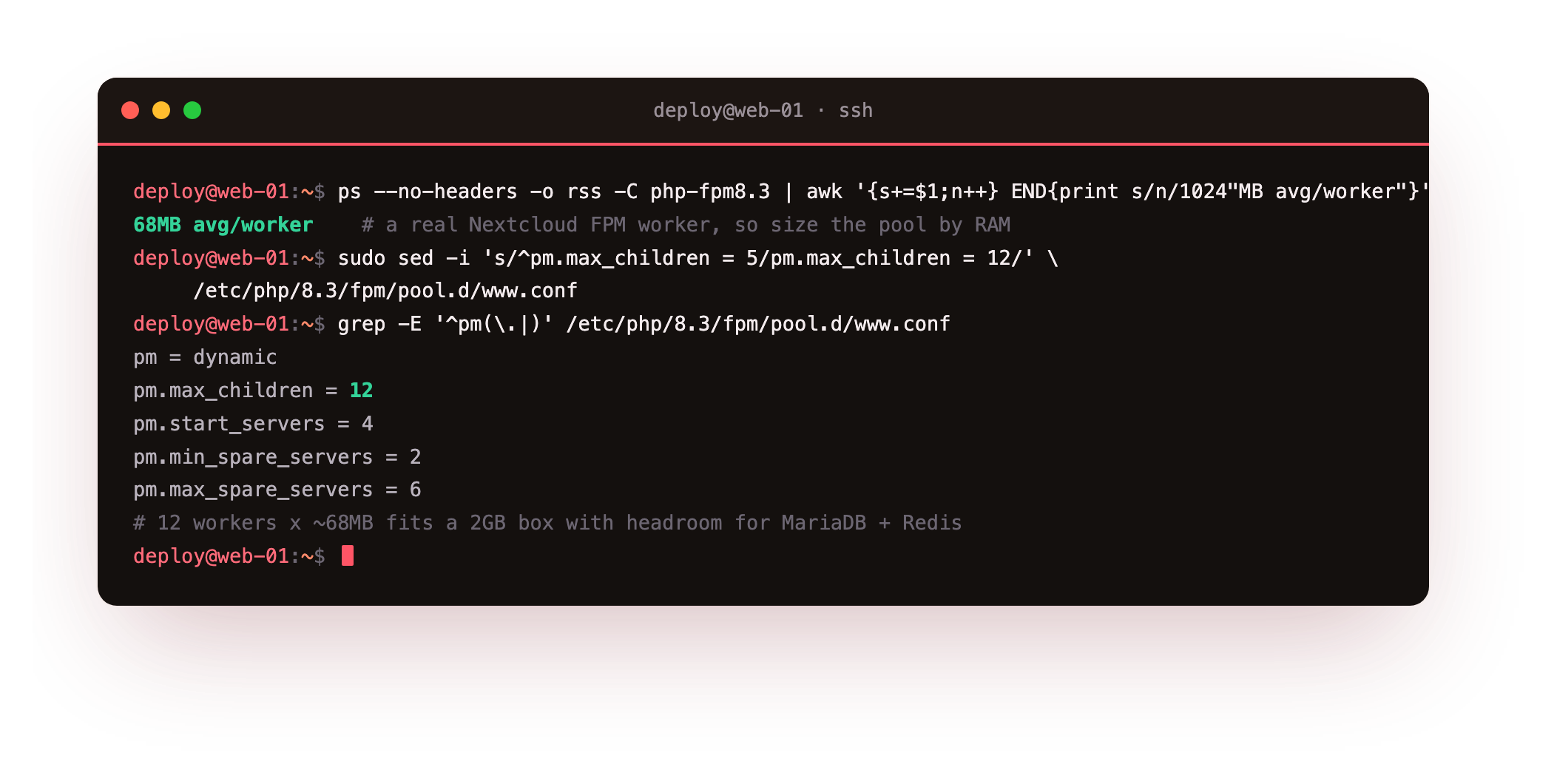
pm.max_children should read 12. Do not set it so high that twelve workers times their memory could exhaust the slice.Add APCu and Redis
OPcache handles code, but Nextcloud also asks the same questions on every request: the app list, the config, mimetype maps, user lookups. Without a memory cache those go to disk or the database each time. APCu answers them from local memory, and Redis does two more jobs a single-server APCu cannot: it holds the transactional file locks, and it serves as the distributed cache. Install all three first.
sudo apt install -y redis-server php-apcu php-redis
redis-cli ping
php -m | grep -iE 'apcu|redis'
ss -tlnp | grep 6379
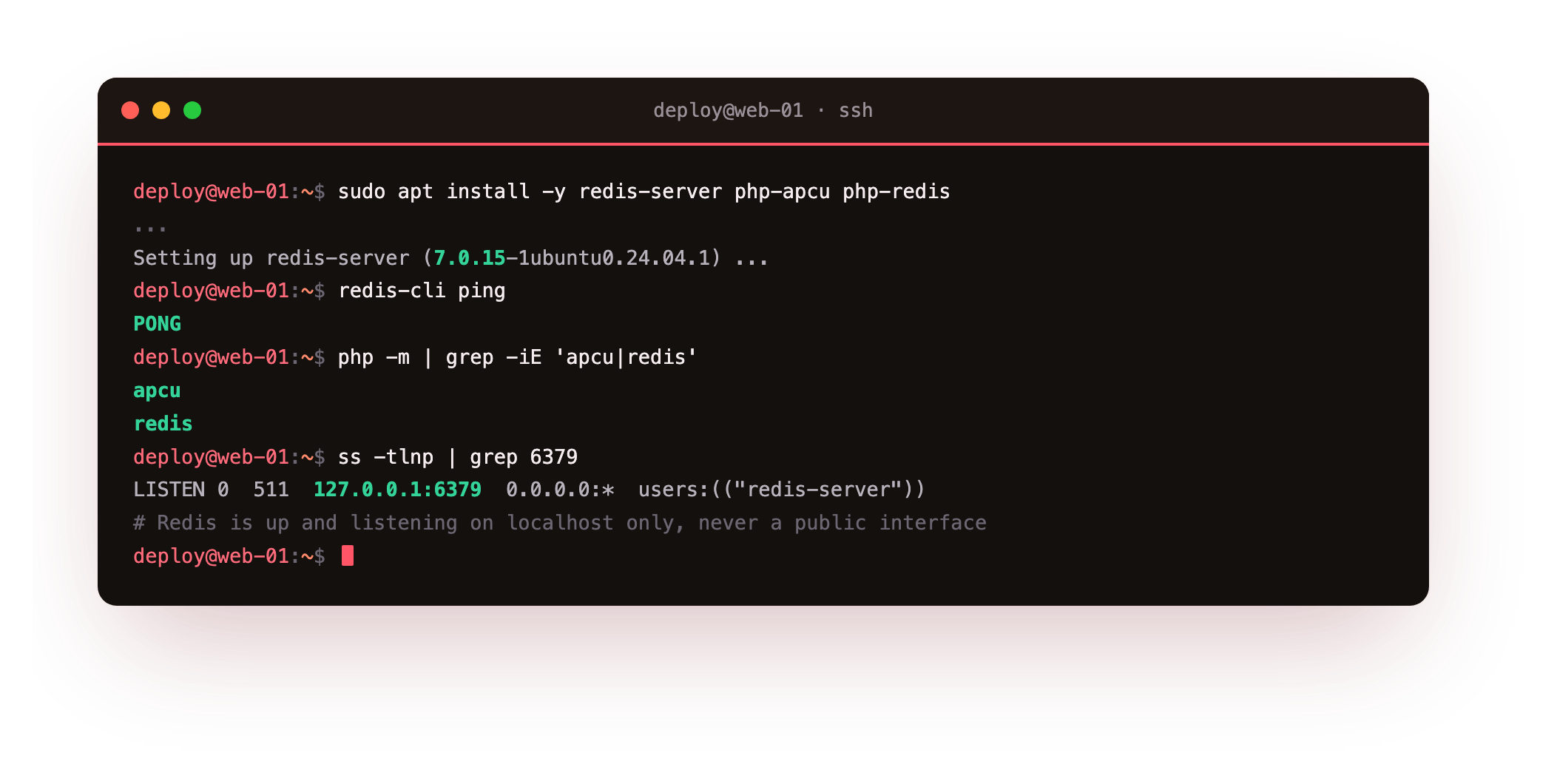
A PONG and a Redis on 127.0.0.1:6379 means it is running and reachable on localhost only, which is where it should stay. Now tell Nextcloud to use them, with occ. APCu becomes the local cache, and Redis becomes both the locking store and the distributed cache.
cd /var/www/nextcloud
sudo -u www-data php occ config:system:set memcache.local --value='\OC\Memcache\APCu'
sudo -u www-data php occ config:system:set memcache.locking --value='\OC\Memcache\Redis'
sudo -u www-data php occ config:system:set memcache.distributed --value='\OC\Memcache\Redis'
sudo -u www-data php occ config:system:set redis host --value=127.0.0.1
sudo -u www-data php occ config:system:set redis port --value=6379 --type=integer
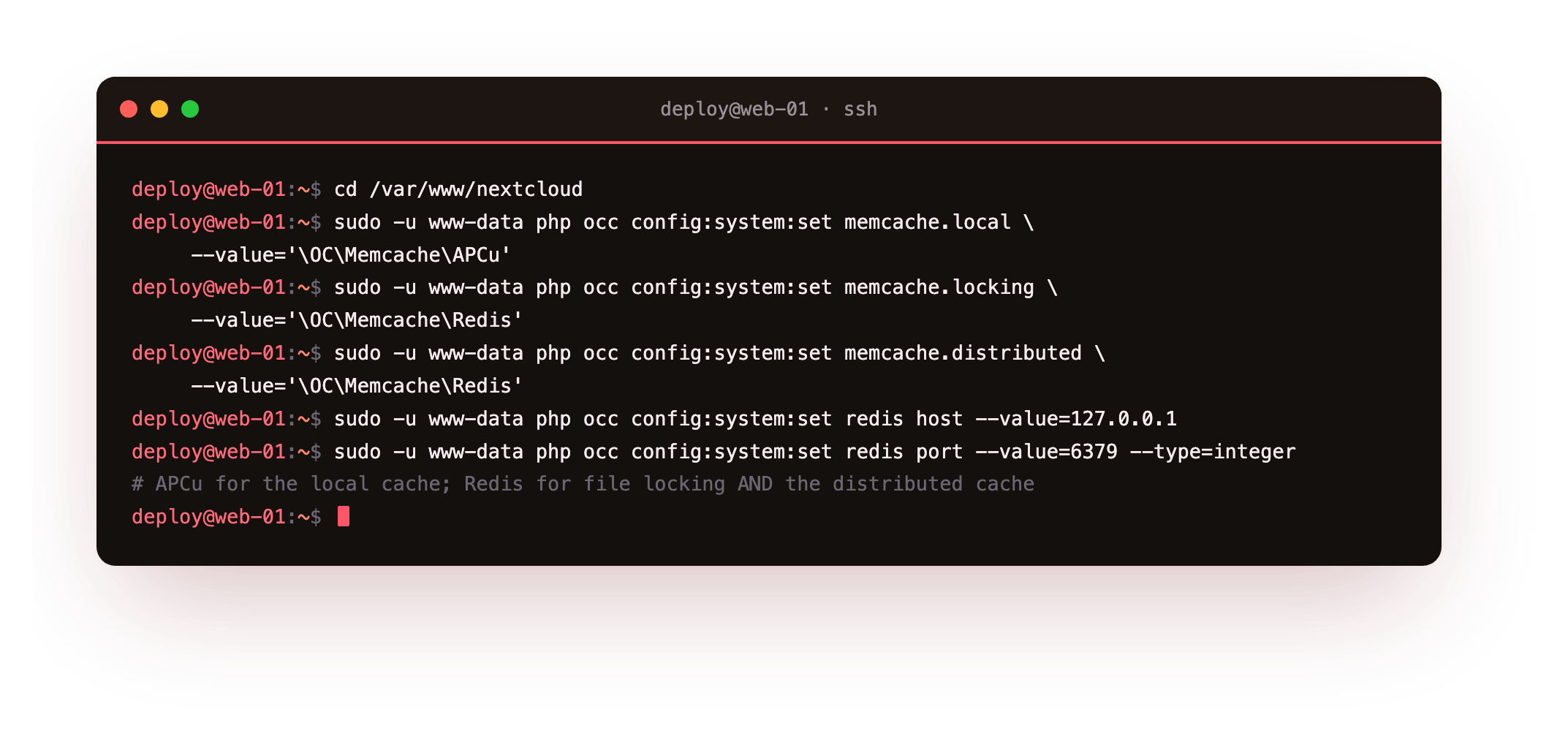
Now prove Redis is genuinely doing the work, because a misconfigured cache fails quietly back to the database. Watch it live while a file operation takes a lock, then read the hit counter and the checks.
redis-cli monitor   # while a WebDAV upload takes a lock
redis-cli info stats | grep keyspace_hits
sudo -u www-data php occ setupchecks | grep -iE 'locking|memcache'
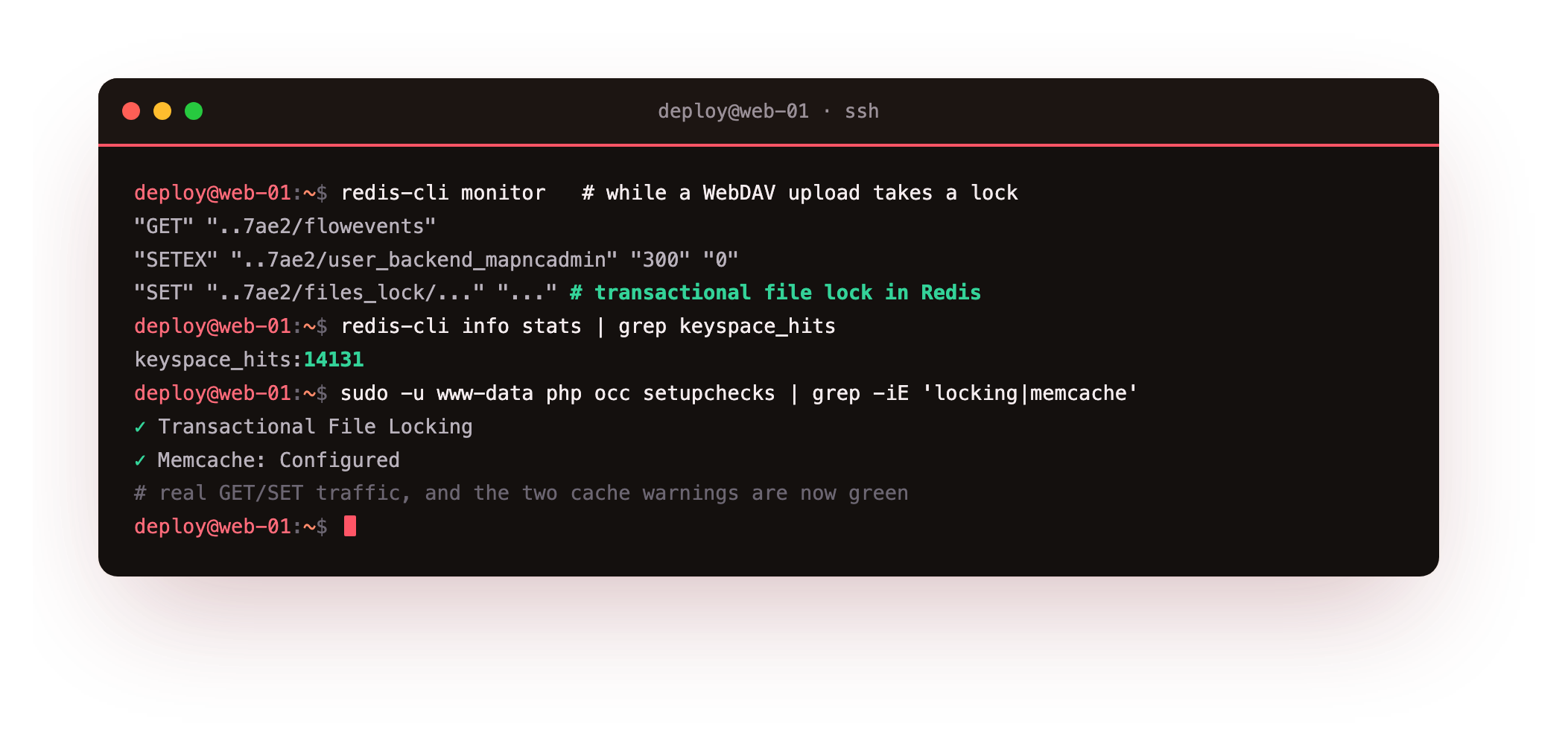
On our box redis-cli monitor streamed real GET and SET traffic against Nextcloud's cache keys, the file-lock keys appeared during a WebDAV upload, keyspace_hits climbed into the thousands, and the two setup checks that were yellow, the memory cache and the transactional file locking, both turned green. That locking move matters most under concurrent writes: file locks that were contending in the database now live in memory.
redis-cli info keyspace should show a growing number of keys. If the checks stay yellow, re-check that php-redis is loaded and that Redis answered PONG.Move background jobs to a system cron
By default Nextcloud runs its housekeeping through the browser, firing one job whenever someone loads a page. That is the AJAX cron, and it is why a quiet instance shows a background job that has not run in years. Switch it to a real system cron so the jobs run on a schedule whether anyone is looking or not. Register a systemd timer that runs cron.php as www-data every five minutes, then tell Nextcloud to expect it.
sudo -u www-data php occ background:cron
sudo systemctl enable --now nextcloudcron.timer
systemctl list-timers nextcloudcron.timer --no-pager | head -2
sudo -u www-data php occ setupchecks | grep -i 'cron last run'
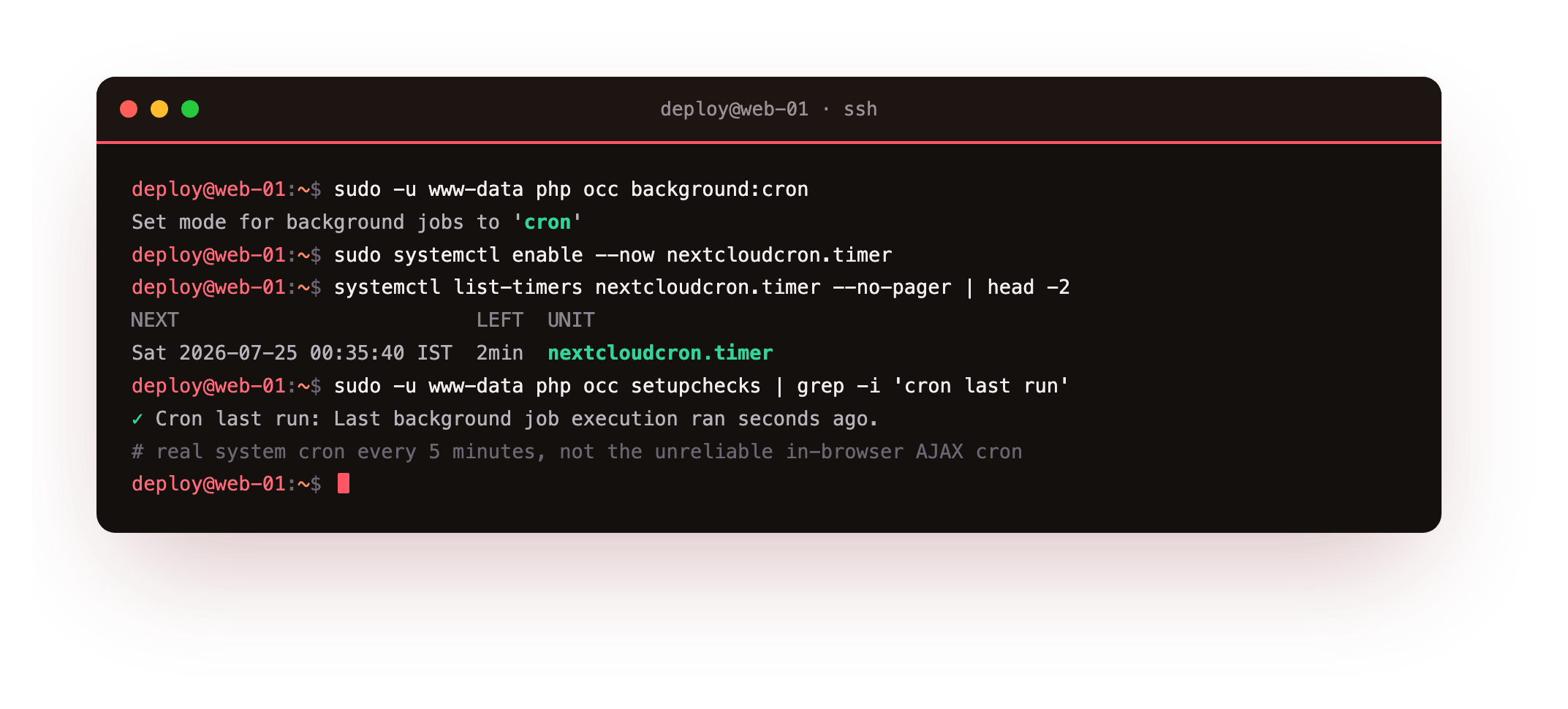
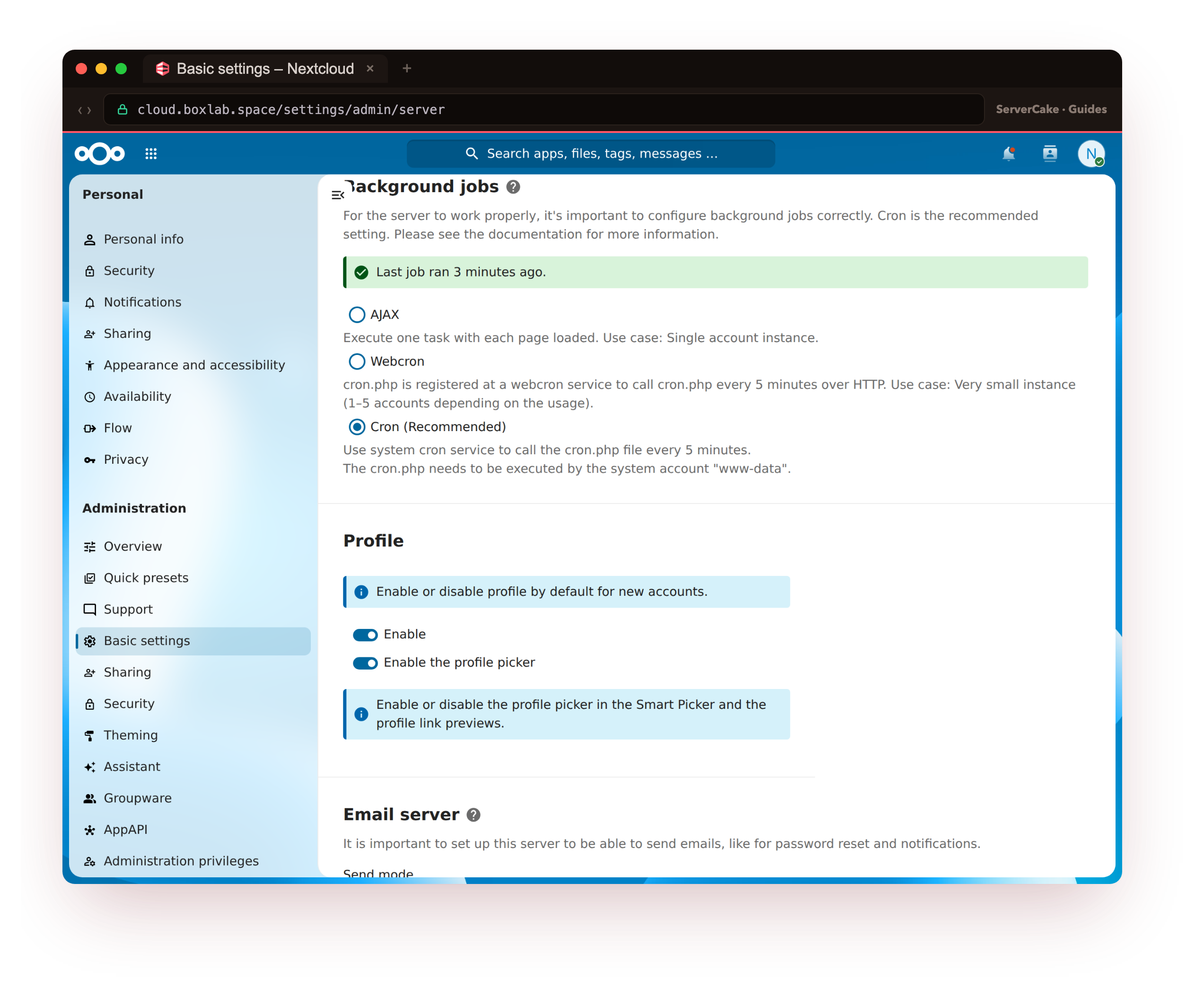
The timer entry confirms the next run is minutes away, and once it has fired, the "Cron last run" check reports the last execution as seconds ago rather than decades. That single change is what keeps previews, notifications and cleanup jobs moving without leaning on visitor traffic to trigger them.
Turn on HTTP/2 and gzip
The caches speed up the work the server does. HTTP/2 and gzip speed up getting the result to the browser. Nextcloud loads a lot of small JavaScript and CSS files, and on HTTP/1.1 the browser queues them a few at a time; HTTP/2 multiplexes them over one connection. Enable it on the TLS listener and add gzip for text responses, then reload.
# in your server block: add http2 to the listen line
listen 443 ssl http2;
gzip on;
gzip_types application/javascript text/javascript application/json text/css image/svg+xml;
sudo nginx -t && sudo systemctl reload nginx
curl -sk --http2 -o /dev/null -w 'version=%{http_version}\n' https://your-domain/login
curl -sk -H 'Accept-Encoding: gzip' -o /dev/null -w 'raw=%{size_download}\n' https://your-domain/login
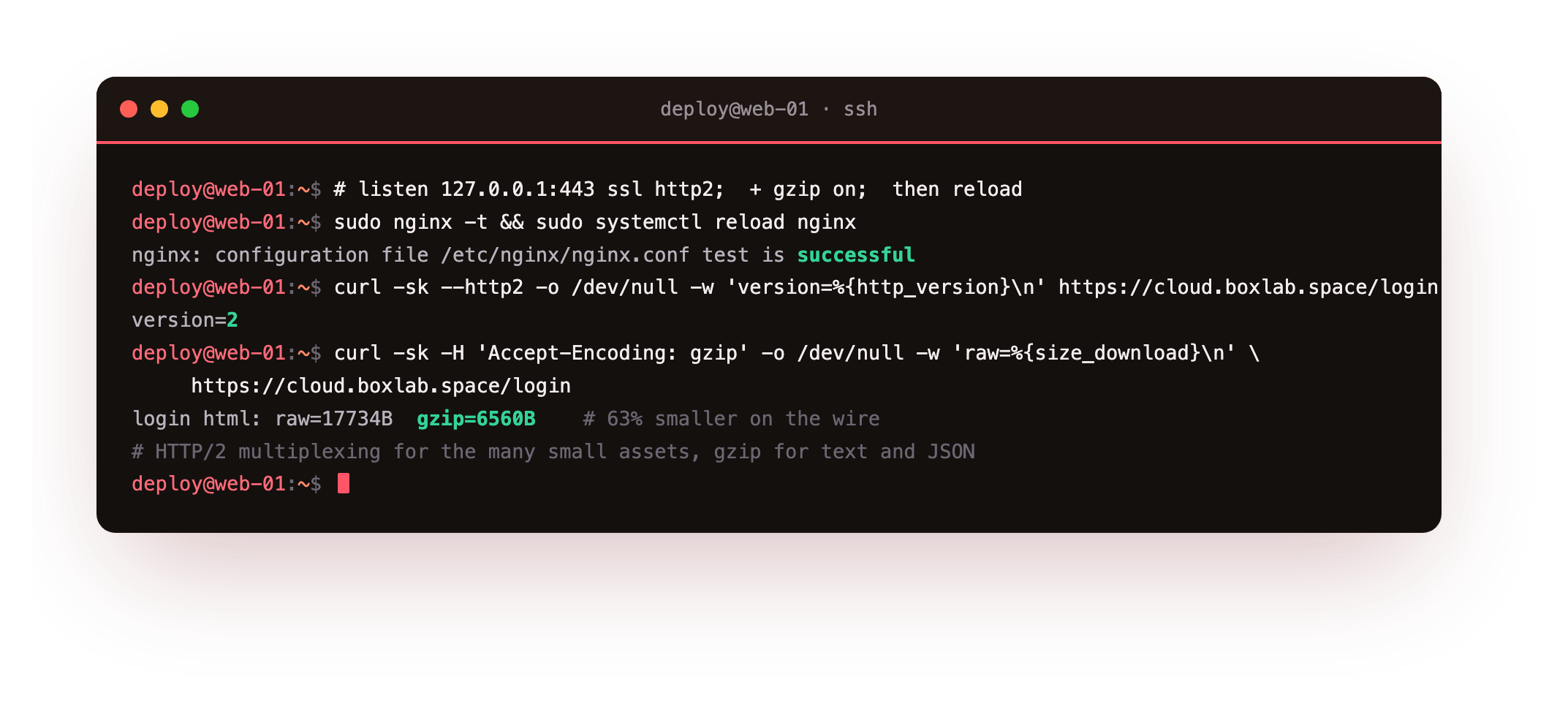
A version=2 back from curl confirms HTTP/2 is negotiated over the real certificate. With gzip on, the login page's HTML dropped from 17,734 bytes to 6,560 on the wire, about 63 percent smaller, and every text asset gets the same treatment. Nextcloud's JavaScript bundles are already minified, so the transfer win is real but modest; the multiplexing is what your browser feels most.
Measure the payoff
Now run the exact baseline command again, on the same slice, and read the result.
# the same load test, now tuned
ab -n 200 -c 10 -k https://your-domain/login
curl -sk -w 'ttfb=%{time_starttransfer}s\n' -o /dev/null https://your-domain/login
sudo -u www-data php occ setupchecks | grep -c '✓'
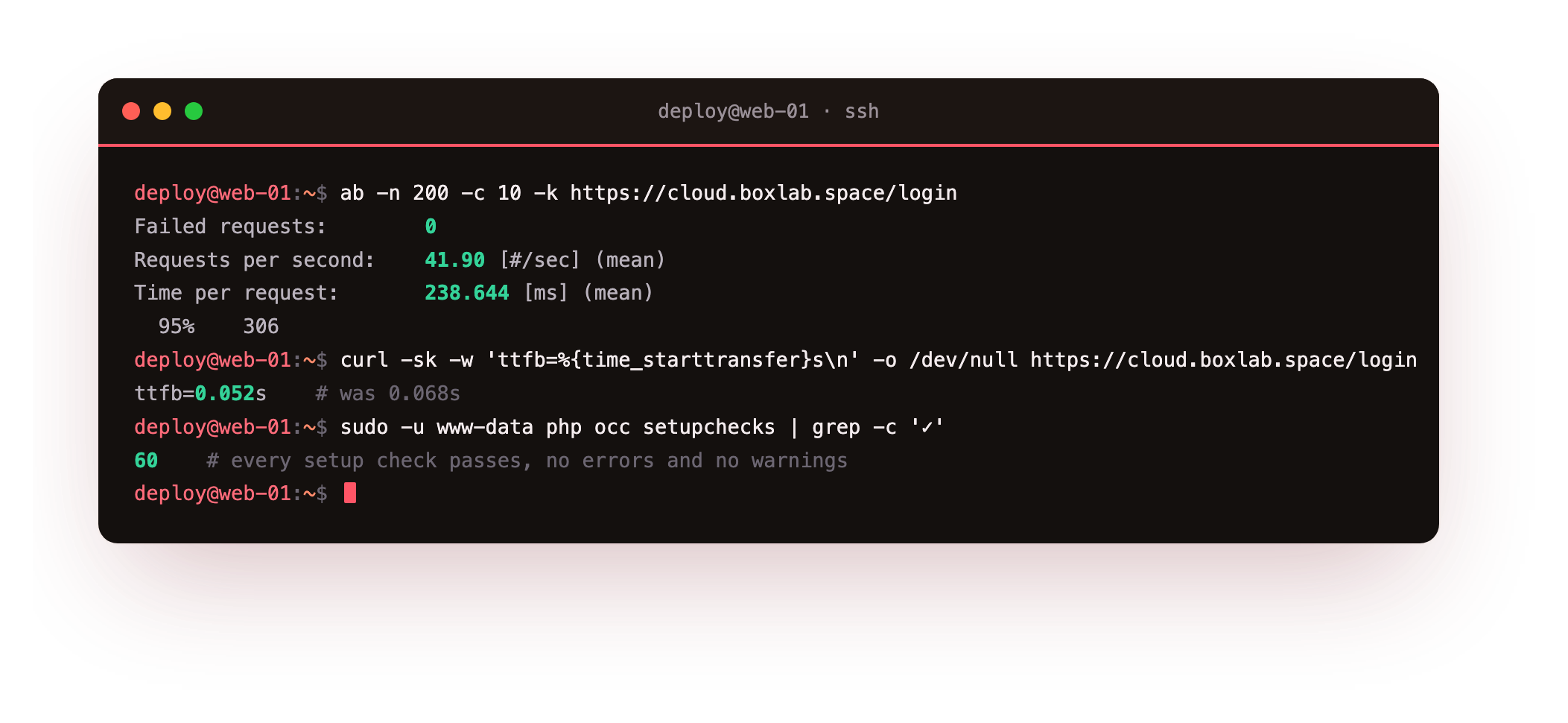
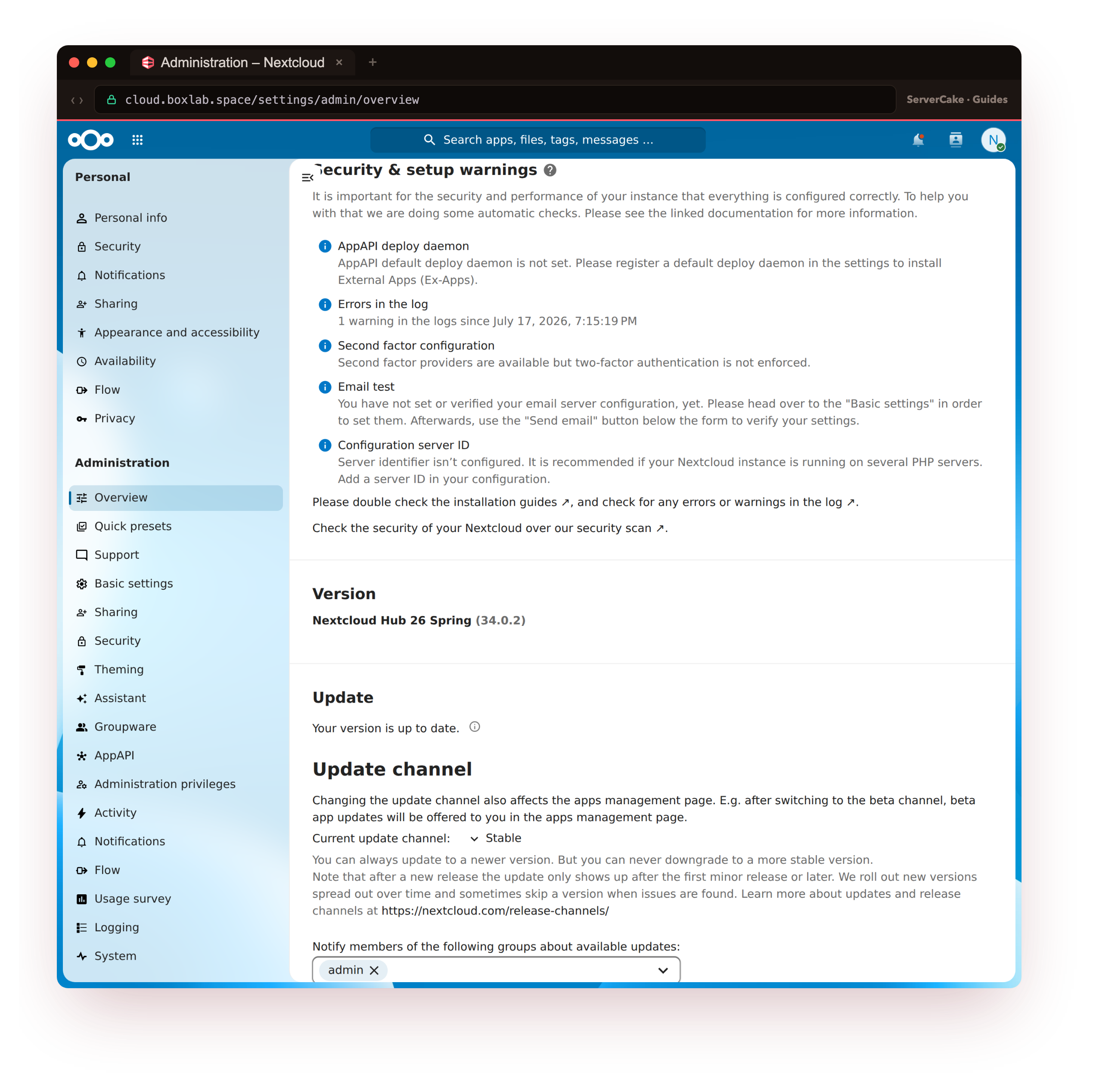
The login page that managed 29.79 requests per second at baseline served 41.90 after, with the mean response time falling from 336 to 239 milliseconds and time-to-first-byte from about 68 to about 52. The bigger change is the last line: setupchecks reported 60 green checks with no errors and no warnings, where before it flagged the cache, the locking and the cron. The admin overview reflects the same clean result.
Be clear-eyed about what moved and why. The page throughput gain, roughly 40 percent, comes from APCu and OPcache sparing PHP repeated work, plus the wider pool. A single WebDAV request stays about the same, because on two vCPUs one request is limited by the processor, not the cache. What the Redis locking buys you is protection under concurrency: the database is no longer the thing that seizes up when several people sync at once. On Nextcloud that structural safety is worth more than a headline number.
Keep it fast and healthy
Two habits keep the setup honest. First, watch that Redis stays healthy but do not let it evict. This is the one place Nextcloud differs sharply from a web page cache: your Redis holds file locks, so an eviction policy that drops keys under memory pressure could drop a lock and corrupt a sync. Leave the policy at noeviction, the default, and simply give Redis enough memory.
redis-cli info memory | grep used_memory_human
redis-cli config get maxmemory-policy
sudo -u www-data php occ status | grep -E 'version|maintenance'
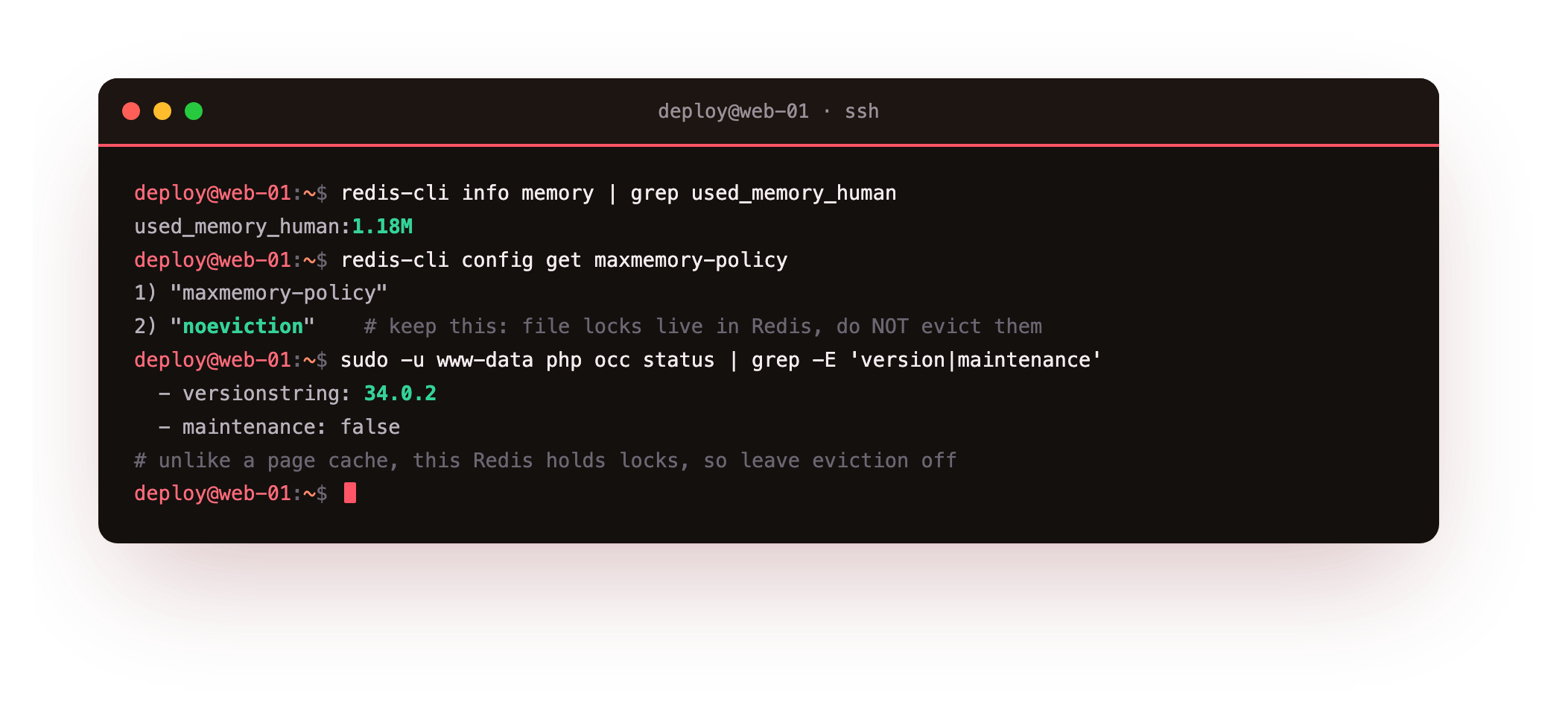
Our Redis used just over a megabyte for a personal instance, sat at the noeviction policy, and occ status confirmed the version with maintenance mode off. Second, keep the instance current: occ status and occ app:update --all are the same tools the install tutorial introduced, and a tuned instance is exactly the kind you want to keep patched.
Know too when tuning is not the answer. If the interface is still slow after all of this, and the uncached, per-request work is the bottleneck even with OPcache and Redis in place, that is the signal to give the slice more CPU. On a VPS a bigger box is a resize you click, not a migration you dread, which is the quiet payoff of owning the whole stack. If you also run a cache-heavy site alongside it, our Redis guide covers the same store in more depth.
Frequently asked questions
How much can I really speed up Nextcloud on a VPS with caching?
On our small 2 vCPU slice the login page went from 29.79 to 41.90 requests per second, roughly 40 percent, with time-to-first-byte falling from about 68 to about 52 milliseconds. That is honest for Nextcloud: unlike a static page cache, these layers mostly spare PHP repeated work and protect the database rather than skipping it entirely. The larger, harder-to-benchmark wins are the file locking moving off the database and the background jobs finally running, both of which keep the instance stable under real concurrent use.Do I need both APCu and Redis, or is one enough?
Both, and they do different jobs. APCu is a local, in-process memory cache, ideal for the config, app list and small lookups Nextcloud repeats on every request, and it is faster than a network call for that. Redis handles the two jobs a single-server local cache cannot: transactional file locking, which must be shared and consistent, and the distributed cache. Settingmemcache.local to APCu and both memcache.locking and memcache.distributed to Redis is the standard, recommended combination.
Why must I not set a Redis eviction policy for Nextcloud?
Because this Redis holds your file locks, not just cache entries. An eviction policy such asallkeys-lru tells Redis to delete keys when it runs low on memory, and if it deletes a lock, two processes could write the same file at once and corrupt a sync. This is the opposite of the advice for a pure web page cache, where eviction is fine. Leave Nextcloud's Redis at the default noeviction and give it enough memory, which for a personal instance is very little.
My WebDAV and file sync still feel slow after tuning. Why?
A single file operation is usually limited by the CPU and the database query behind it, not by the caches, so on a small slice one request will not get dramatically faster from caching alone. What the tuning changes is behaviour under load: with Redis locking and a wider php-fpm pool, many simultaneous syncs no longer contend on the database. If single operations are still slow on an idle box, the fix is more CPU or a faster disk for the data directory, which on a VPS is a resize rather than a rebuild.Running Nextcloud on your own slice means the performance is yours to tune, layer by layer, with no per-seat pricing and no black box deciding what gets cached. When you are ready to give a heavy instance room to breathe, a ServerCake slice gives you a clean Ubuntu 24.04 box in India, billed in rupees with GST, ready for exactly the caching, locking and cron stack above.