Serve a static site with automatic HTTPS
The reason to run Caddy is on display in this chapter. Point it at a hostname and its automatic HTTPS obtains a real certificate, renews it on a schedule, and serves the site over TLS, all from the site block you already wrote. There is no issue command, no renewal timer, no certificate path to fill in. This chapter watches Caddy get the certificate, inspects the one it minted, and loads the static site in a browser so the padlock is yours to see. It runs on Ubuntu 24.04.
- A hostname in the site address is the trigger: Caddy sees a real name and provisions a certificate for it before serving.
- Issuance and renewal run inside the server process, so there is no separate ACME client and no cron entry to forget.
- Caddy stores the certificate, key and its own account under a data directory it owns, and reuses them across restarts.
- On a box without public DNS the same machinery issues from a local authority, which is a faithful stand-in for the public flow.
- Caddy installed and its service running, exactly as the previous chapter left it on the slice.
- A document root with something to serve, here a small
index.htmlunder/srv/tidepool. - For a public certificate on a real slice: a domain whose A record points at the server, and ports 80 and 443 reachable from the internet.
- On this shared demo box neither of those holds, so the walkthrough issues from Caddy's internal authority and says so at each turn.
Point Caddy at a domain
The config is the same three-line block from chapter one, and the line that matters is the address. Giving the block a hostname rather than a bare port is what switches automatic HTTPS on. On a real slice this is the whole file.
tidepool.example.com {
    root * /srv/tidepool
    file_server
}
That block, with a name your DNS points at the box, is enough for Caddy to fetch a publicly trusted certificate from Let's Encrypt the first time the site is asked for. This box has no public record for the demo name and nginx holds the public ports, so the walkthrough adds one line, tls internal, which tells Caddy to sign with its own local authority instead.
The issuance path, the storage, the renewal loop and the TLS serving are identical; only the signing authority changes. Reload the service so the new site takes effect.
sudo systemctl reload caddy
Watch the certificate get issued
Caddy provisions the certificate the moment the site is loaded. Its log records each step, and reading the journal shows the work happen with no prompt from you.
sudo journalctl -u caddy --no-pager | grep tls.obtain
The lines walk through it in order: a lock taken on the identifier so two workers cannot race, obtaining certificate for the hostname, then certificate obtained successfully naming the issuer. On a public setup the issuer reads as the ACME directory and Caddy answers an HTTP or TLS challenge to prove it controls the name. Here the issuer is local, the internal authority, so no challenge is needed. Either way the certificate and its key land in Caddy's storage, ready before the first byte of the page is served.
sudo ls certificates/local/tidepool.example.com/
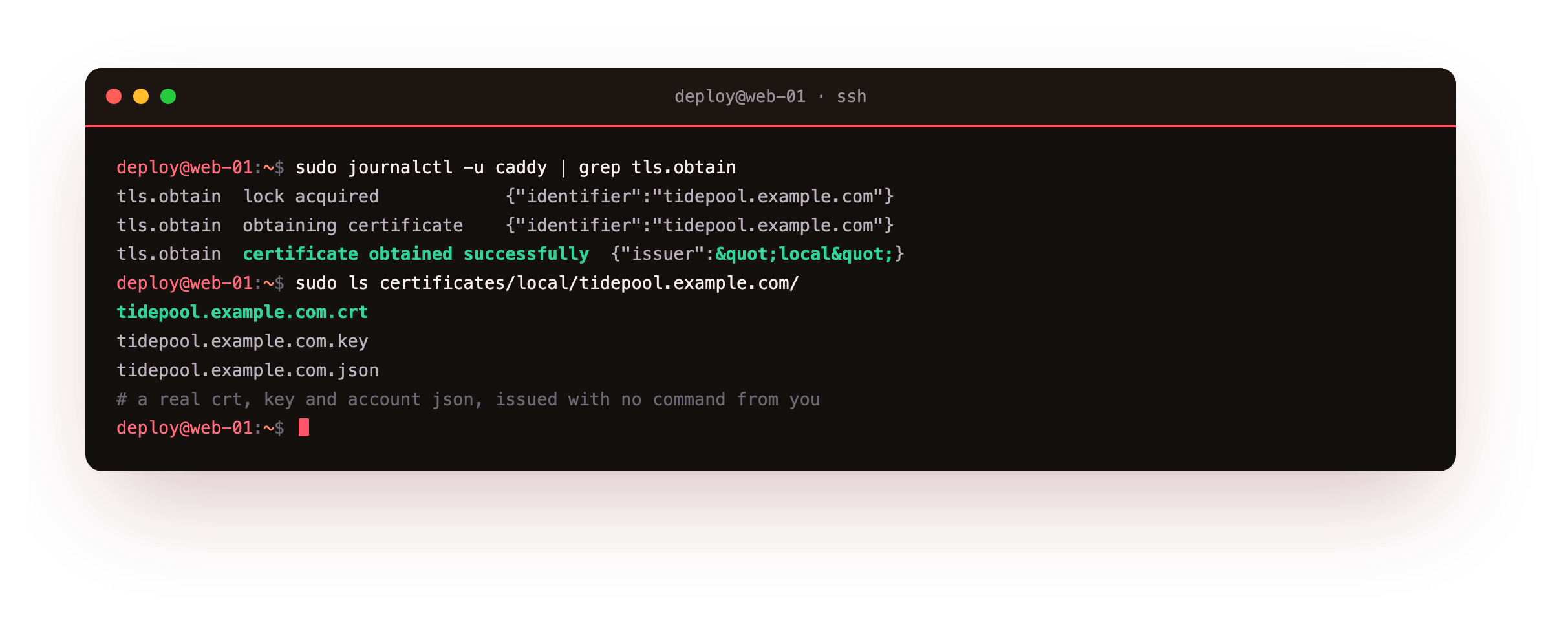
The log should end in certificate obtained successfully, and the storage directory should hold a .crt, a .key and a .json for the hostname. If issuance loops with an error on a real slice, the name does not resolve to this box yet or port 80 is blocked, so fix DNS and the firewall before retrying, because the public challenge needs both.
Inspect the certificate Caddy minted
The certificate is a real X.509 file, not a placeholder, so read it with the usual tool. This is the leaf that clients receive on the handshake.
sudo openssl x509 -in tidepool.example.com.crt -noout -issuer -dates -ext subjectAltName
The subject alternative name is the hostname, which is what a browser checks against the address bar. The issuer names the authority that signed it, an ECC intermediate here. The validity window is short by design, twelve hours for the internal authority and ninety days for a public Let's Encrypt certificate, because Caddy renews well before expiry rather than issuing something long-lived and forgetting it. Now prove a client negotiates TLS against it.
curl -v https://tidepool.example.com:8443/ 2>&1 | grep -Ei 'TLS|verify|HTTP'
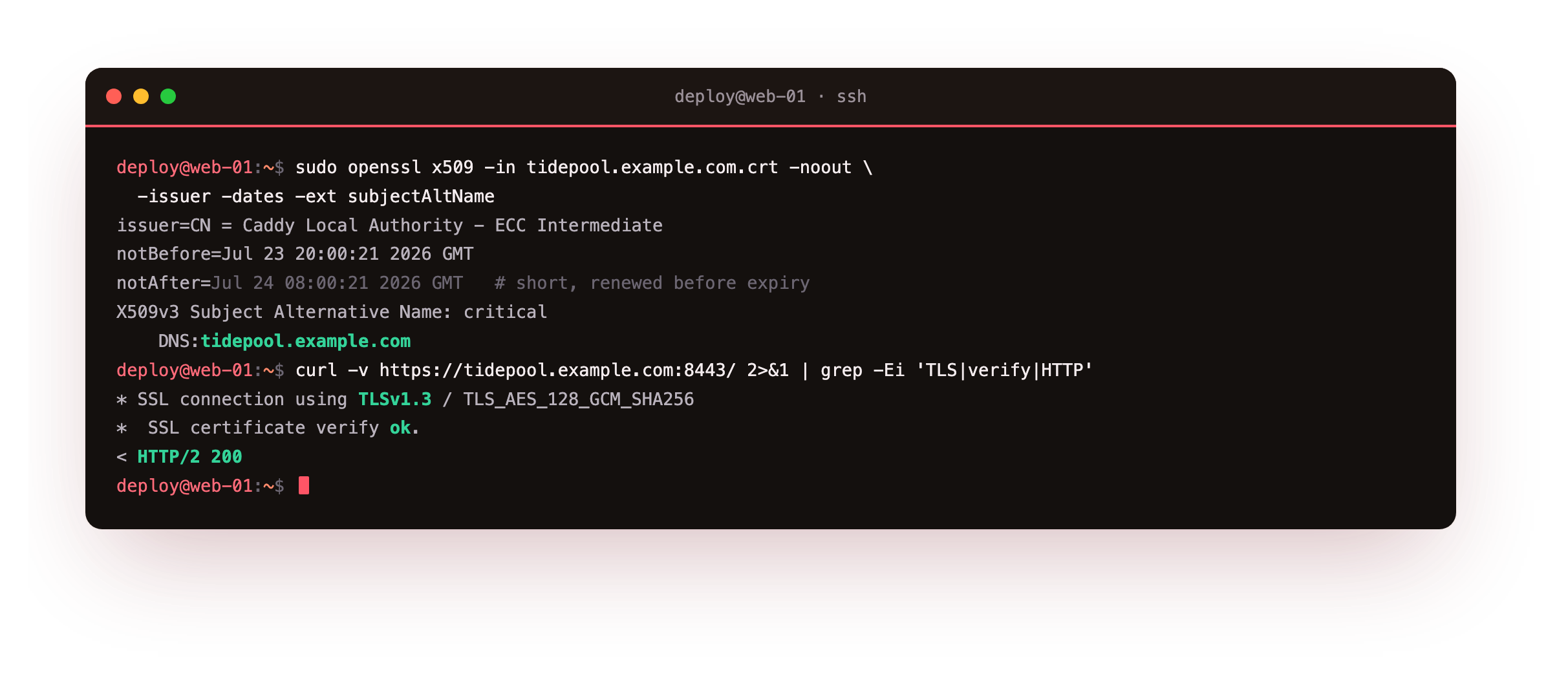
The handshake completes on TLS 1.3 with a modern cipher, the certificate verifies against the authority, and the request returns HTTP/2 200. That is a real encrypted connection to a certificate the server issued to itself with no help.
See it in a browser
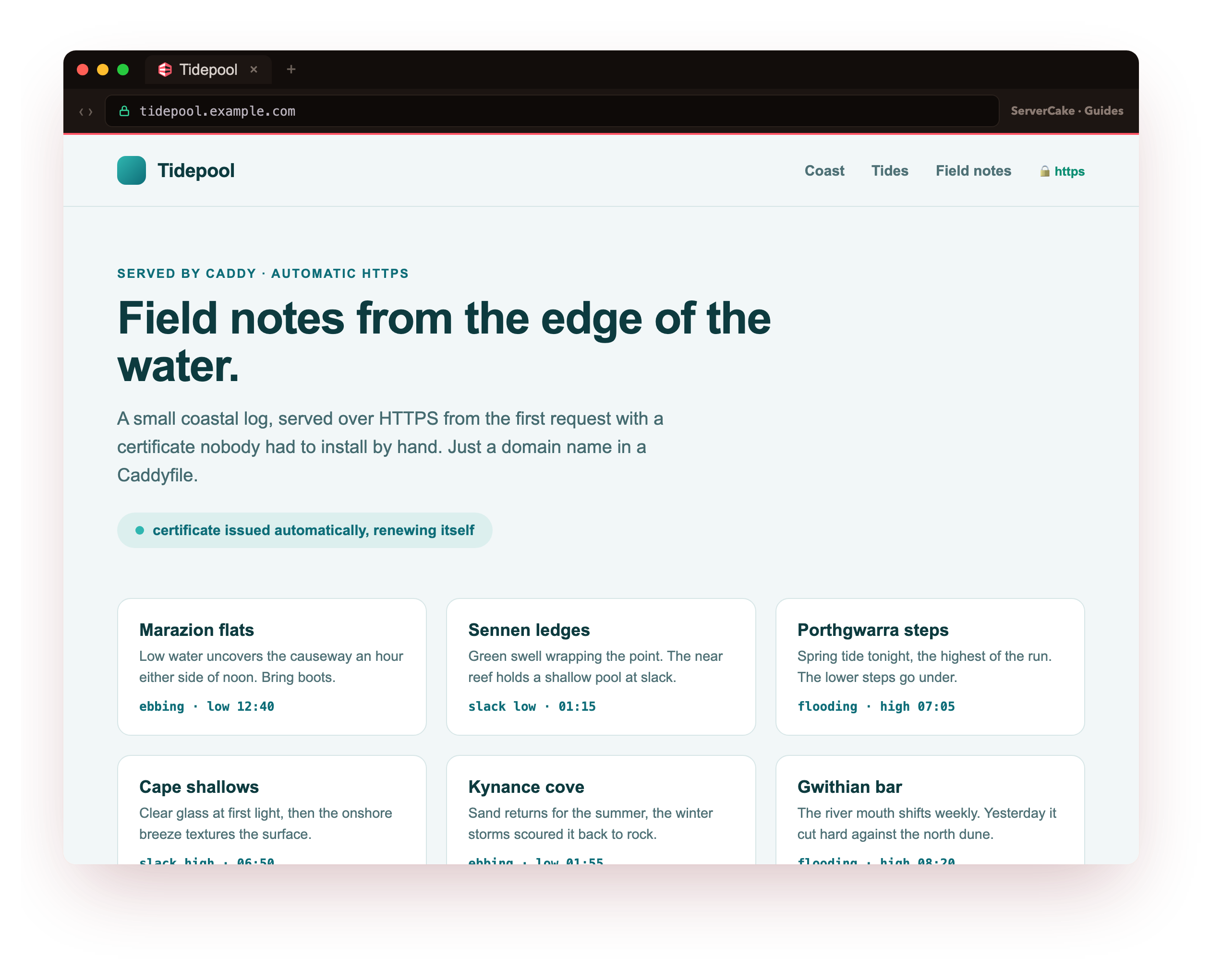
And here it is, live. Point a browser at the site, by its domain if you have one aimed at the slice, and Tidepool paints over an HTTPS connection with a padlock in the bar. This is the moment the automatic part stops being a claim and becomes a page: the bytes arrive encrypted under a certificate the server obtained on its own, renews on its own, and served without a certificate line in the config.
Nothing here was issued by hand. Reload the page and the same certificate answers, and weeks from now it answers under a fresh one that Caddy rotated in while you were not watching. A static site reachable over HTTPS that you never ran a certificate command for is the payoff this tool exists to deliver.
How Caddy automatic HTTPS works
Underneath the convenience is a small state machine. When Caddy loads a site with a hostname, it checks its storage for a valid certificate. If one is missing or near expiry, it asks its configured issuer for a new one. For a public certificate that means the ACME protocol: Caddy proves control of the name by answering a challenge, over port 80 for the HTTP method or port 443 for the TLS-ALPN method, and the certificate authority signs the result.
A renewal loop runs for the life of the process and reissues each certificate at roughly two-thirds of its lifetime, so a ninety-day certificate refreshes around day sixty with plenty of margin. Everything lives under one storage directory, the account key, the certificates and their keys, which means a rebuilt box that keeps that directory keeps its certificates too.
- While testing against a real domain, point Caddy at the Let's Encrypt staging endpoint so a mistake does not spend your rate limit; the certificates are untrusted but the flow is identical.
- For a site that serves many hostnames you do not know in advance,
on_demandTLS issues a certificate at the first request for a name, gated by a check so it cannot be abused. - To let clients trust the internal authority used here, install its root with
caddy trust, which is what makes a plain curl verify on this box.
Frequently asked questions
What does my DNS need to look like for a real certificate?
An A record, or AAAA for IPv6, for the exact hostname in the site block, pointing at the slice's public address. The public challenge only succeeds when the certificate authority can reach your server at that name, so the record must resolve and ports 80 and 443 must be open. Once that is true, no further setup is needed: Caddy answers the challenge and issues the certificate the first time the site is loaded.
Where does Caddy keep the certificates and keys?
Under a data directory owned by the service user, by default beneath the caddy user's home on a package install. It holds the ACME account key, each certificate and its private key, and Caddy reuses them across restarts rather than reissuing. Back that directory up and a rebuilt server keeps its certificates. Keep its permissions tight, because the private keys live there and only the caddy user should read them.
Will automatic renewal ever cause downtime?
It should not. Caddy renews in the background well before expiry and swaps the new certificate into the running server without a restart or a dropped connection. If a renewal fails, it keeps trying while the current certificate is still valid, which is why the early refresh matters. You watch the logs rather than a calendar, and the visitor never sees the change.
Can I still bring my own certificate if I need to?
Yes. A tls directive can point at a certificate and key you already hold, and Caddy serves those instead of issuing its own, which suits an internal certificate authority or a purchased certificate. You lose the automatic renewal for that site and take it on yourself. Most sites are better served by letting Caddy manage issuance, but the manual path is there when a policy requires a specific certificate.
What you have, and what comes next
You pointed Caddy at a hostname, watched its automatic HTTPS obtain a certificate with no issue command, inspected the real leaf it signed, confirmed a TLS 1.3 handshake against it, and loaded the site in a browser over an encrypted connection. The certificate work that fills a separate tool on other stacks happened inside the server.
A static site is the simplest thing to serve. The next chapter puts Caddy in front of a running application as a reverse proxy, with forwarded headers, transparent websockets, and load balancing across two backends, while HTTPS stays on the whole time.