From a working key to a tidy connection
You finished chapter one with a key that logs you in, but the command to use it is a mouthful: a hostname, a user, a non-default port, and an -i path, retyped every time. The SSH config file at ~/.ssh/config fixes that. It is a plain text file that maps a short alias to all of those details, so ssh web-demo expands to the full command for you. This chapter builds one on Ubuntu 24.04, reaches a server through a bastion, and reuses a single connection across several sessions.
- A
Hostblock in~/.ssh/configmaps a short alias to a HostName, User, Port and IdentityFile. ProxyJumpreaches a private host by tunnelling through a bastion in one command.- Multiplexing with
ControlMasterlets later sessions ride the first connection instead of authenticating again. ControlPersistkeeps that shared connection open in the background for a set idle time.
- The key from chapter one, working against the demo account, since every alias here offers that key rather than a password.
- Write access to
~/.ssh/configon your laptop, which SSH reads for every alias; create it at mode 600 if it does not exist yet. - The same isolated demo sshd on port 2222 standing in for a bastion and a private host, so the two-hop pattern is real without a second machine.
The SSH config file: host blocks and aliases
A block starts with Host and an alias, then indented keywords describe how to reach it. The demo file below defines three targets, each pointing at the throwaway sshd on port 2222.
cat ~/.ssh/config
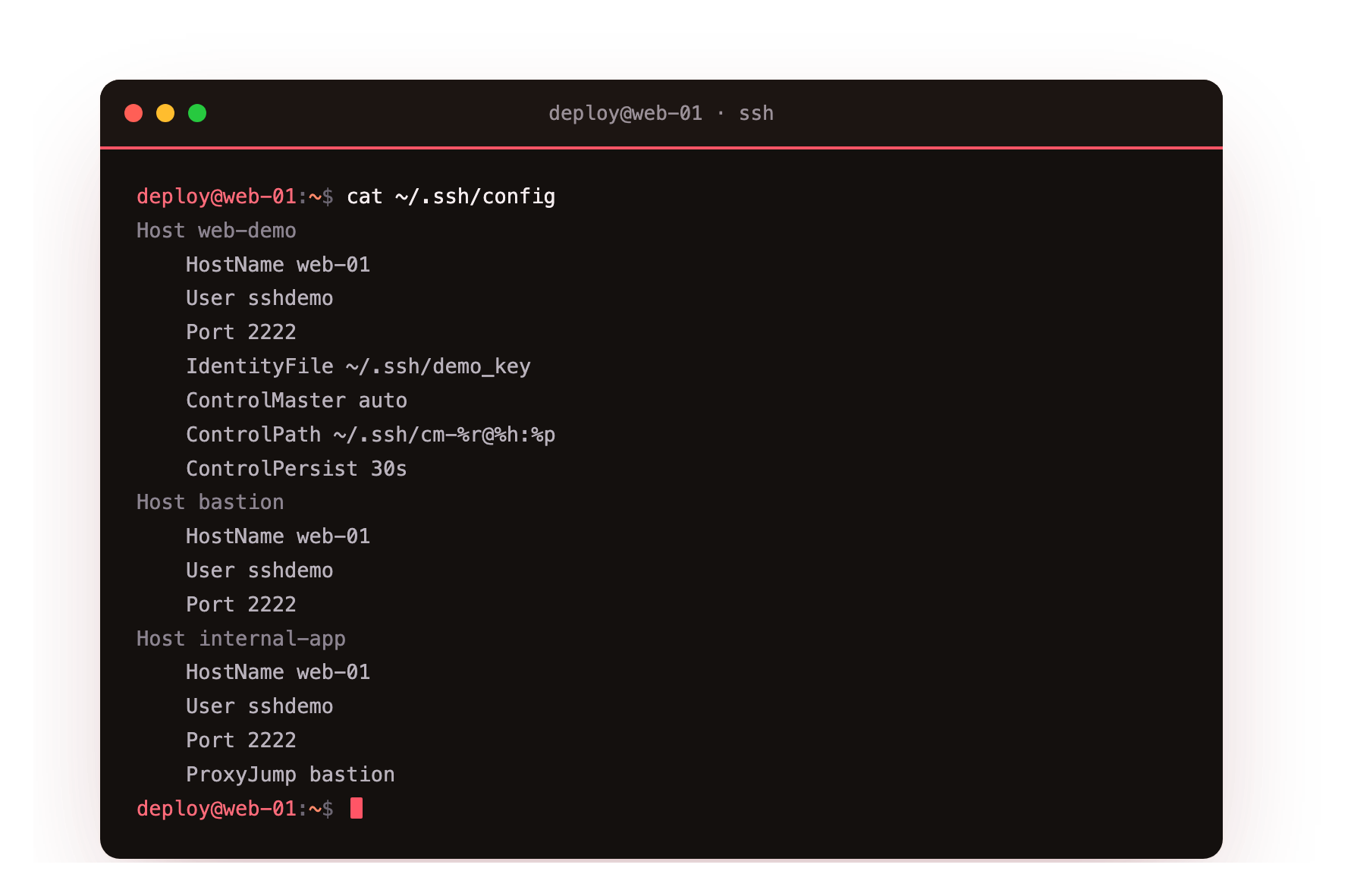
Read the web-demo block. HostName is the address SSH actually dials, User is the account, Port picks the non-default port, and IdentityFile names the private key to offer. With that saved, ssh web-demo expands to the full command. Aliases also feed tab completion and travel to scp and rsync, so every tool that speaks SSH understands the same short name.
After writing the block, run ssh -G web-demo | grep -E 'hostname|user|port|identityfile'. SSH prints the settings it resolved for that alias, which is the honest way to confirm the block parsed the way you meant before you rely on it.
Reaching a private host with ProxyJump
Production networks often hide application servers behind a single bastion, the only machine exposed to the internet. You cannot dial the private host directly, so you hop through the bastion. The old way chained two commands; ProxyJump does it in one.
The internal-app block sets ProxyJump bastion, which tells SSH to open a connection to the bastion first and tunnel the real session through it. To you, one command reaches the target.
ssh internal-app
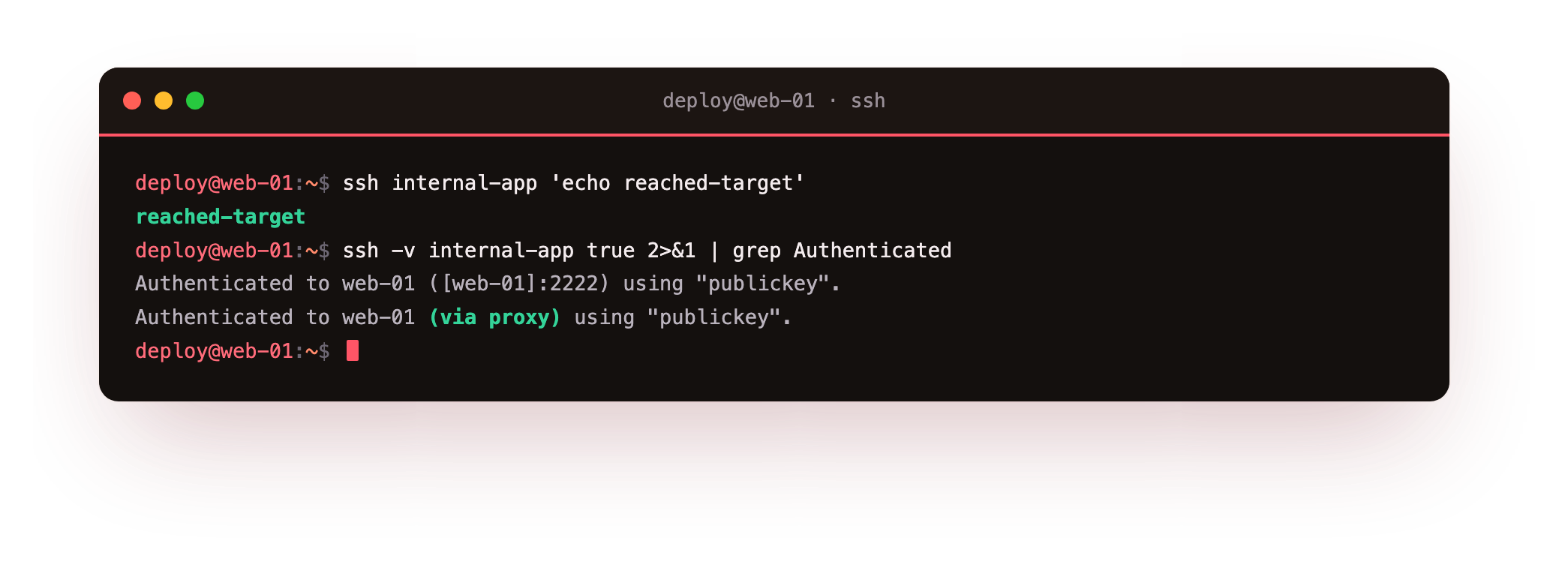
A verbose run shows the two stages plainly: it authenticates to the bastion, then authenticates again to the target with (via proxy) on the second line. Your key authenticates each hop, and the private host never needs a public address. Nothing about the bastion has to store your credentials, which is the property that makes this pattern safe to scale to a fleet.
Run ssh internal-app 'hostname' and confirm it returns without you ever naming the bastion on the command line. If it hangs or refuses, connect to bastion alone first: the jump only works once the first hop does, so isolate which leg is failing.
Reusing one connection with multiplexing
Opening a fresh TCP connection and running the key exchange for every ssh, scp and git call adds up, especially over a slow link. Multiplexing keeps one real connection open and runs extra sessions down the same pipe. The first login becomes the master; later ones attach in milliseconds.
The web-demo block turns it on with ControlMaster auto, a ControlPath socket for the shared connection, and ControlPersist 30s to keep the master alive briefly after the last session closes. You can ask the master whether it is up.
ssh -O check web-demo
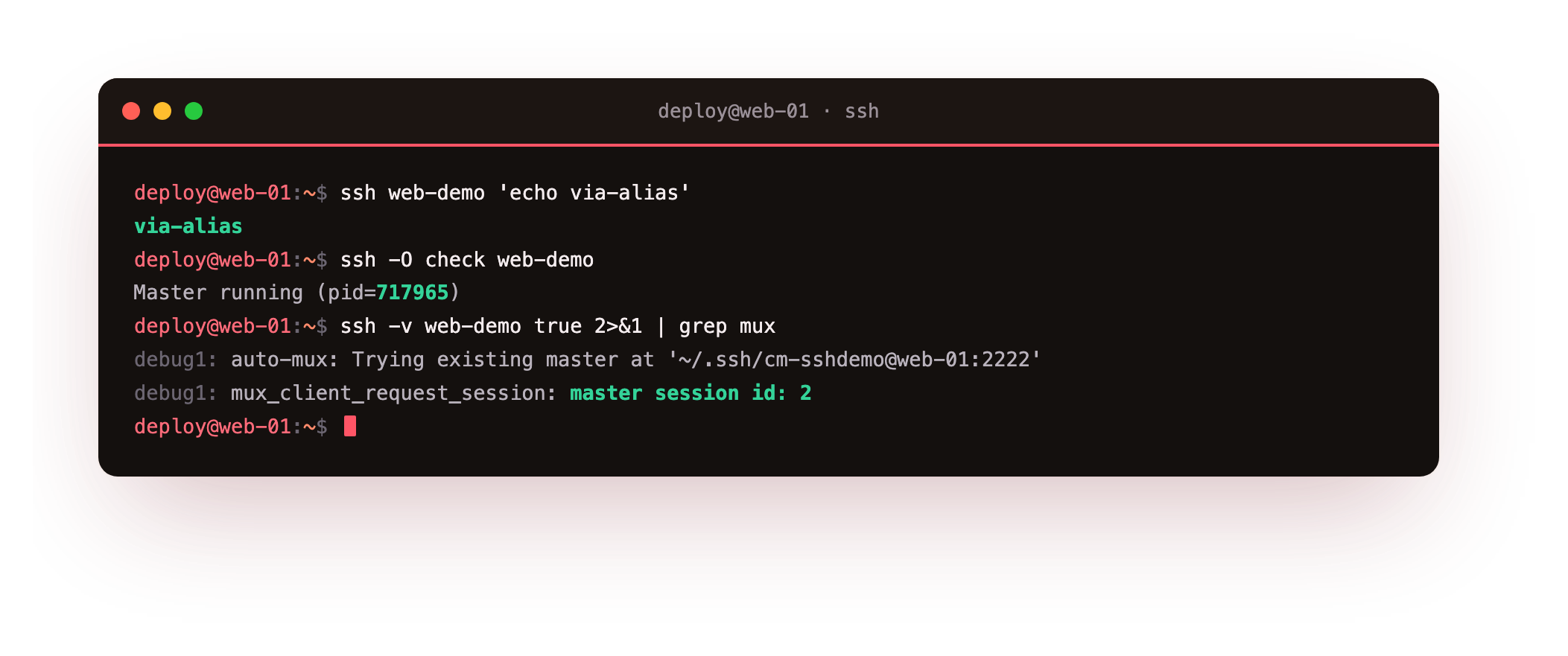
It replies Master running with the process id. Run a second ssh web-demo and a verbose trace shows auto-mux: Trying existing master, confirming the new session reused the open connection rather than authenticating again. When you are done, ssh -O exit web-demo closes the master on demand.
Going further: patterns, defaults and ProxyCommand
The file rewards a little structure. Host accepts patterns and multiple names, so Host web-* applies a block to every matching alias, and a trailing Host * at the end sets defaults for everything. The file is read top to bottom with the first match winning, so put specific blocks above general ones. A command-line flag still overrides the file for one run, which lets you keep a tidy file yet tweak a single connection without editing it.
ProxyJump is the modern shorthand for hopping through a bastion, and it covers almost every case. Its older cousin ProxyCommand is lower level: you spell out the tunnelling command yourself, which is only worth reaching for on an unusual transport that ProxyJump cannot express. Reach for the shorthand first and drop to ProxyCommand when you actually need it.
Frequently asked questions
Does a flag override the config file or the other way round?
A command-line flag wins for that single run. The file supplies defaults, and options like -p or -i override the matching keyword. This lets you keep a tidy file yet still tweak one connection without editing it.
What is the difference between ProxyJump and ProxyCommand?
ProxyJump is the modern shorthand for hopping through one or more bastions and needs no helper. ProxyCommand is the older, lower-level option where you spell out the tunnelling command yourself, useful for unusual transports.
Is connection multiplexing safe to leave on?
For interactive work it is fine and quick. Watch two cases: a flaky network can wedge the master socket, and a shared account means everyone rides one authenticated channel. Set a short ControlPersist and per-user socket paths.
Do scp and rsync read this file too?
Yes. scp, rsync over SSH, sftp and git over SSH all call the same client, so they all read ~/.ssh/config. Define an alias once and scp file web-demo:/tmp and a web-demo:repo.git remote both work without repeating the details.
What you can do now
Your connections are now short names. A well-built ~/.ssh/config turns a wall of flags into ssh web-demo, ProxyJump reaches a private host through a bastion in one line with both hops proven by the verbose trace, and multiplexing lets later sessions reuse the first connection, which ssh -O check confirms.
Those connections all land on an sshd, and so far that daemon still accepts whatever it shipped with. The next chapter locks it down, turning off passwords and root login and capping retries, on a throwaway daemon so a bad edit can never cut your own connection: hardening sshd without locking yourself out.