The last piece: moving data safely
You can now reach and use servers over SSH. The final job is moving data across that same connection, and it rests on a check most people click straight past. SSH host keys are how your client knows the server is the same one it trusted last time, and every file you push with scp, sftp or rsync rides on that check.
The tools differ in speed and features, but they all borrow one authenticated, encrypted connection, and that connection is only as trustworthy as the host key behind it. This chapter moves real files three ways on Ubuntu 24.04 and shows how the fingerprint check stops you from handing data to an impostor.
- A server proves its identity with a host key, and the client pins it in
~/.ssh/known_hostson first contact. scpis a one-shot copy;sftpis an interactive session;rsynctransfers only what changed.- The first-connect prompt shows a fingerprint you should compare against the value read on the server.
- SSH certificate authorities replace per-server
known_hostsentries once a fleet grows past a handful of hosts.
- The key login to the demo account, since scp, sftp and rsync all authenticate exactly the way your interactive session does, with no separate credential.
- Shell access on the server to read its host-key fingerprint directly, which is the value you will compare against the client's first-connect prompt.
- A small file or two on your side to send, so each tool has something real to move and you can watch it land.
Host keys answer a different question from your login keys. Your key proves who you are to the server; the host key proves which server you reached, which is what defends you against a machine in the middle pretending to be your box. Get the identity check right and the transfer tools become the easy part.
Verifying SSH host keys on first connect
Every server generates a host key pair at install. An admin can read its fingerprint directly on the box, giving you a value to compare.
sudo ssh-keygen -lf /etc/ssh/ssh_host_ed25519_key.pub
ssh -p 2222 sshdemo@web-01
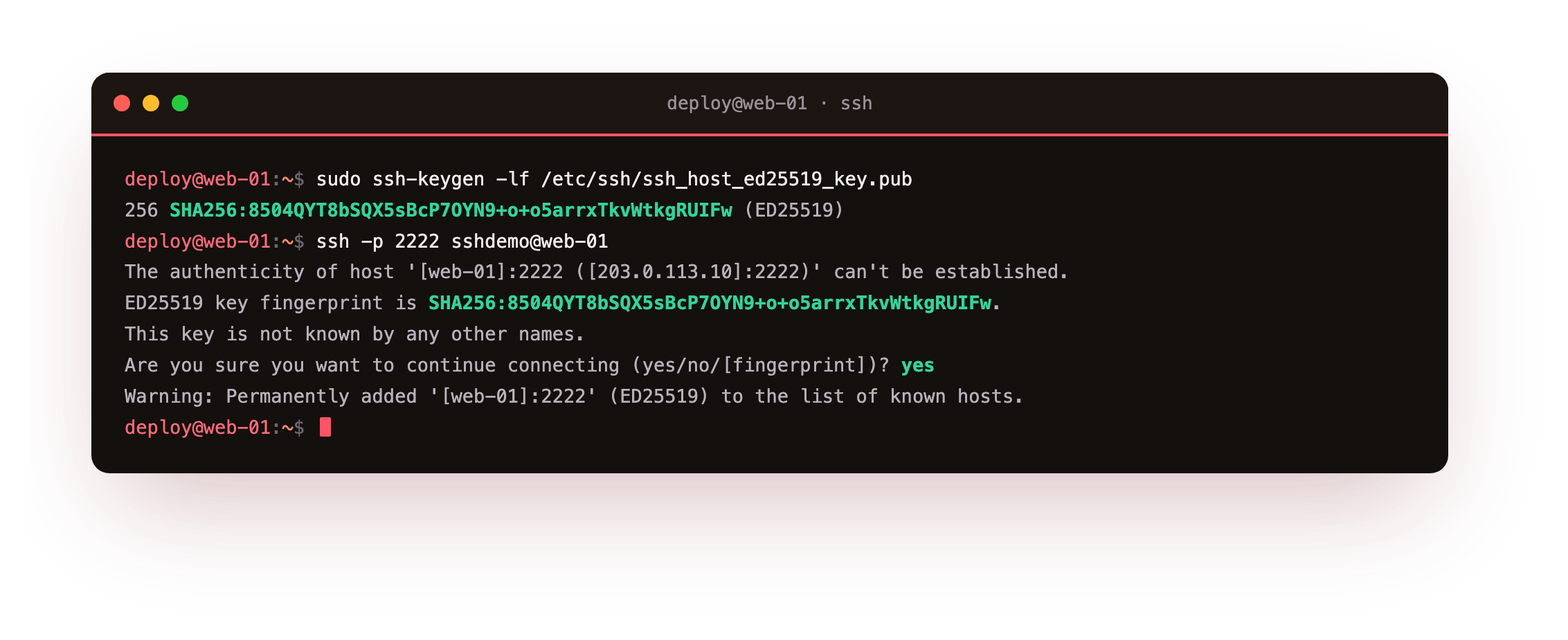
The first time your client meets a server, it has no stored entry, so it shows the host's fingerprint and asks whether to continue. The right move is to check that printed SHA256 value against the one the admin read, and only then answer yes. Accepting pins the key in known_hosts, and every later connection compares silently. If the key ever changes, SSH refuses loudly, which is the alarm you want when something is wrong, or the reminder to clear the old entry after a genuine rebuild.
Compare the SHA256 string from ssh-keygen -lf on the server against the fingerprint the client shows at the prompt, character for character. They must match before you type yes. If they differ, stop: you are either reaching the wrong host or something is sitting in the middle, and pinning that key would trust it.
scp for a quick copy
scp does one job: take a file here and put it there over SSH. The shape is a source path, then a destination written as user@host:path, with the colon separating the host from the path. It reuses your key, so if you can log in, you can copy.
scp -P 2222 -i ~/demo_key report.csv sshdemo@web-01:incoming/
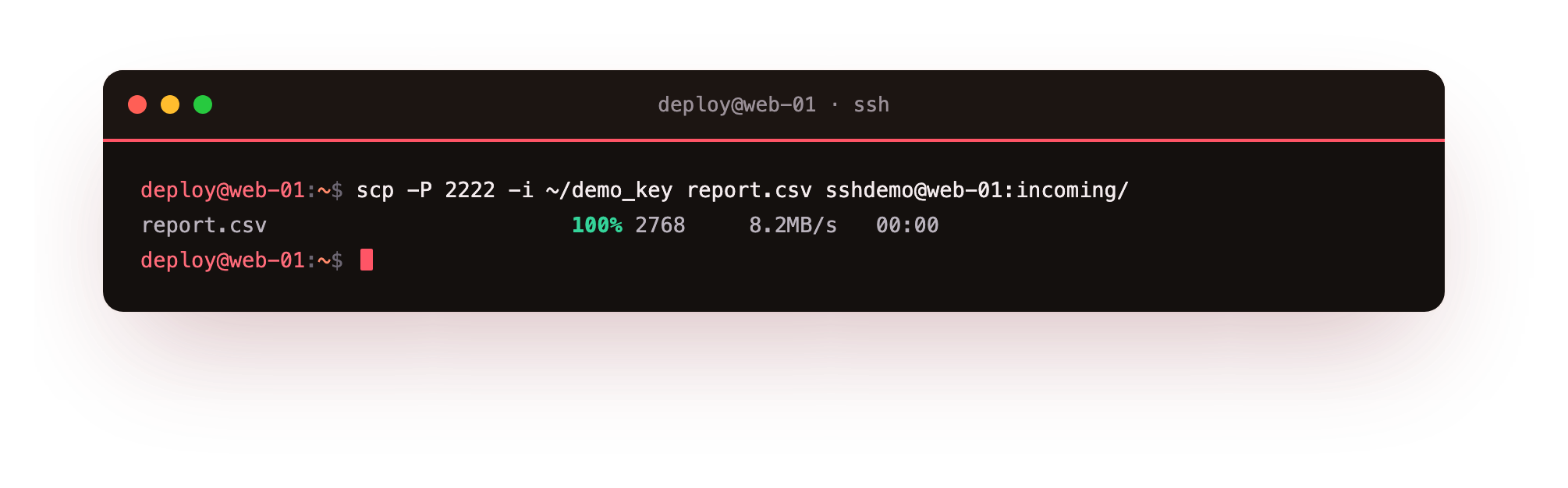
Note the capital -P for the port, a quirk scp keeps for historical reasons while ssh uses lowercase. The transfer prints a progress line with the percentage, byte count and rate. scp suits a single file you move once. What it will not do is notice that most of a file already exists at the far end, so a second run resends the whole thing.
sftp for an interactive session
sftp opens a stateful session over the same connection, with familiar commands like ls, cd, put and get. It shines when you want to browse the remote side, move several files, or drive a transfer from a script. A batch file or a here-document feeds it commands non-interactively.
sftp -P 2222 -i ~/demo_key -b - sshdemo@web-01
Feeding it put then ls -l uploads a file and then lists the remote directory, confirming the upload landed with the size and owner you expect. Because the session persists, sftp avoids reopening a connection per file, and its resumable reget and reput help on a flaky link where a plain copy would restart.
rsync for transfers that only send changes
rsync is the tool for anything you sync more than once. It compares both ends and moves only the differing pieces, which turns a repeat transfer of a mostly unchanged tree into a few kilobytes. Over SSH it takes an -e ssh option to set the transport, including a non-default port.
rsync -av -e 'ssh -p 2222 -i ~/demo_key' ~/backups/ sshdemo@web-01:incoming/
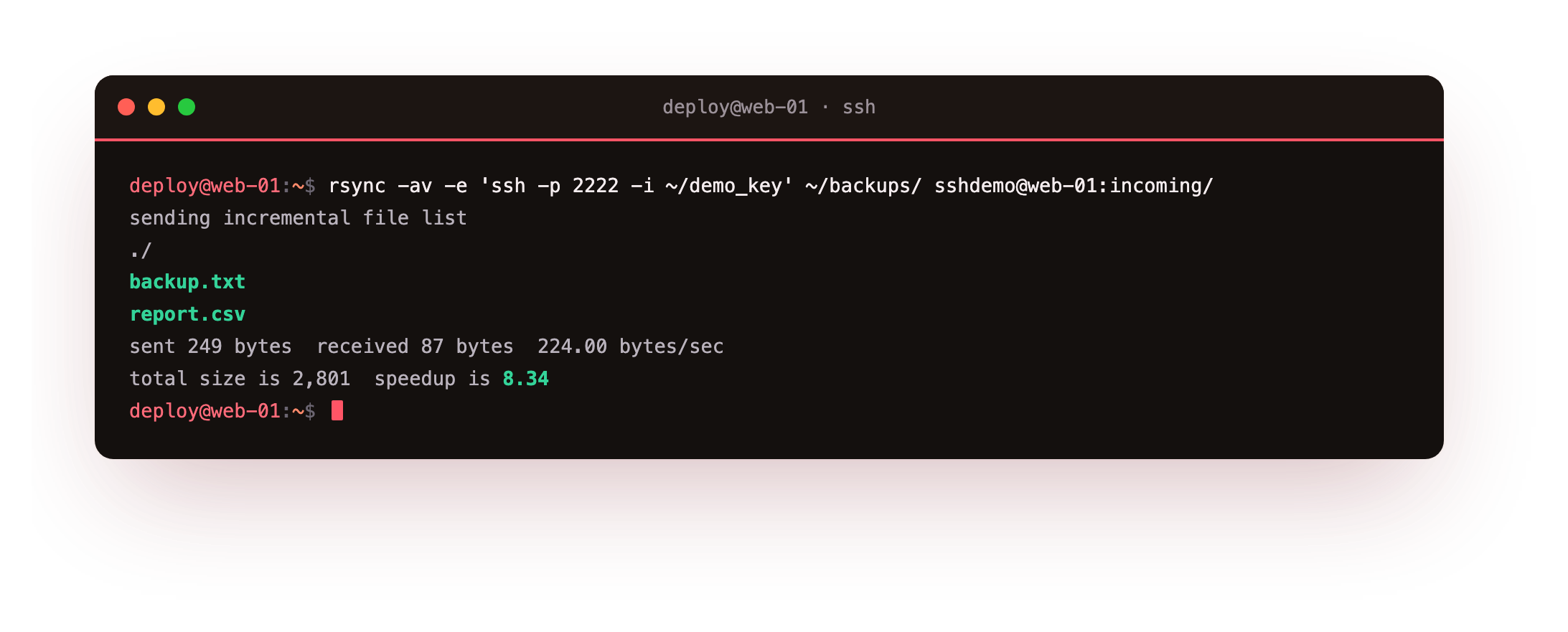
-a preserves permissions, times and ownership, and -v lists what moved. The summary reports the bytes actually sent against the total size, and the speedup figure shows how much the delta algorithm saved. One detail bites everyone once: a trailing slash on the source copies its contents, while no slash copies the directory itself.
Run the rsync line twice. The first run sends the files; the second should report almost no bytes sent and a high speedup, because nothing changed. Seeing the second run move next to nothing is the delta algorithm working, and the reason rsync beats scp for anything you repeat.
Going further: when host keys stop scaling
Pinning a fingerprint per server is fine for a handful of boxes. Past that, known_hosts becomes a chore: every rebuild changes a key and triggers a scary warning, and every new engineer starts with an empty file and clicks through prompts. It is the same not-scaling that per-account authorized_keys hits from the other direction.
SSH certificate authorities fix this by signing host keys with one trusted CA. Clients trust the CA once, in a single @cert-authority line, and then accept any host it vouches for. Rebuilds reissue a certificate instead of breaking trust, which is the scale answer to managing thousands of entries by hand. The same idea can sign user keys too, replacing per-server authorized_keys with short-lived certificates, which is where large fleets end up.
Frequently asked questions
scp or rsync for a backup job?
Use rsync. It sends only changed data, resumes cleanly, and preserves permissions and timestamps with -a. scp is fine for a one-off file, but a repeated backup wastes bandwidth resending everything each run.
SSH warns that the host key changed. What now?
Stop and find out why. A genuine rebuild or key rotation explains it, in which case remove the old line with ssh-keygen -R host and verify the new fingerprint out of band. If nothing changed on the server, treat it as a possible interception.
Why does scp use -P while ssh uses -p?
Historical accident. scp already used lowercase -p to preserve timestamps, so the port flag became capital -P. sftp follows scp with capital -P, while ssh and rsync -e use lowercase. It is worth memorising to avoid a confusing error.
What does an SSH certificate authority replace?
It replaces the per-host lines in every user's known_hosts. Instead of pinning each server, clients trust one CA that signs host keys, so new and rebuilt hosts are accepted automatically without a prompt or a stale-key warning.
What you can do now, and where the series leaves you
You can move data safely: check a server's fingerprint on first connect against the value read on the box, let known_hosts guard it after, then pick scp for a quick copy, sftp for an interactive or scripted session, and rsync for anything you send more than once. That identity check is what stops you copying data to a machine impersonating yours.
That closes the arc. You started logging in with a password and now hold your own key; you turned a wall of flags into short aliases and reached a private host through a bastion; you hardened a daemon so a password guess bounces off while your key walks in, without ever risking your own session; and you carried tunnels, understood the one forward that bites, and moved files over the same trusted connection.
Every server you touch from here is faster and safer to reach, which is exactly what a real slice is for.