SSH port forwarding on a trusted connection
The hardened connection from chapter three does not have to stop at a shell. SSH port forwarding carries other traffic through that same encrypted login, so you can reach a service that is not exposed to the internet without opening a firewall port for it.
There are three shapes: a local forward pulls a remote service to your machine, a remote forward pushes a local service out to the server, and a dynamic forward turns SSH into a general proxy. This chapter runs all three on Ubuntu 24.04 and sends a real request through each.
-Lopens a port on your machine that reaches a service the server can see, often one bound to 127.0.0.1.-Ropens a port on the server that reaches back to a service on your side of the connection.-Druns a SOCKS proxy on your machine, sending whatever you point at it out through the server.- Each forward lives and dies with its SSH session and exposes nothing new to the public internet.
- A key login to the demo account that already works, since every tunnel below rides that authenticated session rather than opening anything new.
- A service on the server bound to loopback to aim at; here it is the nginx that ships on the slice, answering on
127.0.0.1:80. curlandsson your side to send a request through each tunnel and to confirm which local port the forward opened.
The flags share a rhythm. -f sends SSH to the background once it connects, and -N says run no remote command, because a pure tunnel needs no shell. Combine them as -fN and the process quietly holds the forward open until you close it. The demo server runs its second sshd on port 2222, hence the -p 2222 on each command.
Local forwarding with -L
A local forward is the one you reach for most. You bind a port on your own machine, and anything that connects to it is carried across the SSH session and handed to a destination the server can see. The classic use is a database or admin panel bound to 127.0.0.1 on the server, invisible from outside, that you still need from your laptop.
ssh -fNL 15080:127.0.0.1:80 -p 2222 sshdemo@web-01
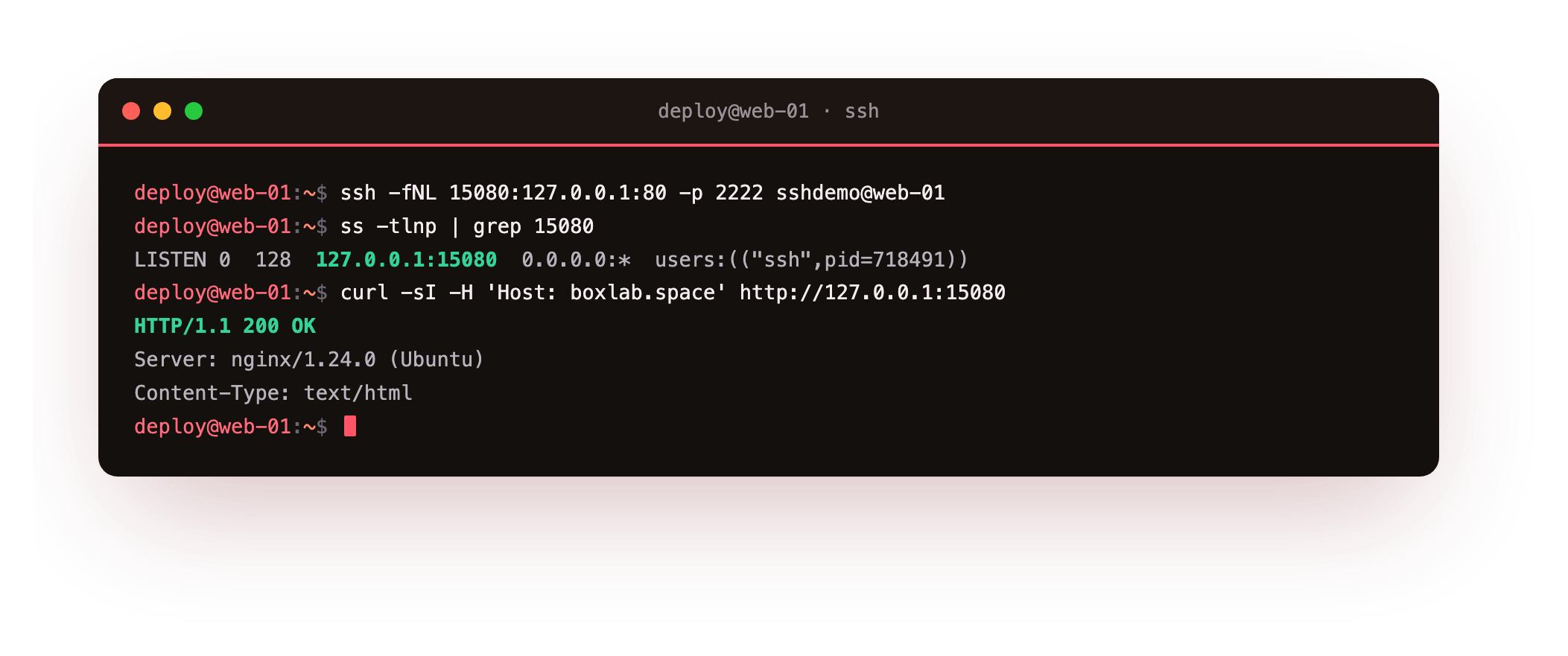
The argument reads local-port, then destination-host, then destination-port, joined by colons. Here port 15080 on your machine forwards to 127.0.0.1:80 as the server resolves it, which is its nginx. A quick ss confirms the client is listening locally, and a curl to 127.0.0.1:15080 returns the server's 200 OK from nginx. Nothing about nginx changed and no public port opened; the traffic simply rode the tunnel.
After the forward, run curl -sI -H 'Host: your-site' http://127.0.0.1:15080 | head -1 and confirm HTTP/1.1 200 OK. A `200` means your laptop just reached a loopback-only service on the server with no firewall change. If the port refuses, the forward did not open: check ss -tlnp | grep 15080 on your side.
Remote forwarding with -R
A remote forward runs the other direction. It opens a listening port on the server that reaches back to a service on your side. This is how you expose a laptop app to something running on the server, or punch a temporary path back to a machine behind a firewall that can dial out but not be dialled.
ssh -fNR 15081:127.0.0.1:80 -p 2222 sshdemo@web-01
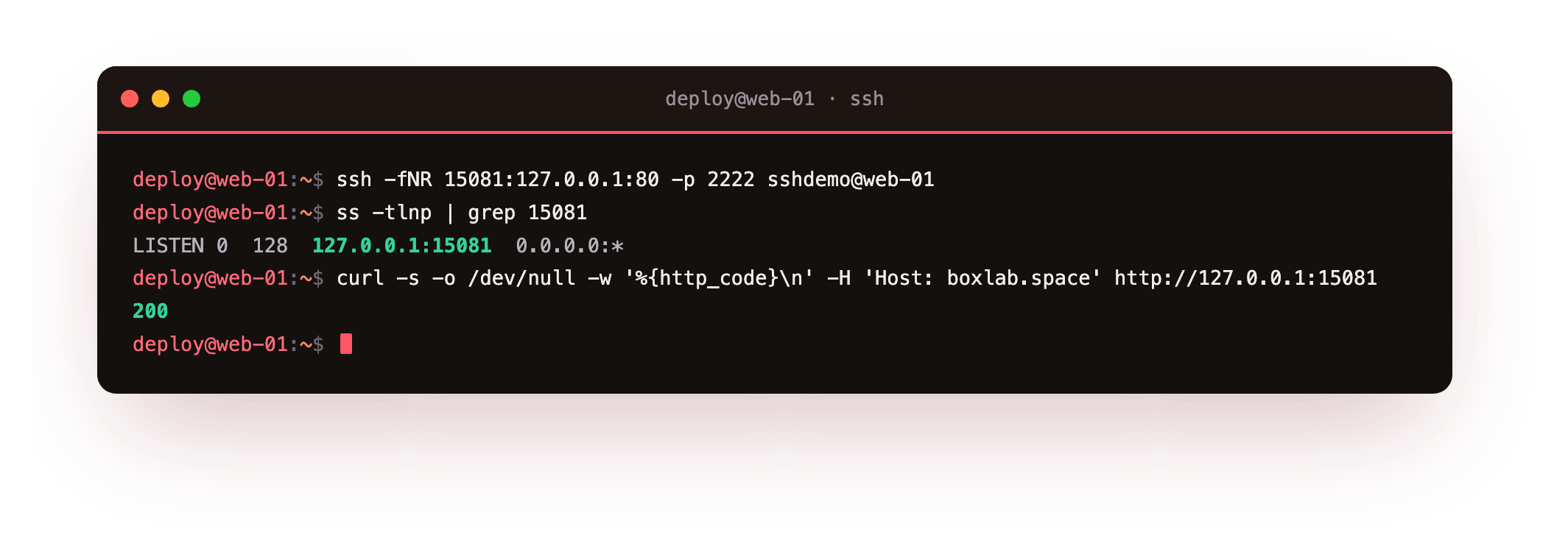
Now port 15081 on the server forwards to 127.0.0.1:80 as your client sees it. A request the server makes to its own 127.0.0.1:15081 is carried back down the tunnel and answered on your end, returning 200. By default the server binds this port to loopback only, so it is not world reachable unless an admin sets GatewayPorts on purpose.
Dynamic SOCKS forwarding with -D
A dynamic forward is the flexible one. Instead of a fixed destination, -D opens a SOCKS proxy on your machine, and any application you point at that proxy has its connections carried out through the server. One tunnel then serves a whole browser session or command, choosing destinations on the fly.
ssh -fND 11080 -p 2222 sshdemo@web-01
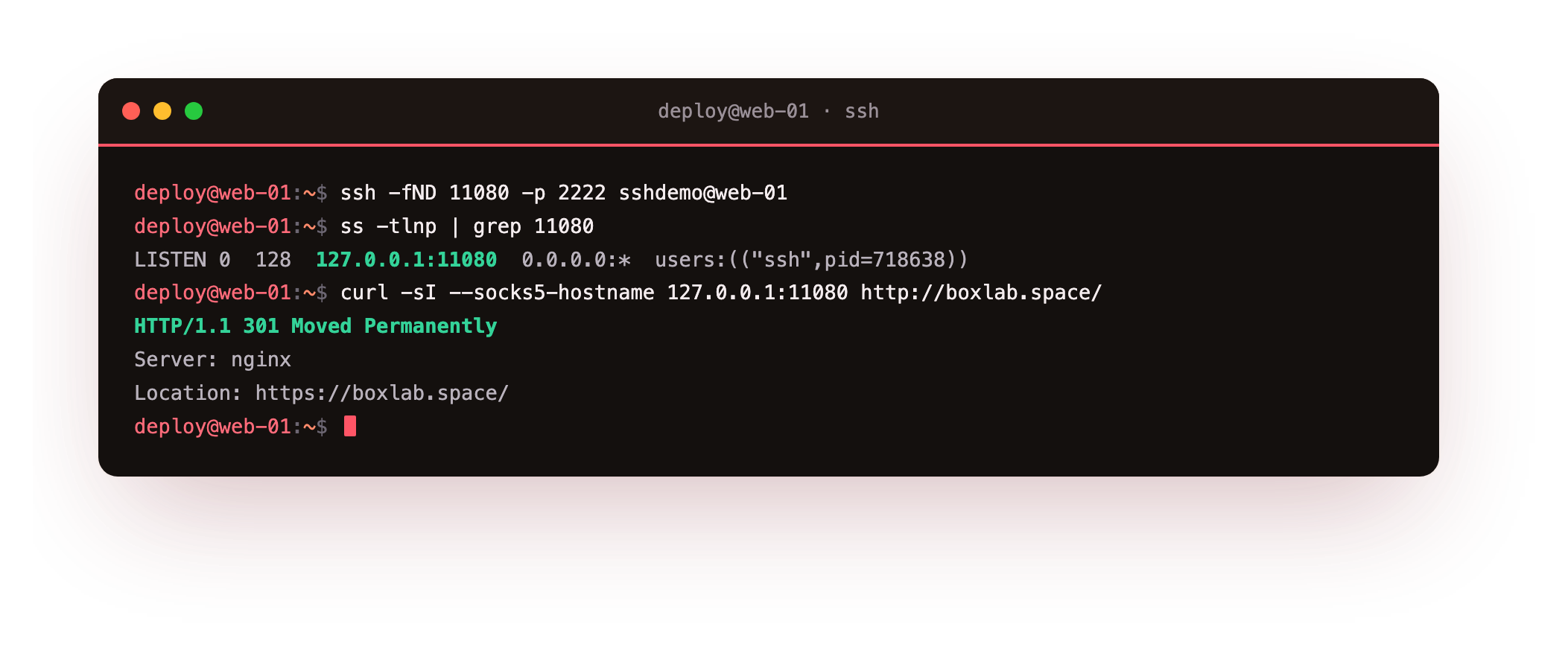
That opens a SOCKS proxy on 127.0.0.1:11080. Point a client at it and the request leaves from the server's vantage point, not yours. A curl --socks5-hostname 127.0.0.1:11080 to the site returns a real response carried through the proxy, in this run a 301 redirect from nginx. Use it to reach several internal services through one tunnel, or to test how a site looks from the server's network.
With the SOCKS proxy up, run any curl --socks5-hostname 127.0.0.1:11080 request and confirm you get a real response back rather than a connection error. That response left from the server's network, not yours, which is the whole point of the dynamic forward. Close it, and the proxy vanishes with the session.
Going further: which forward, and keeping one alive
Match the shape to the direction of the need. Reach into a server for a private service and you want -L. Publish something from your side to the server and you want -R. Need a browser or a run of commands to travel through the server to many destinations and you want -D. All three inherit the encryption and key authentication of the login, add no firewall rules, and close when the SSH session ends, which is what keeps them safer than opening a port to the world.
That last property has a flip side: a forward dies with its session, so it is not a service. For a tunnel that must survive a dropped link, run it under a supervisor or a tool like autossh that reconnects, rather than expecting -fN to outlive a network blip. A SOCKS proxy is also not a VPN; it routes only the apps you point at it, per connection, while a VPN captures the whole machine at the network layer.
Frequently asked questions
Why does my forward say the address is already in use?
The local port you chose is taken by another process. Pick a different high port, or find the holder with ss -tlnp. The examples use uncommon ports like 15080 for exactly this reason.
Can others on the network use my forwarded port?
By default no. A local forward binds to 127.0.0.1 and a remote forward binds to the server's loopback, so only that machine can connect. Binding wider needs -g locally or GatewayPorts on the server, which you enable deliberately.
Does a tunnel stay open if my session drops?
No. A forward is part of the SSH session, so it closes when the connection ends. For a resilient tunnel, run it under a supervisor or use a tool like autossh that reconnects, rather than expecting -fN to survive a drop.
Is a SOCKS proxy the same as a VPN?
Not quite. A SOCKS proxy routes the apps you point at it, per connection, while a VPN captures traffic at the network layer for the whole machine. For reaching internal web services from one browser, the SOCKS forward is lighter and needs no extra software.
What you can do now
You proved all three forwards with a real request: a 200 from nginx through the local tunnel, a 200 through the remote one, and a proxied 301 through SOCKS, none of which opened a firewall port and all of which closed with the session. -L reaches into the server for a loopback-only service, -R pushes a service on your side out to the server, and -D turns the login into a general proxy.
Forwarding a port is safe. Forwarding your agent, so a far host can borrow your keys, is the one feature that carries a risk the tunnels do not, and the next chapter shows exactly where that risk bites: SSH agent forwarding and its hijack risk.