Two settings that make every page faster
Your app is proxied and online. Now make it fast. Turning on HTTP/2 and compression in nginx is the highest speed-per-effort change you can make to a web server. HTTP/2 lets the browser fetch everything over one connection, and gzip or brotli shrinks text before it goes over the wire. This chapter enables both on a live server and measures the difference, and it flags the one version trap that breaks the config on Ubuntu.
- On nginx 1.24 (Ubuntu 24.04) HTTP/2 is a listen parameter: listen 443 ssl http2. The separate http2 on directive only exists from nginx 1.25.1, and using it on 1.24 breaks the config.
- HTTP/2 needs TLS in practice, so it belongs on your 443 block after you have a certificate.
- gzip is built in and compresses text to a fraction of its size; on a 10.8 KB text file it is a large, free win with one directive.
- brotli compresses a little better than gzip and installs as an apt module on Ubuntu; HTTP/3 needs a custom nginx build, so it is opt-in, not a checkbox.
Most of a page's weight is text: HTML, CSS, JavaScript, JSON. Text compresses beautifully, often to a quarter of its size or less, and every browser has asked for compression since the 1990s. Yet plenty of servers ship it uncompressed, paying for bandwidth and latency they could delete with one line.
Add HTTP/2, which fixed the old limit of one request at a time per connection, and you have made every visitor's experience faster without touching your application. For users on higher-latency mobile networks, which is most of India, this is where they actually feel the difference.
HTTP/2, and the version trap
HTTP/2 multiplexes: the browser opens one connection and fetches your HTML, CSS, and twenty images over it at once, instead of queueing them. It is enabled per listening socket, and here is the trap that sends people in circles.
On nginx 1.24, which is what Ubuntu 24.04 ships, HTTP/2 is a parameter on the listen line:
server {
    listen 443 ssl http2;
    server_name example.com;
    # ssl_certificate ... see our TLS and Certificates series
}
From nginx 1.25.1 onward there is a separate directive, http2 on;, and most recent tutorials show that form. Paste http2 on; into nginx 1.24 and nginx -t fails, because the directive does not exist yet in that version. This is the single most common HTTP/2 config error on Ubuntu right now, and the fix is simply to use the listen-parameter form on 1.24. Check your version with nginx -v and match the syntax to it.
HTTP/2 needs TLS in the real world, because browsers only speak it over HTTPS, so it lives on your 443 block once you have a TLS certificate in place. If you have not set one up yet, our TLS and Certificates series walks through it end to end. Once it is on, confirm it:
curl --http2 -I https://your-domain
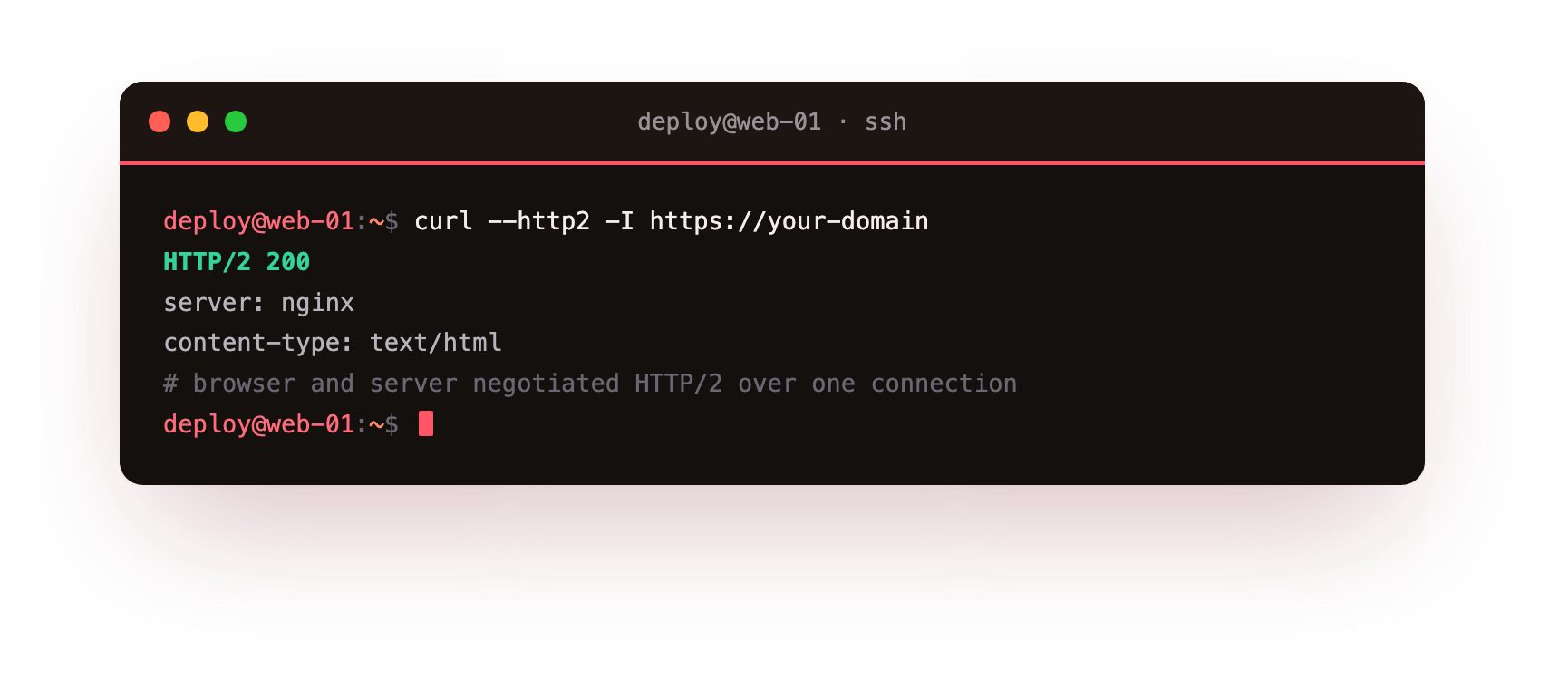
A HTTP/2 200 in the response line is the whole confirmation. The browser and the server negotiated HTTP/2, and every asset now shares one connection.
The response line should read HTTP/2 200. If it still says HTTP/1.1, the request did not reach a 443 block with the http2 parameter, so check that the listen line is on your TLS server block and that you used the 1.24 syntax below.
Nginx compression: gzip, the free win
Compression is separate from HTTP/2 and even simpler. gzip is built into nginx, and turning it on for text types is one small block:
gzip on;
gzip_types text/plain text/css application/json application/javascript application/xml;
gzip_min_length 256;
gzip_types lists what to compress. You never compress images or video here, because they are already compressed and gzipping them just wastes CPU. gzip_min_length skips tiny responses where the compression overhead is not worth it. The effect is easy to see: a plain text file that is 10.8 KB uncompressed comes back with content-encoding: gzip and a fraction of the bytes on the wire. Multiply that across every HTML page, stylesheet, and API response and it is a large, permanent saving for one directive.
You can watch it happen:
curl -H "Accept-Encoding: gzip" -I https://your-domain/style.css
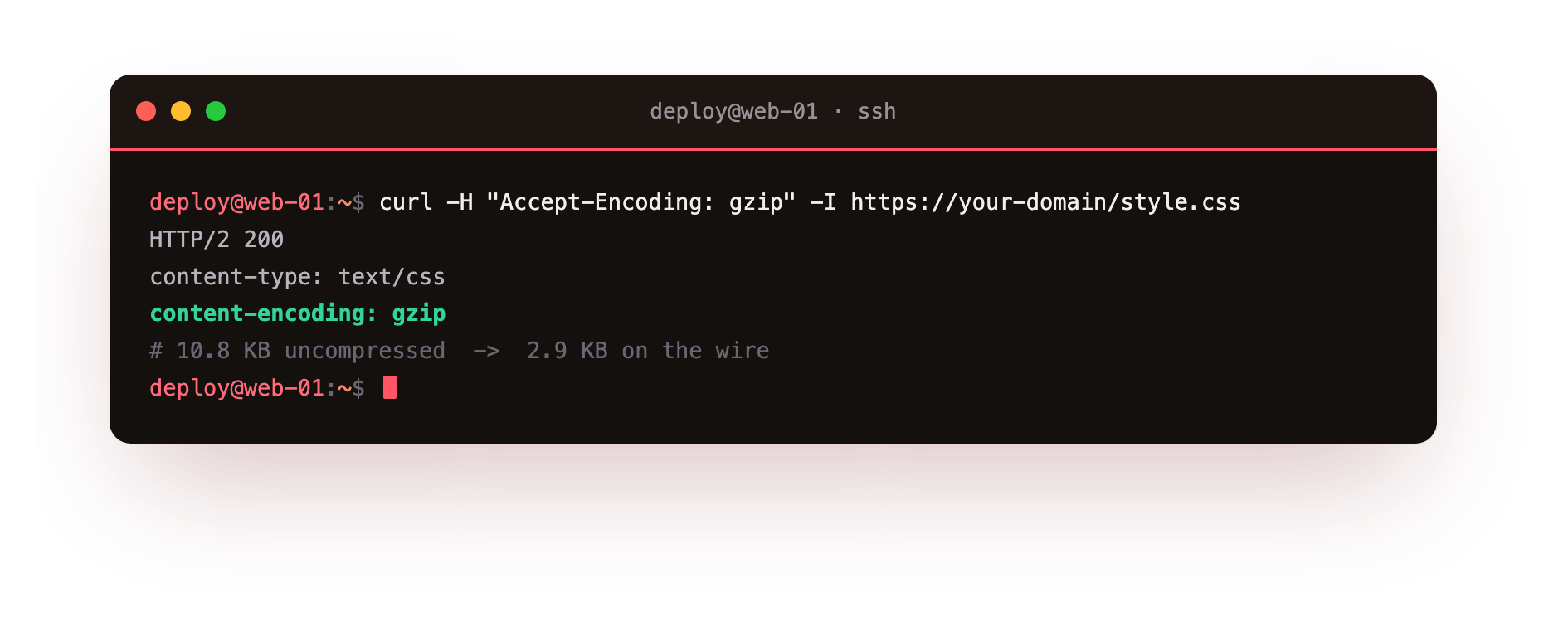
A content-encoding: gzip header means the browser is receiving the compressed version. No header means nginx served it raw, usually because the type is not in your gzip_types list.
You should see content-encoding: gzip on your CSS, JS and HTML responses. If a text file comes back with no such header, add its content type to gzip_types and reload.
brotli, a little better, one apt install
brotli is a newer compression algorithm that usually beats gzip by ten to twenty percent on text, and every current browser supports it. On Ubuntu it is not built into nginx by default, but you do not have to compile anything: it ships as a loadable module.
sudo apt install libnginx-mod-http-brotli-filter libnginx-mod-http-brotli-static
Then enable it much like gzip:
brotli on;
brotli_types text/plain text/css application/json application/javascript;
brotli_min_length 256;
Reload, and a browser that advertises brotli gets it:
curl -H "Accept-Encoding: br" -I https://your-domain/style.css
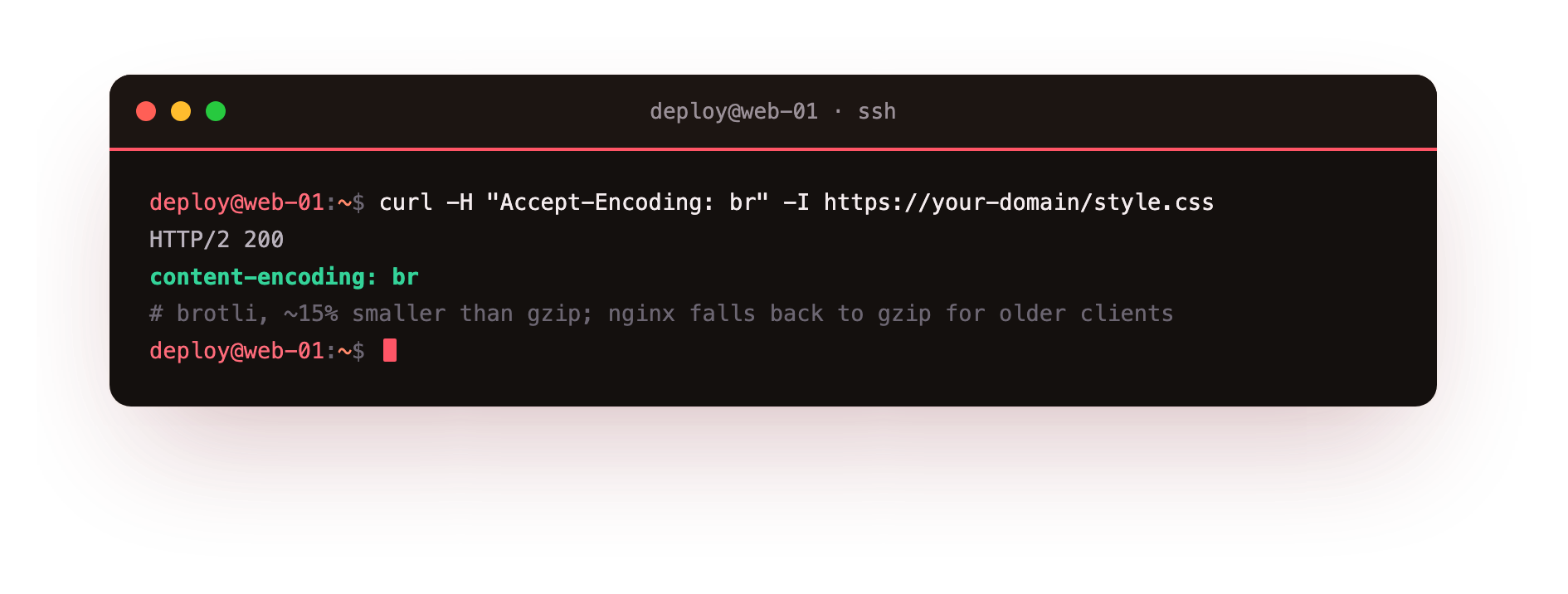
content-encoding: br confirms brotli is serving. Keep gzip enabled alongside it: nginx picks brotli for browsers that support it and falls back to gzip for anything that does not, so you lose nothing by running both.
Going further: HTTP/3, the honest caveat
HTTP/3 is the newest step. It runs over QUIC, a UDP-based transport that removes the last head-of-line blocking and shortens the connection handshake, which again helps most on lossy mobile networks. It is genuinely good, and it is also the one thing here that is not a simple toggle.
The nginx that Ubuntu 24.04 ships (1.24) is not built with the HTTP/3 module, so you cannot enable it on the stock package. To run HTTP/3 you either build nginx from source with --with-http_v3_module, or run a build that already includes it. The config, once you have such a build, adds a quic listener and an Alt-Svc header that tells browsers HTTP/3 is available:
listen 443 quic reuseport;
listen 443 ssl http2;
add_header Alt-Svc 'h3=":443"; ma=86400';
I am flagging this plainly rather than pretending it is one line, because that is the honest state on Ubuntu today. For most sites, HTTP/2 plus brotli captures the large majority of the speed benefit with zero building, and HTTP/3 is a worthwhile follow-up once you are comfortable running a custom nginx.
Frequently asked questions
Why does http2 on fail on Ubuntu 24.04?
Ubuntu 24.04 ships nginx 1.24, where HTTP/2 is a parameter on the listen line (listen 443 ssl http2). The separate http2 on directive only exists from nginx 1.25.1, so pasting it into 1.24 makes nginx -t fail. Check nginx -v and match the syntax to your version.
Do I need HTTPS to use HTTP/2?
In practice yes. Browsers only negotiate HTTP/2 over TLS, so it belongs on your 443 block once a certificate is in place. There is no real benefit to adding the http2 parameter to a plain port 80 block.
Should I run both gzip and brotli for nginx compression?
Yes. Keep gzip enabled and add brotli alongside it. Nginx serves brotli to clients that advertise it and falls back to gzip for everything else, so you cover every browser and lose nothing by running both.
Can I enable HTTP/3 on the stock Ubuntu nginx?
No. The packaged nginx 1.24 is not built with the HTTP/3 module, so you need a build compiled with --with-http_v3_module. For most sites, HTTP/2 plus brotli captures the bulk of the speed benefit without that extra work.
Recap and what is next
You can serve every visitor over HTTP/2 with the correct syntax for your nginx version, compress all your text with gzip and, one apt install later, brotli, and you know what it takes to add HTTP/3 when you want it. Your pages are now multiplexed and a fraction of their old size, which is the first speed win in the hardened response from chapter one.
Next we stop the same work from being repeated at all, with caching, so your server does less and every visitor gets served faster still.
HTTP/2 and compression land the moment you enable them on a real server. Launch a slice, put your site behind nginx, and feel the difference on a slow connection.