What you will build
By the end of this series your own app or site is live behind nginx: one fast, hardened reverse proxy on a slice, built from a single nginx config you can read line by line. This first chapter shows you that destination, installs nginx on a bare Ubuntu 24.04 box, and teaches the nginx config model that every later chapter writes into.
- The series goal: your app served over HTTP/2, compressed, cached, rate limited and behind security headers, from one nginx config.
- On a fresh slice nothing is installed yet. `apt install nginx` is the real first step, and it serves a default page at once.
- An nginx config is a tree of contexts: the http block holds server blocks, and server blocks hold location blocks.
- Never reload a config you have not tested. `nginx -t` checks it, then `systemctl reload nginx` swaps it in with no dropped connections.
- A slice running Ubuntu 24.04 that answers on a public IP.
- A sudo login to it over SSH.
- The app or site you want to put online, and about twenty minutes.
- Optional: a domain pointed at the slice, if you want to reach it by name and add TLS later.
See the destination first
Here is where you are heading. This is one request to the finished server, and the response holds the whole point of the series in a few lines: it speaks HTTP/2, it hides its version, and it carries the security headers a browser enforces on your behalf.
curl --http2 -sI https://your-domain
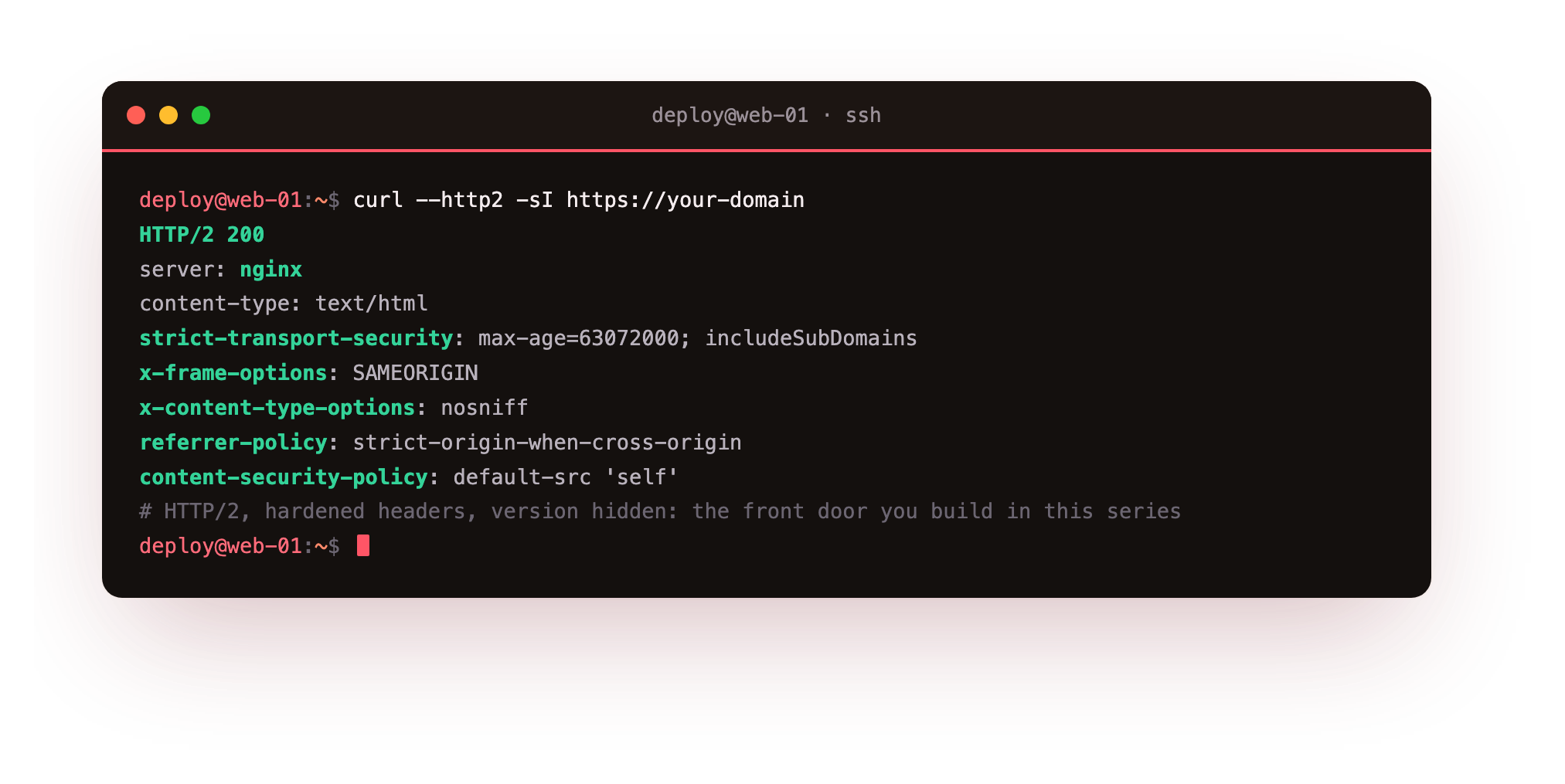
The HTTP/2 200 means the connection is multiplexed and quick. server: nginx with no version number means you are not handing an attacker a fingerprint. The strict-transport-security and content-security-policy lines are the browser-side protections you switch on in the last chapter. You assemble this response one chapter at a time, and it all starts from an empty box.
Who this is for
This guide is for a developer who already has something to serve, a Node or Python or PHP app, a static site, a single-page app, and wants a real front door for it instead of a default install left at its factory settings. You do not need to be a systems person. Every command is shown, and each build step ends with a checkpoint so you can confirm it worked before moving on.
The one thing you do need is a box with a public IP that stays on, because a front door has to be reachable. That is what a slice is, and the rest of this chapter starts one from nothing.
Install nginx from a bare slice
On a fresh Ubuntu 24.04 slice nginx is not there yet. Installing it is one command, and this is the step most tutorials quietly assume you already ran.
sudo apt update
sudo apt install -y nginx
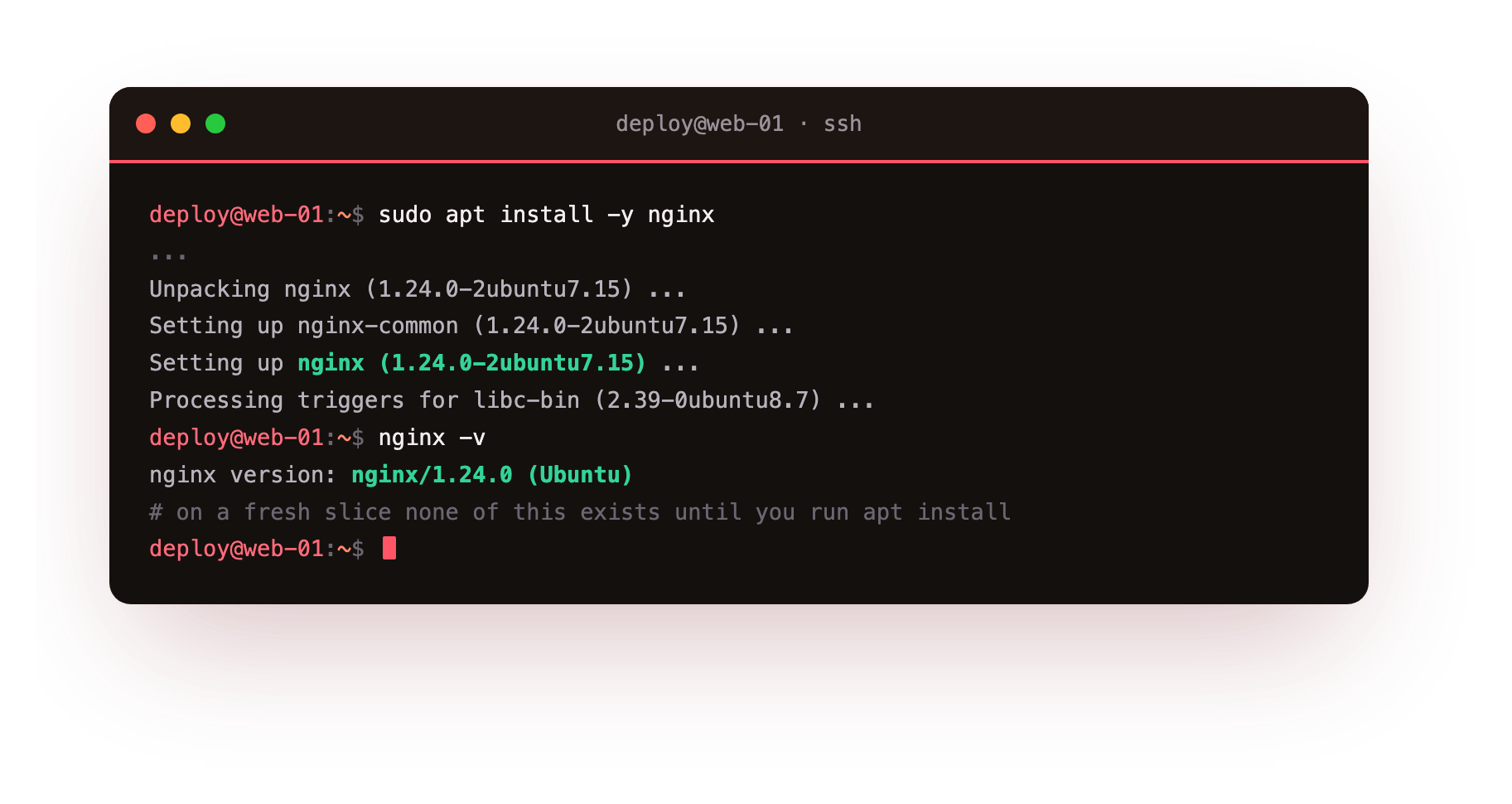
apt pulls in nginx 1.24.0, the version Ubuntu 24.04 ships, and sets it up as a system service. The install does two useful things on its own: it starts nginx and it enables it to start on boot, so the server is already running the moment the command returns.
Run nginx -v. You should see nginx version: nginx/1.24.0 (Ubuntu). If the command is not found, the install did not finish, so run it again before continuing.
See it serving in a browser
nginx serves a default page from the moment it installs, so you can confirm it works before writing any config. Check the service is up, then open the slice's address in a browser.
systemctl status nginx
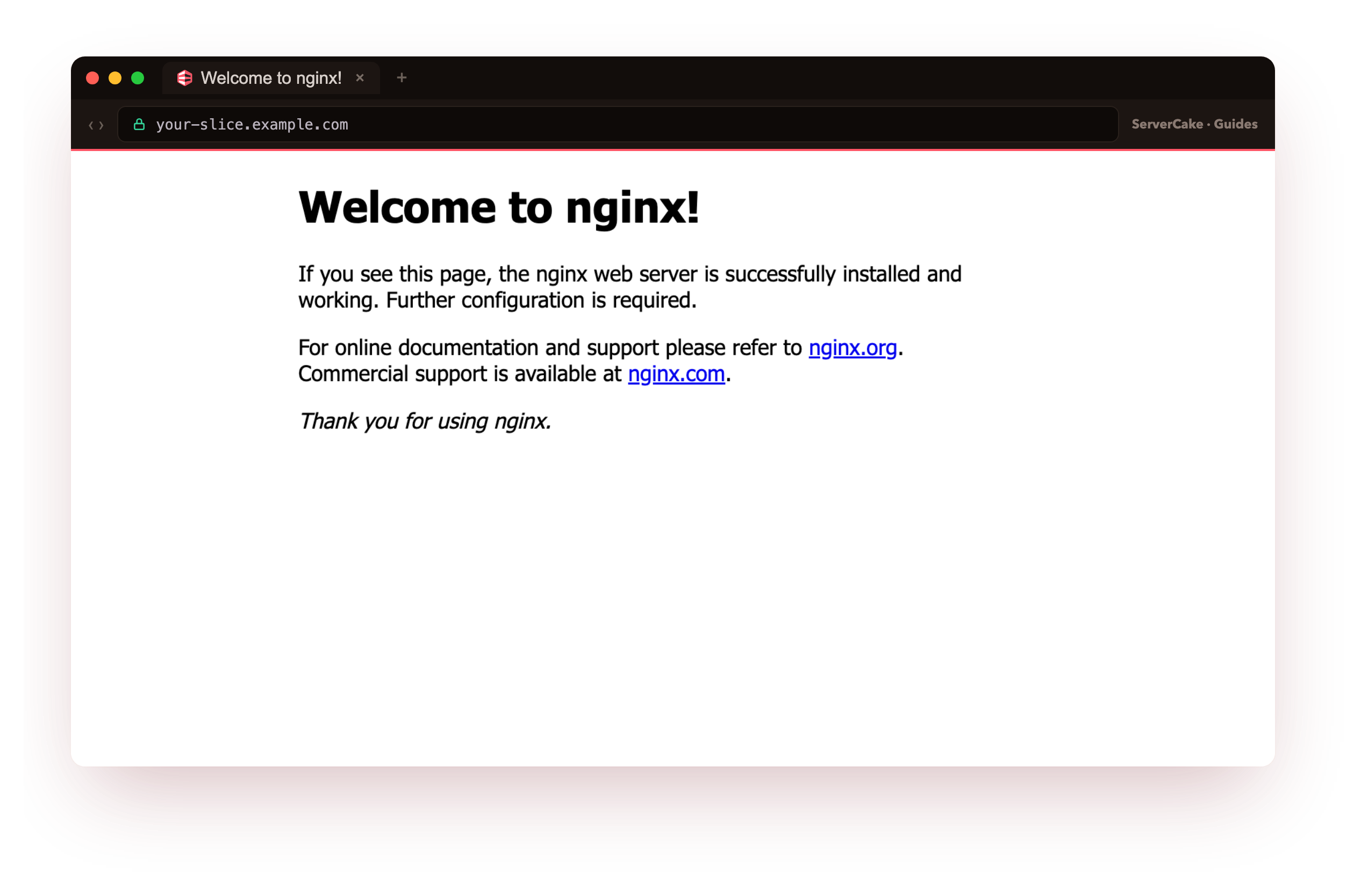
You should see active (running). Point a browser at your slice, by IP for now or by domain if you have one pointed at it, and the default "Welcome to nginx" page loads. That page is nginx telling you the install worked and it is waiting for a real site, which is what you give it in the next chapter.
The "Welcome to nginx" page in your browser is the from-zero milestone: a real web server, installed by you, serving over the public internet. Everything after this is shaping what it serves.
The nginx config model is a tree
Now the part that turns pasted snippets into something you control. An nginx config is not a wall of text, it is a tree of nested blocks called contexts, and once you can see the tree you can read or write any config with intent.
At the top is the main context, the file itself, where process-wide settings live. Inside it sit two blocks that matter: events, which tunes how connections are accepted, and http, where all web serving happens. Inside http you place server blocks, and a server block is one site: the ports it listens on and the hostnames it answers to.
Inside each server block you place location blocks, and a location is a rule for a set of URLs. Main holds http, http holds servers, servers hold locations, and every directive hangs off one of those blocks.
Two rules make the tree predictable. Most directives inherit downward, so a setting in http applies to every server and location under it unless one overrides it. And when a request arrives, nginx picks one server block by port and Host header, then one location within it by URL. Reading a config is tracing that walk: which server, then which location.
Where the files live on Ubuntu
Ubuntu spreads that tree across a directory instead of one file, and the layout trips people up until they see it once.
ls /etc/nginx/
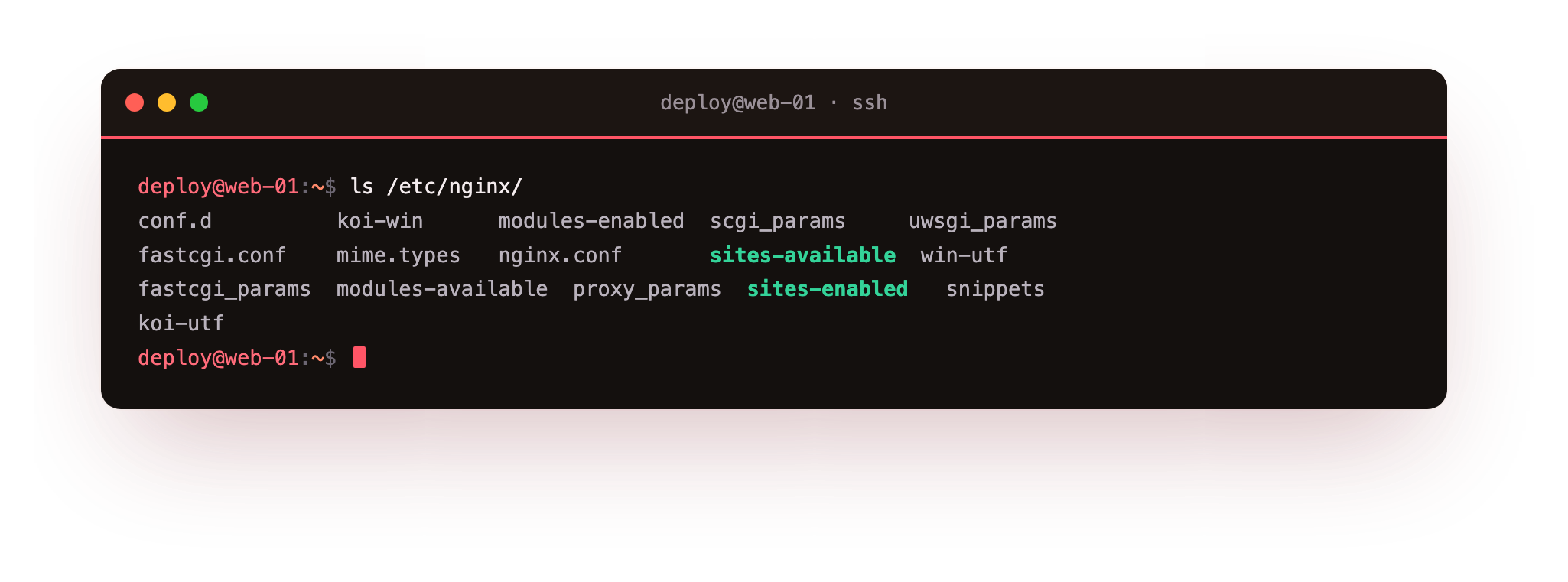
The entry point is nginx.conf, which holds the main and http contexts and then includes the rest. The two directories you touch daily are sites-available, where you write one config file per site, and sites-enabled, which holds symlinks to the sites that are switched on. A file in sites-available does nothing until you link it into sites-enabled and reload, which is how you keep a site ready without serving it. The snippets directory is for fragments you include into several sites, like a shared security-headers block.
The reload habit that keeps a site up
Here is the single habit that separates running nginx in production from taking your own site down: never reload a config you have not tested. nginx ships a syntax checker that reads the whole config, expands every include, and reports whether it is valid, without touching the running server.
sudo nginx -t
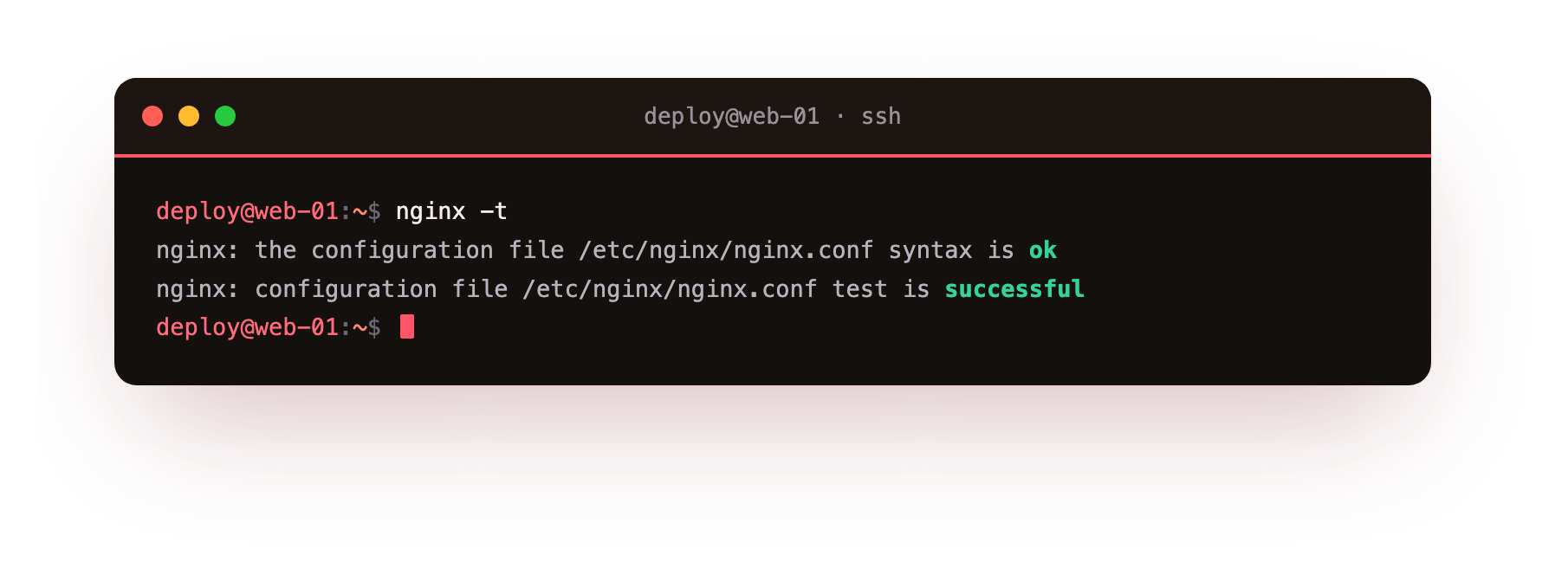
If it prints syntax is ok and test is successful, the config will load. If it prints an error, it names the file and line, and the running nginx keeps serving the old config untouched. Once the test passes, apply the change with a reload, which starts fresh workers on the new config and lets the old ones finish their requests, so nothing is dropped.
sudo systemctl reload nginx
So the loop for every config change, forever, is three steps: edit the file, run nginx -t, then systemctl reload nginx. Type them in that order every time and a typo can never take the site down.
After a reload, systemctl status nginx should still read active (running) and nginx -t should still pass. If a change ever fails the test, fix it before reloading; the live site keeps serving the last good config in the meantime.
Going further: what nginx runs under the hood
You do not have to trust the directory layout. Two commands show what nginx is really running, and they are the ones that end an argument about why a setting is not taking effect.
The first prints the complete effective configuration with every include expanded inline, exactly as nginx assembled it.
nginx -T
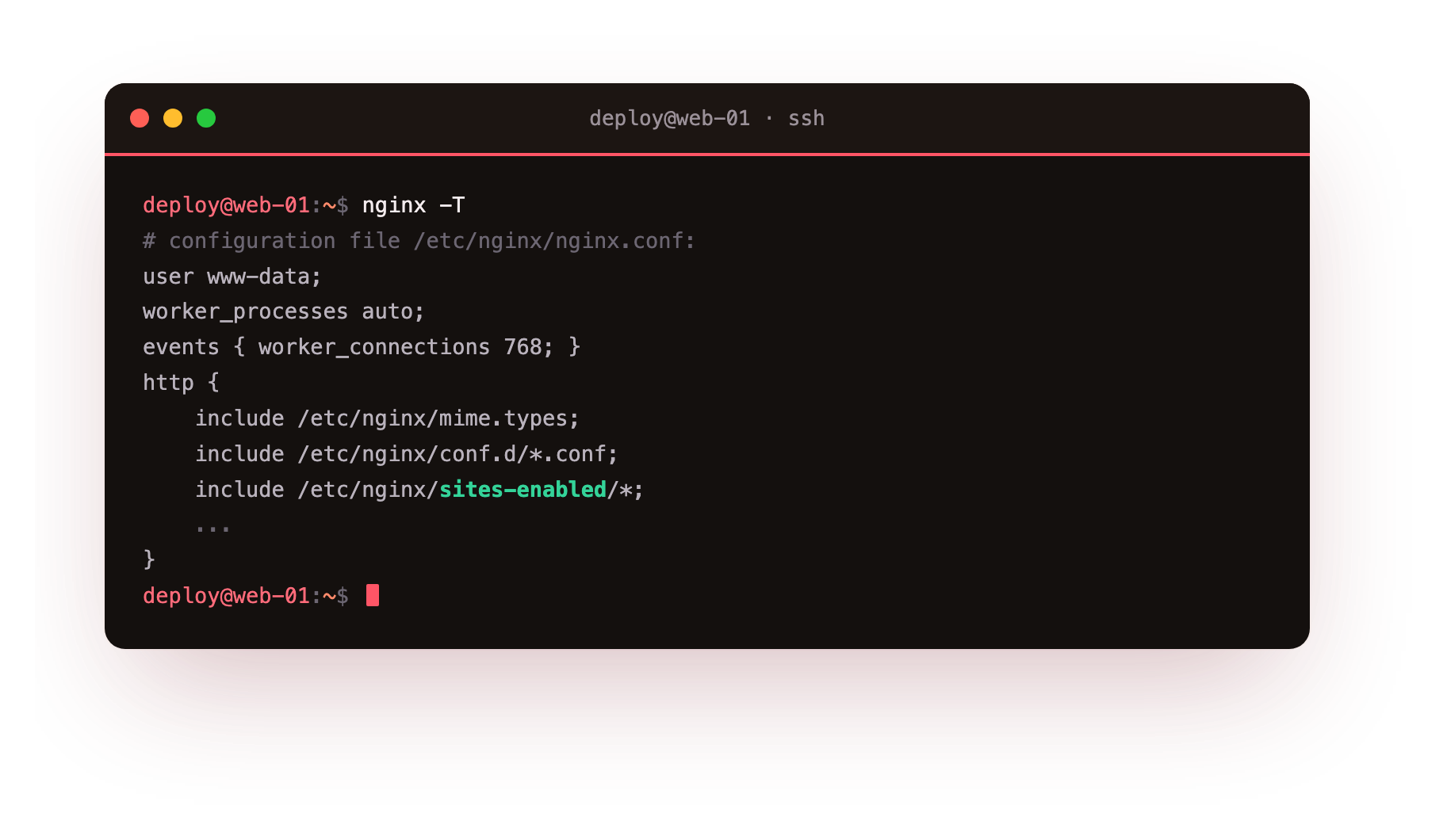
When a directive is set somewhere you cannot find, nginx -T is where you find it. The top of its output shows the shape from earlier: the user, the worker_processes, the events block, then http.
The second shows that nginx is not one process but a master and a pool of workers.
ps -eo user,pid,ppid,comm | grep nginx
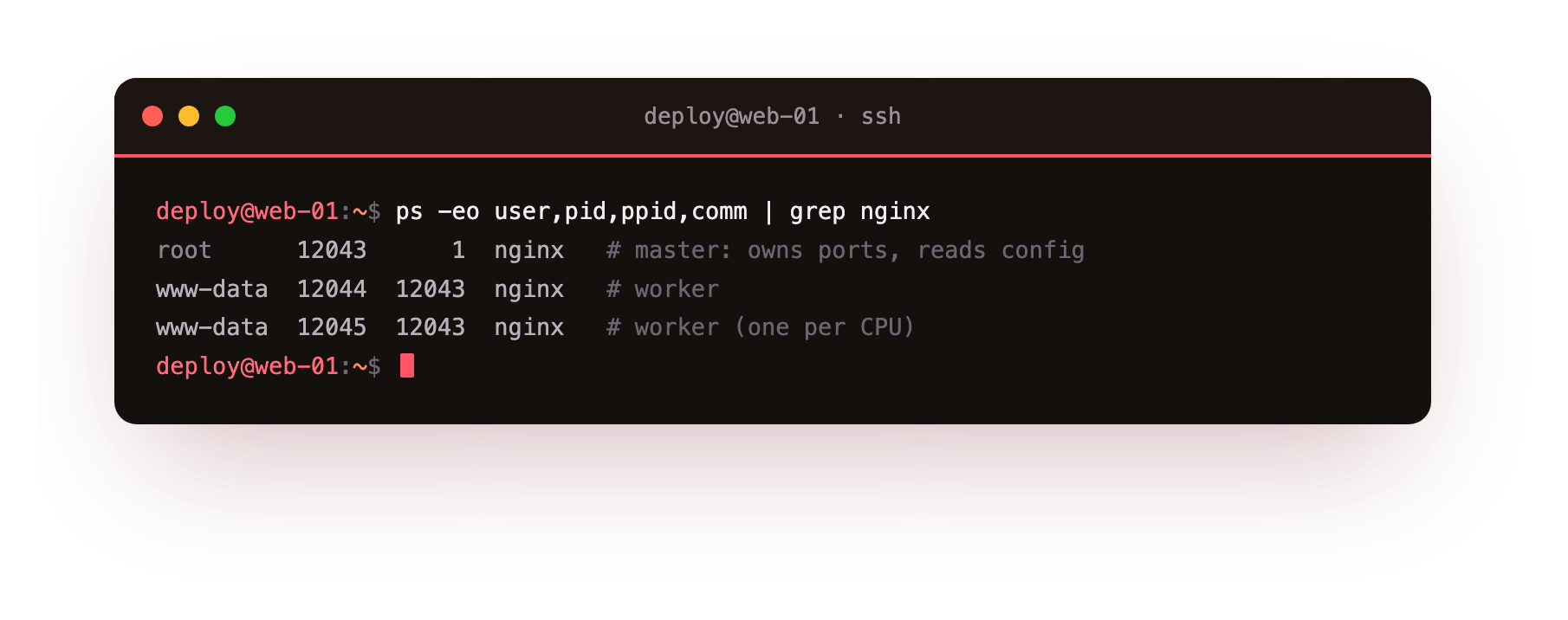
The master runs as root because it binds the privileged ports 80 and 443 and reads the config, but it handles no requests. The workers run as the unprivileged www-data user and do the actual serving, one per CPU core by default. That split is why a reload can swap config without dropping a connection: the master holds the sockets open while it cycles the workers underneath.
Frequently asked questions
Do I need to install anything besides nginx to get started?
No. apt install nginx on Ubuntu 24.04 installs the server, starts it, and enables it on boot, and it serves a default page straight away. You add TLS, compression and the rest as config in later chapters, so the base install is a single command.
What is the difference between nginx -t and nginx -T?
nginx -t validates the configuration and reports whether the syntax is ok, without touching the running server. nginx -T prints the entire effective config with every include expanded inline, which is how you find where a directive is actually set.
Does reloading nginx drop active connections?
No. A reload starts fresh workers with the new config and lets the old workers finish the requests they are already serving before they exit. A restart is the one that drops connections, so in production you reload and only restart when the master itself must re-read something.
Where do I put my own site's config on Ubuntu?
Write one file per site in /etc/nginx/sites-available, then symlink it into sites-enabled and reload. Keeping the file in sites-available without the link lets you prepare a site without serving it, and the next chapter builds exactly that.
Recap and what is next
You have seen the destination, a fast and hardened response from your own server, installed nginx from a bare Ubuntu 24.04 slice, watched it serve the default page in a browser, and learned to read the config as a tree of contexts. You also have the reload discipline that keeps the site up: test, then reload.
The next chapter puts the tree to work. You write your first real server block, serve an actual site from disk, route it by its hostname, and load it live in a browser, turning that default page into a site of your own.
nginx needs a box with a public IP to be a front door, and that is what a slice is. Launch a slice and follow along from the bare install to a hardened site of your own.