Run node.js under systemd as a service
A node.js systemd unit turns the app from chapter one into a real service: it starts on boot, restarts when the process dies, runs as a locked-down user, and sends its logs to journald. Nothing about the app changes. You write one unit file, enable it, and hand the runtime's lifecycle to the init system that already manages nginx, ssh, and the rest of the box. Every command below ran on a live Ubuntu 24.04 server.
- A node.js systemd unit describes how to run the app: which user, which directory, which command, and what to do when it exits.
- Restart=on-failure brings the process back after a crash, and systemctl enable makes it start on every boot.
- Kill the process by hand and systemd starts a fresh one with a new PID, which is the restart contract you want in production.
- Logs written to stdout land in journald automatically, so journalctl -u is the one place to read what the service did.
Running an app under nohup, screen, or a terminal you forget to close is how services vanish after a reboot. systemd is already on the box, it supervises everything else, and it gives you boot start, crash restart, resource limits, and a log stream for the cost of a dozen lines.
The unit file
A unit is an ini file in /etc/systemd/system. This one runs the app as a dedicated nodeapp user from the app directory, reads its config from an environment file, and restarts on failure.
[Unit]
Description=shopapp Node.js service
After=network.target

[Service]
Type=simple
User=nodeapp
Group=nodeapp
WorkingDirectory=/srv/shopapp
EnvironmentFile=/etc/shopapp/shopapp.env
ExecStart=/usr/bin/node server.js
Restart=on-failure
RestartSec=2
NoNewPrivileges=true
ProtectSystem=strict
ReadWritePaths=/srv/shopapp

[Install]
WantedBy=multi-user.target
User=nodeapp runs the code as an account with no login and no home, so a bug in the app is not a bug running as root. ExecStart is an absolute path, because systemd has no shell and no PATH guessing. The three protection lines at the bottom are cheap hardening that the next chapters build on.
Enable it and check the status
Copy the unit in, reload systemd so it reads the new file, then enable and start it in one step. enable --now both starts the service and links it to start on boot.
sudo cp shopapp.service /etc/systemd/system/shopapp.service
sudo systemctl daemon-reload
sudo systemctl enable --now shopapp
systemctl status shopapp
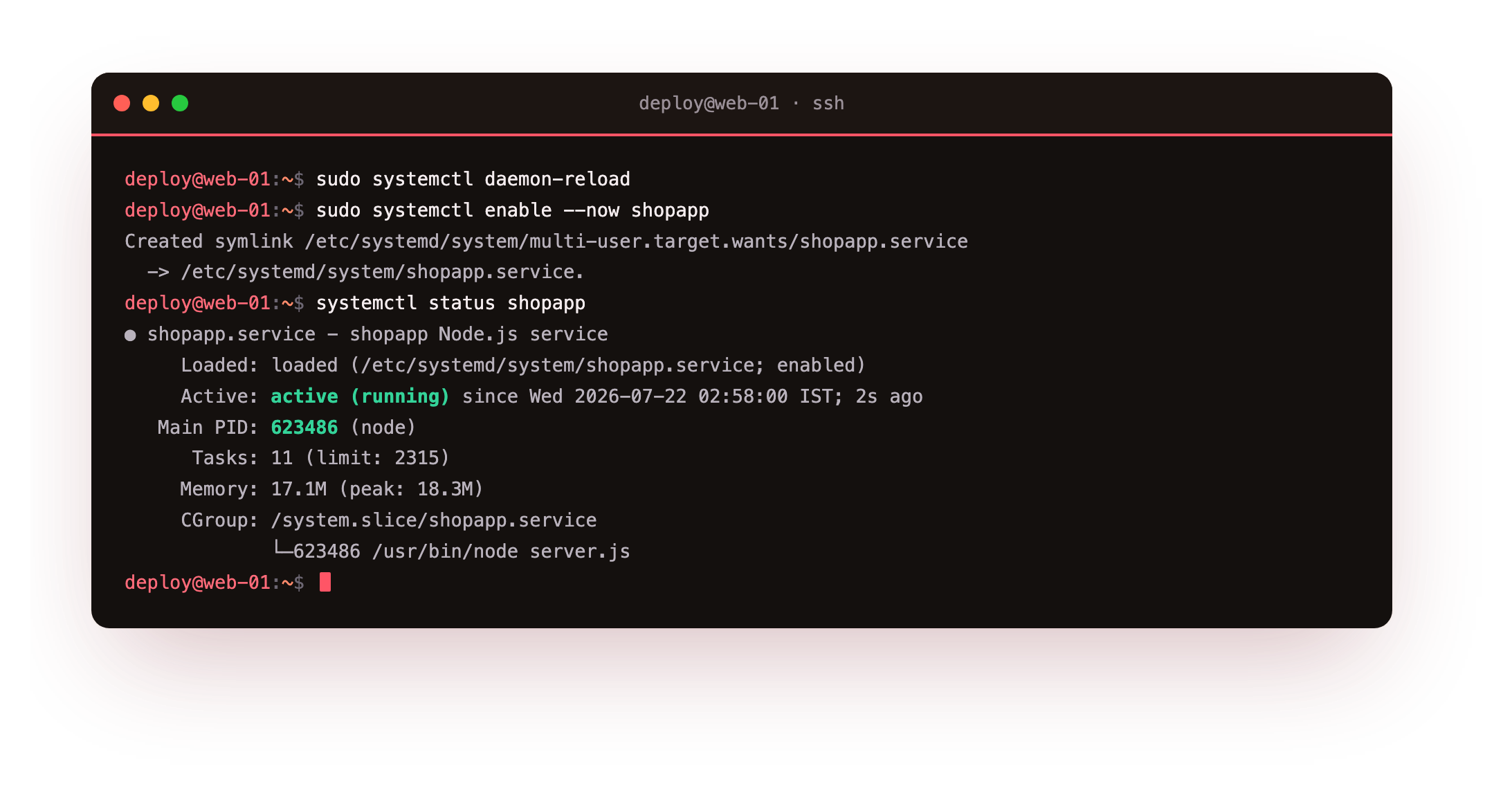
The status output reads active (running), names the main PID, and shows the memory the process is using. The last log line is the app's own start message, which systemd captured from stdout. The service is up, supervised, and set to return after a reboot.
systemctl status shopapp should read active (running) with a main PID. Reboot the slice and run it again: the service comes back on its own, because enable linked it into the boot sequence. That is the difference from the terminal you left open in chapter one.
Prove the restart contract
The claim is that systemd brings the app back when it dies. Do not take it on trust. Read the current PID, kill that exact process hard, then read the PID again.
systemctl show -p MainPID --value shopapp
sudo kill -9 $(systemctl show -p MainPID --value shopapp)
systemctl show -p MainPID --value shopapp
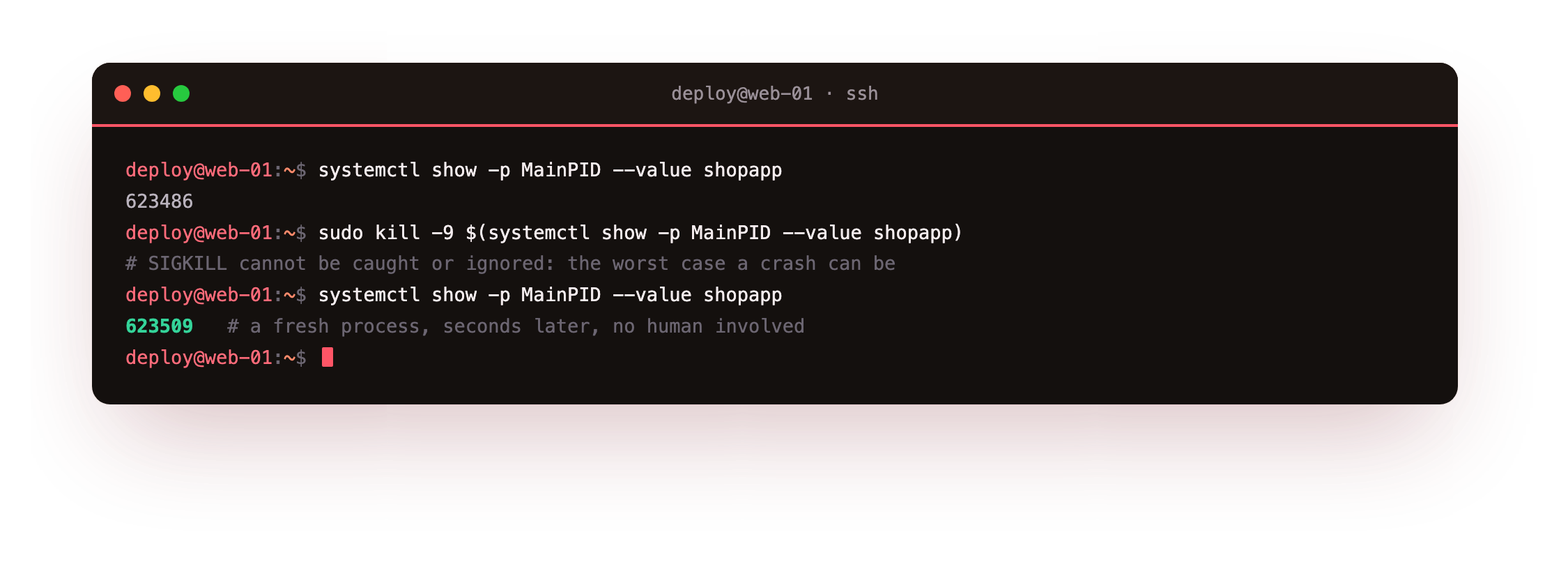
The PID before the kill was 623486. A kill -9 cannot be caught or ignored, so the process is gone with no chance to clean up, which is the worst case a crash can be. Seconds later the service is running again under PID 623509. systemd noticed the failure and started a fresh process, no human involved.
Compare the PID before and after the kill. A different number is the proof: systemd caught the crash and started a fresh process for you. If the app instead stayed dead, check that Restart=on-failure is set in the unit before you trust it in production.
Read what happened in journald
Because the app writes to stdout, systemd routes every line into journald, tagged with the unit. One command shows the crash and the recovery as a single story.
journalctl -u shopapp -n 8 -o short-iso
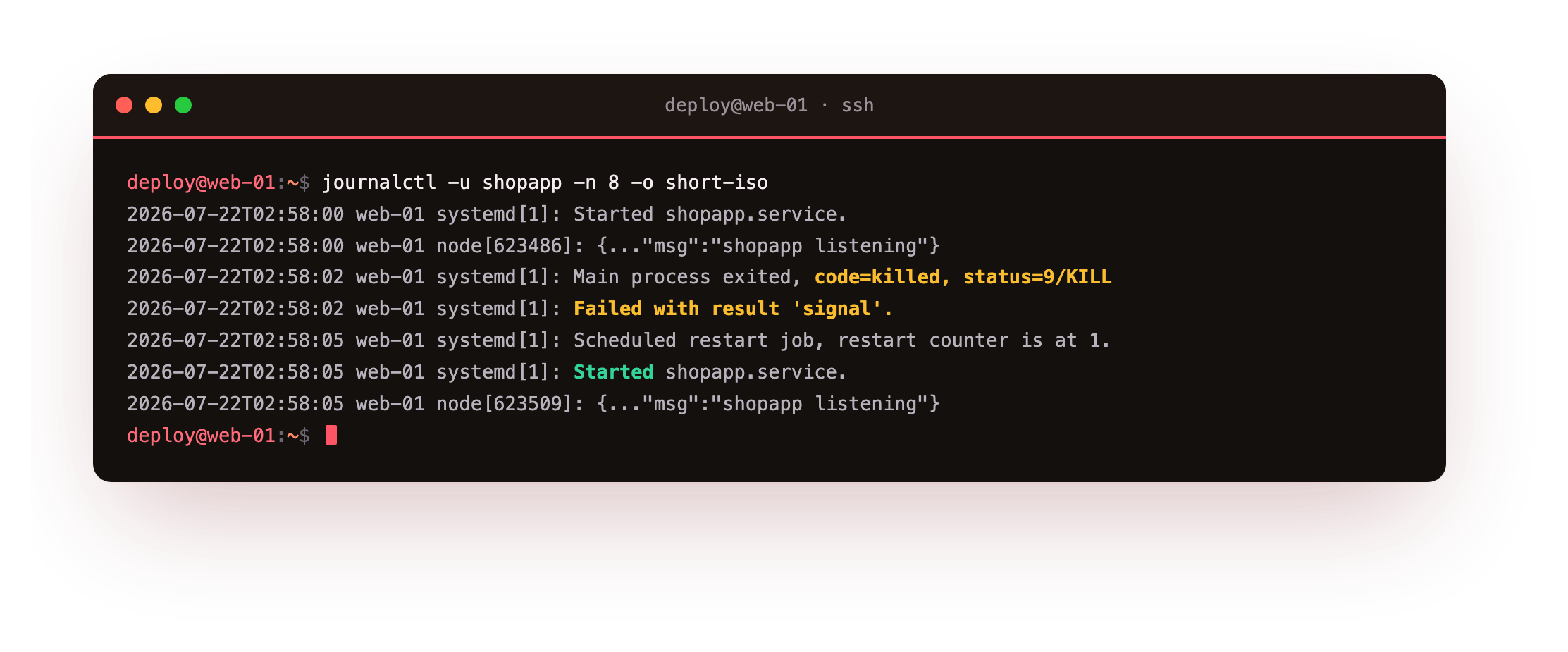
The journal spells it out: Main process exited, code=killed, status=9/KILL, then Failed with result 'signal', then Scheduled restart job, restart counter is at 1, then Started. You get a timestamped account of the failure and the recovery without configuring a log file, rotating it, or pointing the app at a path.
on-failure, not always
- Restart=on-failure restarts after a non-zero exit or a kill signal, but leaves a clean exit alone.
- Restart=always also restarts after a clean exit, which can mask a bug that keeps exiting deliberately.
- RestartSec spaces the attempts so a crash loop does not spin the CPU at full tilt.
For a web app that should run forever, on-failure is the honest default: it recovers from crashes but does not fight your own systemctl stop. A crash loop still needs a fix, and the restart counter in the journal is how you spot one.
Frequently asked questions
Why systemd instead of pm2 or forever?
pm2 is a capable process manager, but it is a second supervisor running under the first one, since systemd still has to keep pm2 alive. Using systemd directly removes a layer: one tool starts the app on boot, restarts it on failure, and collects its logs. Everything else on the server is already managed this way, so there is one mental model to learn.
Do I need a reverse proxy if the app runs under systemd?
Yes. systemd manages the process lifecycle, but it does not terminate TLS, add security headers, rate-limit, or serve static files. Those are nginx's job. The two are complementary: nginx faces the network on 443, and systemd keeps the app alive on loopback behind it. Chapter one set up the proxy side.
How do I apply a change to the unit file?
Edit the file, then run systemctl daemon-reload so systemd re-reads it, then systemctl restart to apply it to the running service. Skipping daemon-reload is the usual surprise: the file on disk changed, but the loaded definition did not, so your edit appears to do nothing until you reload.
Where do the logs actually go?
Anything the app writes to stdout or stderr is captured by journald and tagged with the unit name. Read it with journalctl -u shopapp, follow it live with -f, or filter by time with --since. journald handles rotation and disk limits, so you are not managing log files by hand. Chapter six adds structured JSON logs on top of this.
What you have, and what comes next
The app is now a managed service. It starts on boot, comes back within seconds of a hard kill under a new PID, and writes a readable trail to journald. That is the difference between a script and a service.
The unit already points at an environment file it has not fully used yet. The next chapter fills it in: configuration through the environment, secrets in a file with tight permissions, and NODE_ENV set to production, with the app reading every value back.