What you will build
By the end of this series your app runs in Docker containers on a real server, not just your laptop: a multi-service stack brought up with Compose, its data kept in volumes, its services wired over a private network, capped by resource limits, its logs rotated so they cannot fill the disk, and its images hardened to run as a non-root user. This first chapter shows you that destination, installs the Docker engine on a bare Ubuntu 24.04 slice, and gets your first real container answering a request.
- The series goal: a multi-service app under Compose with volumes, a private network, resource limits, log rotation and hardened non-root images, live on a slice.
- On a fresh slice Docker is not there yet. Installing the engine is the real first step, and
docker --versionproves which engine will run your containers. - An image is a frozen, read-only template on disk; a Docker container is one live process launched from it, and one image can back many containers at once.
- A single
docker runfetches an image and starts it, and publishing the port to127.0.0.1keeps the container private to the machine until you route traffic to it.
- A bare Ubuntu 24.04 slice you reach over SSH, with a user that can run sudo, and outbound network so the engine can pull images from a registry.
- Roughly a gigabyte of free disk for the engine and a couple of small images, and about thirty minutes.
- You have run
dockeron your laptop before, or at least know the words image and container, since this series is about running them on a server for real. - Comfort with curl at the shell, because the proof at each step is whatever it prints back.
See the destination first
Here is the finished stack, shown before any theory: two containers, an app and its Redis datastore, brought up from one Compose file and both reporting healthy, with the app answering on loopback.
docker compose ps
curl -sI http://127.0.0.1:8090/
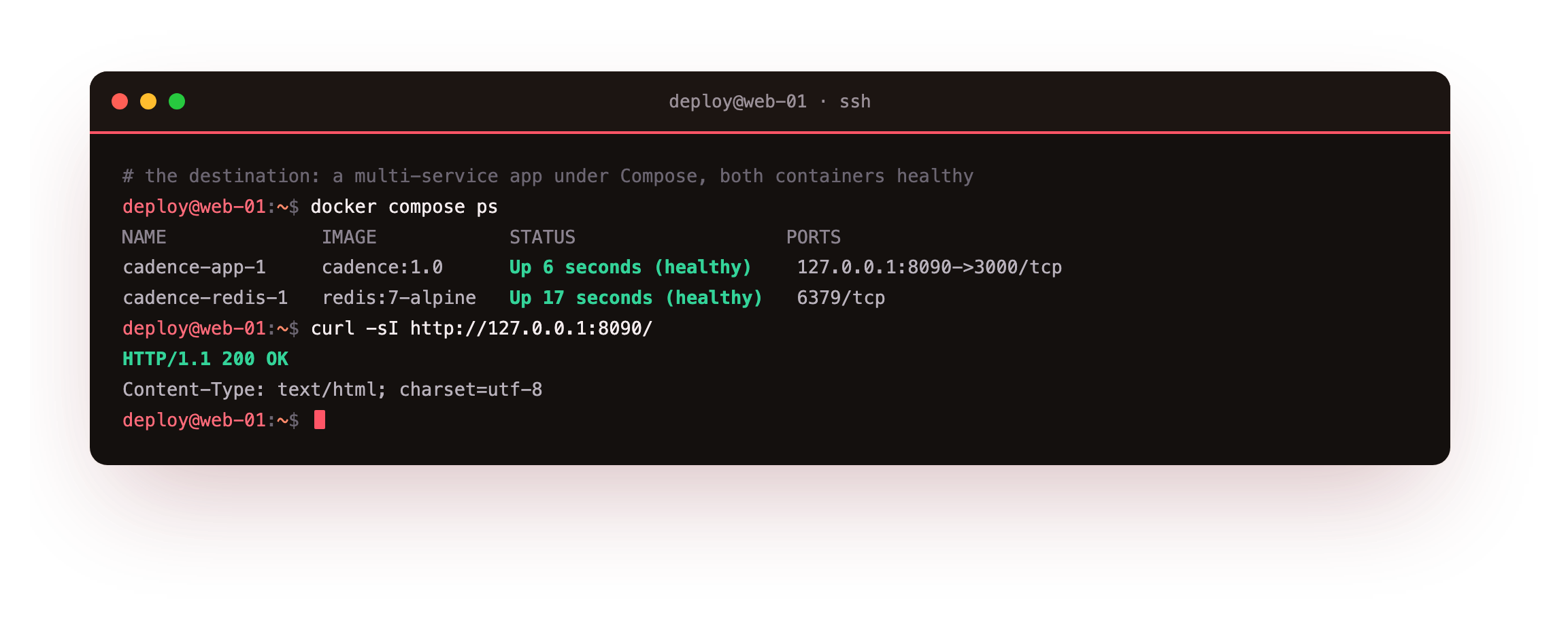
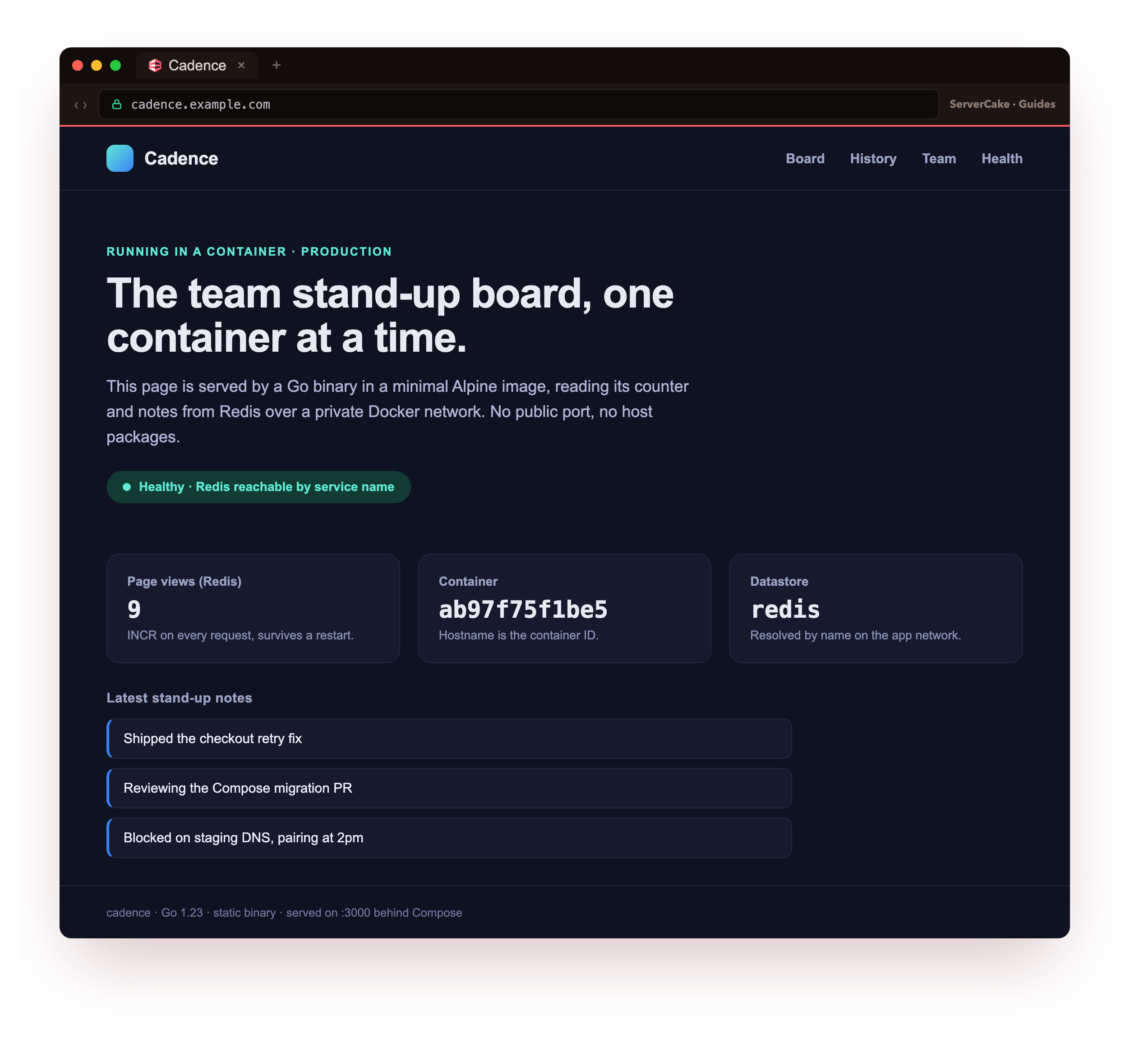
Both rows read Up ... (healthy), which is stronger than merely running: a health check ran a real command inside each container and it answered. The app is published to 127.0.0.1:8090, Redis has no host port at all because only the app needs it, and the HTTP/1.1 200 OK is the app serving through that mapping. Open the slice in a browser and the same app renders its page, reading a counter and stand-up notes live from Redis over a private Docker network.
That page, served by a small hardened image with no public port and no packages installed on the host, is the destination. Seven chapters assemble it, and every one of them starts from the empty box in front of you.
Who this is for
You already run docker on your laptop. You have started a container or two, maybe a database for local development, and it works right up until you need the same thing running on a server where other people can reach it. That gap, from a container on your machine to containers you trust on a slice, is what this series closes.
You do not need to be a systems person. Every command is written out, and a checkpoint after each step tells you what a correct result looks like before you go on.
What the whole thing needs is a machine with a public address that stays up, because a container that serves real traffic has to answer while your laptop is asleep. A slice is that always-on box, and the next section installs Docker on one from nothing.
Install the Docker engine on a bare slice
On a fresh slice there is no Docker at all. Docker publishes a convenience script at get.docker.com that adds its official apt repository, imports the signing key, and installs the engine, the CLI, containerd, and the Buildx and Compose plugins in one run. Pipe it to a shell as root, then add your user to the docker group so you do not have to prefix every command with sudo.
curl -fsSL https://get.docker.com | sudo sh
sudo usermod -aG docker $USER
docker --version
docker run hello-world
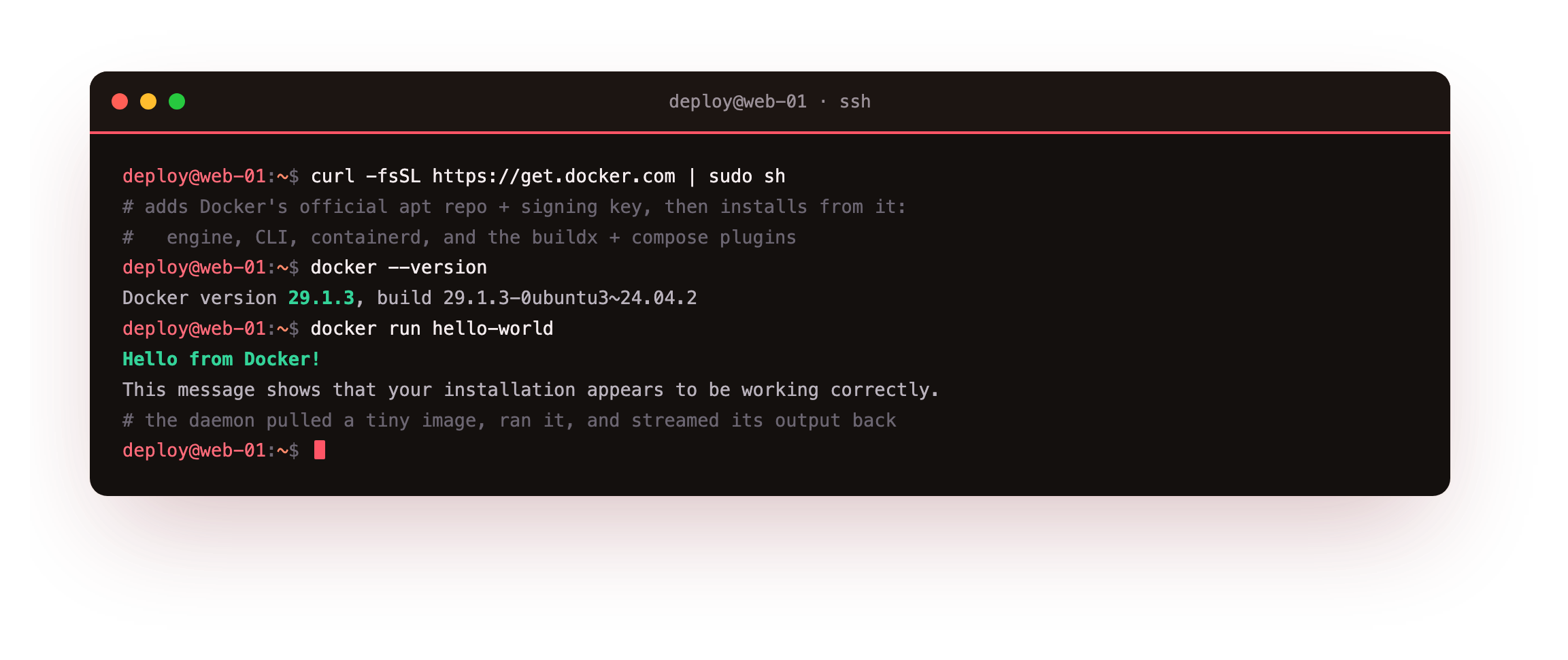
Reading the version back from docker --version, rather than trusting that the install finished, confirms the engine that will actually run your containers. On this slice that reports Docker version 29.1.3, with Compose 2.40.3 installed alongside it as a plugin. The docker run hello-world line is the engine's own smoke test: it pulls a tiny image, runs it, and the container prints Hello from Docker!, which proves the daemon is up and can fetch and run an image end to end.
Run docker --version and you should see Docker version 29.1.3 or newer, and docker run hello-world should print Hello from Docker!. If docker is not found, the install did not finish, so run the script again. If the group change has not taken effect yet, log out and back in, or prefix commands with sudo for now.
For a box you keep for a year, the convenience script is fine to bootstrap with, and the apt repository it added means later updates arrive through apt upgrade like any other package. Some teams prefer to add that repository by hand for tighter control over pinning, which Docker's install docs spell out, but the result is the same engine either way.
Run your first container
Nothing here needs building first. A registry holds a large catalogue of prebuilt images, and you can launch one straight away. Start the nginx web server in the background, with its port 80 mapped to port 8087 on the loopback interface, give it a name, then look at it and ask it a question.
docker run -d --name web -p 127.0.0.1:8087:80 nginx:1.27-alpine
docker ps
docker exec web nginx -v
curl -sI http://127.0.0.1:8087/
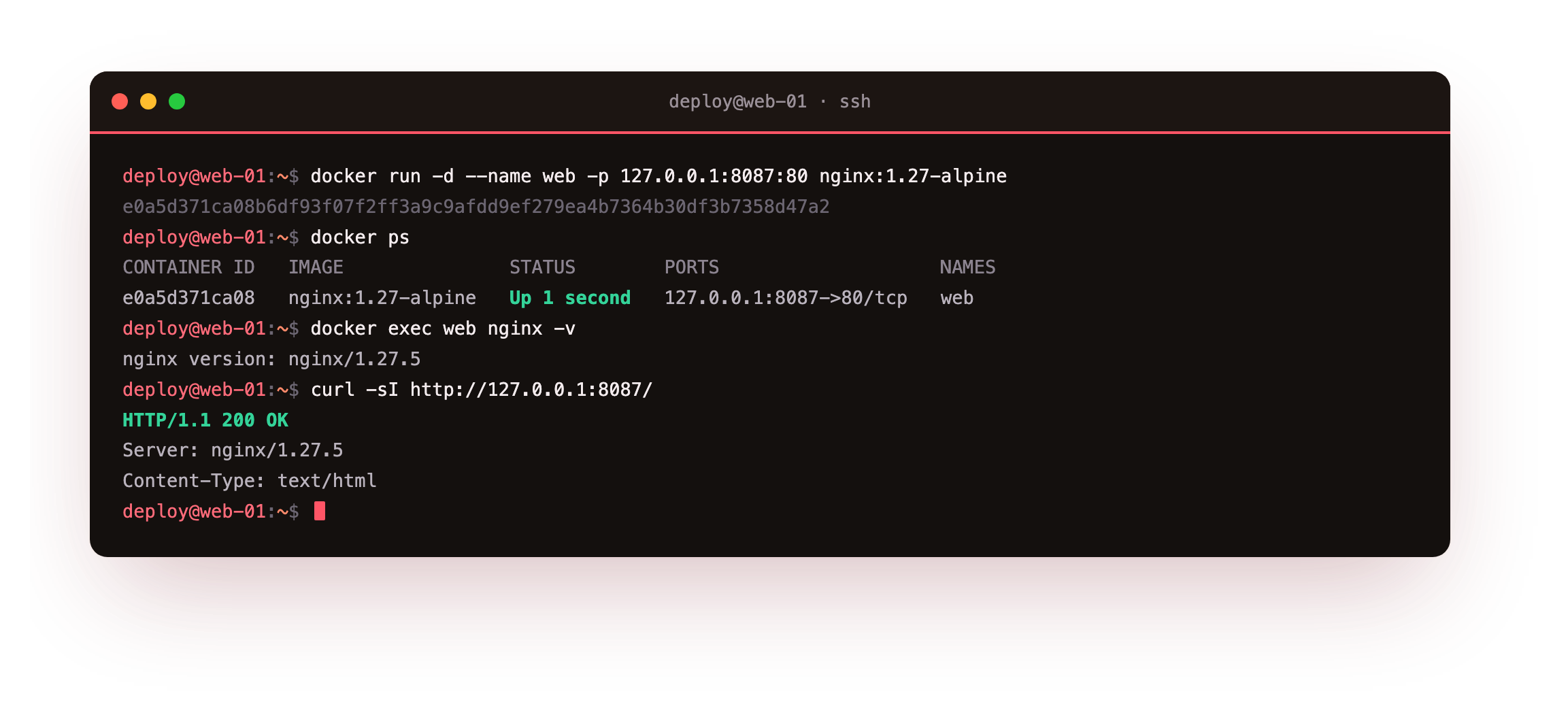
Every flag teaches something. nginx:1.27-alpine is a pinned image, pulled automatically if the server does not have it. -d runs it detached so you get your shell back. --name web gives it a readable name. The -p 127.0.0.1:8087:80 maps port 8087 on the host to port 80 inside the container, and the 127.0.0.1 in front keeps it reachable only from the server itself. docker ps lists the running container, docker exec runs a command inside it to print the packaged nginx version, and the curl returns 200 OK from a full web server, running in isolation, from one command.
A `200 OK` from curl -sI http://127.0.0.1:8087/ is the from-zero milestone of this chapter: a real web server, installed by nobody, running as a container you started on a slice you brought up from nothing. Nothing was added to the host itself. Everything after this shapes containers into an application you can trust in production.
What a Docker container actually is
Now the idea that makes the rest of the series click, because almost every early confusion comes from blurring two words. An image is the sealed, read-only template: your code plus its environment, frozen on disk. It does nothing until you use it.
A Docker container is a running instance of that image, with its own writable layer on top. You can start many containers from one image, and when a container stops you can throw it away without touching the image it came from. You build an image once and run it as containers many times.
The reason teams reach for this is old and familiar. Your laptop, a colleague's laptop, and the server are three different computers with different library versions and system packages, and code that runs in one place breaks in another. A container closes that gap by shipping the code together with the exact environment it needs, as one sealed unit that runs the same everywhere. That is why the container you just ran needed nothing installed on the host: the image carried it all.
Dispose the container, keep the image
The mental shift that makes containers useful is that you do not maintain them. You do not patch a running container and nurse it along. You throw it away and start a fresh one from the image. Stop and remove this one, then look at what the engine kept.
docker stop web && docker rm web
docker images nginx:1.27-alpine
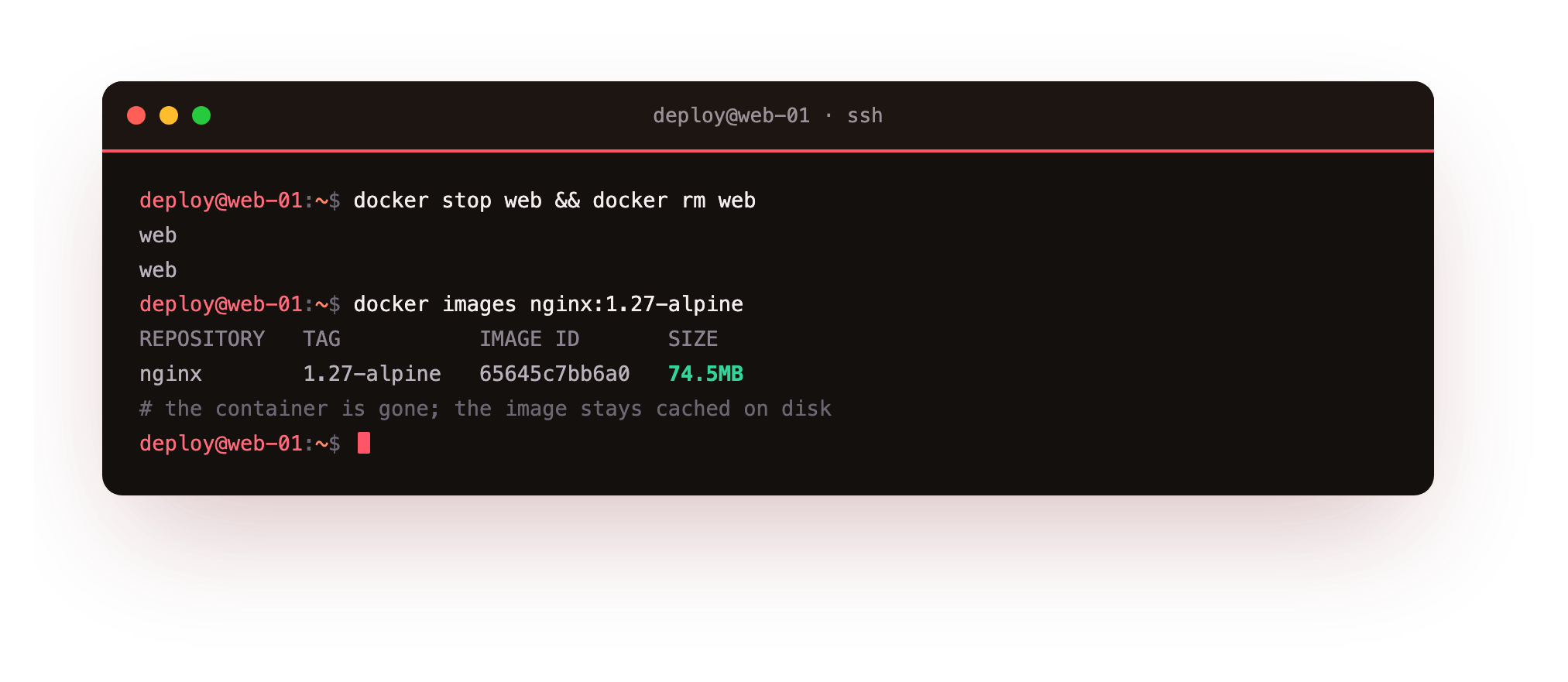
The container is gone with no trace left on the host: no leftover config, no half-uninstalled packages. Yet docker images still lists nginx:1.27-alpine, cached on disk, ready to produce a new identical container the instant you run it again. Removing a container never removes the image it came from. That disposability is why containers suit deployment: shipping a new version is stopping the old container and starting a new one from a new image, with no drift.
After the remove, docker ps no longer lists web, but docker images nginx:1.27-alpine still shows the image cached on disk. That split, container gone and image kept, is the loop the whole series is built on.
Going further: what the engine runs under the hood
You do not have to take the engine on faith. docker --version prints the client, and docker info reports the server it talks to: the storage driver, the cgroup version, and the counts of images and containers already present.
docker info
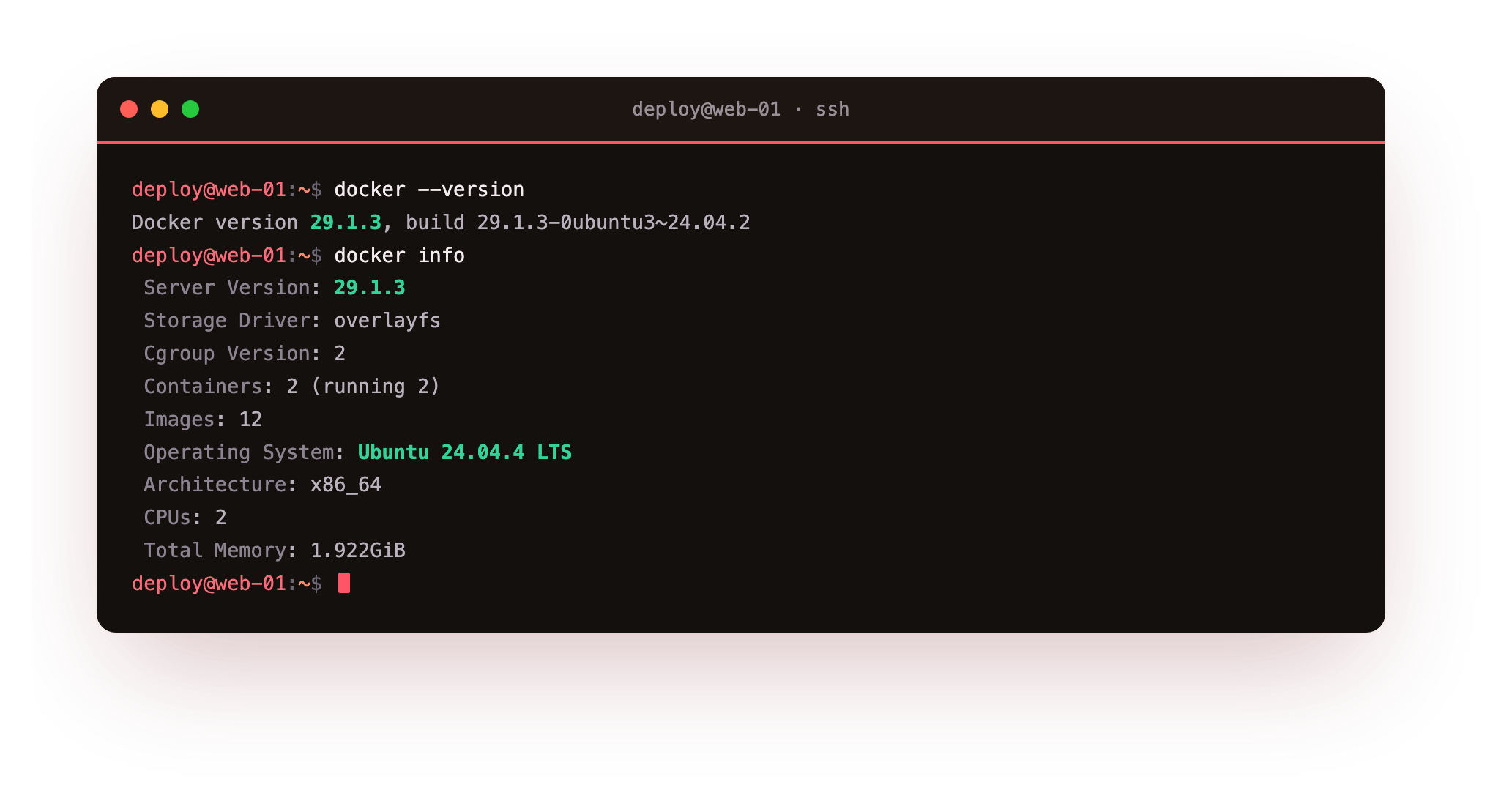
The storage driver here is overlayfs and the cgroup version is 2, which is what a current Ubuntu 24.04 kernel gives you. Images and their layers live under /var/lib/docker, managed by that storage driver, and you work through the Docker commands rather than editing those files by hand, which is the whole point of the engine.
Two habits from this first container cost nothing and save you later. Pin to a specific tag rather than latest, since nginx:1.27-alpine will not change underneath you the way latest does. And prefer the small -alpine variants, which pull faster and carry less software to worry about. Anything a container must keep across a restart, like a database's files, belongs in a volume outside the container, which the Compose chapter sets up.
Frequently asked questions
Can I run a container without installing the software on the host?
Yes. The image already contains the software and its dependencies, and docker run fetches that image and starts it. A machine with nothing but the Docker engine can serve nginx, Postgres, or any public image, and none of those packages are ever installed on the host itself. That is exactly what the first container in this chapter showed.
What is the difference between docker stop and docker rm?
docker stop halts a running container but keeps it, so you can start it again later with its writable layer intact. docker rm deletes a stopped container for good. docker rm -f does both in one step, stopping and removing in a single command.
Is a Docker container the same as a virtual machine?
No. A virtual machine runs its own full operating system, which is heavy to boot and run. A container shares the host kernel and isolates only its filesystem and processes, so it starts in a fraction of a second and uses far less memory than a comparable virtual machine.
Do I have to install Docker the same way on every server?
The get.docker.com convenience script is the quickest way to bootstrap a fresh box, and because it adds Docker's official apt repository, updates then arrive through apt upgrade. For tighter control you can add that repository by hand from Docker's install docs, which lets you pin an exact engine version. Both end at the same engine, so start with the script and pin later if you need to.
What you have, and what comes next
You installed the Docker engine on a bare Ubuntu 24.04 slice from nothing, confirmed it with docker --version and the hello-world smoke test, ran a real service as a container in one command, and threw that container away cleanly while its image stayed cached. You also saw the destination the series builds toward: a multi-service app running healthy under Compose and live in a browser.
You ran someone else's nginx, though, not your own app. The next chapter builds an image of your own application with a Dockerfile, and shrinks it with a multi-stage build so the thing you ship is small.