Docker security defaults that contain a breach
Docker security is mostly about shrinking what a container can do before anything goes wrong: run as a non-root user, freeze the root filesystem, drop Linux capabilities, and keep secrets out of the image. This chapter hardens the app on Ubuntu 24.04 LTS and proves each control with docker inspect and the container's own behaviour. Every result below came off the live server.
- A
USERline in the image means the process never runs as root inside the container. --read-onlywith a--tmpfsfor scratch space stops an attacker writing to the container filesystem.--cap-drop ALLand--security-opt no-new-privilegesremove Linux capabilities and block privilege escalation.- A secret belongs in an env-file at runtime, never baked into an image layer where it lives forever.
Container isolation is real but not absolute: a container shares the host kernel, so a process that runs as root inside one starts from a stronger position than it should. Hardening is the practice of handing each container the least it needs. If something is compromised, the blast radius is a non-root process in a read-only box with no capabilities, which is a far smaller problem than root on the host.
Prerequisites
- An Ubuntu 24.04 LTS server with Docker 29.1.3 and the
cadence:1.0image. - The stack from the previous chapter, and its network available.
Run as a non-root user
The image already ends with a USER app line, created in the Dockerfile back in the images chapter, so the process never runs as root. Confirm it by launching a hardened container and asking who it is.
docker run -d --name hardened --network cadence_default -p 127.0.0.1:8091:3000 \
  --read-only --tmpfs /tmp \
  --cap-drop ALL \
  --security-opt no-new-privileges \
  --env-file secrets.env -e REDIS_ADDR=redis:6379 \
  cadence:1.0
docker exec hardened id
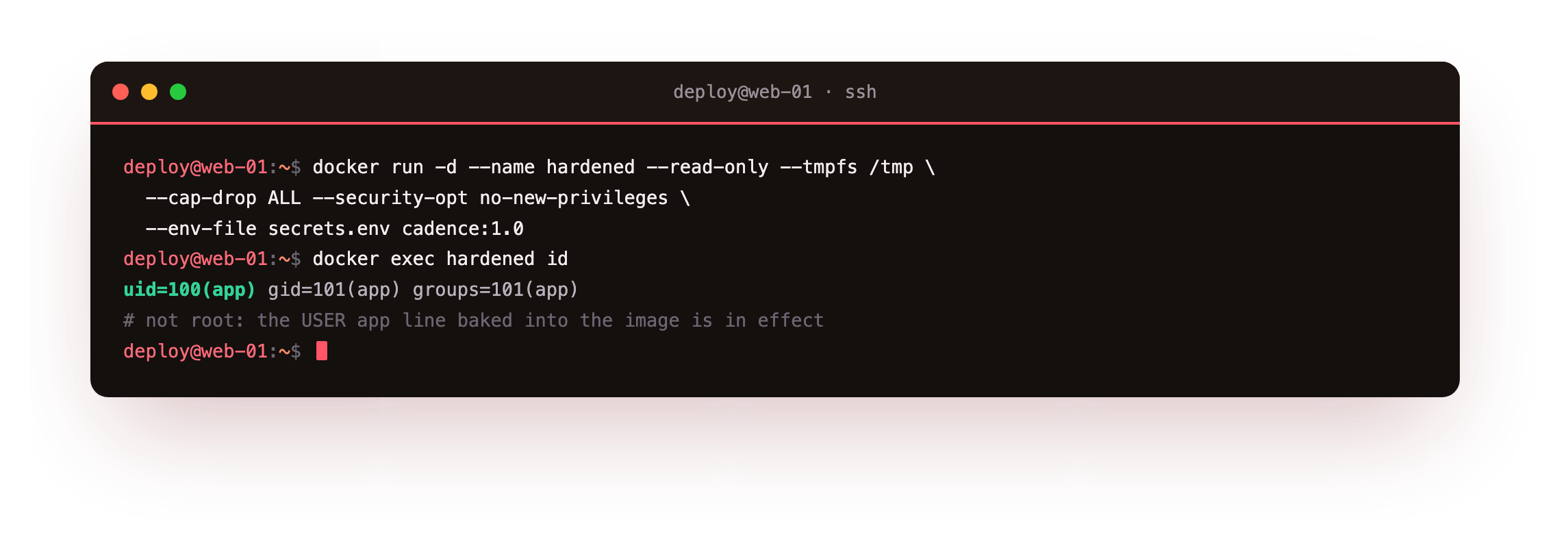
id reports uid=100(app), not root. Every other flag on that run tightens the box further, and the next steps prove each one held.
Freeze the filesystem, drop the capabilities
A --read-only root filesystem means a compromised process cannot drop a tool or rewrite a binary. Real apps need a little scratch space, so --tmpfs /tmp gives an in-memory /tmp that is writable and vanishes on stop. Test both, then read the security settings back.
docker exec hardened sh -c 'echo hi > /oops.txt'
docker exec hardened sh -c 'echo hi > /tmp/ok.txt && echo tmp is writable'
docker inspect hardened --format 'ro={{.HostConfig.ReadonlyRootfs}} caps={{.HostConfig.CapDrop}} opt={{.HostConfig.SecurityOpt}}'
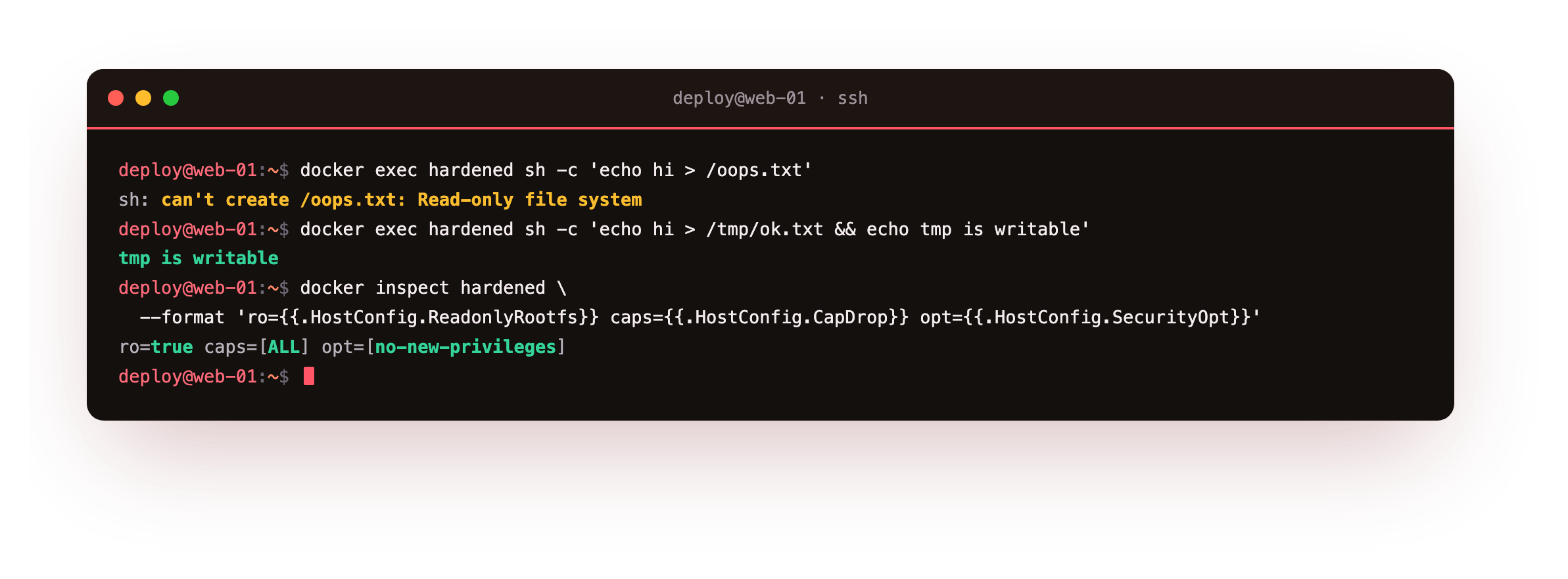
Writing to / fails with Read-only file system, while /tmp accepts the write, which is exactly the split you want. docker inspect confirms ReadonlyRootfs is true, CapDrop is ALL, and no-new-privileges is set. Dropping all capabilities removes powers like raw sockets and mounting that a web app never needs, and no-new-privileges stops any child process gaining more than its parent, which closes the usual setuid escalation path.
A write to / should be refused while a write to /tmp succeeds, and docker inspect should report ReadonlyRootfs true, CapDrop ALL, and no-new-privileges set. If the app crashes on start instead, it is writing somewhere other than /tmp, so point that path at the tmpfs or a volume before hardening it further.
Keep the secret out of the image
A secret baked into a Dockerfile with ENV or COPY lives in an image layer forever, readable by anyone who pulls it. Pass it at runtime instead, through an env-file with tight permissions, which the run above did with --env-file secrets.env. Check that the app has the secret but never returns it, and that the image does not carry it.
curl http://127.0.0.1:8091/api/status
docker image inspect cadence:1.0 --format '{{.Config.Env}}'
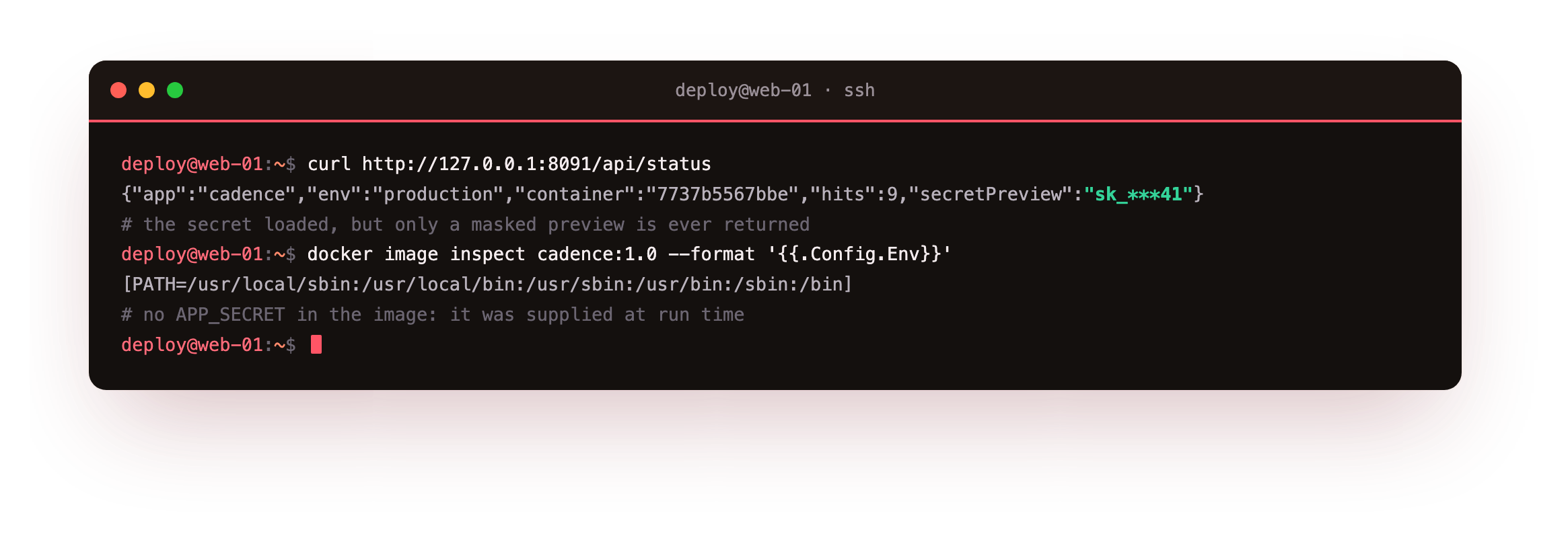
The status route reports the secret loaded but shows only a masked preview like sk_***41, never the value. The image's environment lists only PATH, with no secret in it, because the secret was supplied at run time and lives in a file you keep at mode 600, not in a layer. That file stays out of version control the same way, so the value exists in exactly one place you control.
The status route should return a masked preview, and docker image inspect on the image should list only PATH in its environment, no secret. If the secret shows up in the image environment, it was baked in with ENV, so remove that line, rebuild, and pass the value with --env-file at run time instead.
Going further: scan the image before you ship it
Hardening the runtime is half the job; the other half is knowing what is in the image. A scanner reads the installed packages and reports known vulnerabilities. This server has no scanner installed, and adding one was out of scope for the test, so I will not show fabricated output. The commands to run are docker scout cves cadence:1.0 if you have Docker Scout, or trivy image cadence:1.0 with Trivy installed. Both belong in a build pipeline, so a new vulnerability in a base image is caught before the image ships, not after.
- Run as a non-root
USERbaked into the image. --read-onlyroot filesystem, with a--tmpfsfor scratch space.--cap-drop ALLand--security-opt no-new-privileges.- Secrets through an env-file at run time, and a scanner in the pipeline.
Frequently asked questions
Why run as non-root if the container is already isolated?
Isolation is not a hard boundary, because the container shares the host kernel. A process running as root inside a container is one kernel bug away from more power than it should have. Running as an ordinary user removes that starting advantage, so a compromise begins from a weaker position.
What breaks with a read-only root filesystem?
Only code that writes to the container filesystem, and most of that is scratch data that belongs in a --tmpfs or a volume. Point temporary writes at /tmp mounted as tmpfs and persistent data at a named volume, and the application root can stay read-only, which removes a common attacker foothold.
Is an env-file secret actually safe?
It is safer than baking the value into an image layer, where it is permanent and shared with anyone who pulls the image. An env-file keeps the value on the host at mode 600, out of the image and out of git. For stronger guarantees, Docker and orchestrators offer a secrets mechanism that mounts the value as a file rather than an environment variable.
What does dropping capabilities actually remove?
Linux splits root's powers into capabilities like binding low ports, using raw sockets, and changing file ownership. A typical web app needs none of them, so --cap-drop ALL takes them away, and you add back only what a service genuinely requires. Fewer capabilities means fewer things a compromised process can do.
What you have, and where the series leaves you
You ran the app as a non-root user, froze its root filesystem with a writable tmpfs for scratch, dropped every Linux capability, blocked privilege escalation, and kept its secret in an env-file rather than an image layer. Each control was confirmed by docker inspect or by the container refusing an action it should refuse.
Across the series you went from a first container to a built image, a Compose stack with a datastore, volumes and a private network, resource limits and restart policies, bounded logs, and a hardened runtime. That is a small application running on Docker the way production should: reproducible, contained, and safe to leave running on a live Ubuntu 24.04 LTS server.