Read docker logs and keep them bounded
The docker logs command shows whatever a container wrote to standard output, and the json-file log driver keeps those logs bounded so they cannot fill the disk. This chapter reads docker logs on Ubuntu 24.04 LTS, turns on rotation with a size and file cap, and uses docker stats and docker inspect to see inside the running stack. Every line and figure below came off the live server.
- A container should log to standard output, and
docker logsreads that stream without you knowing where the file lives. - The default json-file driver writes to disk with no cap, so an app that logs a lot can fill the host.
- Setting
max-sizeandmax-filerotates the log, keeping a fixed number of bounded files. docker statsshows live CPU, memory, network, and process counts;docker inspectshows the fixed configuration.
The container way to log is to write to standard output and let the engine capture it. Your app does not manage log files or rotation. It prints, and Docker collects the stream through a log driver you choose. That keeps the app simple and puts the operational decisions, where logs go and how much is kept, in the container configuration.
Prerequisites
- Ubuntu 24.04 LTS with Docker 29.1.3 and the Compose plugin, and the stack from earlier running.
- The app and Redis stack from the previous chapter, running.
Read the logs
Ask each container what it has written. The --tail flag limits how far back you read, and -f would follow new lines live.
docker logs cadence-redis-1
docker logs cadence-app-1
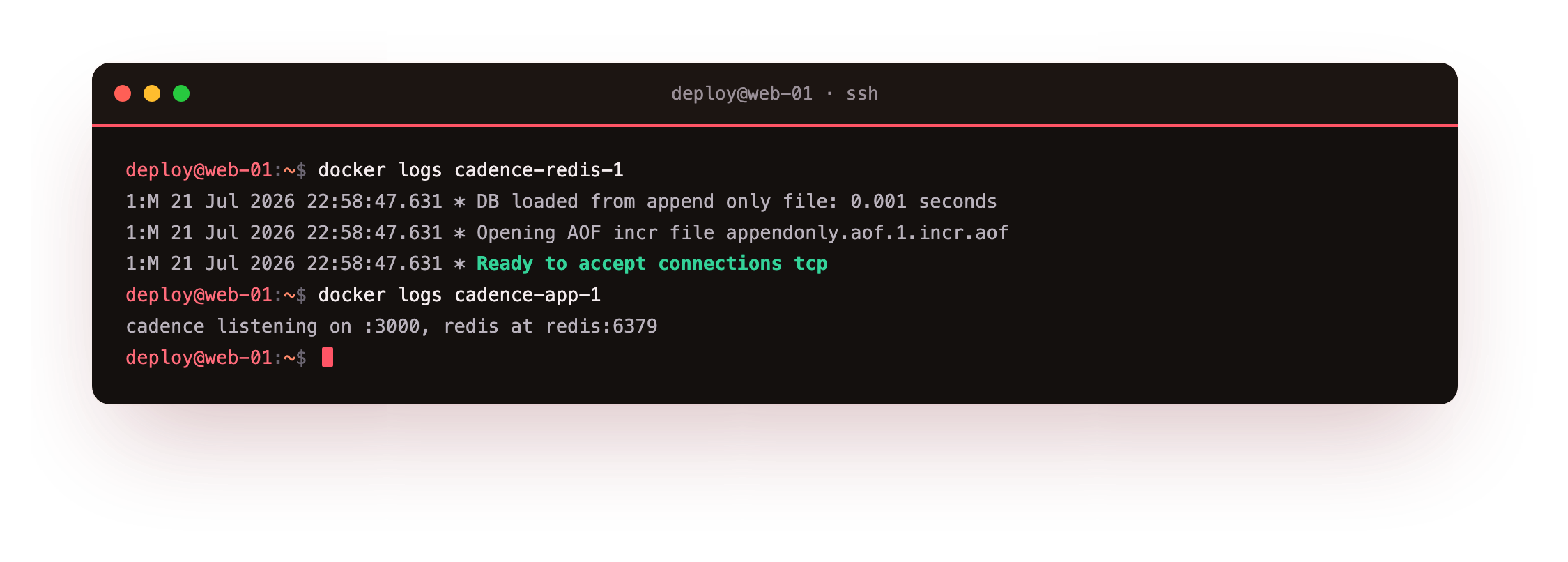
Redis prints a clear boot sequence: it loads its append-only file from the volume and reports it is ready to accept connections. The app prints its own start line. Because both write to standard output, you read them the same way regardless of language or base image. There is no log path to hunt for and no permission to fix.
Turn on rotation
The json-file driver is the default, and by default it never rotates, so a chatty container can grow its log until the disk is full. Cap it in Compose with two options.
    logging:
      driver: json-file
      options:
        max-size: "10m"
        max-file: "3"
Recreate the stack, then read the driver back to confirm it applied.
docker inspect cadence-app-1 --format '{{json .HostConfig.LogConfig}}'
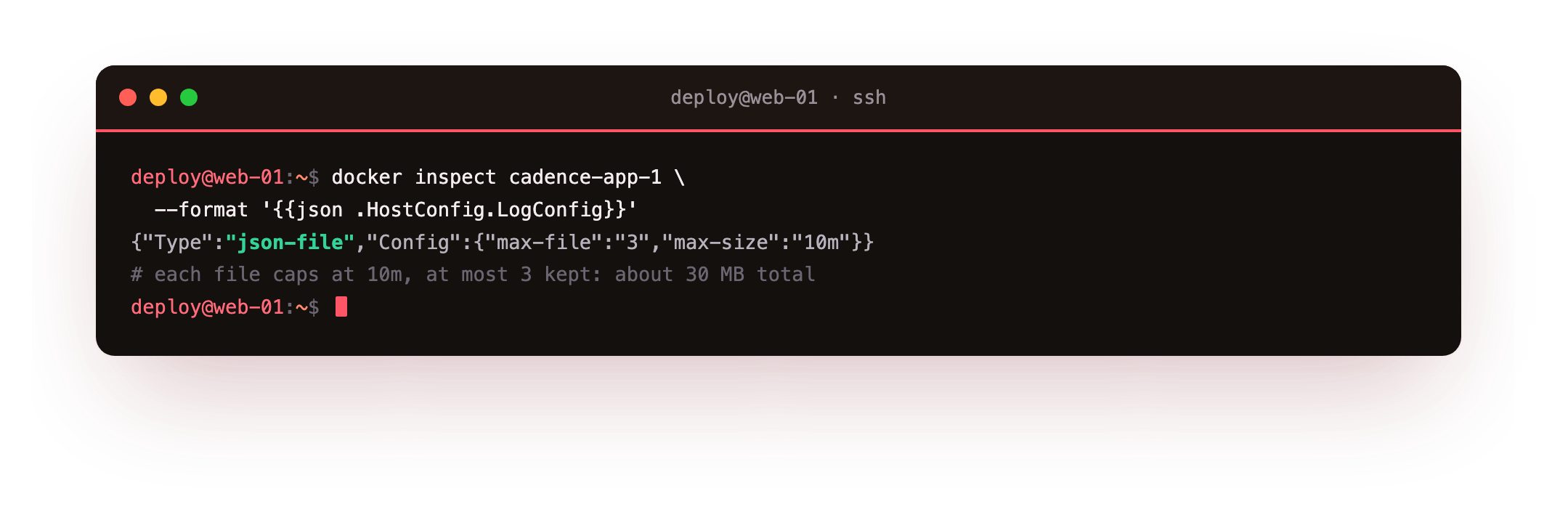
Docker reports the driver as json-file with max-size of 10m and max-file of 3. That means each log file grows to 10 MB, then Docker rotates it and keeps at most three, so this container's logs are capped at roughly 30 MB no matter how much it prints. The file itself lives under /var/lib/docker/containers, but you should read it through docker logs, not by opening it directly.
docker inspect on the app should report the json-file driver with max-size 10m and max-file 3. If it still shows no options, the container was not recreated after you edited the file, so run docker compose up -d so the new logging block takes effect.
See inside a running container
Two commands answer the two questions you usually have. docker stats shows live resource use; docker inspect shows the fixed facts.
docker stats --no-stream --format "table {{.Name}}\t{{.CPUPerc}}\t{{.MemUsage}}\t{{.NetIO}}\t{{.PIDs}}"
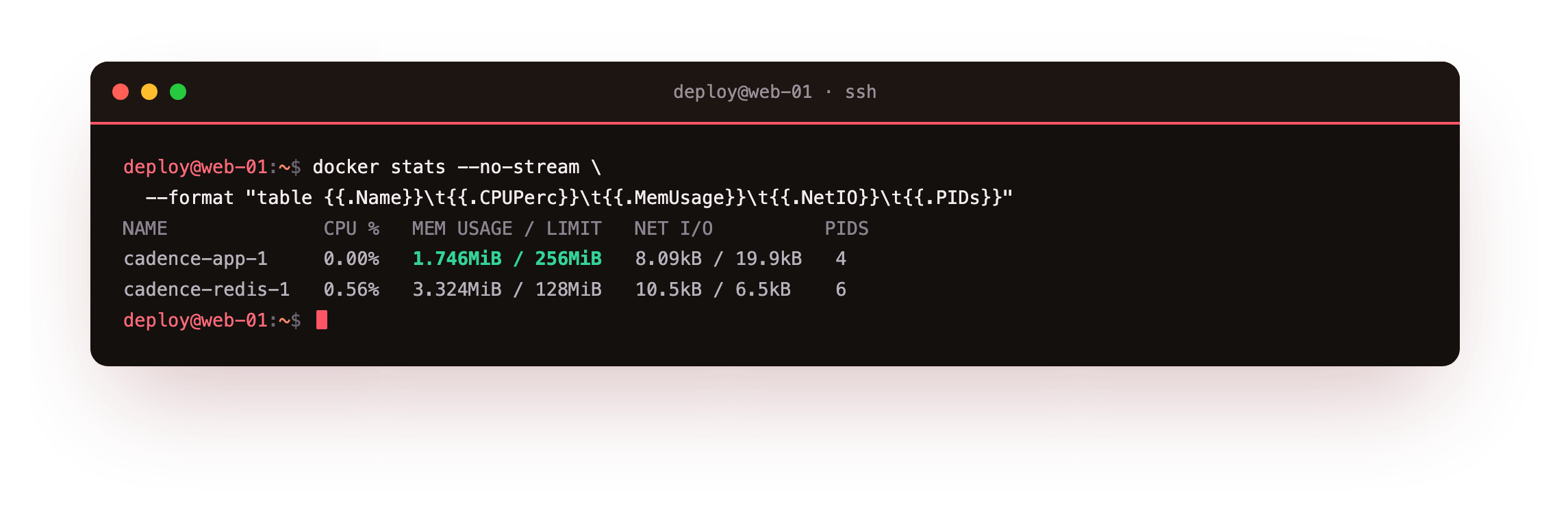
The snapshot pairs each container with its CPU share, memory against the limit you set, network in and out, and the number of processes it holds. The app sits near 1.7 MiB against its 256 MiB cap with a handful of processes, which is a healthy idle. docker inspect complements this with the unchanging configuration: the health status, the restart count, the mounts, and the network settings, all as one JSON document you can query with a format string.
docker logsanswers "what did it say" from the container's standard output.docker statsanswers "what is it using right now", live and per container.docker inspectanswers "how is it configured", from limits to log driver to health.
Going further: a host-wide log cap
Setting max-size and max-file per service works, but it is easy to forget on the next container. The daemon can enforce a default for everything instead. Add a log-driver and log-opts block to /etc/docker/daemon.json, restart the Docker daemon, and every new container inherits the cap unless it sets its own.
That one change turns log rotation from a per-service habit into a host-wide guarantee, which is what a box running several stacks needs. Existing containers keep their current settings until they are recreated, so apply it early and let new containers pick it up as they start.
Frequently asked questions
Where does docker logs read from?
From the file the container's log driver writes, which for the default json-file driver lives under /var/lib/docker/containers. You do not need that path: docker logs reads the stream for you, and docker logs -f follows it live, the same way for every container regardless of its base image.
Will container logs fill my disk?
They can, because the default json-file driver does not rotate. Setting max-size and max-file caps each file and the number kept, which bounds total log size per container. On a busy host, set these in your Compose file or in the daemon defaults so every container inherits a sensible cap.
What is the difference between docker stats and docker inspect?
docker stats is a live meter: CPU, memory, network, and process counts updating in real time. docker inspect is a static record: the image, mounts, limits, restart policy, log driver, and health status as configured. You watch stats to see behaviour and inspect to see settings.
Should I ship logs off the host?
For a single server, bounded json-file logs read with docker logs are enough. Across several hosts, a central log destination helps, and Docker supports other drivers for that. Whatever the destination, keep your app writing to standard output so the driver, not the code, decides where logs end up.
What you have, and what comes next
You read container logs with docker logs, capped them with max-size and max-file so they cannot fill the disk, and used docker stats and docker inspect to see a running container's live use and its fixed configuration. You can now watch the stack and keep its logs bounded.
The stack runs, recovers, and reports. What it is not yet is hardened. The final chapter runs the app as a non-root user with a read-only root filesystem, dropped capabilities, and its secret kept out of the image.