Install k3s and see the cluster serve an app
To install k3s is to get a real Kubernetes cluster from a single command, small enough to run on one Ubuntu 24.04 LTS slice with 2 vCPU and 2 GB of memory. This series is for the developer who is curious about Kubernetes but cannot justify a multi-node cluster to learn on.
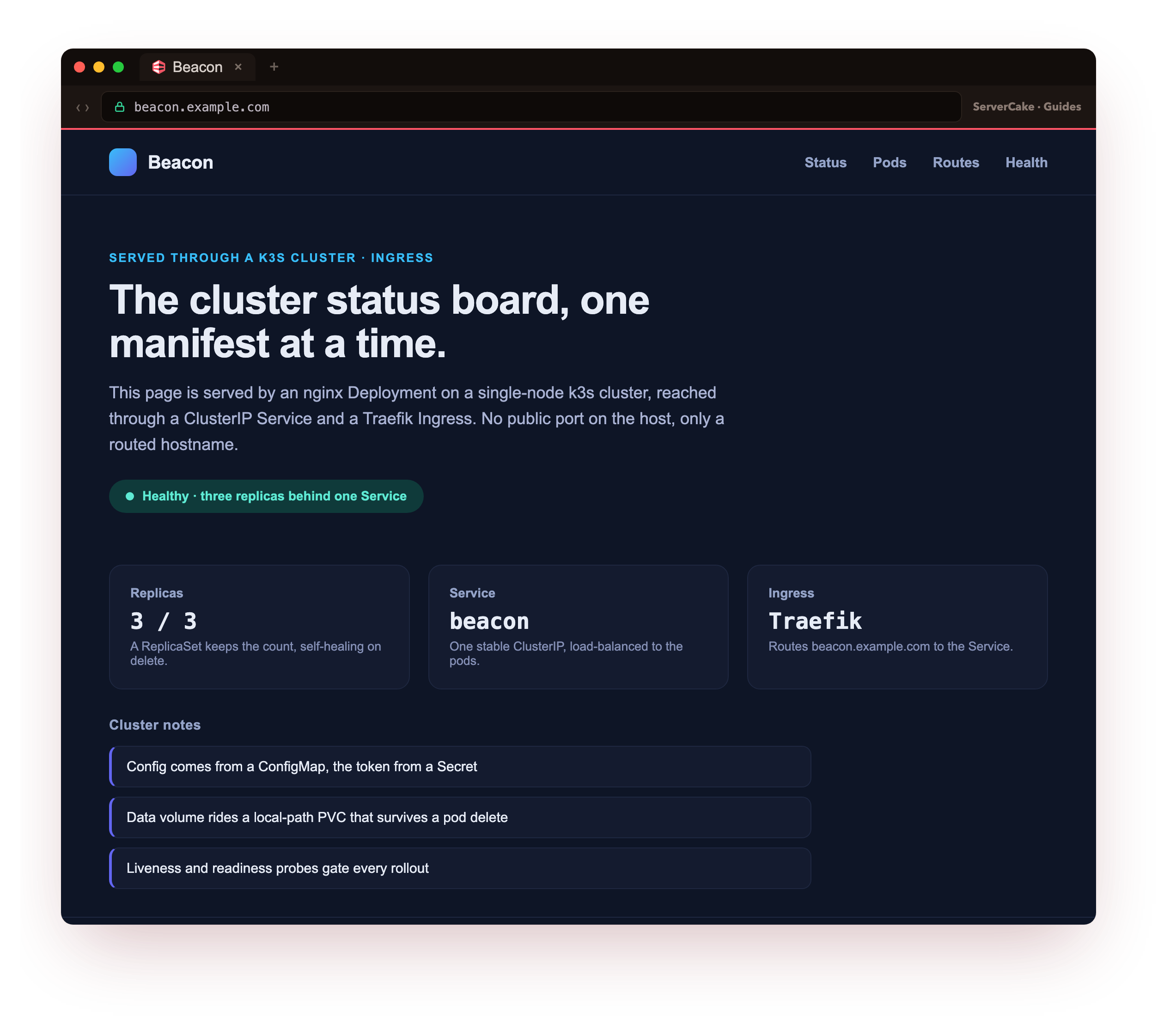
By the last chapter you will have a live cluster running a small app called Beacon: a Deployment that heals itself, a Service, an ingress, config and secrets, and persistent storage, with the app served by the cluster and open in a browser.
That is the destination. This first chapter gets you to the starting line: k3s installed on a bare slice, the node reporting Ready, and your first pod running. Every command below ran on a live server, and each result is what that server returned.
- k3s ships as a single binary that bundles the API server, scheduler, controller manager, and its own containerd, so one install script gives you a full cluster.
- A node reports
Readyonce the control plane is up and the container runtime has registered, usually within a minute on a small slice. - A pod is the smallest thing Kubernetes runs: one or more containers sharing a network address, scheduled onto a node for you.
- Out of the box k3s adds CoreDNS, a local-path storage provisioner, and metrics-server, the parts a cluster needs to be useful on day one.
Full Kubernetes is a lot of moving parts to run yourself. k3s, from the team at Rancher, packages the same APIs into one lightweight binary that fits a single small server. You write the same YAML and run the same kubectl commands you would against a large cluster, which makes one slice a genuine place to learn and to run small workloads.
Here is the Beacon app that cluster will serve by the end, reached in a browser through the ingress you wire up in chapter four.
Prerequisites
- A fresh Ubuntu 24.04 LTS slice, reachable over SSH, with a user that can run
sudo. - Around 1 GB of memory free for the cluster. This series ran on a 2 vCPU slice with 2 GB total.
- Working outbound HTTPS, since the installer fetches the k3s binary and later pulls container images.
- If this slice already serves a website on port 80 or 443, note it now. The install below deliberately keeps k3s off those ports so your existing site stays up.
Install k3s from a bare slice
This is the real start: one command on a slice with nothing on it but Ubuntu. The official script installs the binary, writes a systemd unit, and starts the service.
curl -sfL https://get.k3s.io | INSTALL_K3S_EXEC="--disable traefik --disable servicelb --write-kubeconfig-mode 644" sh -
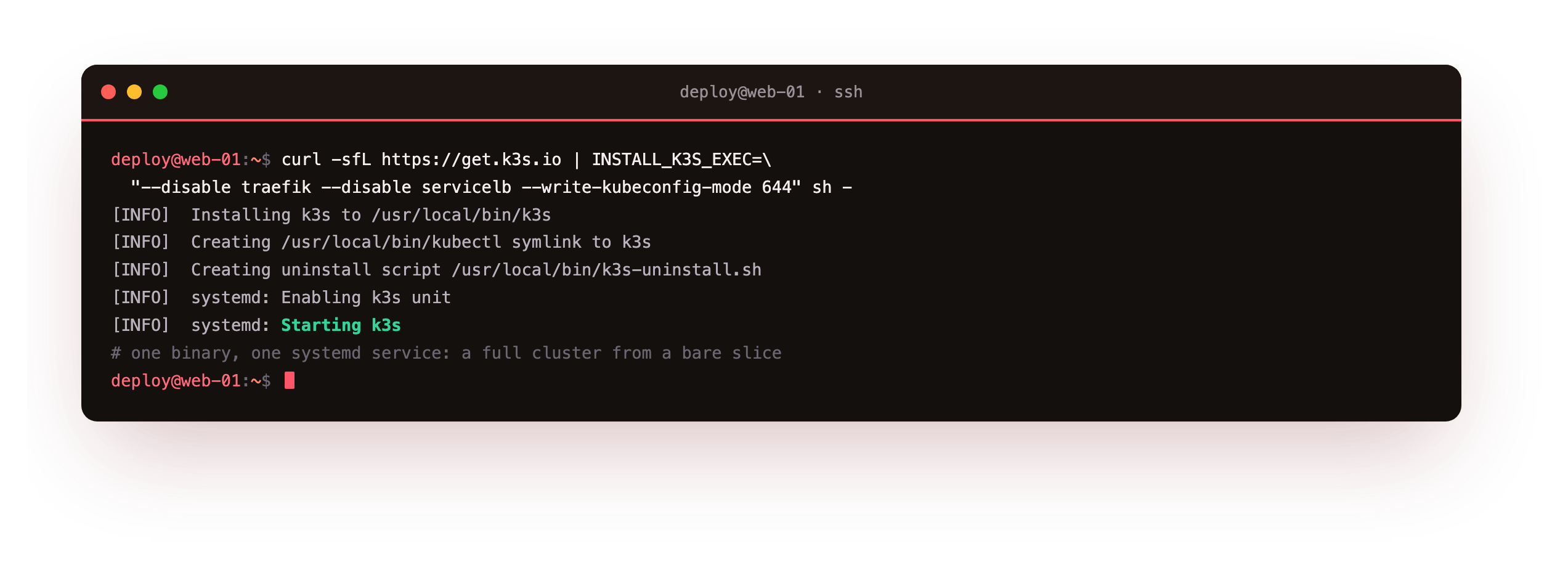
Three flags earn their place. --write-kubeconfig-mode 644 lets your normal user read the cluster config, so you run kubectl without sudo. --disable traefik skips the bundled ingress controller, which you add deliberately in chapter four rather than have appear by magic.
--disable servicelb turns off k3s's built-in load balancer, the piece that would otherwise try to claim ports 80 and 443 on the host. On a slice already running a web server, that claim is exactly what you do not want, so you keep k3s clear of those ports from the first command.
The installer prints a short run of [INFO] lines and ends by starting the service. Point kubectl at the config it wrote, then check the node.
export KUBECONFIG=/etc/rancher/k3s/k3s.yaml
kubectl version
kubectl get nodes
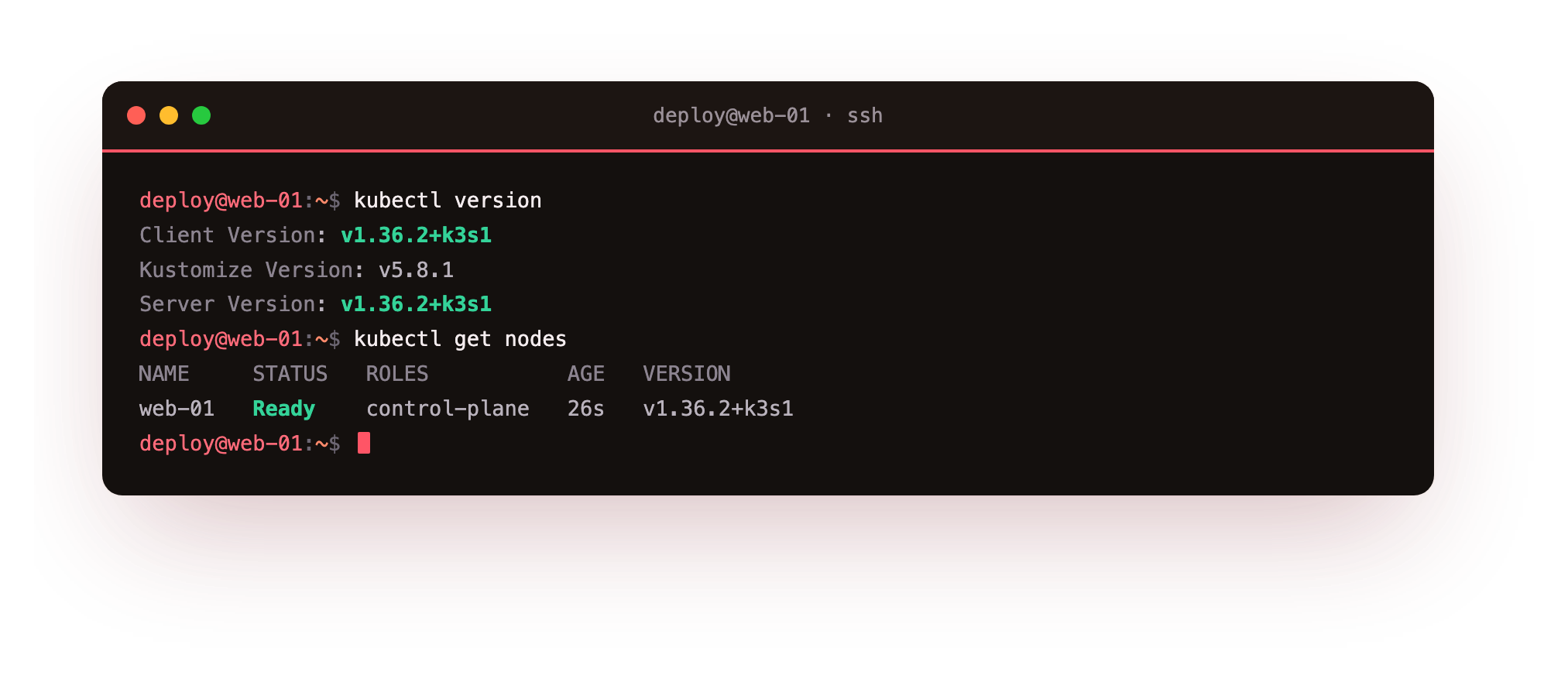
kubectl version prints the client and server, which match because both come from the same binary. kubectl get nodes lists the one node with a role of control-plane and a status of Ready. On this slice the node went Ready about twenty seconds after the service started.
You should now see one node with STATUS of Ready. If it still reads NotReady, wait a few seconds and run kubectl get nodes again while the container runtime finishes coming up. Once it is Ready, the cluster is live.
Run your first pod
Nothing needs building. Ask Kubernetes to run a container from a public image, then look at what it scheduled.
kubectl run web --image=nginx:1.27-alpine
kubectl get pods
kubectl exec web -- nginx -v
kubectl logs web
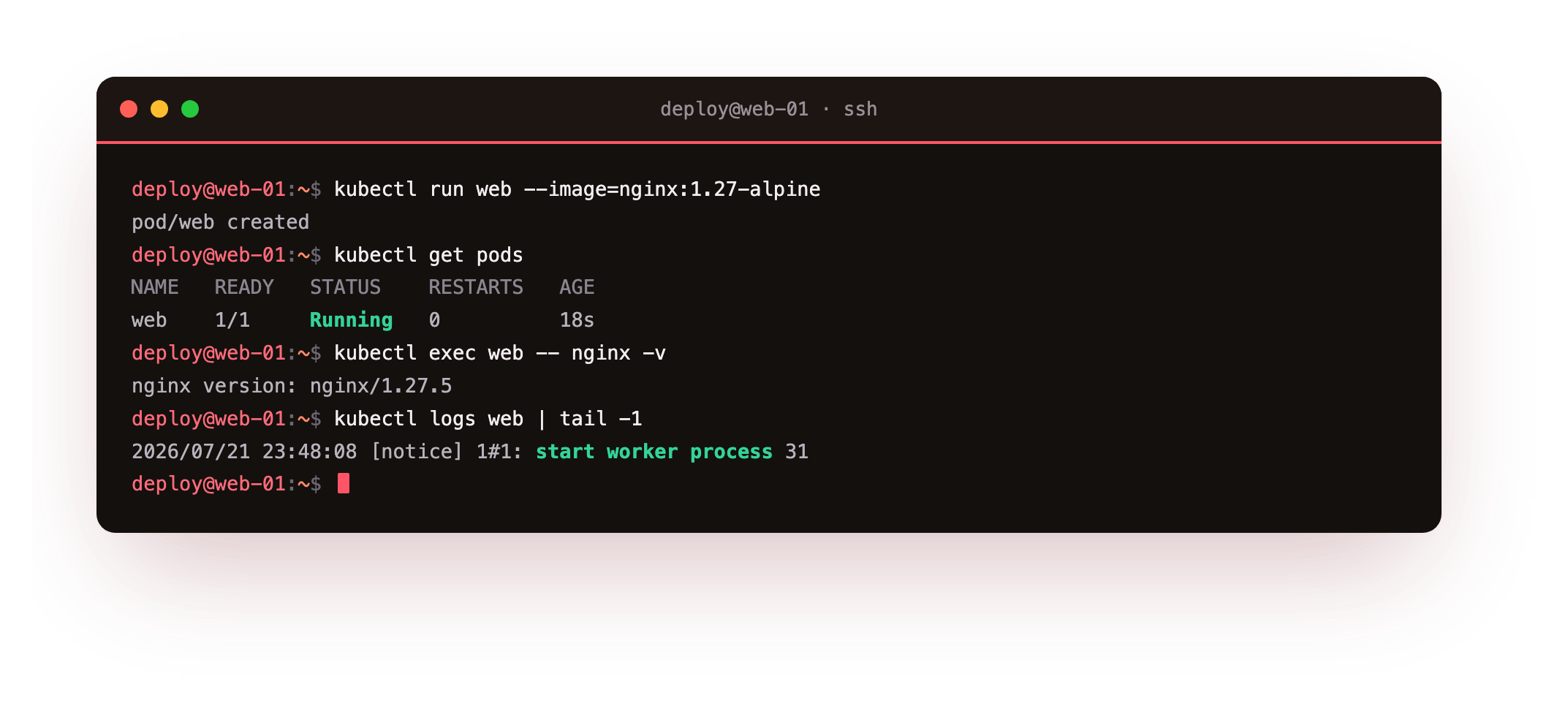
kubectl run creates a single pod named web from the pinned nginx:1.27-alpine image. The first kubectl get pods may show ContainerCreating while the image pulls, then Running. kubectl exec runs a command inside the pod, here printing the nginx version so you can see the software the image carries. kubectl logs streams what the container wrote to standard output, which is where a pod's logs live.
A pod is not a container. It is a wrapper around one or more containers that share an IP and can talk over localhost. Most of your pods hold a single container, and Kubernetes decides which node runs each one. On a single-node cluster that decision is short, but the model is the same one that spreads pods across a hundred machines.
You should now see the web pod at 1/1 and Running. That is one real container, scheduled and supervised by Kubernetes, on the cluster you installed a moment ago.
What k3s bundles for you
A bare Kubernetes cluster is not much use until you add DNS, storage, and metrics. k3s installs sane defaults for all three as pods in the kube-system namespace.
kubectl get pods -n kube-system
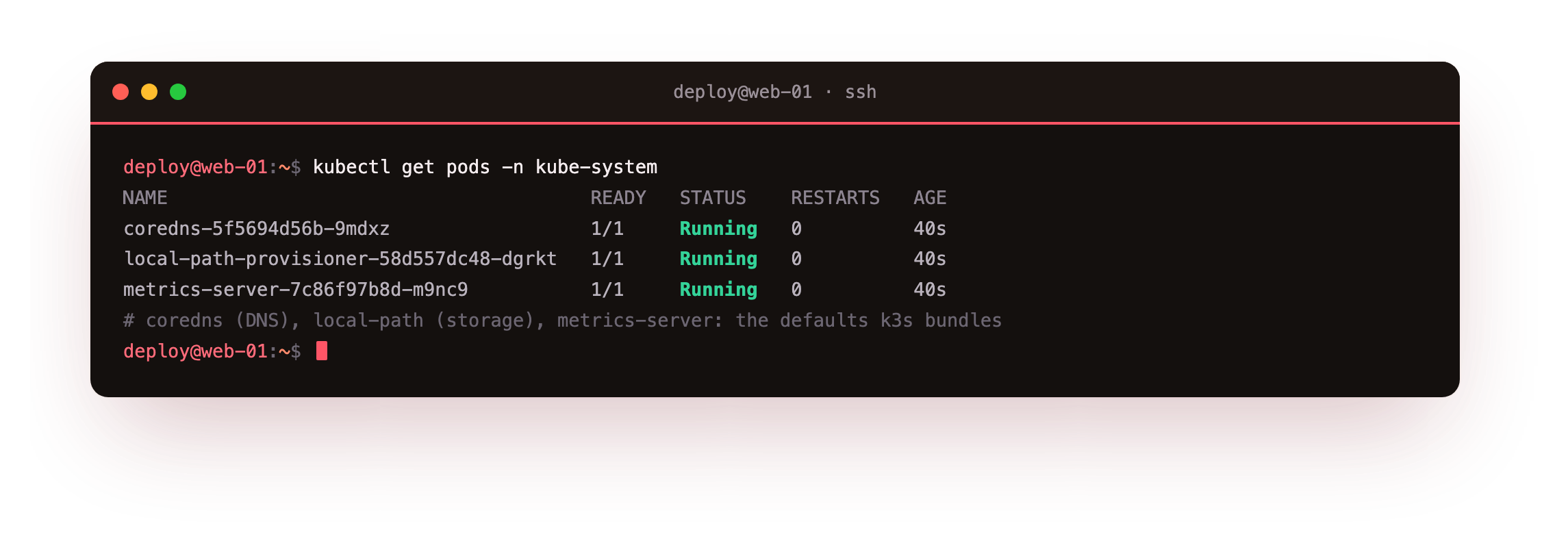
You should see three workloads Running: coredns gives every service and pod a name on the cluster network, local-path-provisioner hands out storage from the node's own disk when a pod asks for a volume, and metrics-server collects CPU and memory so tools like kubectl top have numbers to show.
Because you disabled Traefik and the load balancer, those two do not appear here, which keeps the starting picture to the three parts every cluster needs. k3s also runs flannel for pod networking and its own bundled containerd as the container runtime, both inside the main process rather than as separate pods.
That bundled containerd is worth a note. k3s runs its own container runtime and does not touch a Docker install that already exists on the host. The two coexist, so a box already running Docker containers keeps them while k3s manages its own pods alongside.
Going further: where the cluster lives on disk
k3s keeps its data under /var/lib/rancher/k3s and its config at /etc/rancher/k3s/k3s.yaml. The service is plain systemd, so systemctl status k3s shows it like any other unit, and journalctl -u k3s has the logs if the node ever fails to come up. You rarely touch these files by hand. You work through kubectl, which is the point of running a cluster at all. Chapter seven returns here to back the datastore up and to uninstall the node cleanly.
Frequently asked questions
How is k3s different from full Kubernetes?
k3s is a certified Kubernetes distribution packaged as one small binary. It swaps a few heavy defaults, such as using SQLite instead of etcd on a single node, and can bundle CoreDNS, a storage provisioner, metrics-server, and an ingress controller. The APIs and kubectl behaviour are the same, so what you learn transfers to any cluster.
Why disable Traefik and servicelb at install time?
k3s bundles a Traefik ingress controller and a load balancer that binds ports 80 and 443 on the host. If your slice already runs a web server, that binding collides with it. Disabling both keeps k3s off those ports, and you add the ingress controller deliberately in chapter four, reached through a port-forward instead.
Will installing k3s interfere with Docker on the same host?
No. k3s uses its own bundled containerd for its pods and leaves an existing Docker engine and its containers untouched. Both can run on the same server. They manage separate sets of containers and do not share state.
How much memory does a k3s node need?
The k3s server plus its default add-ons sit comfortably in well under a gigabyte at idle. A 2 GB slice leaves room for a handful of small application pods. Larger workloads want more, but one small server is enough to run a real cluster for learning or a side project.
What you have, and what comes next
You installed k3s on a bare Ubuntu slice, watched the node go Ready, ran a pod from a public image, looked inside it, and read the DNS, storage, and metrics pieces k3s set up for you. That is a working cluster, not a toy, and it is the starting line for the Beacon app you saw at the top.
Running a bare pod is where everyone starts and almost no one stays. A single pod has no one to restart it if it dies. The next chapter wraps Beacon in a Deployment, scales it to several pods, and shows the cluster heal itself when a pod goes away.