What systemd sandboxing does for a service
A service rarely needs to touch most of the system, yet by default it can. systemd sandboxing is a set of unit keys that shrink what a process can reach, so a service that is compromised finds a bare room instead of the whole house. You add the keys to the [Service] section, and systemd builds the restrictions out of kernel namespaces, seccomp, and capability limits. Better still, systemd puts a number on how exposed a unit is, so this chapter hardens the demo worker and measures the score falling.
systemd-analyze securityscores a unit's exposure from 0 to 10 and lists what to fix, line by line.ProtectSystem=strictandProtectHome=make the filesystem read-only or invisible to the service.NoNewPrivileges=blocks privilege escalation; an emptyCapabilityBoundingSet=drops every capability.SystemCallFilter=@system-servicerestricts a service to a sane set of system calls and refuses the rest.
Measure before you change anything
You cannot improve what you do not measure, and systemd ships the meter. systemd-analyze security inspects a unit and prints an exposure score from 0 to 10, where lower is safer, along with a line-by-line list of settings and their weight.
systemd-analyze security sc-demo-web.service
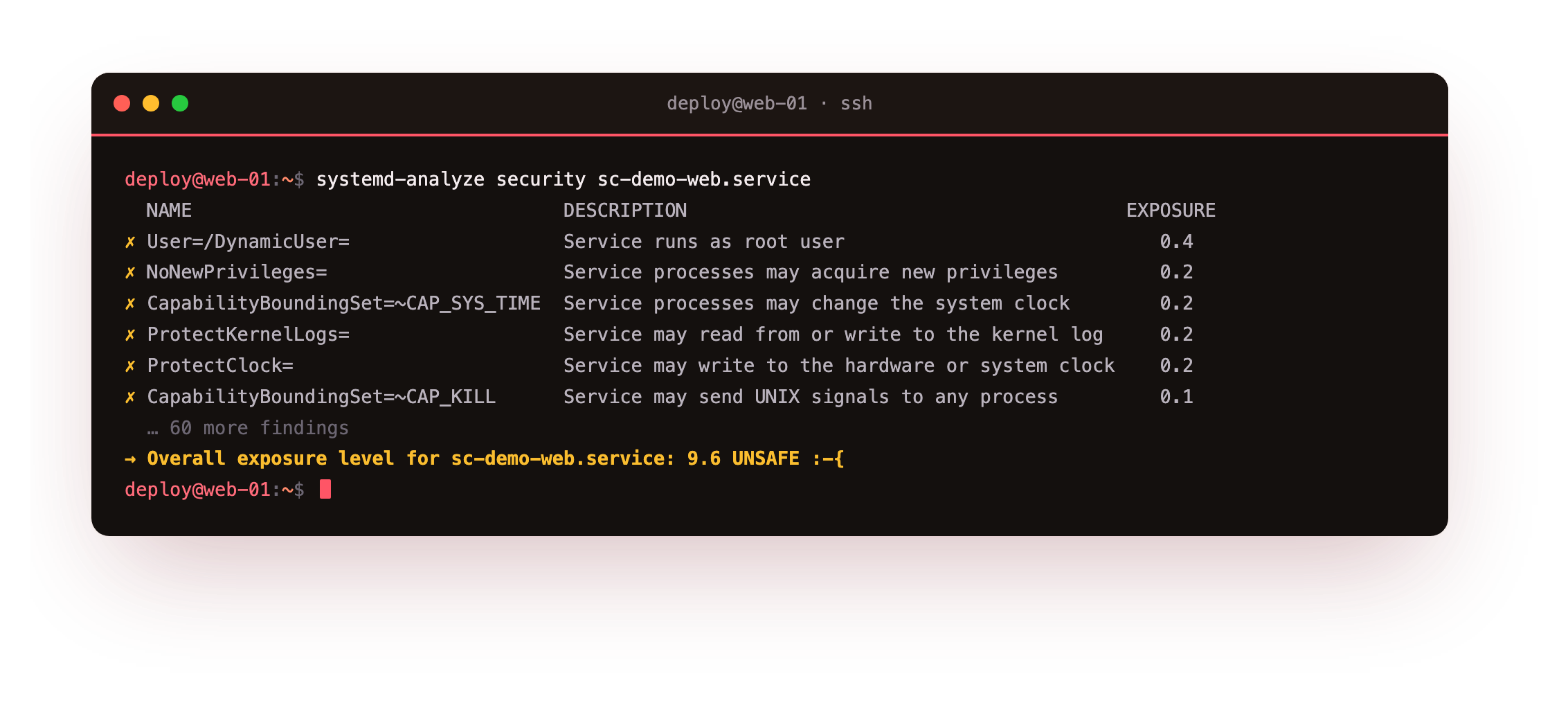
The unhardened worker scores near the top of the range and is labelled unsafe, because it inherits every default: it runs as root, keeps every Linux capability, has a writable view of the filesystem, and can gain new privileges. Each line names a directive you could set and the risk it covers, so the score is both a target you can drive down and a number you can put in a review.
Fencing the filesystem
Most services read their code and write a little state, nothing more. Two keys enforce that. ProtectSystem=strict mounts the entire filesystem read-only, then you grant the few writable paths the service genuinely needs with ReadWritePaths=. ProtectHome=true makes /home, /root, and /run/user invisible, which a background daemon never has a reason to read.
PrivateTmp=true gives the service its own /tmp that no other process can see, closing a classic route for a symlink attack or a leaked secret. Together these three keys mean a service that is subverted cannot rewrite a binary, read a user's SSH key, or plant a file another process will pick up.
Dropping privileges and capabilities
NoNewPrivileges=true is the single highest-value line here. It stops the process and its children from ever gaining more privilege, which neutralises a setuid binary as an escalation path. CapabilityBoundingSet= controls Linux capabilities, the fine-grained pieces of root; setting it empty removes them all, while a service that needs to bind a low port keeps only CAP_NET_BIND_SERVICE and nothing else.
SystemCallFilter=@system-service applies a seccomp allow list of the calls a normal service uses and blocks the rest, so the exotic syscalls exploits reach for are refused. Round it out with the ProtectKernel* family, ProtectKernelTunables=, ProtectKernelModules=, and ProtectKernelLogs=, which stop a service from retuning /proc/sys, loading a module, or reading the kernel ring buffer.
Measuring the drop
Add these keys with systemctl edit, which writes a drop-in rather than editing the unit in place, then reload and restart and run the analyzer again.
sudo systemctl edit sc-demo-web.service
sudo systemctl daemon-reload
sudo systemctl restart sc-demo-web.service
systemd-analyze security sc-demo-web.service
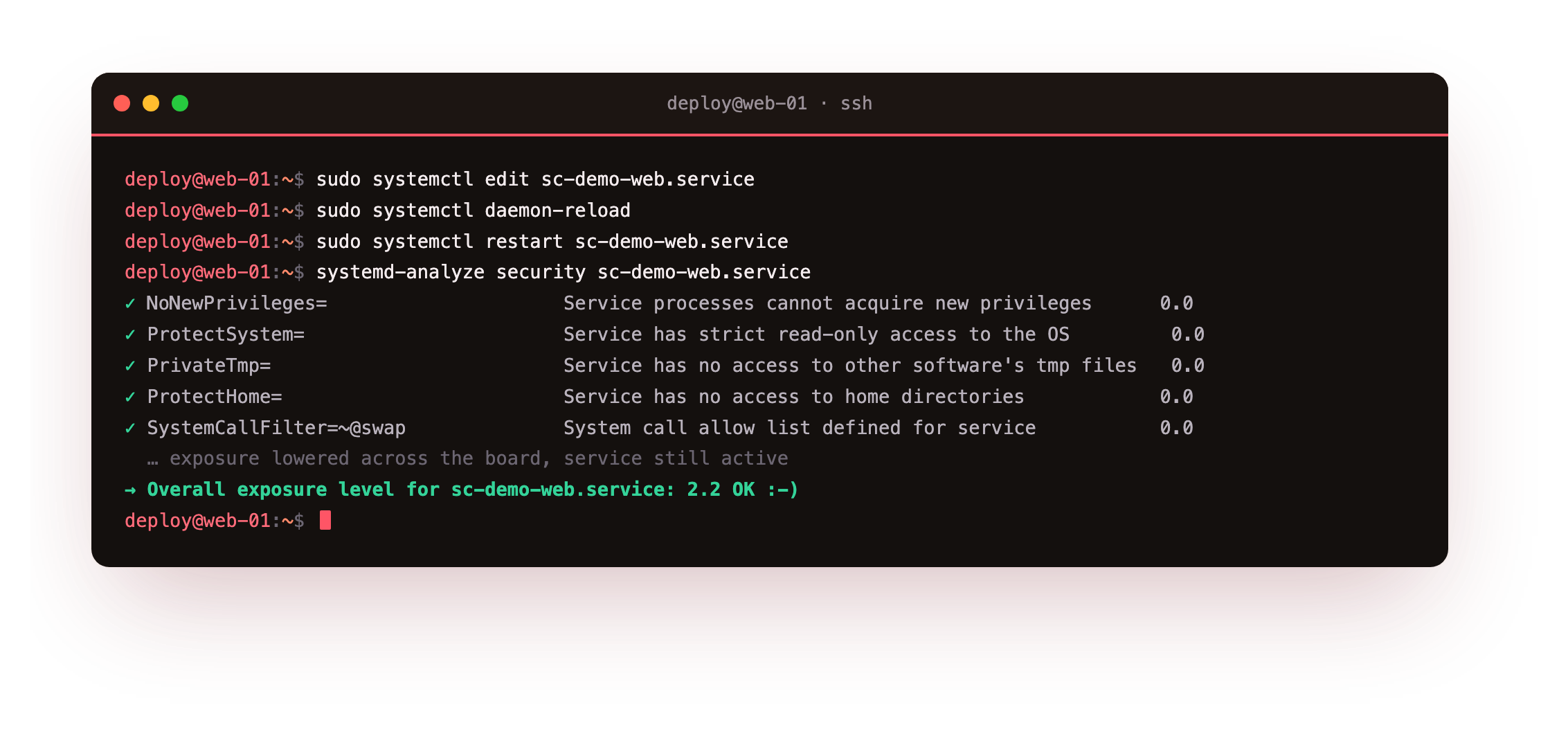
The exposure score falls from the unsafe end of the scale to the low, acceptable end, and the summary flips from unsafe to ok. The service keeps running the whole time, because the worker only reads a script and writes to the journal, both of which the sandbox still allows. That is the goal: the smallest set of directives that lowers the score without breaking the job.
Confirm two things after the drop-in: the score in systemd-analyze security is lower than before, and systemctl is-active sc-demo-web.service still prints active. A lower score with a dead service is not a win. Add keys one group at a time and re-check both numbers, so a break points straight at the group that caused it.
How much hardening is enough
There is no single score to chase; the right level depends on what the service touches. A network-facing daemon that parses untrusted input deserves the full treatment, because it is the most likely thing to be attacked. A local oneshot that runs for a second at boot needs far less.
Use the analyzer's line list as a checklist, apply the keys that fit the service, and confirm the job still works after each group. A unit that scores in the low single digits and still does its work is a solid outcome; a perfect zero that breaks the service helps no one.
One key deserves a special mention. DynamicUser=true runs the service under a temporary user that exists only while the service runs, with no home and no login. It pairs naturally with ProtectSystem=strict and a StateDirectory=, and it removes a whole category of risk: there is no standing account for an attacker to target and no leftover files owned by a service user. Reach for it on any service that does not need a fixed identity.
Frequently asked questions
Will these keys break my service?
They can, if the service needs something you fenced off. Add one group at a time, restart, and test. If it breaks, the journal usually names the denied path or syscall, which points straight at the key to relax.
Where should I put the hardening directives?
Use systemctl edit name.service to create a drop-in under /etc/systemd/system/name.service.d. That keeps your changes separate from the packaged unit and survives an update.
What does the exposure score actually mean?
It is a weighted sum of risky settings, from 0 to 10, lower being safer. Treat it as a guide, not a grade. A service scoring in the low single digits with the right keys for its job is in good shape.
Does a syscall filter slow the service down?
The overhead is negligible for normal workloads. seccomp checks are cheap, and @system-service allows everything a typical service needs, so you rarely notice a difference.
What you can do now
You can put a number on how exposed a service is with systemd-analyze security, then drive it down: fence the filesystem with ProtectSystem=strict, ProtectHome=, and PrivateTmp=, drop power with NoNewPrivileges= and a minimal CapabilityBoundingSet=, and cut the syscall surface with SystemCallFilter=@system-service. You watched the demo worker fall from the unsafe end of the range to the acceptable end while it kept running.
Sandboxing controls what a service may reach. It says nothing about how much CPU or memory the service may burn, and one runaway process can still starve the box. The next chapter caps that with cgroups, then proves the caps by killing a memory hog against its own limit while the server carries on: resource control with cgroups v2.