Why reach for systemd timers over cron
cron has scheduled jobs on Unix for decades, and systemd timers do the same work with the three things cron never had: every run logged in the journal you learned to read last chapter, real dependencies, and a catch-up for a run missed while the box was off. A timer is a pair: a .timer unit that holds the schedule and a .service unit that does the job. This chapter builds both on Ubuntu 24.04 and shows where a timer earns its place over a crontab line.
- A timer is two units: a
.timerwith the schedule and a.servicethat runs, and you enable the timer. OnCalendar=sets wall-clock schedules;Persistent=truecatches up a run missed while the machine was off.RandomizedDelaySec=spreads load so a fleet does not fire at the same instant.OnBootSec=andOnUnitActiveSec=schedule relative to boot or the last run, for steady health checks.
The two-unit model
Where cron packs the schedule and the command onto one line, systemd splits them. The service unit says what to run, usually Type=oneshot. The timer unit says when, and it activates the service by matching name: sc-demo-report.timer triggers sc-demo-report.service. You enable the timer, not the service, with systemctl enable --now sc-demo-report.timer.
The split feels like extra files at first, and it pays off quickly. The service can be run by hand for testing with systemctl start, it can depend on other units, and every run lands in the journal under the service name. That last point alone answers the oldest cron complaint of where the output went.
Scheduling with OnCalendar
OnCalendar= takes a calendar expression that reads close to English. *-*-* 02:30:00 means every day at half past two in the morning. You can write Mon..Fri 09:00 for weekday mornings or *-*-01 04:00 for the first of every month. Before trusting an expression, check it.
systemd-analyze calendar "*-*-* 02:30:00"
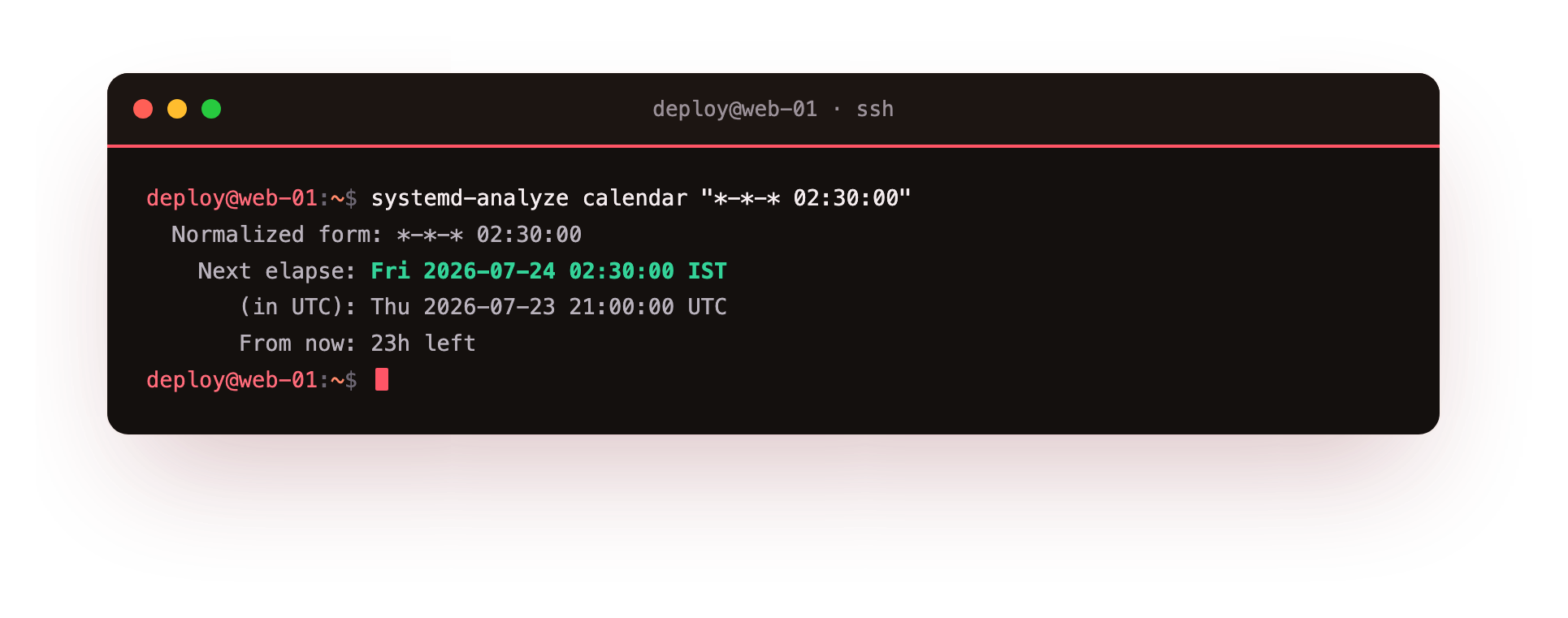
The tool normalises the expression and prints the next time it will fire, in both local time and UTC, which is a safer way to confirm a schedule than waiting a day to see whether it ran. Once the timer is enabled, list what is armed on the box.
systemctl list-timers sc-demo-report.timer sc-demo-heartbeat.timer
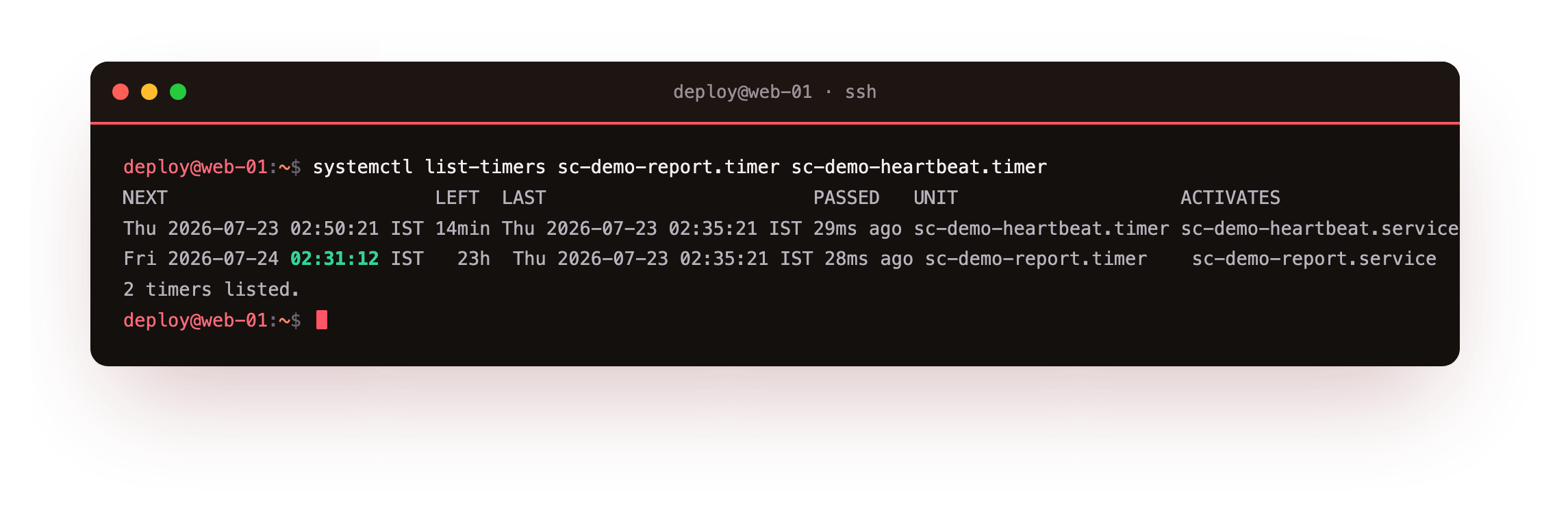
The listing shows the next run, the time left, the last run, and which service each timer activates. Look at the report timer's next run: it lands at 02:31 rather than exactly 02:30, because of a randomized delay covered below. One board like this tells you the state of every scheduled job on the server, which cron simply cannot show you.
After systemctl enable --now on your timer, it should appear in systemctl list-timers with a real NEXT time and a service under ACTIVATES. If it is missing, you probably enabled the .service instead of the .timer, which is the single most common timer mistake.
Persistent and randomized runs
Two keys give timers abilities cron lacks. Persistent=true records when a timer last ran, so if the machine was off at the scheduled moment, the job runs once at the next boot instead of being silently skipped. For a nightly backup on a server that sometimes reboots, that is the difference between a missed night and a caught-up one.
RandomizedDelaySec= adds a random offset up to the value you set. On the demo report timer, set to fire at 02:30 with a five-minute jitter, the listed next run landed a minute or so past the half hour rather than exactly on it. Across a fleet, that jitter stops a hundred servers from hammering a backup target at the same second. cron runs everything on the dot, which is how thundering herds happen.
Monotonic timers relative to boot
Not every job belongs on the wall clock. OnBootSec= fires a set time after boot, and OnUnitActiveSec= fires a set time after the unit last ran, which chains a repeating interval. The demo heartbeat timer sets OnBootSec=2min and OnUnitActiveSec=15min, so it runs two minutes after boot and every fifteen minutes thereafter. These are monotonic timers, measured by elapsed time rather than a date, and they are the right tool for health checks and polling that should keep a steady cadence regardless of the calendar.
Going further: accuracy and the timers you already have
systemd does not wake the machine at the exact microsecond a timer is due. AccuracySec= sets a window, one minute by default, within which the timer may fire, and a wider window lets systemd batch wakeups to save power. For a nightly job the default is fine; tighten it only when a job truly needs to run close to the second.
To see the full picture, systemctl list-timers --all shows every timer, including inactive ones, not just the armed set. That is where the system's own maintenance timers show up, such as the daily package cache refresh and the log rotation. Reading that list is the quickest way to learn what a server already schedules for itself before you add anything of your own.
Frequently asked questions
How do I test a timer without waiting for its schedule?
Run the service directly with systemctl start name.service. The service unit is independent of the timer, so this exercises the real job. Use systemd-analyze calendar to verify the schedule separately.
My timer never fires. What do I check first?
Confirm you enabled the .timer, not the .service. Then run systemctl list-timers to see whether it is armed, and check the service name matches the timer name exactly.
Does Persistent=true run every missed occurrence?
No. It runs the job once after boot if the last scheduled time passed while the machine was off. It does not replay every occurrence you missed; it only catches the schedule back up.
Can a timer and its service depend on other units?
Yes. Because the job is a normal service unit, it can use After=, Requires=, and the rest. That is a core reason a timer beats a bare crontab line when ordering matters.
What you can do now
You can schedule work the systemd way: a .timer that holds the schedule and a .service that does the job, verified with systemd-analyze calendar and inventoried with systemctl list-timers so you never wait a day to see whether a schedule was right. You can catch up a missed run with Persistent=true, spread a fleet with RandomizedDelaySec=, and keep a steady cadence with the monotonic OnBootSec= and OnUnitActiveSec= keys.
Every service and timer so far has run with the full run of the machine underneath it. A service that faces the network, or parses input you did not write, should not have that much reach. The next chapter fences a service in with sandboxing and puts a number on how exposed it is before and after: sandboxing and hardening a unit.