curl and wget on the command line
Every server you run needs to fetch things over HTTP at some point: check that a web service is answering, download a release tarball, test a redirect, or read the headers a site sends back. The two commands that cover almost all of this are curl and wget, both a single install away on an Ubuntu 24.04 server.
- `curl` prints what a server returns, which makes it the tool for checking a web service or scripting an API call.
- `curl -sI` fetches only the response headers, so you read the status code without the body.
- `curl` follows a redirect only with `-L`; without it you save the short redirect page instead of the file.
- `wget -c` resumes an interrupted download, sending only the bytes still missing.
You are logged in as deploy, and the commands here only read from public servers or save a file into your current directory, so you can run them to see how each behaves. This chapter explains what curl and wget each do well, and when to reach for one over the other.
curl is the tool for talking to a URL and reading exactly what comes back. You give it an address and it prints the response body to your terminal. That plain behaviour makes it the first thing to reach for when you are checking whether a web service is up, what status code it returns, or what headers it sets. wget is built for a narrower job: downloading files and saving them to disk, with the patience to keep going over a slow or interrupted connection.
Reading headers with curl
When you want to know how a service is responding without pulling down the whole page, ask for just the headers:
curl -sI https://servercake.in
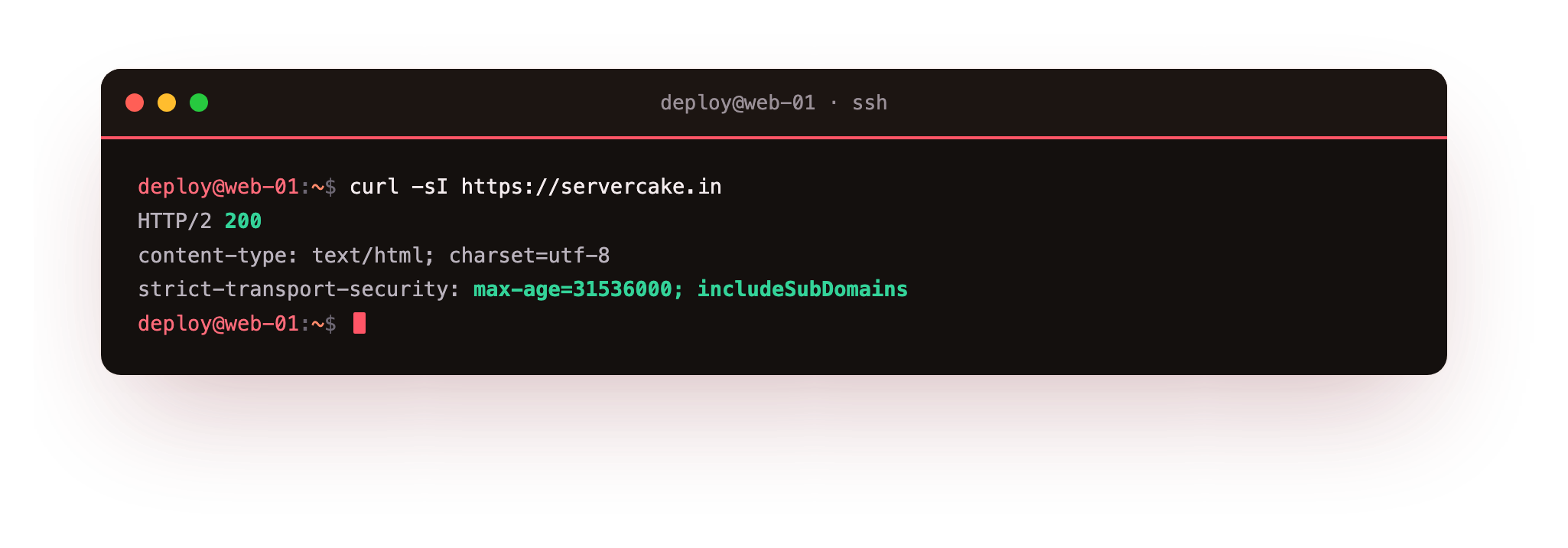
This runs curl against a URL and prints only the response headers. The -I flag (capital i) tells curl to send a HEAD request, which asks the server for its headers and no body, so you get the metadata without the HTML. The -s flag is short for silent, and it hides the progress meter and error counter that curl otherwise prints, keeping the output clean. The screenshot shows the reply: the first line is the status line, something like HTTP/2 200, followed by header lines such as content-type, server, and date.
That first status line is the piece to read first. 200 means the request succeeded. A 301 or 302 means the server is redirecting you somewhere else, and it will include a location header pointing at the new address. A 404 means the path was not found, and a 500 means the server hit an error. Reading that one line tells you the health of an endpoint without opening a browser.
How do you save what curl fetches?
By default curl prints to the terminal, which is fine for headers but unhelpful for a file you want to keep. Two flags change that:
curl -O https://example.com/archive.tar.gz
The -O flag (capital o) saves the download under the same name it has on the server, here archive.tar.gz. When you would rather choose the name yourself, use the lowercase -o flag followed by the name you want:
curl -o myfile.tar.gz https://example.com/archive.tar.gz
This writes the same download to myfile.tar.gz, which is useful when the remote name is long or unclear.
There is one more flag you will need often. Many URLs redirect, and by default curl stops at the redirect instead of following it, printing the 301 and nothing more. The -L flag tells curl to follow the redirect through to the final destination:
curl -sL https://example.com/latest -o latest.tar.gz
Here -s keeps it quiet, -L follows the redirect chain, and -o writes the result to latest.tar.gz. Without -L you would save the short redirect page instead of the file you wanted.
When wget is the better choice
wget is aimed at downloads, and it does one thing curl handles less gracefully: resuming a transfer that was cut off partway. If a large download drops at eighty percent, you do not want to start again from zero.
wget -c https://example.com/big-image.iso
The -c flag means continue: wget looks at the partial file already on disk and asks the server to send only the remaining bytes. On a slow or unreliable connection this saves both time and bandwidth. wget also saves to a file by default without any extra flag, and it prints a clear progress bar with the transfer speed and time remaining, which is why it feels natural for pulling down images and archives.
Here is the short version of which tool fits which job:
| Task | Reach for |
|---|---|
| Check a status code or headers | curl -sI |
| Test a redirect | curl -sL |
| Quick one-off download | curl -O |
| Large download you may need to resume | wget -c |
| Scripting an API call | curl |
Both tools are worth keeping in your hands. curl is the inspector you use to see exactly what a server says, and it is the one you script against when you need to send specific headers or read a response code. wget is the downloader you trust with a big file on a shaky line. Learning curl and wget together means you rarely open a browser just to check whether something on a server is working.
Troubleshooting curl and wget
curl saved a tiny HTML page instead of the file. The URL redirected and curl stopped at the 301 without following it. Add -L so it follows the redirect to the real download, as in curl -L -O https://example.com/latest.
curl: (60) SSL certificate problem. The server's certificate could not be verified, often because it is expired or self-signed. Fix the certificate on the server. Passing -k skips the check, but reserve that for a host you control and never for a public download you cannot vouch for.
curl: command not found or wget: command not found. The tool is not installed on this image. Add it with sudo apt install curl or sudo apt install wget. Both are small and pull in no unusual dependencies.
Frequently asked questions
Should I use curl or wget for downloads?
For a quick one-off either works, but reach for wget -c on a large file over a shaky link because it resumes a broken transfer. Reach for curl when you are inspecting headers, reading a status code, or scripting a request with specific headers.
What is the difference between -o and -O in curl?
Lowercase -o writes the download to a filename you supply. Uppercase -O saves it under the same name it has on the server. Use -O for convenience and -o when the remote name is long or unclear.
How do I print only the HTTP status code?
Run curl -o /dev/null -s -w '%{http_code}\n' https://example.com. It throws away the body, silences the progress meter, and prints just the numeric status, which is handy in a health-check script.
Does wget follow redirects by default?
Yes. Unlike curl, wget follows redirects without an extra flag, which is one reason it feels natural for downloads. With curl you add -L to get the same behaviour.
Recap
curl fetches a URL and prints the response, which makes it the tool for checking a web service. -I asks for headers only, -s silences the progress meter, -o saves under a name you pick, -O keeps the remote name, and -L follows redirects. Read the status line first: 200 is success, 3xx is a redirect, 4xx and 5xx are errors. wget is built for downloads and its -c flag resumes an interrupted one. Keep both curl and wget handy: curl to inspect and script, wget to download.