Moving files over a connection ssh already made
Once you can log in to a server, the next thing you need is a way to move files to it and back, and the two commands for that, scp and rsync, both ride on the same SSH connection you already use. You are on your Ubuntu 24.04 server as deploy, and this chapter builds a small demo transfer inside your home directory, so nothing outside it is touched.
- scp and rsync both move files over the same SSH connection you already log in with, so no extra service is needed.
- scp is a plain copy that resends the whole file every time you run it.
- `rsync -av` compares both ends and transfers only the parts that changed, and it can resume.
- A trailing slash on an rsync source copies the directory's contents; without it you copy the directory itself.
The idea to hold onto is that ssh is the tunnel, and scp and rsync are two different ways of pushing files through it. scp is the plain copy, and rsync is the smarter sync that only sends what has changed.
ssh itself is the login command. When you run ssh [email protected] you open an encrypted session on the remote machine and get a shell there. What matters for this chapter is that the same authentication and encryption ssh sets up is what scp and rsync borrow. You do not configure anything extra: if you can ssh into a box, you can copy to it.
scp copies a file once
scp means secure copy, and it does one job: take a file from here and put it there, over SSH. The shape of the command is the local path, then the destination written as user@server:/path.
scp report.pdf [email protected]:/home/deploy/
This copies report.pdf from your current directory to the /home/deploy/ directory on the server example.com, logging in as deploy. The colon is what separates the host from the path, and it is the part people forget.
To copy the other way, from the server to your machine, you swap the order: put the user@server:/path first and the local destination second. scp is fine for a single file you move once. What it does not do is notice that most of a file is already present at the other end, so if you run it again it sends the whole thing from scratch.
Prerequisites
- SSH access to the remote server, ideally with key-based login already working, since scp and rsync ride on that same connection.
- rsync installed on both the local and the remote machine. It ships on Ubuntu 24.04 but can be missing on a minimal image; add it with
sudo apt install rsync. - Enough free space at the destination for the files you are about to copy.
Why scp and rsync are not the same
This is where scp and rsync part ways. rsync compares the source and the destination first, then sends only the pieces that differ. Copy a directory today, add one file, run it again, and rsync transfers just that one file. Try the demo:
rsync -av rs-src/ rs-dst/
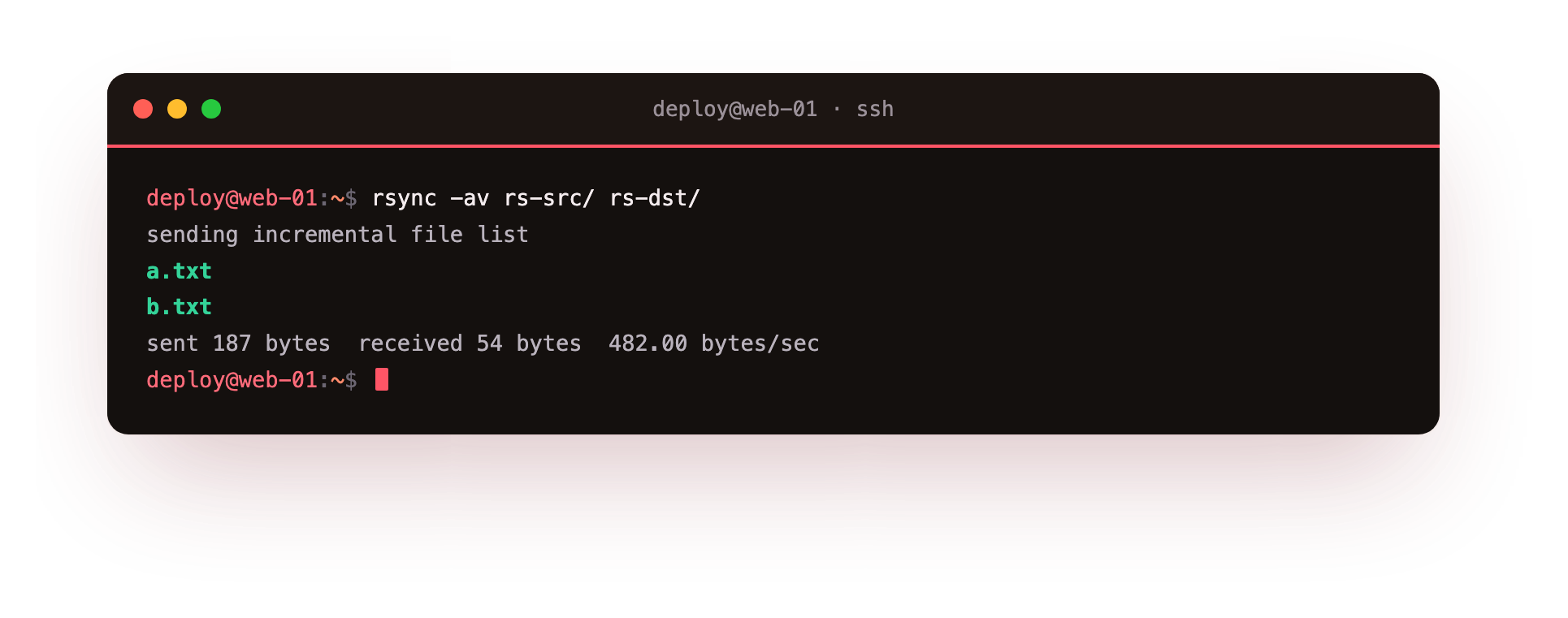
Make a source directory first with mkdir rs-src && touch rs-src/a rs-src/b if you want something to move. This command copies the contents of rs-src/ into rs-dst/. The -a flag means archive, which is a bundle of sensible defaults: it preserves permissions, timestamps, and ownership, and it recurses into subdirectories, so the copy matches the original.
The -v flag means verbose, so rsync lists each file as it goes and prints a short summary at the end. The screenshot shows that list and the byte count sent. Run the same command twice and the second run sends almost nothing, because rsync sees the destination already matches.
The trailing slash matters
There is one detail about rsync that catches everyone at least once: the trailing slash on the source. rs-src/ with a slash means copy the contents of the directory into the destination. rs-src without a slash means copy the directory itself, so you end up with rs-dst/rs-src/. Same command, different result, decided by one character. When a sync puts files one level deeper than you expected, the trailing slash is the first thing to check.
Two more flags earn their place on real transfers:
-zcompresses the data in transit, which speeds up a transfer of text or code over a slow link, though it adds little for already-compressed files like images or video.--deletemakes the destination an exact mirror of the source, removing files at the destination that no longer exist at the source. It is what you want for a true mirror and dangerous if you point it at the wrong directory, so check the source path before you use it.
A quick comparison of when to use scp and rsync:
| Situation | Command |
|---|---|
| One file, moved once | scp |
| A directory you update often | rsync -av |
| Slow link, lots of text | rsync -avz |
| Keep two trees identical | rsync -av --delete |
For anything you run more than once, rsync is the tool, because it saves the time of resending files that are already there and it can pick up where a dropped transfer left off. scp keeps its place for the quick single copy where you do not want to think about flags. Knowing both scp and rsync means you can move a config file in one breath and mirror a whole release directory in the next.
Troubleshooting scp and rsync transfers
Files landed one directory deeper than you expected. The rsync source was missing its trailing slash, so the directory itself was copied rather than its contents. Re-run with the slash on the source, rsync -av rs-src/ rs-dst/, and the contents land where you meant.
rsync: command not found on the remote. rsync runs a copy of itself on the server, so it must be installed on both ends. Add it there with sudo apt install rsync, or fall back to scp for that one transfer.
Permission denied writing to the destination. The login user cannot write to the target path. Copy into a directory you own, such as your home directory, or adjust ownership on the server. Avoid copying straight into system paths as an unprivileged user.
Frequently asked questions
When should I use scp instead of rsync?
Use scp for a single file you move once and do not want to think about flags for. Use rsync for anything you copy more than once, a directory you keep in sync, or a large transfer that might drop, since it only sends what changed and can resume.
Does rsync delete files at the destination?
Not by default. It only adds and updates. It removes files that no longer exist at the source only when you pass --delete, which makes the destination an exact mirror. Check the source path carefully before using it.
Is the data encrypted during the transfer?
Yes. Both scp and rsync run over the SSH connection, so the transfer inherits the same encryption and authentication as your login. There is nothing extra to configure.
What does the -z flag do?
It compresses data in transit, which speeds up transfers of text or code over a slow link. It adds little for already-compressed files such as images, video, or archives, where it can even slow things slightly.
Recap
ssh is the encrypted login, and scp and rsync both send files over that same connection. scp copies a file once, written as scp file user@server:/path, and resends everything if you run it again. rsync -av copies a directory, preserving attributes and transferring only what changed, and it is resumable. Add -z to compress in transit and --delete to mirror a directory exactly. Watch the trailing slash on the source: with it you copy the contents, without it you copy the directory itself.