How does a name become an address?
Every time your server connects to example.com, it first has to find the numeric address behind that name. That lookup is the job of DNS, the Domain Name System, and understanding linux dns resolution means knowing which piece on the server does the asking, which does the answering, and where the answer can be overridden. On Ubuntu the work is handled by a service called systemd-resolved, which sits between your programs and the DNS servers out on the network.
- On Ubuntu, systemd-resolved is the local caching resolver that most programs reach through.
- `resolvectl query` looks a name up through that resolver, so it reflects what your applications receive.
- `/etc/hosts` is checked before any DNS query and can override a single name on this server only.
- Caching is governed by each record's TTL, which is why a DNS change takes time to spread.
A name like example.com is easy for people to remember, but the network routes packets using IP addresses such as 203.0.113.10. DNS bridges the two. When any program on the server needs an address for a name, it asks the local resolver, the resolver asks an upstream DNS server if it does not already know the answer, and the reply travels back the same way.
Querying a name directly
resolvectl query example.com
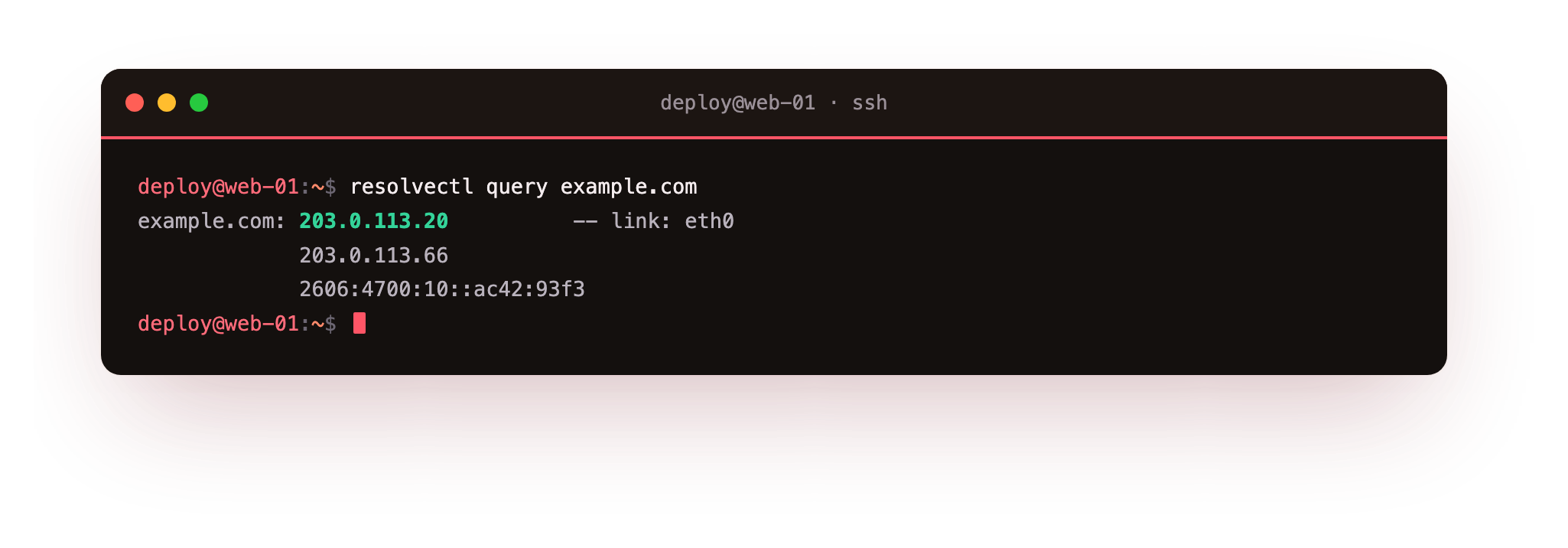
resolvectl is the control tool for systemd-resolved, and query asks it to resolve the name you give it. The output lists the IP addresses found for example.com and tells you which link handled the request and whether the answer came from the cache. Because this call goes through systemd-resolved, it reflects what your other programs would get, which is why it is the tool to trust for linux dns resolution on a systemd based server.
A raw lookup tool, by contrast, talks to a DNS server directly and skips the local resolver. Both approaches have their place, and knowing the difference saves confusion when the two disagree.
The pieces of linux dns resolution
Several parts cooperate on every lookup. It helps to keep them straight:
- systemd-resolved: the local caching resolver service that most programs reach through.
- /etc/resolv.conf: a file that names which resolver to use. On Ubuntu it usually points at systemd-resolved's local address, 127.0.0.53.
- /etc/hosts: a static file that maps names to addresses before DNS is ever consulted.
Overriding a single name with /etc/hosts
The /etc/hosts file is checked before any DNS query goes out. If you add a line such as 10.0.2.20 db.internal, then the name db.internal resolves to 10.0.2.20 on this server only, whatever DNS says. This is useful for pointing a hostname at a specific machine during testing, or for pinning an internal service while you migrate it. Editing the file needs sudo because it is system owned. Keep the entries deliberate, since a stale line here can send traffic to the wrong place long after you have forgotten it.
Where /etc/resolv.conf points
/etc/resolv.conf tells the resolver library which DNS server to contact. On a systemd-resolved setup it is a symlink managed by the system, and it lists 127.0.0.53, the local address systemd-resolved listens on. You do not normally edit it by hand on Ubuntu 24.04, because systemd-resolved rewrites it. To change upstream DNS servers, you configure systemd-resolved rather than this file.
Digging deeper with dig
resolvectl answers the everyday question. When you need to see the full DNS exchange, the record types, the time to live, and which server responded, reach for dig. It is not installed by default, so add it with sudo apt install dnsutils, which provides the dig program.
A query like dig example.com A asks for the A record, the IPv4 address, and prints the answer along with the TTL. The TTL, or time to live, is a caching hint measured in seconds: it tells resolvers how long they may hold the answer before asking again. That is why a DNS change does not take effect everywhere at once. Until each cache's TTL expires, the old answer stands.
Caching is what keeps linux dns resolution quick. systemd-resolved stores answers for their TTL, so a second lookup for the same name returns from memory without another network trip. When you suspect a stale record, clear the local cache with resolvectl flush-caches, which empties it and forces the next lookup for every name to go out fresh. That is the first thing to try when a name still resolves to an old address after you have corrected the record upstream.
A quick reference for the pieces involved:
| Piece | Role |
|---|---|
| systemd-resolved | Local caching resolver |
| /etc/hosts | Static per-name override, checked first |
| /etc/resolv.conf | Points the resolver at 127.0.0.53 |
| dig (dnsutils) | Detailed manual DNS queries |
Troubleshooting name resolution
A name still resolves to an old address after you changed the record. A cached answer is being served for the rest of its TTL. Clear the local cache with resolvectl flush-caches and query again. If the old answer sticks, an /etc/hosts line may be overriding the name, so check that file first.
resolvectl query returns a resolution failure. systemd-resolved could not reach an upstream server. Read resolvectl status for the DNS servers it is configured to use, then test one directly with dig @1.1.1.1 example.com to tell a broken resolver apart from a broken record.
dig: command not found. The tool ships in the dnsutils package, which is not installed by default. Add it with sudo apt install dnsutils and the dig command becomes available.
Frequently asked questions
What is the difference between resolvectl and dig?
resolvectl asks systemd-resolved, so it returns exactly what your other programs would get, cached answers included. dig talks to a DNS server directly and skips the local resolver, which is what you want when you need to see raw records, TTLs, and which server replied.
Why does 127.0.0.53 appear in /etc/resolv.conf?
That is the local address systemd-resolved listens on. Ubuntu points the resolver library at it so every lookup passes through the caching service. You set upstream DNS in systemd-resolved, not by editing resolv.conf, which the system rewrites.
How do I change the upstream DNS server?
Set a DNS= line in /etc/systemd/resolved.conf, or in a drop-in under /etc/systemd/resolved.conf.d/, then run sudo systemctl restart systemd-resolved. Confirm the new server with resolvectl status.
My /etc/hosts entry is being ignored. Why?
systemd-resolved checks /etc/hosts first, so a correct entry should win. Look for a typo, a stray trailing space, or that you saved the file with sudo. The address goes in the first column and the name second; the wrong order will not match.
Recap
Linux dns resolution turns a name like example.com into an IP address through a chain you can inspect at every step. Use resolvectl query to look up a name through systemd-resolved exactly as your programs would, add a line to /etc/hosts to override one name locally, and know that /etc/resolv.conf points at the 127.0.0.53 resolver. Install dnsutils for dig when you need record types and TTLs, and remember that caching, governed by TTL, is why changes take time to spread and why resolvectl flush-caches exists.