The gate in front of your ports
A server with a public address is reachable by anyone who knows that address, and a firewall is the gate that decides which of its ports the outside world may actually reach. The ufw firewall Ubuntu includes is the plain way to run that gate, and this chapter walks through reading its state, opening a port, and turning it on without locking yourself out.
- ufw is a front end over nftables, so you write short rules like `allow 22/tcp` instead of long ones.
- The sensible defaults are deny incoming and allow outgoing, which expose nothing you did not open.
- `sudo ufw status verbose` shows whether the firewall is active and what its defaults and rules are.
- Always allow SSH on port 22 before you run `sudo ufw enable`, or you can lock yourself out.
You are on your Ubuntu 24.04 server as deploy, and because changing firewall rules affects the whole machine, these commands use sudo. Get one step wrong here and you can cut your own SSH session, so read the safety note further down before you enable anything.
A port is a numbered door on your server, and each network service listens on one. SSH listens on 22, a web server on 80 and 443, Postgres on 5432, and so on. Without a firewall every one of those doors is open to whoever can route to your address. A firewall lets you keep the doors you use open and shut the rest, so a service you forgot was running is not sitting exposed.
ufw is a front end over nftables
Ubuntu's underlying firewall engine is nftables, which is flexible and also verbose to configure by hand. ufw, which stands for uncomplicated firewall, is a thin front end over it. You write short, readable rules like allow 22/tcp, and ufw translates them into the lower level nftables rules for you. You get the protection of the kernel firewall without writing its longer syntax. For most servers the ufw firewall Ubuntu provides covers everything you need, and you can still drop to nftables directly for anything unusual.
Prerequisites
- An Ubuntu 24.04 server and a user with
sudoprivileges, since firewall changes affect the whole machine. - The port your SSH server uses (22 by default) noted down, so you can allow it before enabling.
- Console or KVM access through your provider's dashboard as a fallback, in case a rule cuts off your SSH session.
Reading the state of the ufw firewall Ubuntu gives you
Before you change anything, look at what is currently set:
sudo ufw status verbose
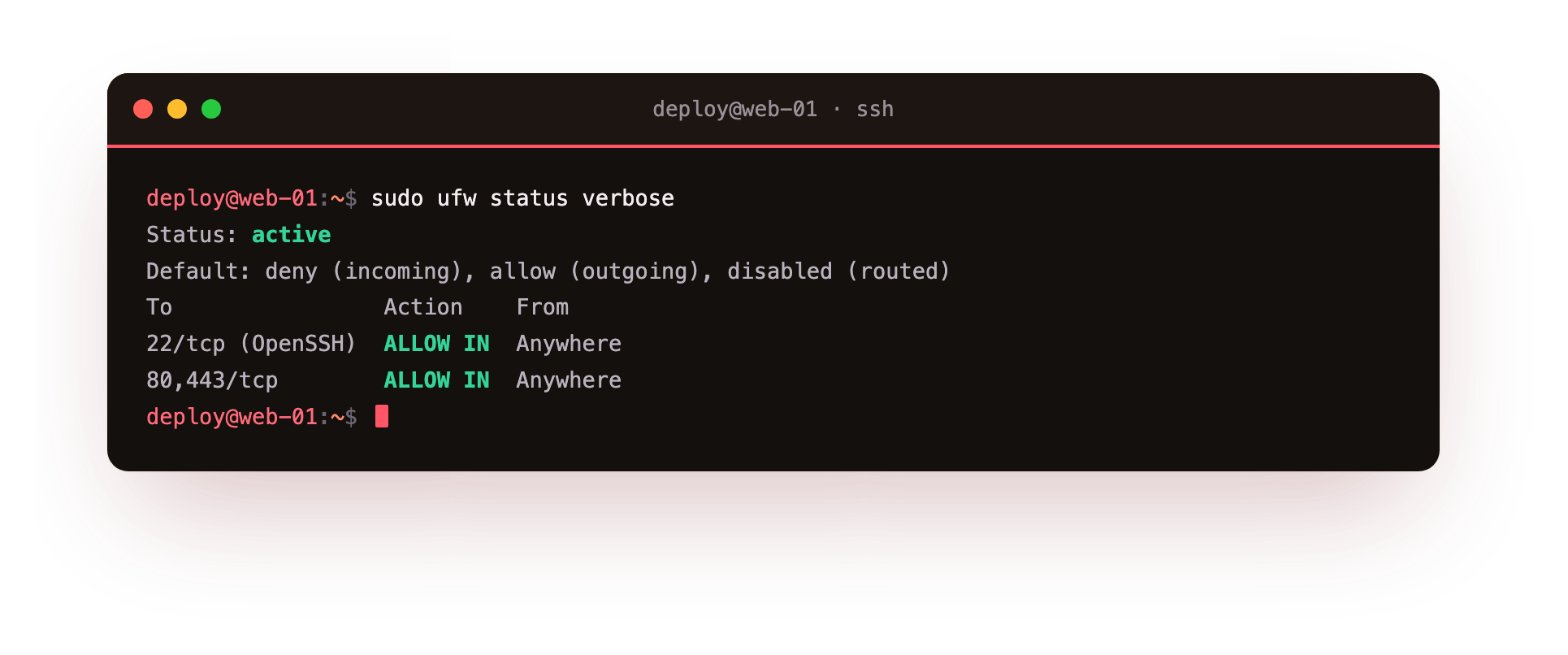
This prints the firewall's current state. The first thing it tells you is whether ufw is active or inactive. If it is inactive, no rules are being enforced at all. The verbose word asks for the fuller output, which includes the default policies: the lines reading Default: deny (incoming), allow (outgoing) are the two that matter most. The screenshot shows this state on a fresh server, with the default policy and any rules listed below it.
Those two defaults are the sensible starting position for almost any server:
- Deny incoming means that unless you explicitly allow a port, connections from outside are refused. Nothing is reachable by accident.
- Allow outgoing means your server can still reach out: fetch updates, call an API, send email. You rarely need to restrict this on a normal server.
Setting those defaults is done with sudo ufw default deny incoming and sudo ufw default allow outgoing, though on Ubuntu they are already the values ufw applies.
Opening a port
To let a service through, you allow its port. Opening SSH looks like this:
sudo ufw allow 22/tcp
This adds a rule permitting incoming connections on port 22 using the TCP protocol, which is the port and protocol SSH uses. You can name a service instead of a number, as in sudo ufw allow OpenSSH, and ufw looks up the port from a list of known apps. For a web server you would add sudo ufw allow 80/tcp and sudo ufw allow 443/tcp. Each allow opens one door, and everything you have not opened stays shut because of the deny-incoming default.
Turn it on, but allow SSH first
Here is the rule that saves people from a support ticket. When you run the command that switches the firewall on, it starts enforcing the deny-incoming default at once. If you have not already allowed port 22, your current SSH session keeps working but any new SSH connection is refused, and the moment you disconnect you are locked out of your own server.
So the order is fixed. Always allow SSH before you enable:
sudo ufw enable
Run sudo ufw allow 22/tcp first, confirm it appears in sudo ufw status, and only then run sudo ufw enable. The enable command turns the firewall on and also sets it to start automatically on every boot. If you ever do lock yourself out this way, the only fix is console access through your provider's dashboard, which is far more trouble than adding one rule in the right order. To take the firewall down again you run sudo ufw disable.
A safe first-time sequence, in order:
sudo ufw allow 22/tcpto keep your SSH door open.sudo ufw status verboseto confirm the rule is there and read the defaults.sudo ufw enableto switch enforcement on.
Troubleshooting ufw
New SSH connections are refused after ufw enable. The firewall was enabled without port 22 allowed first. If your current session is still open, run sudo ufw allow 22/tcp right away. If you are already locked out, the only way back is console access through your provider's dashboard.
A rule was added but the port is still blocked. Check the order and protocol with sudo ufw status numbered. A deny rule higher in the list wins over a later allow, and a service needs the right protocol, usually tcp.
sudo ufw status reports inactive. Rules you added are stored but not enforced until the firewall is on. After confirming port 22 is allowed, run sudo ufw enable to switch enforcement on.
Frequently asked questions
Will enabling ufw drop my current SSH session?
No. An existing connection stays up because ufw does not cut established sessions. The risk is new connections: if port 22 is not allowed, the next login is refused. Allow SSH before enabling and confirm it with sudo ufw status.
How do I open a port to only one IP address?
Use a from clause, for example sudo ufw allow from 203.0.113.5 to any port 22 proto tcp. Only that address may reach the port, which is a common way to lock SSH to an office or home IP.
How do I remove a rule I added?
List the rules with numbers using sudo ufw status numbered, then delete by index with sudo ufw delete followed by the number. Deleting by number saves retyping the exact rule.
Does ufw replace nftables?
No, it drives it. ufw translates your short rules into nftables rules in the kernel. For anything unusual you can still write nftables directly, but for a typical server ufw covers the common cases.
Recap
A firewall controls which ports on your server the outside can reach, and the ufw firewall Ubuntu offers is the front end over nftables that lets you write short rules instead of long ones. The sensible defaults are deny incoming and allow outgoing. sudo ufw status verbose shows whether the firewall is active and what the defaults and rules are. sudo ufw allow 22/tcp opens a port. The one rule to never break: allow SSH on port 22 before you run sudo ufw enable, or you can lock yourself out of the server.