Where package management begins
Every Ubuntu server you run depends on a package manager, and the two commands you will type most often are apt update and upgrade. On an Ubuntu 24.04 server, apt is the front end you use to install software, refresh your list of available packages, and move installed software to newer versions.
- apt update refreshes the package catalogue and changes nothing on disk; apt upgrade then installs the newer versions.
- Always run apt update before you upgrade or install, so every action works from a current catalogue.
- Plain apt upgrade never removes a package; when one is "kept back", apt full-upgrade completes the job and is allowed to remove packages.
- apt-get is the older, script-stable relative of apt; reach for apt for everyday work at the terminal.
You are logged in as deploy, and because installing and changing system software touches files that belong to root, most of these commands need sudo in front of them. This chapter explains what each command does, in what order to run them, and why the order matters.
apt is a front end, not the whole system
apt is a program that talks to a set of repositories, which are servers that hold packages, and to a local database that records what is installed on your machine. When you ask apt to install something, it works out which other packages that software needs, downloads them, and sets them up. You do not manage individual .deb files by hand, apt does that for you.
You will also see apt-get in older guides. apt and apt-get are related: apt-get is the older, lower level command, and apt is a newer wrapper that presents the common jobs with cleaner output and a progress bar. For everyday work, apt is the one to reach for. apt-get is still useful in scripts, because its behaviour changes less often between releases, which matters when a script must keep working for years.
What does apt update actually do?
Run this before anything else:
sudo apt update
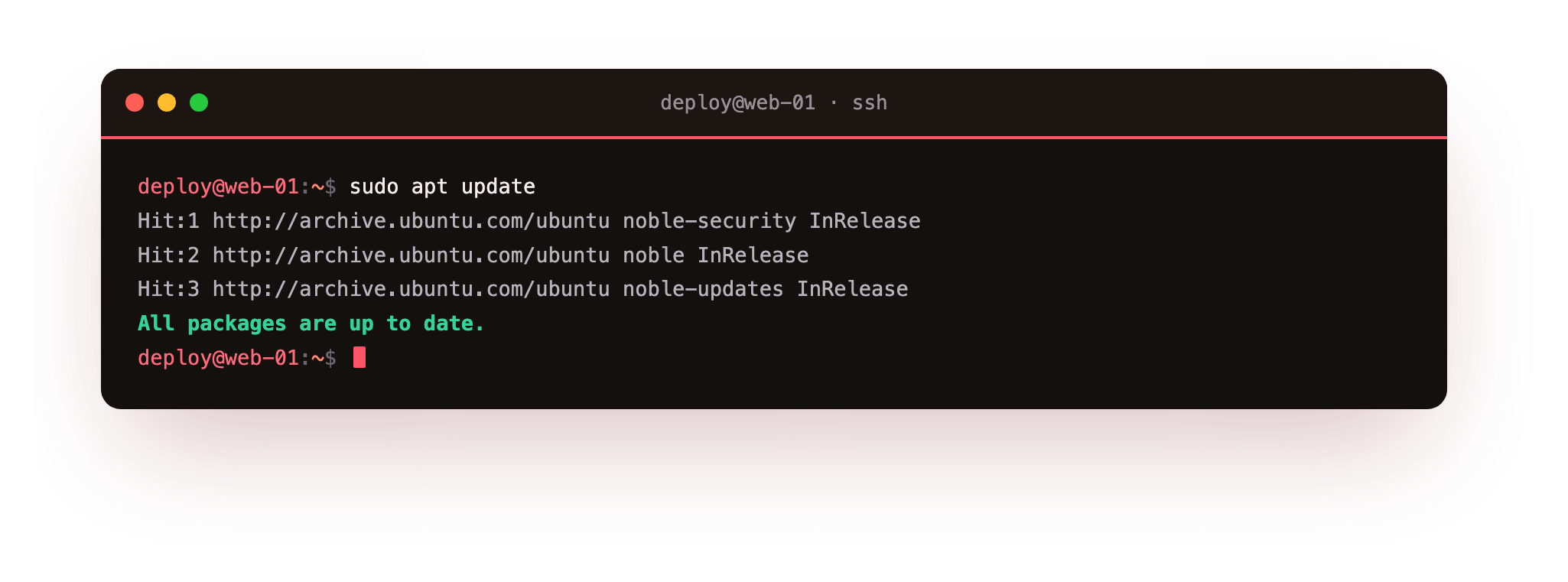
This command does not install or change any software. It contacts each repository listed in your sources, downloads the current index of packages they offer, and refreshes your machine's local copy of that list. Think of it as reading the latest catalogue. After it finishes, apt knows which versions are available, and it will often print a line telling you how many packages can be upgraded.
Because it only refreshes lists, sudo apt update is safe to run at any time. If you skip it, apt is working from an old catalogue, and it may try to fetch a version the repository no longer serves, which fails with a "404 Not Found" error partway through.
What apt upgrade does
Once the lists are fresh, you install the newer versions:
sudo apt upgrade
This reads the packages already installed on your server, compares each one against the versions apt now knows about, and installs the newer version where one exists. It shows a summary of what will change and asks you to confirm with y before it proceeds. Nothing is upgraded until you agree.
There is one limit worth knowing. Plain apt upgrade will not remove an installed package to complete an upgrade, and it will not add a brand new package unless doing so is required. If a newer version needs a package to be removed, apt holds it back and lists it as "kept back" rather than taking that decision for you.
upgrade versus full-upgrade
When a package is held back, the command that resolves it is:
sudo apt full-upgrade
full-upgrade does everything upgrade does, and it is also allowed to remove installed packages when that is the only way to upgrade the rest. This matters for kernel updates and for larger version jumps where dependencies have been reorganised. The trade off is that it can remove software, so read the summary before you confirm.
A short comparison:
| Command | Installs newer versions | May remove packages | Use it for |
|---|---|---|---|
apt upgrade |
Yes | No | Routine daily or weekly updates |
apt full-upgrade |
Yes | Yes | Clearing held-back packages, larger jumps |
Running apt update and upgrade in the right order
The single habit worth forming around apt update and upgrade is this: always run update before you upgrade or install anything. The reason is plain. update refreshes the catalogue, and upgrade or install acts on that catalogue. If it is stale, the action works from wrong information and can fail or fetch the wrong version.
A reliable sequence for a routine patch looks like this:
sudo apt updateto refresh the package listssudo apt upgradeto install newer versions of installed softwaresudo apt full-upgradeonly when packages are kept back and you have read why
You can chain the first two on one line with sudo apt update && sudo apt upgrade, where && means run the second command only if the first one succeeds. Keep them separate while you are learning apt update and upgrade, so you can read the output of each step before moving on.
Troubleshooting apt update and upgrade
apt upgrade fails with a "404 Not Found" partway through. Your package lists are stale and still point at a version the repository no longer serves. Run sudo apt update to refresh the catalogue, then run the upgrade again.
apt exits with "Could not get lock /var/lib/dpkg/lock-frontend". Another process is already using apt, most often the automatic unattended-upgrades job or a second terminal you left open. Wait for it to finish, or find it with ps aux | grep -i apt, and never kill it mid-write, because that can leave packages half-configured.
apt upgrade lists packages as "kept back" and leaves them alone. A newer version needs a package added or removed, which plain upgrade will not do. Read the list, then run sudo apt full-upgrade once you are happy for apt to make those changes.
Frequently asked questions
Do I have to run apt update every single time before apt upgrade?
Run it whenever the lists may be stale, which in practice means before every upgrade or install session. update only refreshes the catalogue and changes nothing, so there is no harm in running it, and skipping it risks fetching a version the repository has already replaced.
What is the difference between apt and apt-get?
apt is a newer front end with cleaner output and a progress bar, meant for use at the keyboard. apt-get is the older, lower-level command whose behaviour changes less between releases, which makes it the safer choice inside scripts that must keep working for years.
Is apt upgrade safe to run on a production server?
Yes, with care. Plain apt upgrade never removes a package and shows a summary you must confirm before anything changes. Read that summary, and be more cautious with full-upgrade, which is allowed to remove packages to complete an upgrade.
Why does apt say a package is "kept back"?
The newer version needs a package to be added or removed, and plain apt upgrade will not take that decision for you. Once you have read why, sudo apt full-upgrade completes the upgrade and is allowed to make those changes.
Recap
apt is the front end you use to manage software on your Ubuntu server. apt update refreshes the package lists from the repositories and changes nothing on disk. apt upgrade then installs newer versions of the packages you already have, without removing anything. When a package is held back, apt full-upgrade completes the job and is allowed to remove packages, so read its summary first.
apt-get is the older relative of apt and still fine in scripts. Above all, keep the apt update and upgrade order fixed: update before you upgrade or install, so every action works from a current catalogue.