Why look before you install?
Before you add anything to a server, it helps to know exactly what you are about to install. The pair of commands for that job is apt search and show, and neither of them changes your system. On your Ubuntu 24.04 machine, logged in as deploy, you can run both without sudo, because reading the package catalogue does not touch any protected files. apt search and show let you find a package by keyword and then read its details before you commit to installing it.
- apt search matches a keyword against package names and descriptions to find software when you do not know the exact name.
- apt show prints one package's full record, including its version, installed size, and the dependencies it will pull in.
- apt list --installed reports what is already on the server; the --installed flag keeps the output to installed packages only.
- All three are read-only and need no sudo, so you can run them freely while learning a new server.
apt search finds packages by keyword
When you know roughly what you want but not the exact package name, search for it:
apt search compression
apt search <term> looks through the names and short descriptions of every package your sources know about and prints the ones that match your term. The output can be long, because a common word matches many packages. Each result shows the package name, its version, and a one line description. Read the names and descriptions to narrow down the one you actually want.
Two points make search more useful. First, matching runs against both the package name and its description, so a search for compression returns packages that merely mention compression in their summary. Second, you can quote a term that contains spaces, such as apt search "web server", to look for that exact phrase rather than two separate words.
Reading a package with apt show
Once you have a name, inspect it before installing. The example package used through this series is tree, a small tool that prints the contents of a directory as an indented tree:
apt show tree
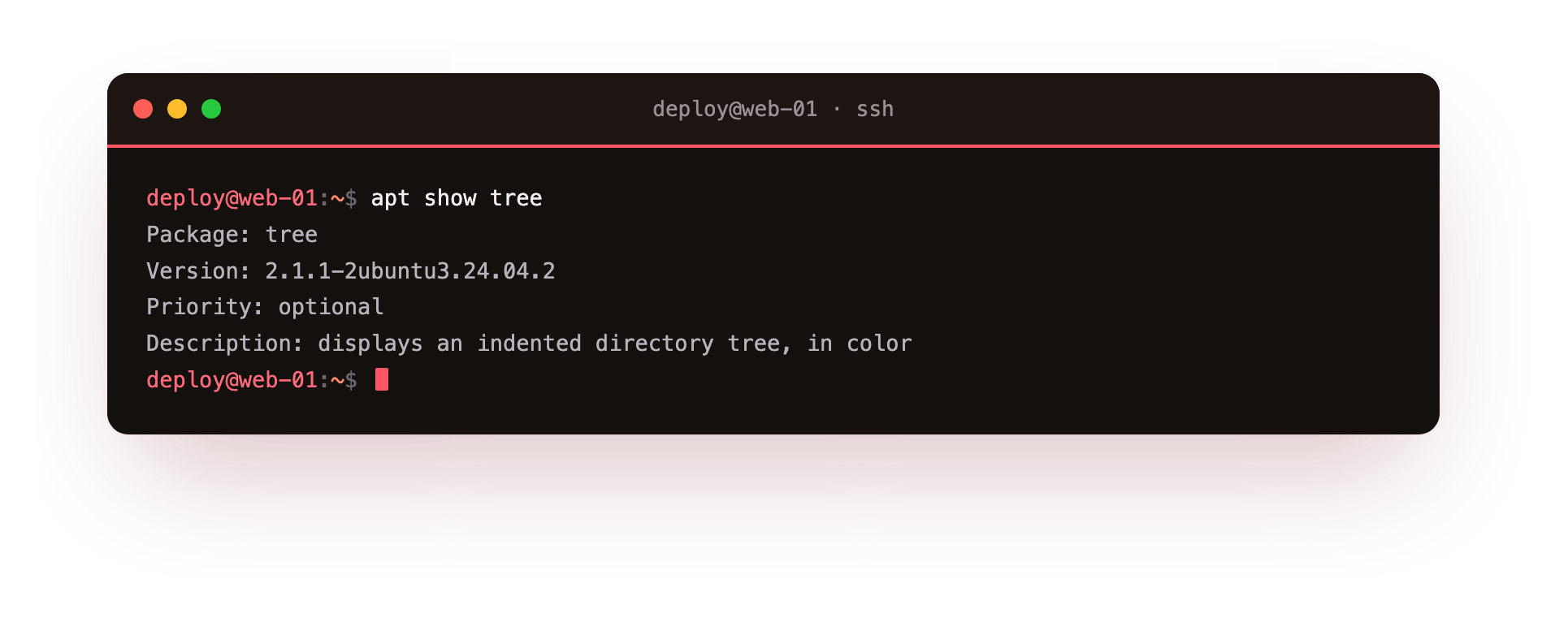
apt show <package> prints the full record for one package. It does not install anything. The fields it shows are the ones worth reading before you add software to a server:
- Package: the exact name you would install.
- Version: the version apt would install right now, based on your current package lists.
- Priority and Section: how Ubuntu classifies the package.
- Installed-Size: how much disk space it will occupy once unpacked.
- Depends: the other packages that must be present for this one to work. apt pulls these in automatically when you install.
- Description: a longer explanation of what the package does.
Reading the Depends line is the habit to keep. A tool that looks small can pull in several other packages, and apt show tells you that in advance. If the version shown is older than you expected, that usually means you have not run sudo apt update recently, because show reports from the same local lists that update refreshes.
Checking a package that is not installed
apt show works whether or not the package is present on your system. That is the point: you inspect first, install second. If you see a note that the record is for a package that is not yet installed, that is normal and simply confirms you are reading the catalogue, not your installed set. Using apt search and show this way means you never install blind.
Seeing what is already installed
To list the packages already present on the server, use:
apt list --installed
apt list --installed prints every package currently installed, one per line, with its version. The --installed flag limits the output to installed packages only. Without it, apt list prints every package available in your sources, which is a much longer list. Because the installed list runs to hundreds of entries on a normal server, pipe it into a filter. For example, apt list --installed | grep tree passes the output to grep, which shows only the lines that contain the word tree, a quick way to confirm whether a specific package is present.
Here is how the three commands fit together:
| Command | Question it answers | Changes the system |
|---|---|---|
apt search <term> |
What packages relate to this keyword | No |
apt show <package> |
What is this exact package, and what does it need | No |
apt list --installed |
What is already on this server | No |
All three are read-only, so you can run them freely while learning a new server, without any risk of altering it.
Putting apt search and show together
A normal flow when you need a new tool is to search for a keyword, read the candidates, pick one, and inspect it. Using apt search and show in that order means you install with a clear idea of the version and the dependencies you are accepting, rather than guessing. Once you are satisfied, the install itself is a separate command covered elsewhere in this series.
Troubleshooting apt search and show
apt show reports an older version than you expected. show reads the same local lists that sudo apt update refreshes, so an out-of-date version means you have not updated recently. Run sudo apt update, then show the package again.
apt prints "Unable to locate package" for a name you are sure exists. The name is misspelled, or the component that carries it is not enabled in your sources. Confirm the exact name with apt search, which matches on descriptions too, and check the package is in a component your machine subscribes to.
A script using apt search prints "WARNING: apt does not have a stable CLI interface." apt is meant for interactive use and warns when its output is piped or captured. Inside scripts, use apt-get or apt-cache search instead, which offer a stable interface.
Frequently asked questions
Do apt search and apt show need sudo?
No. Both only read the package catalogue, which is not a protected file, so you run them as an ordinary user. You only need sudo once you actually install or remove software.
Why does apt show say the package is "not installed"?
apt show reads the catalogue, not your installed set, so it happily describes packages you have never installed. The note simply confirms you are inspecting a candidate rather than something already on the machine, which is exactly the point of looking before you install.
apt search returns hundreds of results. How do I narrow it?
Search matches both names and descriptions, so a common word matches widely. Quote a multi-word phrase such as apt search "web server" to match it exactly, or pipe the output into grep to filter the lines you care about.
What is the difference between apt list and apt search?
apt search finds packages by matching a keyword against names and descriptions. apt list prints packages by state, so apt list --installed shows what is already on the server rather than searching for a term.
Recap
apt search finds packages by matching a keyword against names and descriptions, and it is the way to discover software when you do not know the exact name. apt show prints one package's full record, including its version, installed size, and the dependencies it will pull in, so you can read all of that before installing.
apt list --installed reports what is already on the server, and the --installed flag keeps the output to installed packages only. All three are read-only, and using apt search and show before you install keeps you in control of what lands on your machine.