The installer that sits under apt
When you run apt install, something lower down does the real work of unpacking files onto the disk, and that something is dpkg. Knowing the dpkg command Linux runs beneath apt gives you a clear view of what a package actually is: a bundle of files, a record of where each file was placed, and a name the system can look those files up by.
- dpkg is the low-level installer apt is built on; it acts on one .deb file and the local package database at a time.
- dpkg never fetches from a repository and never resolves dependencies, which is exactly the work apt adds on top.
- dpkg -i installs a local .deb but leaves it half-configured if dependencies are missing; sudo apt install -f then repairs it.
- For inspection, dpkg -l shows an installed package, dpkg -L lists its files, and dpkg -S maps a file back to its package.
You reach for apt every day because it downloads packages and works out what else they depend on. dpkg sits under apt and deals with one package at a time, with no knowledge of the wider dependency web. The package tree, which prints a directory as an indented outline, is already installed on this server, and I will use it as the running example.
The dpkg command Linux runs when you use apt
A .deb file is a Debian package: an archive holding the program's files plus metadata describing its version, its dependencies, and scripts to run during install. dpkg is the tool that reads a .deb, copies its files into place, and records the result in a local database under /var/lib/dpkg. That database is the system's memory of what is installed.
dpkg does two things it will never do for you:
- It does not fetch anything. dpkg only acts on a
.debfile that is already on the disk, or on the local database. It never talks to a repository. - It does not resolve dependencies. If a package needs three other packages, dpkg installs the one you handed it and reports the missing three as an error, rather than going and getting them.
apt is the layer that fills both gaps. When you run apt install tree, apt contacts the repositories listed in /etc/apt/sources.list, downloads the tree .deb and any packages it depends on, and then calls dpkg once per package to put them on disk. So apt is the planner and downloader, while the dpkg command Linux runs underneath does the actual install of each package.
Installing a downloaded .deb with dpkg -i
Sometimes a vendor gives you a .deb file directly rather than through a repository. You install it with dpkg -i followed by the filename, for example sudo dpkg -i ./some-tool.deb. The -i flag means install. This works, but remember the limit above: if that file depends on packages you do not have, dpkg will unpack it, fail to configure it, and leave it half-installed.
The standard fix is to run sudo apt install -f straight after, where the -f flag means fix-broken. apt then reads the record dpkg left behind, pulls in the missing dependencies, and finishes the job. This is why, even when you start with a downloaded file, apt is usually still in the picture.
Inspecting an installed package with dpkg
The querying side of dpkg is where you will spend most of your time, and it needs no sudo because it only reads. Three flags answer three common questions. dpkg -l followed by a name shows whether a package is installed and at which version. dpkg -L followed by a name lists every file that package placed on the disk. dpkg -S followed by a path does the reverse: it tells you which package owns a given file. Run all three against tree:
dpkg -l tree
dpkg -L tree
dpkg -S /usr/bin/tree
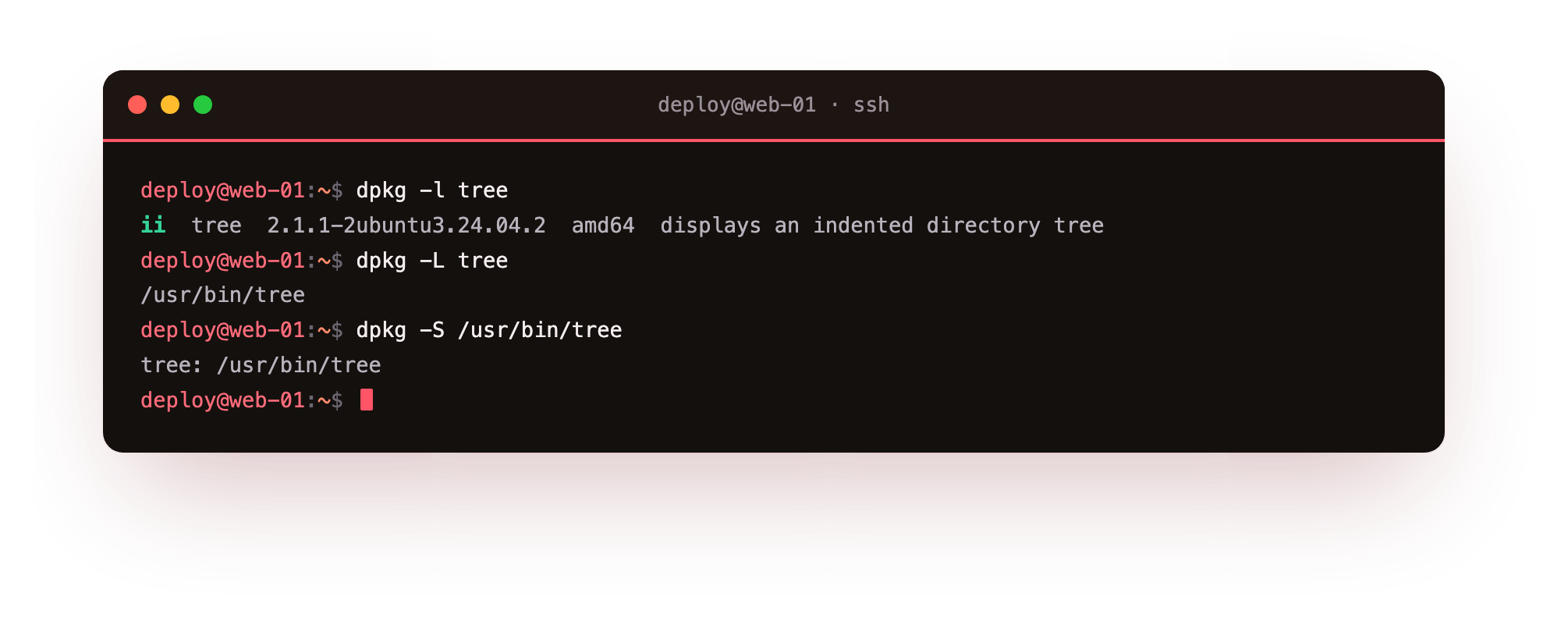
Read the output top to bottom. dpkg -l tree prints a short table, and the two-letter code at the start of the tree row is the status, where ii means the package is installed and correctly configured. The version column tells you exactly which build you are running, which matters when you compare against the Ubuntu 24.04 package list or a security advisory.
dpkg -L tree then lists the actual files: you will see the binary at /usr/bin/tree, its manual page under /usr/share/man, and its documentation under /usr/share/doc/tree. dpkg -S /usr/bin/tree maps that binary back to its owning package and prints tree: /usr/bin/tree, confirming the link between the file and the package name.
That last query is more useful than it first looks. When you find a strange file on a server and want to know where it came from, dpkg -S tells you which package put it there, or reports that no package owns it, which usually means a person or a script placed it by hand. The pairing of dpkg -L, which goes from package to files, and dpkg -S, which goes from file to package, lets you trace in both directions.
Troubleshooting dpkg
dpkg -i ends with "dependency problems prevent configuration". The .deb you installed needs packages that are not present, and dpkg does not fetch them. Run sudo apt install -f straight after: apt reads the record dpkg left behind, pulls in the missing dependencies, and finishes the install.
dpkg reports "dpkg frontend is locked by another process". apt or another dpkg run is already writing to the database. Wait for it to finish rather than forcing the lock, because interrupting a write can leave the package database inconsistent.
dpkg -S prints "no path found matching pattern". No installed package owns that file, which usually means a person or a script placed it by hand rather than through a package. Check the exact path, and remember dpkg -S needs the file's real location, not a symlink to it.
Frequently asked questions
What is the difference between dpkg and apt?
dpkg installs and inspects one .deb file at a time and knows nothing about repositories or dependencies. apt sits on top: it downloads packages and their dependencies from repositories, then calls dpkg once per package to put them on disk.
Do the dpkg query commands need sudo?
No. dpkg -l, dpkg -L, and dpkg -S only read the local package database, so any user can run them. You only need sudo to install or remove a package, for example dpkg -i.
I installed a .deb with dpkg -i and it failed. How do I fix it?
Run sudo apt install -f. The -f flag means fix-broken: apt reads what dpkg left half-configured, downloads the dependencies that were missing, and completes the installation.
How do I find which package a file on disk belongs to?
Use dpkg -S followed by the file's path, for example dpkg -S /usr/bin/tree. It prints the owning package, or reports that no package owns the file, which usually means it was placed by hand.
Recap
dpkg is the low-level installer that apt is built on top of. dpkg acts on one .deb file and the local package database, without fetching from repositories or resolving dependencies, while apt downloads packages and their dependencies and then calls dpkg for each one. dpkg -i installs a local .deb but leaves it half-configured if dependencies are missing, which sudo apt install -f then repairs.
For inspection, dpkg -l shows an installed package and its version, dpkg -L lists every file it placed, and dpkg -S maps a file back to the package that owns it. Understanding the dpkg command Linux runs makes clear what apt is really doing underneath.