Where your packages come from
Every package apt installs arrives from a repository, and every trustworthy repository is tied to a key that proves who published it. Understanding the apt repository and gpg key model is what lets you add third party software to a server without lowering its security. On Ubuntu 24.04, the configuration for this lives in plain text files you can read as deploy, and changing those files needs sudo, because they control what your server will trust and install.
- A repository is a server that holds packages and an index; a GPG key proves those packages came from the publisher they claim.
- Ubuntu 24.04 describes each repository in the deb822 format, with Types, URIs, Suites, Components, and a Signed-By line.
- System keys live under /usr/share/keyrings; keys you add by hand belong in /etc/apt/keyrings, referenced per repository through Signed-By.
- Never pipe a key straight from the internet into apt: download it, inspect its fingerprint, then assign it to one repository.
What a repository is
A repository is a server that holds packages and an index describing them. When you run sudo apt update, apt reads its list of repositories, contacts each one, and downloads that index. The default repositories on an Ubuntu server are run by Ubuntu itself and carry the base system and thousands of packages. You add extra repositories when you need software Ubuntu does not ship, such as a specific database version or a language runtime published by its own project.
Reading the sources file on Ubuntu 24.04
Older Ubuntu releases kept repositories in a single /etc/apt/sources.list file, one line per repository. Ubuntu 24.04 uses a clearer layout called deb822, with each repository written as a block of labelled fields. The main file is here:
cat /etc/apt/sources.list.d/ubuntu.sources
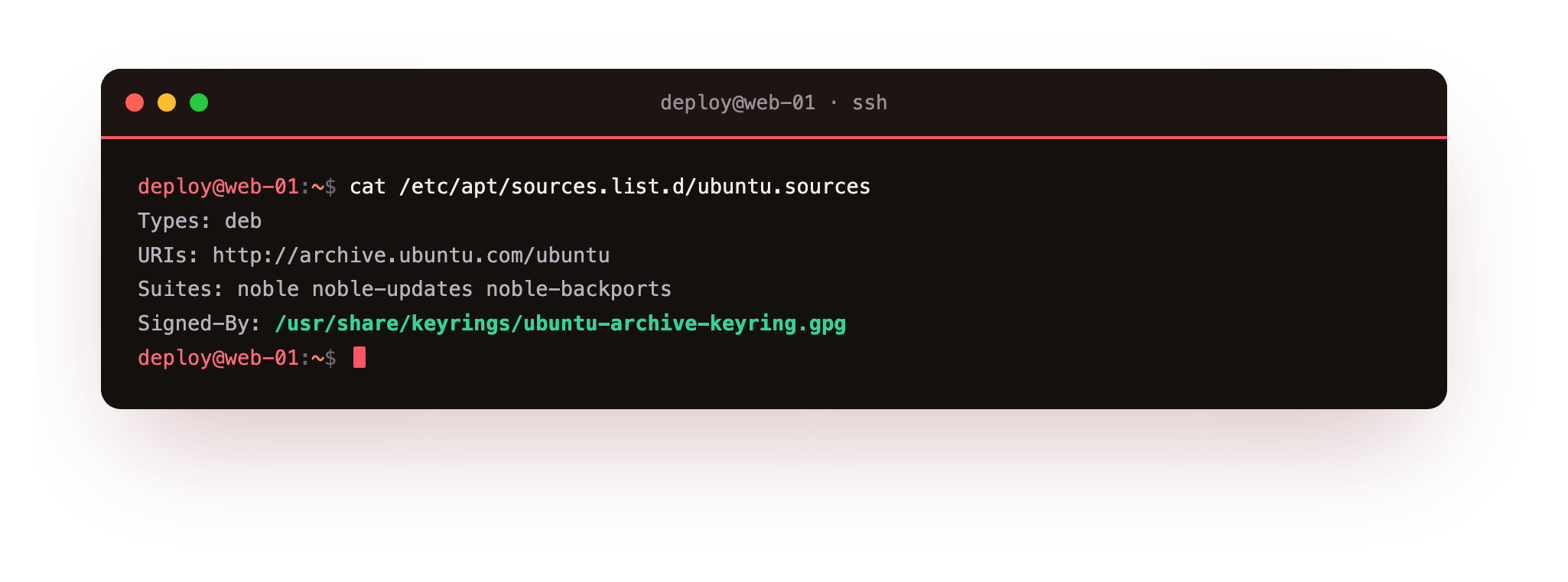
cat prints a file to your screen, and this file holds the definition of the default Ubuntu repositories. Reading it shows you the deb822 fields, and each field has a job:
- Types: the kind of repository.
debmeans binary packages, the ones you install.deb-srcmeans source code, which most servers do not need. - URIs: the address of the repository server. This is where apt fetches indexes and packages from.
- Suites: which release the packages are for, such as
noblefor the 24.04 release, plus pockets likenoble-updatesandnoble-security. - Components: the sections of the archive, such as
main,restricted,universe, andmultiverse, which differ in licensing and support. - Signed-By: the path to the GPG key that packages from this repository must be signed with. This line is what links a repository to its key.
Because each repository is a labelled block, you can read exactly which server, release, and key are in use, without decoding a dense single line.
What does a GPG key prove?
A GPG key is one half of a cryptographic key pair. The repository owner keeps the private half secret and uses it to sign the package index. Your server holds the matching public half, and apt uses it to check that signature. If the signature matches, apt has strong evidence the index came from the holder of the private key and was not altered on the way. If it does not match, apt refuses the repository and prints a warning rather than installing anything.
This is the heart of the apt repository and gpg key relationship. The repository says where packages come from, and the key proves the packages really came from there. Without a valid key, a repository is untrusted, and that refusal is deliberate.
Where keys live
Keys belong in two directories, and knowing which is which keeps a server tidy:
| Directory | What it holds |
|---|---|
/usr/share/keyrings |
Keys shipped by Ubuntu packages, managed by the system |
/etc/apt/keyrings |
Keys you add by hand for third party repositories |
When you add a repository yourself, you place its public key as a file in /etc/apt/keyrings, then point the repository's Signed-By field at that exact file. Tying each repository to its own key file, rather than to one shared trusted set, means a key can only vouch for the repository you assigned it to.
Keeping the apt repository and gpg key link safe
You will find installation guides that tell you to download a key with curl, a tool that fetches a file from a URL, and pipe it straight into a system trust store in one line. Do not follow that pattern blindly. Piping a key from a URL directly into your keyring means you are trusting whatever that server sent, sight unseen, and a key added to the old shared trust store can vouch for any repository, not just the one you intended.
The safer routine is:
- Download the key to a file first, so you can look at it.
- Inspect it with
gpg --show-keys <file>, which prints the key's owner and fingerprint without importing it, and compare that fingerprint against what the project publishes. - Save it under
/etc/apt/keyringswith a clear name. - Reference it from a single repository using
Signed-By.
Those steps take a minute longer than a one line pipe, and they keep the apt repository and gpg key link in your hands. A server is only as trustworthy as the repositories it will install from.
Troubleshooting repository and key errors
apt update fails with "NO_PUBKEY" or "the following signatures couldn't be verified". apt has the repository but not the public key that signs it. Download the publisher's key, inspect it with gpg --show-keys, save it under /etc/apt/keyrings, and point the repository's Signed-By field at that file.
apt warns that a key is "stored in the legacy trusted.gpg keyring". The key sits in the old shared trust store, where it can vouch for any repository, not just the one you intended. Move it to a named file under /etc/apt/keyrings and reference it per repository with Signed-By.
apt update reports "Repository ... does not have a Release file". The URI or suite in the sources block is wrong, or that repository has no build for your release. Re-read the block against the vendor's instructions, checking the URI and that the suite matches noble for 24.04.
Frequently asked questions
What is the difference between /usr/share/keyrings and /etc/apt/keyrings?
/usr/share/keyrings holds keys shipped and managed by Ubuntu's own packages. /etc/apt/keyrings is where you place keys for third-party repositories you add by hand, so your additions stay separate from the system-managed set.
Why should I avoid apt-key add?
apt-key adds a key to a single shared trust store, where it can vouch for every repository on the machine, not just the one you meant. It is deprecated for that reason. Use a per-repository key file under /etc/apt/keyrings referenced by Signed-By instead.
What is deb822 and why did Ubuntu switch to it?
deb822 writes each repository as a block of labelled fields rather than one dense line. It makes the URI, suites, components, and signing key easy to read and edit, which is why Ubuntu 24.04 ships repositories in .sources files using this format.
How do I check a key before I trust it?
Download the key to a file, then run gpg --show-keys on it. That prints the key's owner and fingerprint without importing anything, so you can compare the fingerprint against what the project publishes before you save the key and reference it.
Recap
A repository is a server of packages, and Ubuntu 24.04 describes each one in the deb822 format using Types, URIs, Suites, Components, and a Signed-By line. A GPG key proves a package came from the publisher it claims, and apt checks that signature on every update.
System keys live under /usr/share/keyrings, and the keys you add by hand belong in /etc/apt/keyrings, referenced per repository through Signed-By. Never pipe a key straight from the internet into apt: download it, inspect it, and assign it to one repository, so the apt repository and gpg key model keeps working in your favour.