The update that runs while you sleep
A server that never gets security updates is the easiest kind to break into, because attackers scan the internet for known flaws that were fixed months ago in machines nobody patched. You cannot log in every day to run updates by hand, so Ubuntu ships a service that does it for you: unattended-upgrades on Ubuntu applies security updates on its own, on a schedule, without waking you up.
- unattended-upgrades applies security updates automatically on a daily schedule, so an unwatched server stays current.
- Its switch is /etc/apt/apt.conf.d/20auto-upgrades; Update-Package-Lists and Unattended-Upgrade both set to 1 mean lists refresh and security updates install.
- Change the setting with sudo dpkg-reconfigure unattended-upgrades rather than by hand, to avoid a typo that silently stops updates.
- needrestart restarts services still running old libraries after an upgrade, but a kernel update still needs a reboot unless you use Livepatch.
This chapter shows how it is switched on, where its setting lives, and what it does and does not handle, on a live Ubuntu 24.04 server where you are logged in as deploy.
How unattended-upgrades on Ubuntu is switched on
The behaviour is controlled by one short file. Read it:
cat /etc/apt/apt.conf.d/20auto-upgrades
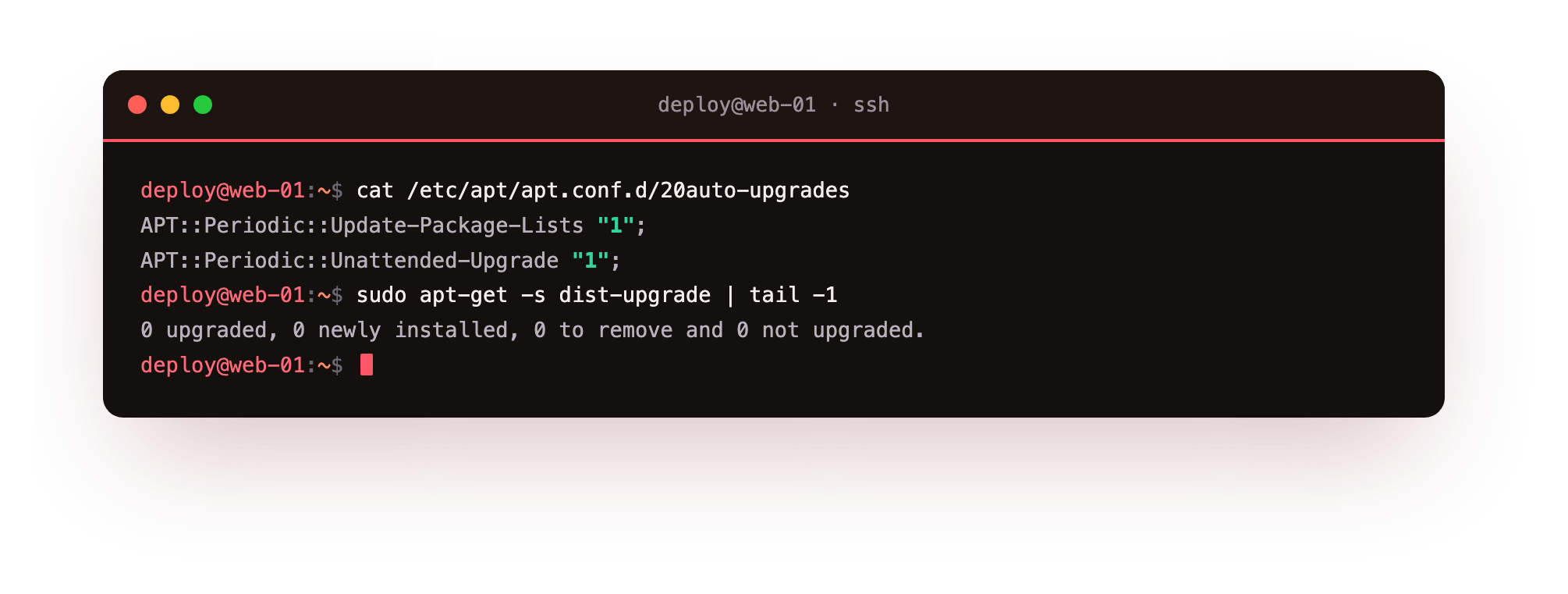
cat prints the contents of that file to your screen. In the screenshot you see two lines, each a setting with a value of 1:
- APT::Periodic::Update-Package-Lists "1"; tells apt to refresh its list of available packages every day, the same work apt update does by hand. Without a fresh list the machine would not know a security update had been published.
- APT::Periodic::Unattended-Upgrade "1"; tells the unattended-upgrades service to actually install the security updates it finds each day.
A value of 1 means enabled and 0 means disabled. Both set to 1 is the state you want on a server you are not watching every day: the package list is refreshed and security updates are applied automatically. If either reads 0, that half of the process is switched off.
Changing the setting safely
You could edit that file by hand, but the supported way to change it is a guided tool:
sudo dpkg-reconfigure unattended-upgrades
dpkg-reconfigure re-runs a package's setup questions. For unattended-upgrades it shows a yes or no prompt asking whether to enable automatic updates, and writes the 20auto-upgrades file for you based on your answer. It needs sudo because it changes system configuration. Using this tool rather than editing the file avoids a typo that would silently stop your updates.
By default unattended-upgrades installs only the security updates, not every available upgrade. That is a deliberate, conservative choice: security fixes are the ones you cannot afford to delay, while feature updates can wait for a moment you pick, so leaving the default narrow keeps automatic changes to the ones that matter for safety.
Restarting the services that were updated
Patching a library on disk does not fix a running program that already loaded the old version into memory. The program keeps running the vulnerable code until it restarts. A tool called needrestart handles this. After an upgrade it checks which running services are still using outdated libraries and either restarts them or tells you which ones need attention.
- On an interactive upgrade, needrestart shows a list and asks which services to restart.
- During unattended-upgrades it can be configured to restart affected services automatically, so the fix takes effect without a person present.
This step is easy to forget, and forgetting it means you installed the patch but never applied it. needrestart closes that gap.
The kernel is the exception
There is one update needrestart cannot resolve by restarting a service: the kernel. The kernel is the core of the operating system, and the copy in memory is the one running the whole machine. A new kernel is installed on disk by the upgrade, but the machine keeps running the old one until you reboot. So a kernel security update needs a reboot to take effect.
You have two ways to handle this:
| Approach | What it means |
|---|---|
| Scheduled reboot | Reboot the server during a planned quiet window after a kernel update lands |
| Livepatch | A Canonical service that applies certain kernel security fixes to the running kernel with no reboot |
Livepatch covers many kernel fixes without downtime, which suits servers that are hard to reboot. It does not cover every change, so a planned reboot every so often is still part of a healthy patching routine.
Why does this matter more on a server?
An unpatched server is a soft target on the internet. Automated scanners probe addresses constantly, testing for flaws that already have public fixes and public exploit code. The window between a fix being published and attackers using it is short, sometimes hours, and a machine that patches once a month is exposed for most of that window. unattended-upgrades on Ubuntu shrinks the gap to about a day for security fixes, which removes a large and predictable category of risk in one step.
A patched server is not a fully secured server, but it closes the door that most attacks come through. Combined with needrestart to apply the fixes and an occasional reboot for the kernel, automatic security updates keep a server current with almost no daily effort from you.
Troubleshooting automatic updates
Security updates are not being applied. Read /etc/apt/apt.conf.d/20auto-upgrades. If either value reads 0, that half of the process is switched off. Re-enable it with sudo dpkg-reconfigure unattended-upgrades rather than editing the file, so a typo cannot silently break it again.
You want proof it actually ran. The service logs every run to /var/log/unattended-upgrades/unattended-upgrades.log. Read that file to see which packages were installed and when, which is the honest way to confirm the automation is working.
A kernel update installed but the machine still runs the old kernel. A new kernel takes effect only after a reboot. Schedule one in a quiet window, or use Livepatch for reboot-free kernel security fixes on servers that are hard to restart.
sudo apt fails with a lock error at an odd hour. The automatic job is running. Wait for it to finish rather than killing it, because interrupting a package write can leave the system inconsistent.
Frequently asked questions
Does unattended-upgrades install all updates or just security ones?
By default it installs only security updates, not every available upgrade. That conservative choice keeps automatic changes to the ones you cannot afford to delay, while feature updates wait for a moment you pick.
How do I confirm it actually ran?
Check the log at /var/log/unattended-upgrades/unattended-upgrades.log. It records each run and the packages installed, so you can verify the service is doing its job rather than assuming it is.
Will unattended-upgrades reboot my server automatically?
Not by default. It installs security updates but leaves reboots to you, which matters because a kernel fix only takes effect after a reboot. You can enable automatic reboots in the configuration, or schedule them yourself in a quiet window.
Is unattended-upgrades enabled by default on Ubuntu Server?
It usually is on a standard Ubuntu Server install, but do not assume it. Read /etc/apt/apt.conf.d/20auto-upgrades and confirm both values are set to 1, since a minimal or customised image may ship it off.
Recap
unattended-upgrades on Ubuntu applies security updates automatically on a daily schedule. Its switch is /etc/apt/apt.conf.d/20auto-upgrades, where Update-Package-Lists and Unattended-Upgrade both set to 1 mean the package list is refreshed and security updates are installed. Change it with sudo dpkg-reconfigure unattended-upgrades rather than by hand. needrestart restarts services still running old libraries after an upgrade, but a kernel update still needs a reboot unless you use Livepatch. An unpatched server is the easiest to compromise, which is why automatic security updates are worth having on every server you run.