Running linux background jobs with the ampersand
A normal command holds your terminal until it finishes. Run a backup script and you stare at a frozen prompt until it is done. Job control is the shell feature that fixes this, and linux background jobs are the everyday use of it: you append a single & to a command and the shell starts it, keeps it running, and returns your prompt right away so you can carry on with other work in the same terminal.
- Appending
&starts a command in the background and hands your prompt straight back. jobslists jobs in the current shell, each with a%nnumber separate from its PID.fgpulls a job to the foreground,Ctrl-Zpauses it, andbgresumes it in the background.- Background jobs die on logout unless
nohupordisowndetaches them from the shell.
Start a harmless one. sleep 120 waits for 120 seconds, and the & sends it to the background. jobs then lists the jobs running in your current shell, each with a job number in square brackets, its state, and its command.
sleep 120 &
jobs
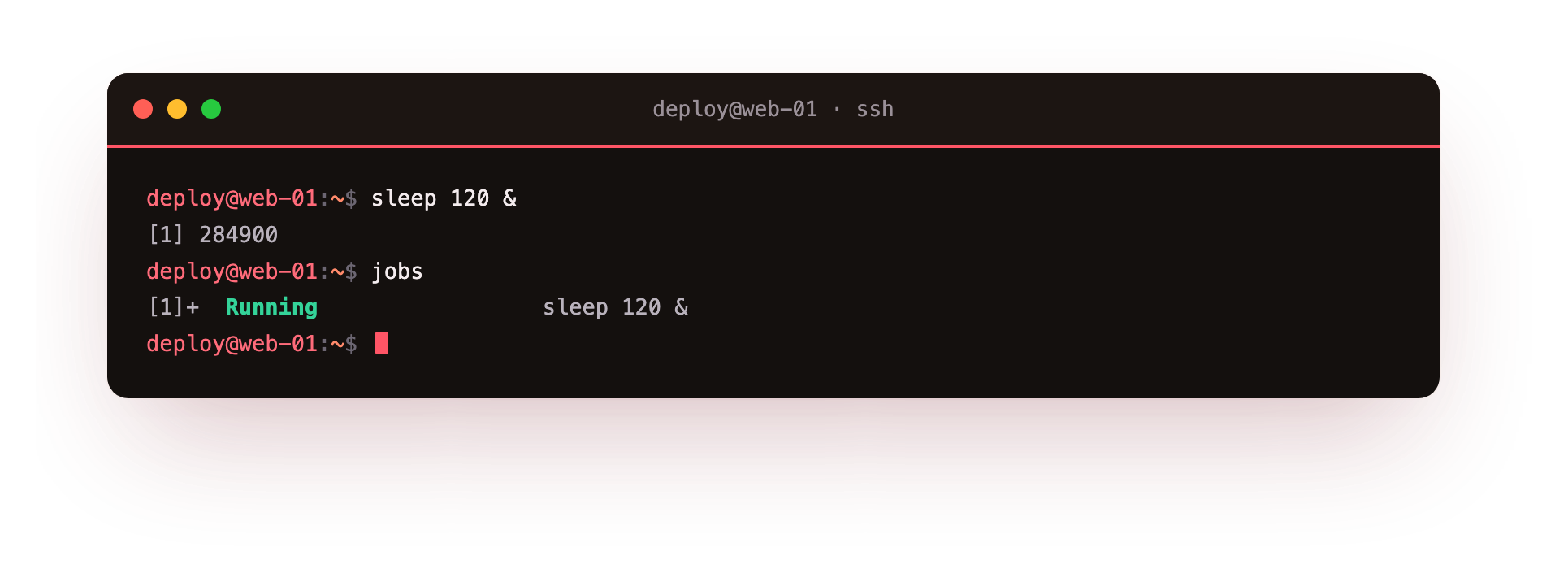
The output shows [1] Running sleep 120 or similar. That [1] is the job number, which is separate from the PID. Job numbers are small, start at 1, and only mean something inside the shell that owns them. You use them with a percent sign, so job 1 is %1. Running jobs -l adds the PID next to each job number, which is handy when you want to act on a job with kill.
Moving jobs between foreground and background
A job is either in the foreground, holding the terminal, or in the background, running quietly. You move jobs across that line with three tools:
fg %1pulls job 1 back into the foreground, so it holds the terminal again and you see its output.Ctrl-Zpauses whatever is in the foreground and drops you back to the prompt. The job is now stopped, not finished.bg %1restarts a stopped job in the background, so it runs on without holding the terminal.
A common sequence looks like this. You start a long command in the foreground, realise it will take a while, press Ctrl-Z to pause it, then type bg to let it continue in the background. Now you have your prompt back and the work carries on. Running jobs again shows it as Running rather than Stopped.
Here is the catch that trips people up. These linux background jobs belong to the shell that started them. Close that terminal or log out, and the shell sends its children a SIGHUP, and by default they stop too. For a two-minute sleep that does not matter. For a data import that runs for an hour, it does.
Surviving logout with nohup and disown
Two tools keep a background job alive after you disconnect. Both work by dealing with the SIGHUP that logout would otherwise send:
nohupruns a command with the hangup signal ignored from the start.nohup ./backup.sh &launches yourbackup.shso that aSIGHUPon logout no longer stops it, and its output is redirected into a file namednohup.outunless you point it elsewhere.disownacts on a job you already started. AfterCtrl-Zandbg, runningdisown %1removes job 1 from the shell's job table, so the shell will not send itSIGHUPwhen it exits.
Both let a task outlive your session. The difference is timing: nohup decides up front, disown fixes it after the job is already running.
When it should be a systemd service instead
nohup and disown are fine for a one-off long command. They are the wrong tool for anything that needs to run every day, restart after a crash, or start again when the server reboots. A backgrounded job does none of that. When you log out for good or the machine restarts, it is gone.
There is a simple test. Ask whether the task should keep running when nobody is logged in. If the answer is yes, it is not really a job for the shell. That is the job of a systemd service. Compare the two honestly:
| Need | Background job | systemd service |
|---|---|---|
| Runs after logout | Only with nohup or disown | Yes, always |
| Restarts on crash | No | Yes, with Restart= |
| Starts on boot | No | Yes, when enabled |
| Logs collected for you | No, you redirect by hand | Yes, into the journal |
| Scheduled runs | No | Yes, with a timer |
The sc-demo service on this server is the right pattern: its unit file at /etc/systemd/system/sc-demo.service means systemd starts the worker on boot, restarts it if it dies, and keeps its output in the journal. The paired sc-demo.timer handles scheduled runs, which is the durable version of what a background job cannot promise.
If you find yourself using nohup on the same script every day, that script wants to be a service on your Ubuntu 24.04 server, not a background job you keep restarting by hand. A shell job is for interactive, short-lived work in the terminal in front of you.
Troubleshooting stuck and lost jobs
A background job stops instead of running. It tried to read from the terminal and the shell paused it, so jobs shows it as "Stopped (tty input)". Bring it forward with fg, give it the input, or run the command so it needs no interactive input.
The job vanished after you closed the terminal. By default the shell sends SIGHUP to its children when it exits. Start long tasks with nohup, or run disown on a job already in the background, so logout no longer stops them.
bg or fg says "no such job". Job numbers only exist in the shell that started them, and a finished job is dropped from the table. Run jobs to see the current numbers, and remember %1 refers to job 1, not PID 1.
You cannot find where nohup wrote the output. With no redirection, nohup appends to a file named nohup.out in the current directory. Point it somewhere explicit with nohup ./job.sh > /home/deploy/job.log 2>&1 &.
Frequently asked questions
What is the difference between a job number and a PID?
A job number like %1 is local to the shell that started the job and starts at 1. A PID is a system-wide identifier assigned by the kernel. Use job numbers with fg, bg, and jobs; use PIDs with kill.
How do I keep a command running after I log out?
Start it with nohup command & so the hangup signal is ignored from the start, or run disown %1 on a job you already backgrounded. Both stop the shell from ending the job when you disconnect.
What is the difference between nohup and disown?
nohup decides up front, before the command runs, that SIGHUP will be ignored. disown fixes a job after it is already running by removing it from the shell's job table. Both let the task outlive your session.
When should a background job become a systemd service instead?
When it must survive reboots, restart after a crash, or run on a schedule. A shell job does none of those. If you keep re-running the same nohup command, the task belongs in a systemd service.
Recap
Appending & runs a command in the background and returns your prompt. jobs lists the jobs in the current shell, each with a %n number. fg %1 brings a job to the foreground, Ctrl-Z pauses the foreground job, and bg resumes it in the background. Because linux background jobs die on logout by default, nohup or disown keep a long one alive across a disconnect. Anything that must survive reboots, restart on failure, or run on a schedule belongs in a systemd service like sc-demo, not in a shell job.