What does systemd do on a Linux server?
Log in to a fresh Ubuntu 24.04 box as the deploy user and dozens of background programs are already running: the SSH daemon, the clock sync, the logging pipeline. Something starts all of them in the right order, restarts them when they crash, and lets you control them by name. That something is systemd, and a systemd service on Linux is the unit of work it manages. Learn to read and edit one service definition and you can manage almost everything that runs in the background on the machine.
- systemd is both PID 1 and the service manager for every long-running program on the box.
- A service is defined by a plain-text unit file, usually under
/etc/systemd/system. ExecStartnames the command,Restart=alwayskeeps it alive,WantedBysets boot behaviour.- Drive services with
systemctl start,stop,restart, andstatus.
systemd wears two hats. It is the init process, PID 1, the first thing the kernel hands control to after boot. It is also the service manager that tracks every long running program, its current state, and what it depends on. You talk to it through a single command called systemctl.
Prerequisites
- An Ubuntu 24.04 LTS server, where systemd is the default init system.
- sudo rights, since starting, stopping, and editing services are administrative actions.
- A text editor such as nano or vim to read and change unit files.
Where a systemd service on Linux lives
A service is described by a plain text file called a unit. Units you write or override live in /etc/systemd/system. Units shipped by Ubuntu packages live in /lib/systemd/system, and a file in /etc wins over the packaged copy of the same name. The demo worker on this server is defined at /etc/systemd/system/sc-demo.service.
Open that file and you will see something close to this:
[Unit]
Description=ServerCake demo worker
After=network.target

[Service]
ExecStart=/usr/local/bin/sc-demo-worker
Restart=always

[Install]
WantedBy=multi-user.target
Three lines carry most of the meaning:
- ExecStart is the exact command systemd runs to start the service. Give it a full path, because systemd does not read your shell profile or PATH.
- Restart=always tells systemd to start the process again whenever it exits, whether it crashed or finished cleanly. This is what keeps a worker alive.
- WantedBy=multi-user.target decides when the service is wanted at boot. multi-user.target is the normal multi user, networked state of a server with no graphical desktop, so a service wanted by it starts on every normal boot.
A unit can hold far more than these three lines: options for the working directory, environment variables, the user the process runs as, and limits on memory or file handles. The three above are the ones you cannot do without, because they answer what to run, whether to keep it running, and when to run it at boot.
Controlling the service with systemctl
Every systemd service on Linux responds to the same handful of systemctl subcommands, so learning them once pays off across the whole machine. Each takes the service name, and the .service suffix is optional:
- systemctl start sc-demo runs the service now.
- systemctl stop sc-demo stops it now.
- systemctl restart sc-demo stops then starts it, which you use after changing the program.
- systemctl status sc-demo shows whether it is running and the last few log lines.
Start with status, because it answers the first question you usually have, which is whether the thing is running at all.
systemctl status sc-demo
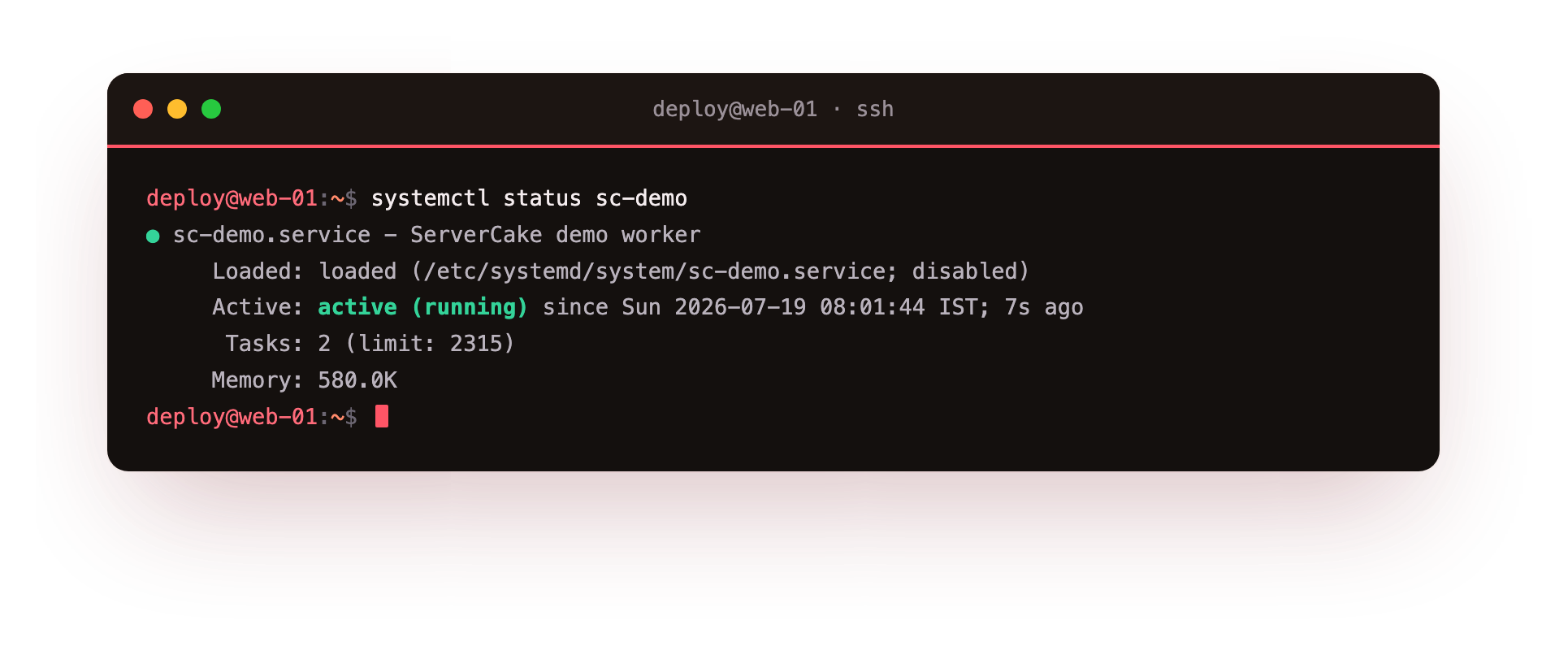
The top of the output shows the loaded and active state. Loaded means systemd found and parsed the unit. active (running) means the process is up. You also get the main PID, memory use, and a short tail of recent log lines, which is often enough to watch the worker printing its "processed a job" messages.
If the service has failed instead, the active line reads failed and shows the exit code, and the log tail usually names the cause, a missing binary or a permission error. Reading that block before you change anything tells you whether the service never started or whether it started and then died, which point you at very different fixes.
To start and stop the service yourself:
sudo systemctl start sc-demo
sudo systemctl stop sc-demo
These need sudo because changing system service state is an administrative action. Reading status does not.
Editing a unit and reloading
systemd reads unit files into memory when it starts and keeps that copy. Edit the file on disk and systemd does not notice until you tell it to re read its configuration:
sudo systemctl daemon-reload
Run daemon-reload after any change to a file under /etc/systemd/system. Forgetting it is the most common reason a change seems to do nothing: you edited ExecStart, restarted the service, and systemd started the old command it still had in memory. The habit to build is edit the file, run daemon-reload, then restart the service.
A quick reference for the order of operations:
| Step | Command |
|---|---|
| Change a unit file | edit /etc/systemd/system/sc-demo.service |
| Load the change | sudo systemctl daemon-reload |
| Apply it | sudo systemctl restart sc-demo |
| Confirm | systemctl status sc-demo |
Troubleshooting a service that will not start
status shows "failed" with a non-zero exit code. Read the log tail in the same status output, then run journalctl -u sc-demo for more. A missing binary or a permission error is usually named there.
Your edit to the unit file seems to do nothing. systemd is still running the old copy from memory. Run sudo systemctl daemon-reload after every change to a file under /etc/systemd/system, then restart the service.
ExecStart fails with "No such file or directory." systemd does not read your shell PATH. Give ExecStart the full absolute path to the program, for example /usr/local/bin/sc-demo-worker.
The service starts then immediately exits. A program that forks or runs once and returns confuses the default service type. Confirm the process stays in the foreground, or set the correct Type= for how it behaves.
Frequently asked questions
What is the difference between a service and a unit?
A unit is any object systemd manages, including services, timers, sockets, and mounts. A service is one kind of unit, described by a .service file, that runs and supervises a program.
Why do I need daemon-reload after editing a unit?
systemd reads unit files into memory at start and keeps that copy. daemon-reload makes it re-read the files from disk, so your change is picked up before you restart the service.
What does Restart=always actually do?
It tells systemd to start the process again whenever it exits, whether it crashed or finished cleanly. This is what keeps a worker running without you watching over it.
Where should I put my own service files?
Under /etc/systemd/system. Files there override the packaged copies in /lib/systemd/system, so your version wins for a unit of the same name.
Recap
systemd is both PID 1 and the service manager on the machine, and a systemd service on Linux is described by a unit file under /etc/systemd/system. ExecStart names the command to run, Restart=always keeps it alive, and WantedBy sets when it belongs at boot. You drive services with systemctl start, stop, restart, and status, and you run daemon-reload after every edit so systemd picks up the new file before you restart. Get those few habits right and the rest of service management is variations on the same pattern.