Every command you run becomes a process
When you type a command on your server and press Enter, the kernel loads that program into memory and starts running it. That running instance is a process. Getting comfortable with linux processes is the foundation for the rest of this series, because services, timers, and background jobs are all processes with different labels on top.
- A process is a running program in memory, distinct from the program file on disk.
- Every process carries a PID, a parent PID (PPID), and an owner.
ps -f -u deployshows ownership and parentage;ps auxshows the whole machine.pgrepfinds a process by name when you do not have its PID.
A process is not the program file sitting on disk. It is the live, executing copy of that file, with its own memory, its own owner, and its own position in a family tree of other processes.
Every process carries three pieces of identity that you will refer to again and again:
- PID, the process ID: a number the kernel hands out when the process starts. It is unique for as long as that process is alive.
- PPID, the parent process ID: the PID of whatever process started this one. Your shell starts the commands you type, so your shell is usually the parent.
- Owner: the user account the process runs as. When you are logged in as
deploy, the processes you start are owned bydeploy, and they can only touch files and resources thatdeployis permitted to touch.
Let me start a process you can watch without any risk. The sleep 300 command does nothing at all for 300 seconds, which makes it a quiet subject to inspect. The & at the end tells the shell to run it in the background and give your prompt straight back, so you are not stuck waiting. Straight after, ps -f -u deploy lists the processes owned by the deploy user in full-detail format.
sleep 300 &
ps -f -u deploy
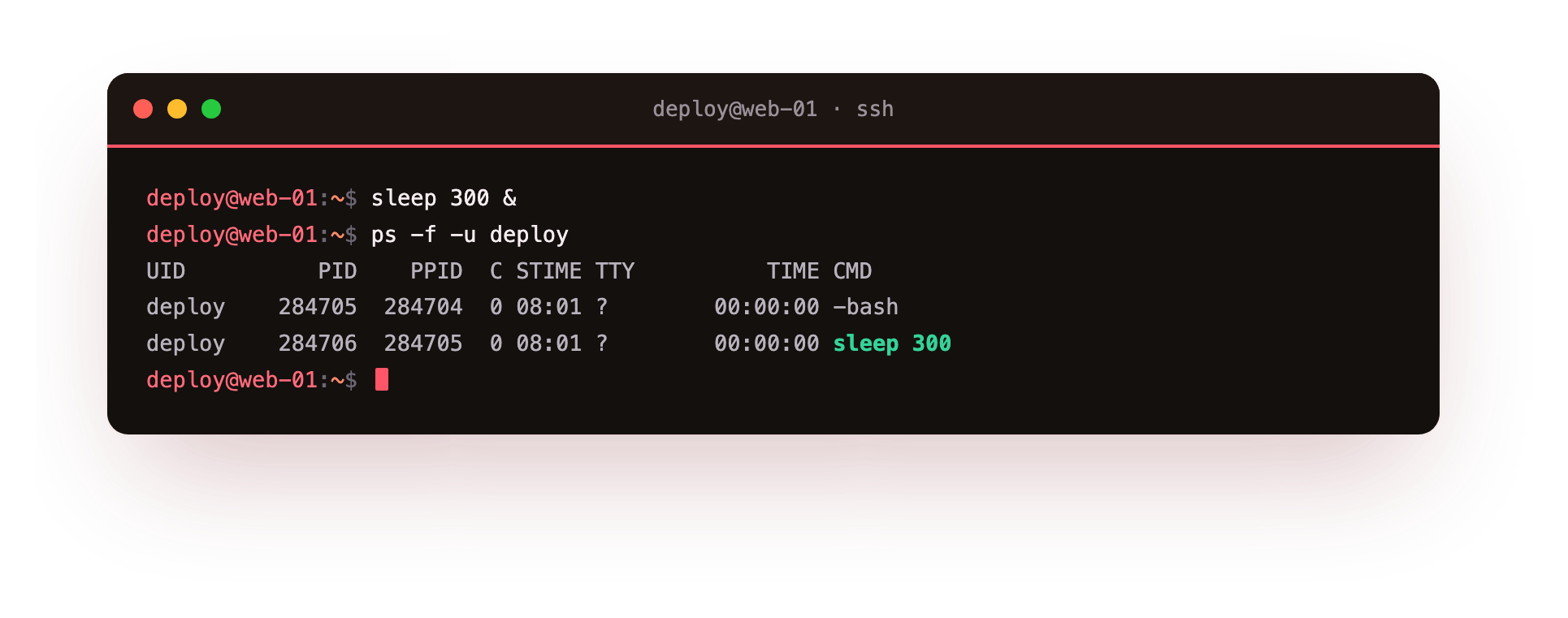
In that listing you will see your sleep process. Read across the row: UID is the owner, PID is its process ID, PPID is the PID of the shell that launched it, C is a rough CPU usage figure, STIME is when it started, TTY is the terminal it is attached to, TIME is CPU time consumed, and CMD is the command line. The PPID of your sleep should match the PID of your shell, which is the parent-child link in action.
How to list linux processes with ps
The ps command reports on processes, and the flags decide what it shows and how. ps -f -u deploy uses two options: -f asks for the full-format listing with the parent column included, and -u deploy limits the output to processes owned by the deploy user. This view is good when you care about ownership and parentage.
ps aux is the other form you will run into often, and it uses the older BSD-style flags with no dash:
ashows processes belonging to all users, not just you.uswitches to a user-oriented layout that adds%CPUand%MEMcolumns.xincludes processes that have no controlling terminal, which is how most background services run.
So ps -f answers "who owns this and who started it", while ps aux answers "what is running across the whole machine and what is it costing". For a quick live view that refreshes on its own, top is built into Ubuntu 24.04 and updates every few seconds. htop, if you install it, shows the same data with colour, per-core meters, and arrow-key scrolling. Both are read-only ways to watch linux processes as they come and go.
How do you find a process by name?
You will not always know a PID. pgrep searches the process table by name and prints matching PIDs. The -a flag prints the full command line next to each PID, so you can confirm you found the right one before acting on it.
pgrep -a sleep
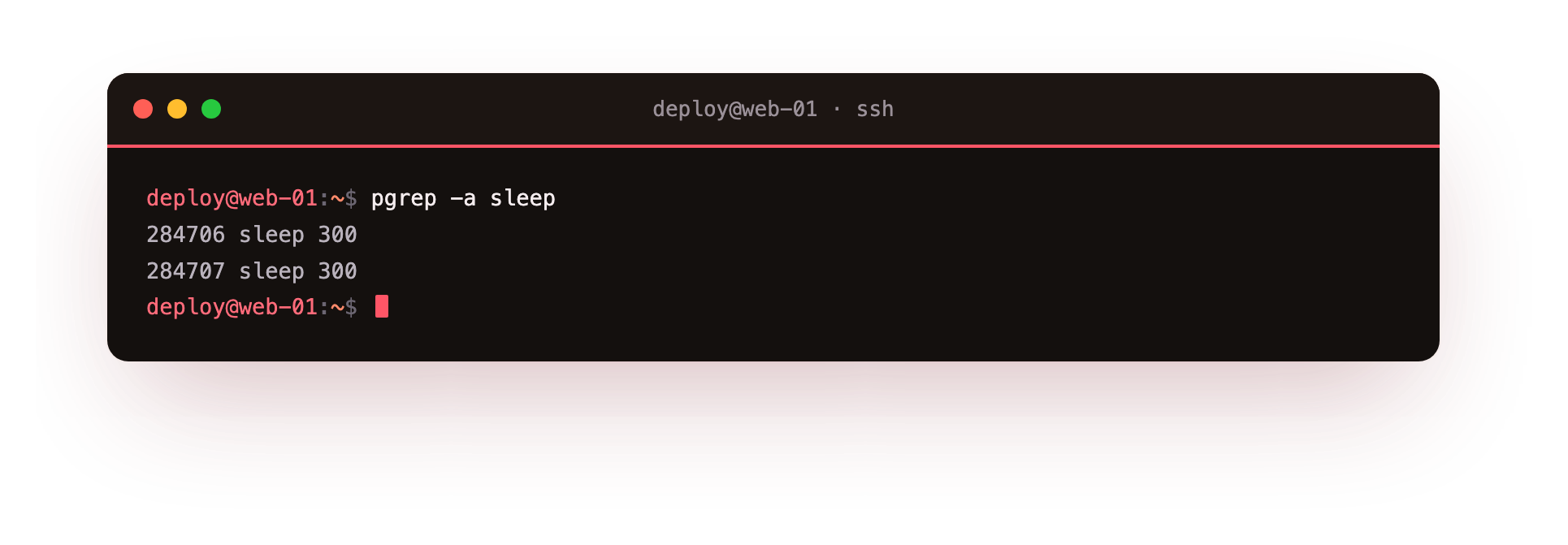
This prints the PID and command for every process whose name matches sleep, which should include the one you started earlier. Knowing the PID is what lets you inspect or stop a specific process later.
Process states
A process is not always using the CPU. The kernel tracks a state for each one, shown in the STAT column of ps aux. The common states for linux processes are:
| Code | State | Meaning |
|---|---|---|
| R | Running | On the CPU now or waiting in the run queue |
| S | Sleeping | Waiting for an event, such as input or a timer |
| D | Uninterruptible sleep | Waiting on disk or hardware, cannot be woken by signals |
| T | Stopped | Paused, usually by a job-control signal |
| Z | Zombie | Finished, but its parent has not yet collected its exit code |
| I | Idle | A kernel thread with nothing to do |
Your sleep process sits in state S, because it is doing nothing but waiting for its timer to run out. A process that pins a CPU core shows R. A short-lived Z is normal, but many zombies that linger point to a parent program that is not cleaning up after its children.
Frequently asked questions
What is the difference between a process and a program?
A program is the file on disk. A process is a running copy of it loaded into memory, with its own PID, owner, and state. One program can have many processes running at the same time.
How do I find the PID of a running process by name?
Run pgrep -a name. It prints the PID and full command line of every match, so you can confirm you have the right one before you act on it.
What is a zombie process, and should I worry about it?
A zombie has finished but its parent has not yet read its exit code. A brief zombie is normal. Many that linger point to a parent program that is not reaping its children.
Does running ps aux slow the server down?
No. Both ps and pgrep read the process table once and exit. They are read-only snapshots that add no lasting load to the machine.
Recap
A process is a running program. It has a PID, a PPID that links it to its parent, and an owner. ps -f -u deploy shows ownership and parentage in full format, ps aux shows the whole machine with CPU and memory, and top or htop give a live view.
pgrep -a finds a process by name when you do not have its PID. The STAT column tells you whether a process is running, sleeping, stopped, or a leftover zombie. With these you can see exactly what linux processes are doing on your server before you decide to act on any of them.