Two ways to shape a process
linux nice and ulimit are two tools for stopping one process from starving the server: nice lowers a job's CPU priority, and ulimit caps how many files and processes a shell may hold. You lower a real job's priority with nice and read the per-shell caps that ulimit enforces.
- nice sets CPU priority (niceness -20 to 19); a higher number yields more to its neighbours.
renicechanges the niceness of a process that is already running.- ulimit caps per-shell resources such as open files (
-n) and processes (-u). - Each limit has a soft and a hard value, and a ulimit change lasts only for its shell.
A server runs many processes at once, and they compete for the same CPU cores, the same memory, and the same file handles. Most of the time the kernel shares things out well enough on its own, but now and then you need to say that one job matters less than another, or stop a single process from opening more files than the system can spare.
linux nice and ulimit are the two everyday tools for this: nice adjusts how much CPU time a process gets relative to its neighbours, and ulimit caps the resources a process may consume. You are logged in as deploy on Ubuntu 24.04, and everything here is safe to try, because you are only shaping your own processes and your own shell.
Start with niceness, the priority hint the scheduler reads. Niceness runs from -20 to 19. A value of -20 is the highest priority, so the process gets CPU time ahead of others, and 19 is the lowest, so it yields to almost everything.
The name is literal: a process with a high nice number is being nice to its neighbours by stepping aside. An ordinary user can only raise their own niceness, meaning make a process lower priority. Lowering it below zero needs root, so that nobody starves the rest of the system by declaring themselves urgent.
Prerequisites
- An Ubuntu 24.04 LTS server you can log into as a normal user such as
deploy. - sudo rights, but only for the steps that need root: setting a negative niceness or raising a hard limit.
Priority with nice
Run a low-priority background job and check its niceness:
nice -n 10 sleep 200 &
ps -o pid,ni,cmd -p $!
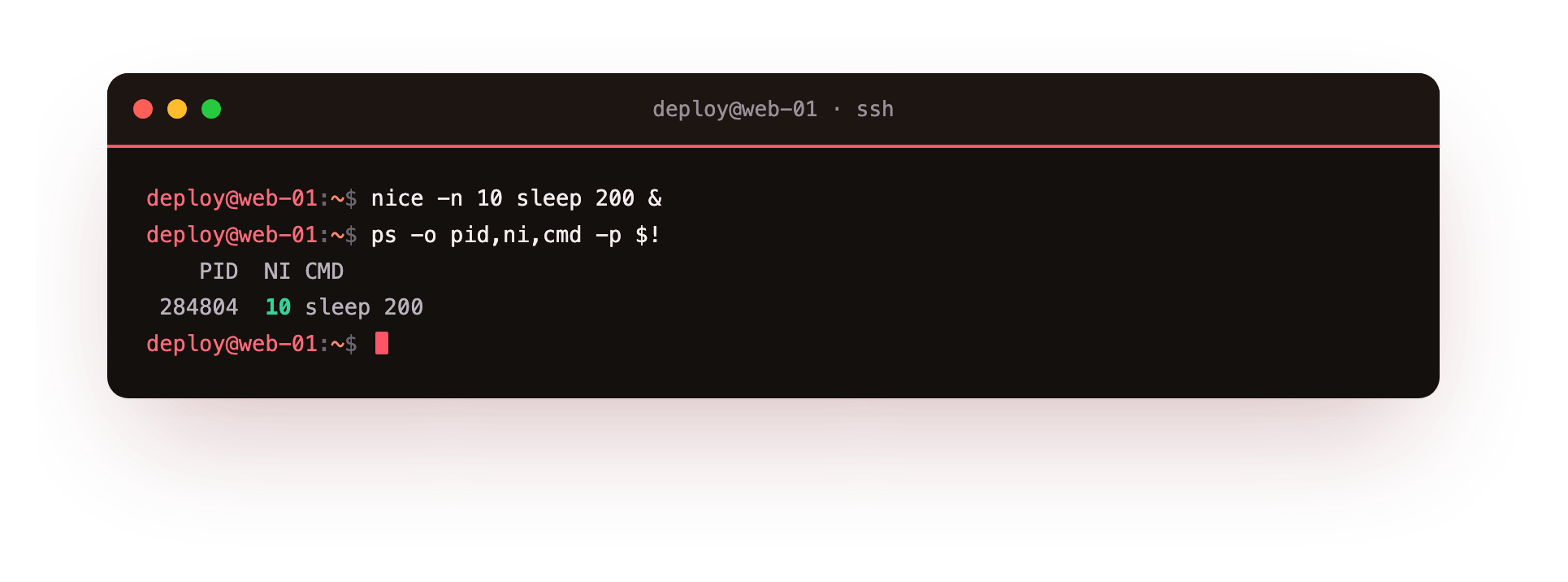
The first line runs sleep 200, a command that does nothing for 200 seconds, at niceness 10. The nice -n 10 prefix sets the starting niceness, and the trailing & puts the job in the background so your prompt returns straight away.
The second line inspects it: ps reports on processes, -o pid,ni,cmd asks for only the process ID, the nice value, and the command, and -p $! points ps at $!, the shell variable holding the process ID of the most recent background job. In the screenshot the NI column reads 10, confirming the sleep started with the niceness you asked for.
Changing a running process with renice
nice sets niceness only at launch. To change a process that is already running you use renice. The command renice -n 15 -p 1234 sets process 1234 to niceness 15. As with nice, an ordinary user can only make their own processes nicer, not more demanding, and only root can push a value below zero. The pair covers both moments: nice when you start a job you already know should yield, and renice when a job you started earlier turns out to be taking too much CPU.
Ceilings with ulimit
ulimit is the second half of linux nice and ulimit, and where nice governs CPU priority, ulimit governs hard resource counts: how many files a process may hold open, how many processes you may run, how large a core dump may grow, and so on. These limits are inherited, so a limit set in your shell applies to everything you launch from that shell.
Look at two of the most common limits:
ulimit -n
ulimit -u
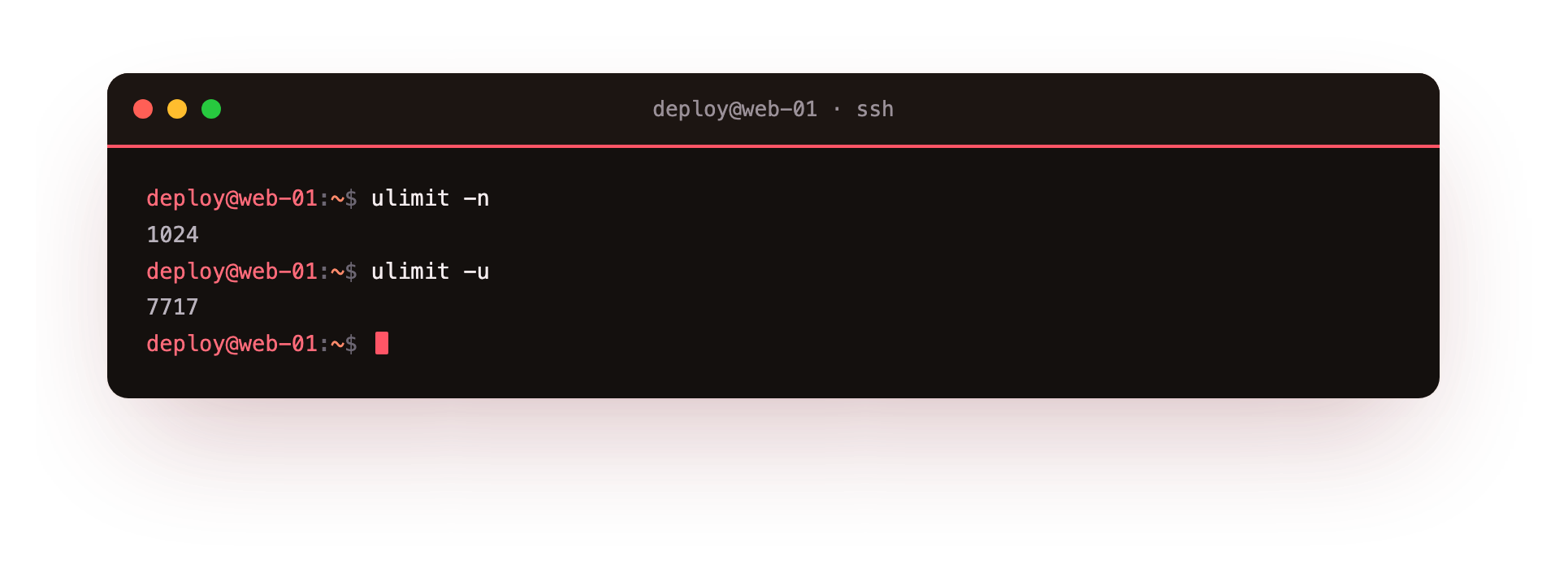
The ulimit -n command prints the maximum number of open file descriptors a process started from this shell may have. This number matters because every open file, and every network socket, counts as a descriptor, so a busy server program can reach the ceiling and start refusing connections with a "too many open files" error. The ulimit -u command prints the maximum number of processes your user may run at once, which is the limit a fork bomb or a runaway worker pool hits. In the screenshot both numbers are your current ceilings.
Soft limits, hard limits, and raising them
Each limit actually holds two values. The soft limit is the one in force right now, and the hard limit is the ceiling the soft limit may be raised to. Run ulimit -Sn to see the soft open-file limit and ulimit -Hn to see the hard one. An ordinary user can raise a soft limit up to the hard limit but cannot raise the hard limit itself, which again needs root. So ulimit -n 4096 raises your soft open-file limit for this shell only, and only if 4096 is at or below the hard limit.
A short summary of the flags you will reach for most:
| Command | Shows or sets |
|---|---|
ulimit -n |
Maximum open file descriptors |
ulimit -u |
Maximum number of processes |
ulimit -a |
Every limit at once |
ulimit -Sn and -Hn |
Soft and hard open-file limits |
One caution: a ulimit change lasts only as long as the shell you typed it in. Close the shell and the change is gone.
Where linux nice and ulimit meet systemd
There is a catch worth knowing. Because ulimit only affects a shell and the processes started from it, it does nothing for a service that systemd launches at boot, since that service never passes through your shell. For those, the limits live in the service unit instead. A line like LimitNOFILE=65536 in a service's [Service] section sets the open-file ceiling for that service alone, and LimitNPROC= does the same for the process count.
This is the right place to raise limits for something like a database or a web server, because it is applied every time the service starts, whoever or whatever launches it. Setting linux nice and ulimit values by hand in a shell is for interactive work and testing. For a long-running service, put the limit in the unit file so it survives a reboot.
Troubleshooting nice and ulimit
renice reports "Operation not permitted." A normal user can only make their own processes nicer, never more demanding, and only root can set a value below zero. Prefix the command with sudo, or raise the niceness instead of lowering it.
A ulimit change disappeared. ulimit affects only the shell you typed it in and the processes it starts. Open a new shell and the change is gone. Set persistent limits in /etc/security/limits.conf or in the service unit.
A service still hits "too many open files" after you raised ulimit. A service launched by systemd never passes through your shell. Set LimitNOFILE= in the service's [Service] section instead, then daemon-reload and restart it.
ulimit -n will not go higher. You are trying to raise the soft limit above the hard limit, which needs root. Check both with ulimit -Sn and -Hn; a normal user can raise the soft limit only up to the hard one.
Frequently asked questions
What does the niceness value actually control?
It is a priority hint for the scheduler, from -20 (highest priority) to 19 (lowest). A process with a higher nice number steps aside for its neighbours when the CPU is contended.
What is the difference between a soft and a hard ulimit?
The soft limit is the one in force now; the hard limit is the ceiling the soft limit may be raised to. A normal user can raise the soft limit up to the hard limit but cannot raise the hard limit itself.
Why does my ulimit change not affect a systemd service?
ulimit applies only to a shell and its child processes. A service started by systemd never passes through your shell, so set its limits with LimitNOFILE= and LimitNPROC= in the unit file.
Can a normal user speed up their own process with nice?
No. Setting a niceness below zero, which raises priority, needs root. An ordinary user can only raise niceness, making a process lower priority so it yields to others.
Recap
Niceness runs from -20, the highest priority, to 19, the lowest, and only root may set a value below zero. nice -n 10 starts a process at a chosen niceness and renice changes one already running. ulimit caps per-shell resources: ulimit -n for open files and ulimit -u for processes, each carrying a soft and a hard value. A ulimit change lasts only for its shell, so for a systemd service set the ceiling in the unit file with LimitNOFILE= instead.