The picture before the commands
Before you can manage storage on a server, you need a clear picture of the hardware underneath it. A direct way to get that picture is the linux disks lsblk command, which lists every block device the kernel can see and shows how each one is arranged. In this chapter you are logged in as deploy on an Ubuntu 24.04 server, sitting in ~/data-demo, and the goal is to map the physical disk, the partitions cut from it, and the directories where those partitions are attached.
- lsblk prints a tree of every disk and the partitions cut from it, with sizes and mount points.
- A physical disk such as /dev/sda is divided into partitions like /dev/sda1, each acting as an independent section.
- df -h / reports how full the root filesystem is, so watch the percent used before it climbs toward 100.
- sudo fdisk -l prints the detailed partition table read-only; the -l flag lists without changing anything.
A physical disk is a single piece of hardware, for example the drive the system calls /dev/sda. That whole disk is rarely used as one undivided space. Instead it is split into partitions, which are labelled sections of the disk that each behave like a smaller independent drive. On this server the root partition is /dev/sda1. Splitting a disk this way lets the boot files, the operating system, and your data sit in separate, clearly bounded areas.
Listing linux disks with lsblk
The tool that shows all of this at a glance is lsblk, short for "list block devices". A block device is any storage device the kernel reads and writes in fixed-size blocks, which covers disks and their partitions. Run it with the -o flag to choose exactly which columns you want:
lsblk -o NAME,SIZE,TYPE,MOUNTPOINTS
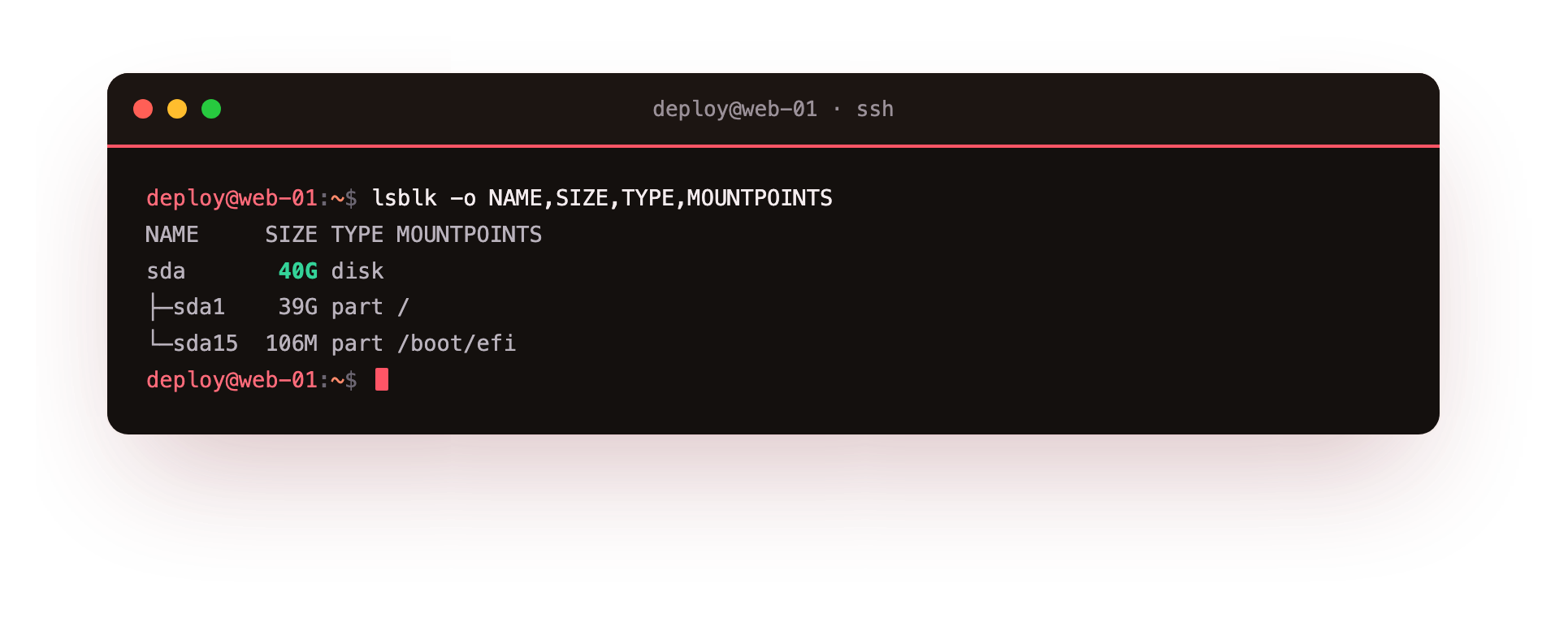
The -o flag takes a comma-separated list of column names. Here you asked for four:
NAMEis the device name, such assdafor the disk andsda1for its first partition.SIZEis the capacity of that device in human-readable units likeGfor gigabytes.TYPEtells you whether a row is a wholediskor apart, meaning a partition.MOUNTPOINTSis the directory where the partition is attached, if it is currently in use.
The output of the linux disks lsblk command is a tree. The disk sits at the top, and its partitions are listed underneath, indented, so you can see which partitions were cut from which disk. A partition with no entry in the MOUNTPOINTS column exists but is not attached anywhere, which means nothing is reading or writing it right now.
The root partition and the EFI partition
Two partitions matter on almost every server. The root partition, mounted at /, holds the operating system and all your files, and on this server it is /dev/sda1. The EFI system partition, usually mounted at /boot/efi, is a small partition that holds the files the firmware needs to start the machine. It is small on purpose, often only a few hundred megabytes, because it stores boot loaders and not day-to-day data. Seeing both in the tree confirms the server can boot and knows where its main filesystem lives.
How do you check free space with df?
Sizes from lsblk tell you how big each partition is, but not how full it is. For that you use df, which reports free and used space per filesystem. Point it at the root partition to see how much room the main filesystem has left:
df -h /
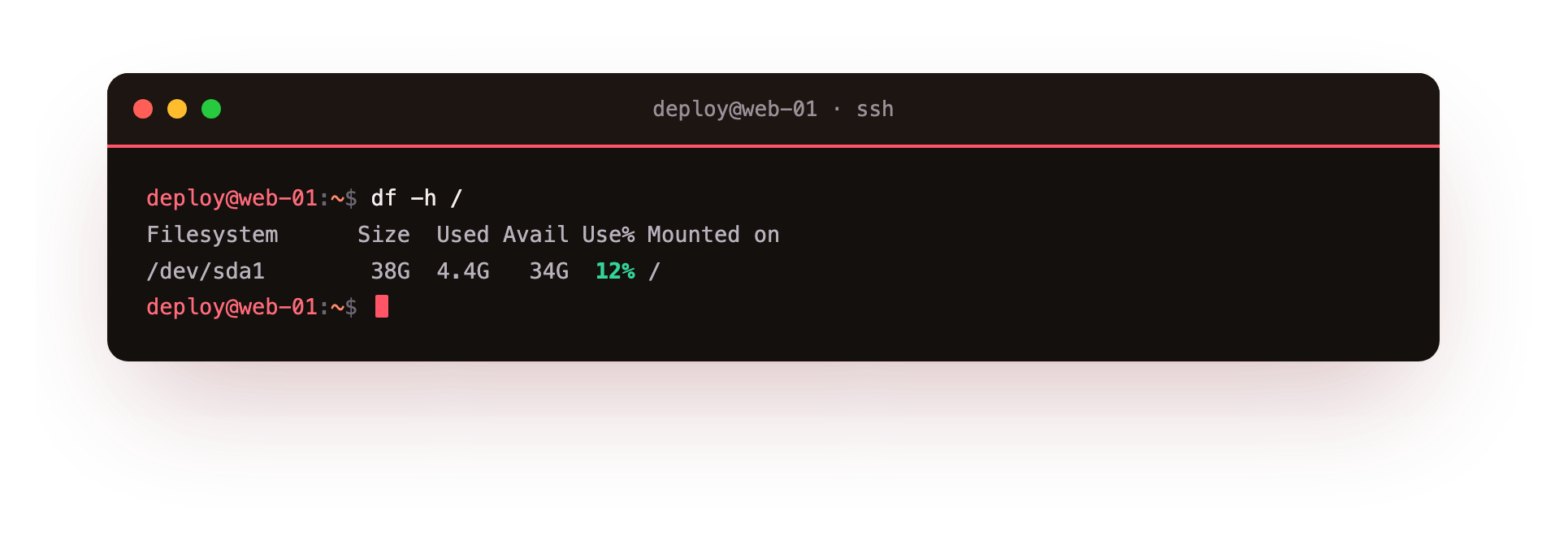
The -h flag means "human-readable", so sizes appear as G and M instead of raw block counts that are hard to read. The final argument / tells df to report on the filesystem mounted at the root directory, which is the root partition you saw above. The result shows the total size, the amount used, the amount available, and the percentage in use for that one filesystem. Watching that percentage is how you catch a disk before it fills completely.
A more detailed view with fdisk
When you need more than sizes and mount points, fdisk prints the low-level partition table. Because it reads the raw disk, it needs administrator rights, so you run it with sudo:
sudo fdisk -l
The -l flag means "list", so fdisk prints the layout and then exits without changing anything. It shows the disk model, the total sectors, the partition type such as GPT, and the exact start and end sector of each partition. This is the view to reach for when you are planning a change, because it shows the precise boundaries that lsblk summarises. Treat plain fdisk without -l with care, since its interactive mode can rewrite the partition table.
Between these three tools you can answer the common storage questions: what disks exist, how they are divided, and how full the main filesystem is.
Frequently asked questions
Why does a partition show no mount point in lsblk?
It exists but is not attached to any directory, so nothing can read or write it until you mount it. An empty MOUNTPOINTS column simply means that partition is idle right now.
What is the difference between lsblk and df?
lsblk shows how big each disk and partition is and how they are arranged. df shows how full the filesystem on a partition is. One reports capacity, the other reports free space.
Do I need sudo to run lsblk and df?
No. Both read information any user can see. Only fdisk -l needs sudo, because it reads the raw disk directly.
What is the small partition mounted at /boot/efi?
The EFI system partition, which holds the boot loader files the firmware needs to start the machine. It is small on purpose because it stores boot files, not day-to-day data.
Recap
- A physical disk such as
/dev/sdais split into partitions like/dev/sda1, each acting as an independent section. - The linux disks lsblk command with
-o NAME,SIZE,TYPE,MOUNTPOINTSprints a tree of disks, partitions, sizes, and mount points. - The root partition is mounted at
/, and the small EFI partition holds boot files. df -h /reports free space on the root filesystem in readable units.sudo fdisk -lshows the detailed partition table when you are planning changes.