Two tools: linux find and grep
On a real server you spend more time looking for things than creating them. The pairing of linux find and grep answers the two questions you ask most often: where is a file, and which file holds a string. find walks the directory tree and matches on file properties like name, type, and age. grep reads the contents of files and matches on the text inside them.
- find walks the tree and matches on file properties: -name for the name, -type for the kind, and -mtime for age in days.
- grep reads inside files; grep -rn searches a folder recursively and prints each hit as file:line:match.
- Quote a find name pattern, such as "*.log", so find does its own matching instead of the shell expanding it first.
- which prints the path of the binary the shell would run, so you can confirm what actually executes when you type a name.
Learn both and you can locate almost anything on a box without a graphical file manager. Everything here was run on Ubuntu 24.04, logged in as the user deploy inside ~/lf-demo.
Searching the tree with find
find takes a starting directory and a set of tests. The starting point is almost always ., which means the current directory and everything below it. Start by listing every log file under the project:
find . -name "*.log"
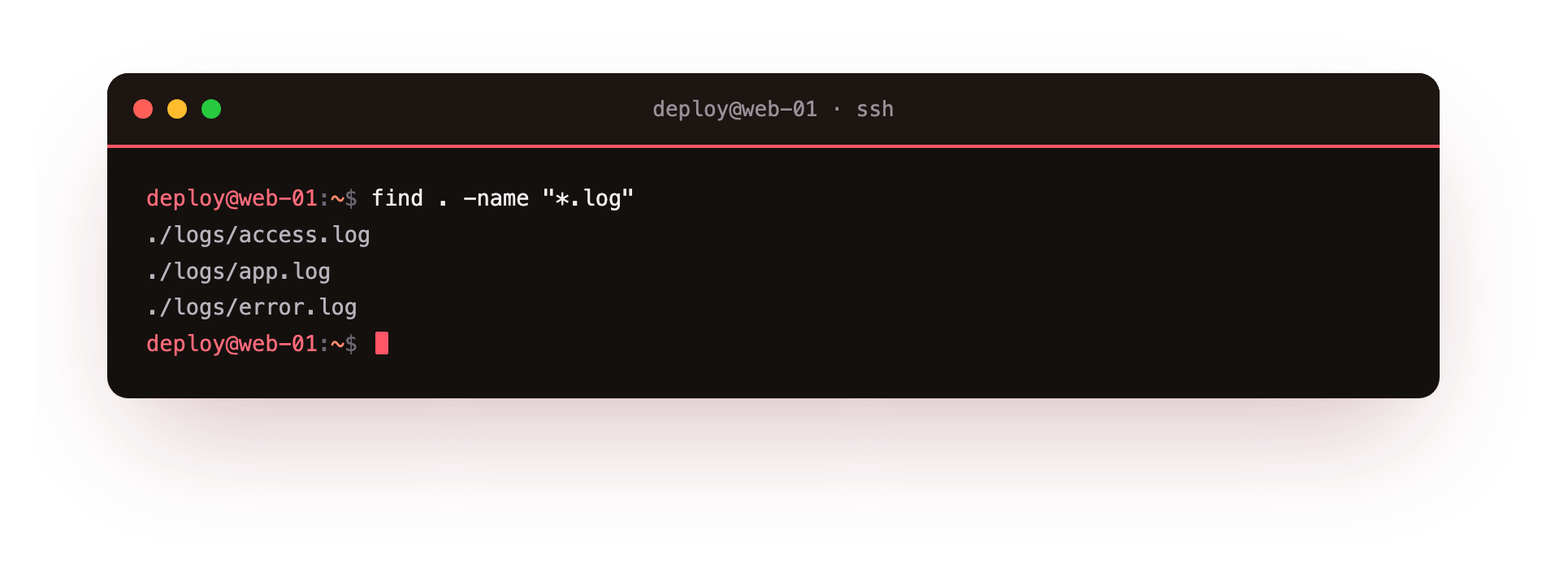
The screenshot shows find printing one path per line: ./logs/access.log, ./logs/app.log, and ./logs/error.log. The -name test matches against the file name only, not the full path, and the "*.log" pattern is quoted so the shell hands the asterisk to find instead of expanding it first. Paths are printed relative to the . you started from, so each one begins with ./.
The -name test on its own matches directories too if their names fit the pattern. When you want files only, add -type f. Search the source tree for Python files:
find . -name "*.py" -type f
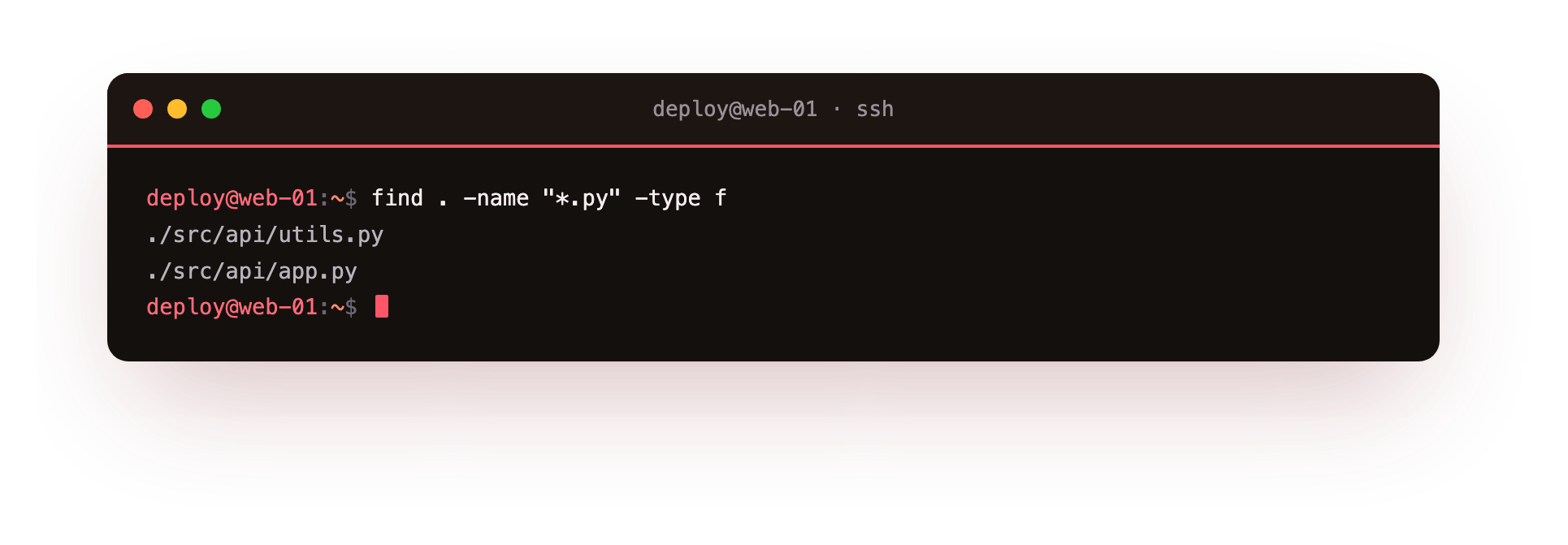
Here the screenshot shows the matches inside src/api and src/web. Two tests sit side by side, and find treats them as "and": a path is printed only when it matches the name pattern and is a regular file. The common -type values are:
| Flag | Matches |
|---|---|
-type f |
regular files |
-type d |
directories |
-type l |
symbolic links |
One more test earns its keep on servers: -mtime, which filters by modification age in days. find . -mtime -1 lists what changed in the last 24 hours, and find logs/ -name "*.log" -mtime +7 finds log files older than seven days, which is how you spot rotation candidates. The minus sign means "younger than" and the plus sign means "older than".
How do you search inside files with grep?
find never looks at content. When the question is "which file mentions this word", you reach for grep. Search the log directory for error lines:
grep -rn "ERROR" logs/
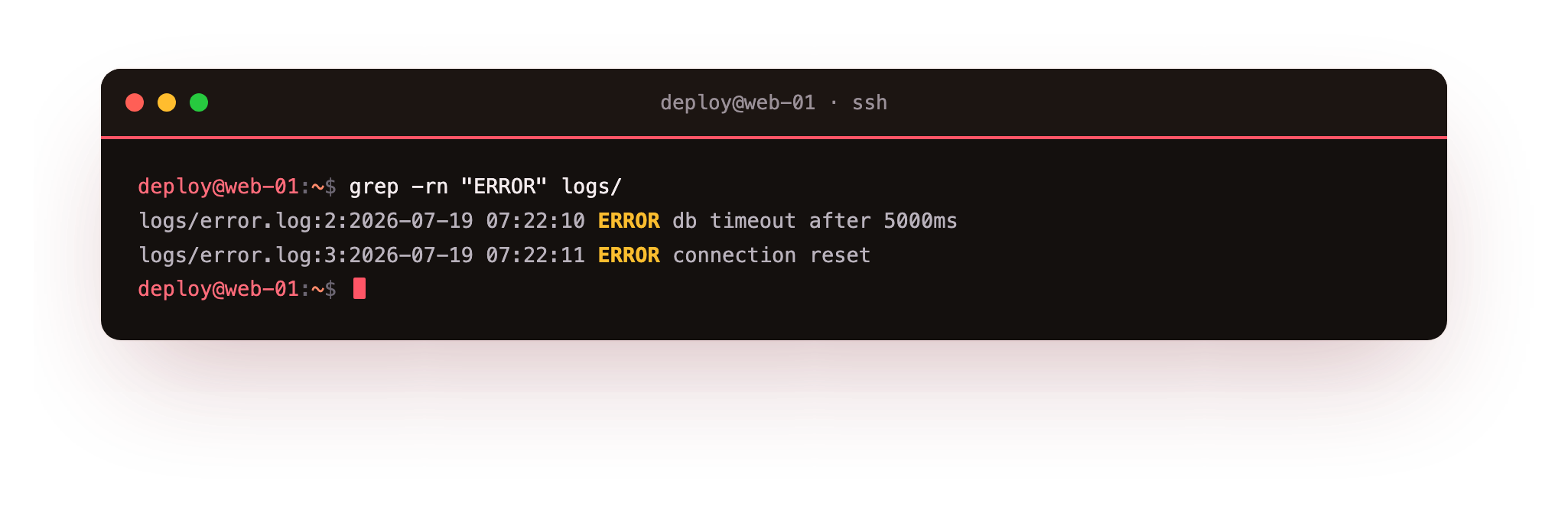
The screenshot shows several matching lines, each in the shape file:line:match. Read it left to right: the file path, a colon, the line number, another colon, then the full line that contained the text. The flags do the work:
-ris recursive, so grep descends intologs/and reads every file it finds rather than a single named file.-nprints the line number of each match, which is what turns a hit into something you can jump to in an editor.- add
-ifor a case-insensitive search, soERROR,Error, anderrorall match the same pattern.
That file:line:match format is the same one your editor and many other tools understand, so you can copy logs/app.log:42 straight into a "go to line" command. When you only want the names of files that contain a match and not the lines themselves, use -l.
find versus grep, and locating commands
The split is simple. Reach for find when you know something about the file itself: its name, its type, or how recently it changed. Reach for grep when you know a string that lives inside the file but not which file that is. That split is the heart of linux find and grep, and the two combine well too. grep -n "listen" $(find config/ -name "*.conf") searches only the config files that find selected, though for most day to day work grep -rn inside a folder is enough.
There is a third question: where does a command actually live. To find the binary that runs when you type a name, use which:
which python3
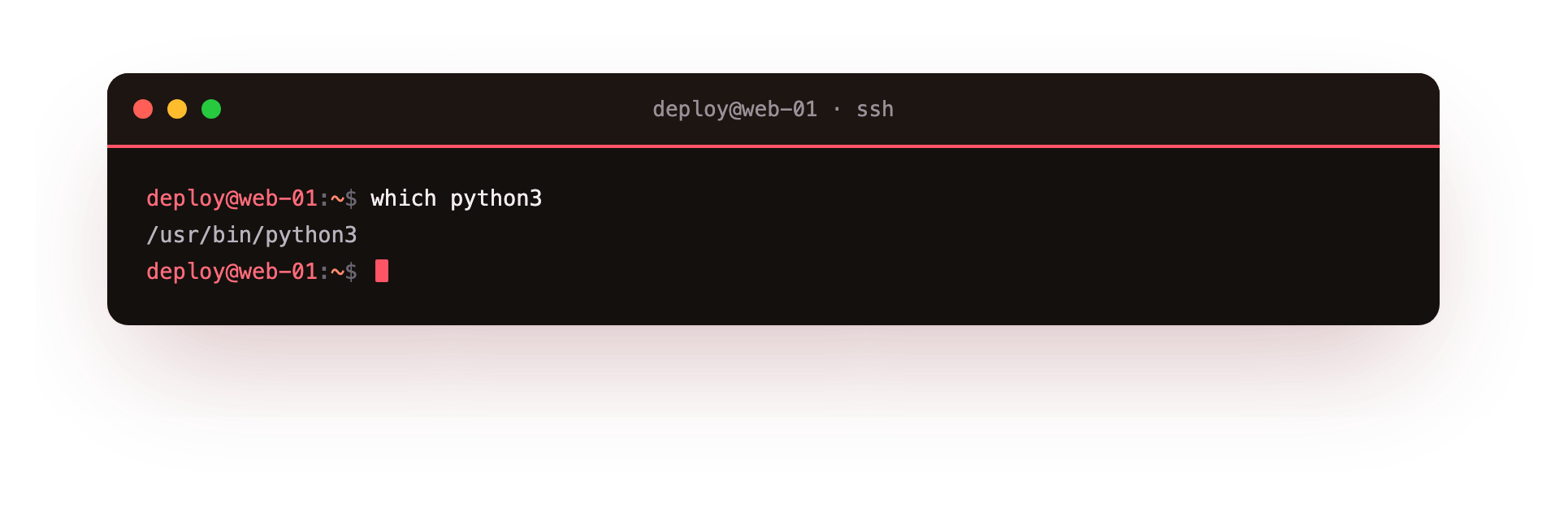
The screenshot shows a single path such as /usr/bin/python3. which walks the directories in your PATH and prints the first match, which is exactly the file the shell would execute. If the command is not on your PATH, which prints nothing and returns a non-zero exit status.
A related tool is locate, which answers "where is this file" from a prebuilt index instead of walking the disk, so it returns quickly but can be stale until the index refreshes, and it is often not installed by default. When you have it, locate nginx.conf beats a full-disk find /; when you do not, find is always there.
Troubleshooting find, grep and which
find prints "Permission denied" lines. find tried to descend into directories your account cannot read. The results it can reach are still valid; append 2>/dev/null to discard the error stream and keep only the matches.
find . -name *.log matches nothing or errors. The shell expanded the unquoted star before find ran. Quote the pattern, find . -name "*.log", so find receives the star and matches names itself.
grep says "binary file matches" with no visible lines. The file holds non-text bytes. Add -a to treat it as text, or -I to skip binary files entirely when searching a mixed tree.
which prints nothing for a command you can run. The name is a shell builtin, alias or function rather than a file on PATH, and which reports only binaries. Use type instead, which reports all three kinds.
Frequently asked questions
When should I use find and when should I use grep?
Use find when you know something about the file itself, such as its name, type or age. Use grep when you know a string that lives inside a file but not which file holds it. They also combine, since grep can search the files find selects.
How do I find files changed in the last day?
Use the -mtime test: find . -mtime -1 lists files modified in the last 24 hours. A minus means younger than, so -mtime +7 finds files older than seven days, which is how you spot old logs to rotate.
How do I make grep ignore case?
Add the -i flag. grep -rin "error" logs/ matches ERROR, Error and error alike, so you do not miss a line because of capitalisation. Combine it with -r for recursion and -n for line numbers.
What is the difference between which and locate?
which reports the path of a command on your PATH, so it answers which binary runs. locate searches a prebuilt index of filenames across the disk, which returns quickly but can be stale and is often not installed by default.
Recap
You now have the core skills of linux find and grep: searching by name, type, and age with find, searching inside files with grep -rn, reading the file:line:match output, and confirming where a command lives with which. On a live server these are how you trace an error back to its log line and check which build of a tool is on the path before you run it. The next chapter looks at the environment itself: PATH, environment variables, and why "command not found" happens even when the binary is right there.