Typing less with bash aliases and dotfiles
After a while you notice you type the same long commands over and over. bash aliases and dotfiles are how you stop doing that: an alias turns a long command into a short name, and a dotfile saves that shortcut so it comes back every time you log in. The payoff is real on a server you visit many times a day, because the setup you build once follows you into every future session. This chapter was run on Ubuntu 24.04 as the user deploy inside ~/lf-demo.
- An alias turns a long command into a short name, so alias ll='ls -alF' makes ll expand to that listing.
- An alias defined at the prompt lasts only for the current shell; a dotfile saves it for every future login.
- Keep aliases in ~/.bash_aliases, which the default ~/.bashrc reads, so shortcuts stay separate from shell options.
- Append with >> so you add to a dotfile without erasing it, then run source ~/.bashrc to load the change now.
Prerequisites
- An Ubuntu 24.04 LTS server you log into as your own user, with write access to your home directory.
- Comfort at the shell prompt from the earlier chapters in this series.
- Familiarity with the >> append operator from the redirection and pipes chapter, since you use it to add lines to a dotfile.
Defining an alias at the prompt
An alias is a name that expands to a longer command before the shell runs it. Define one for a detailed directory listing and use it right away:
alias ll='ls -alF'
ll config
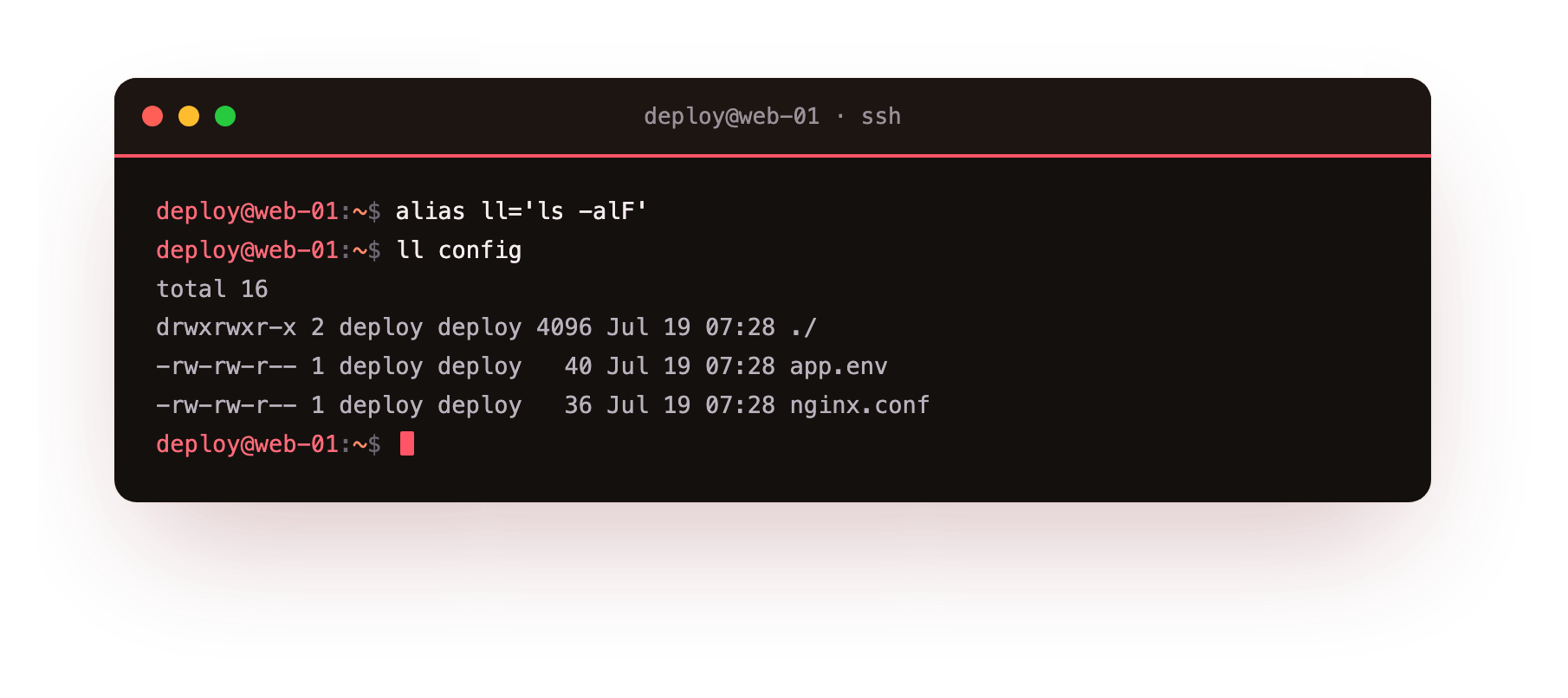
The screenshot shows the listing of the config folder produced by ll, which is now standing in for ls -alF. Read the definition carefully. The name ll is on the left of the =, and the command it expands to, ls -alF, is on the right, wrapped in single quotes so the whole thing counts as one value.
The flags you folded in are worth knowing: -a shows hidden entries whose names start with a dot, -l gives the long format with permissions, owner, size, and date, and -F appends a marker like / after directories so you can tell them apart at a glance. When you run ll config, the shell rewrites it to ls -alF config and runs that, so nginx.conf and app.env show up with their full details.
The catch is lifetime. An alias defined this way lives only in the current shell. Close the session, open a new one, and ll is gone, because nothing wrote it down. That is the problem dotfiles solve.
Where should aliases live?
A dotfile is a configuration file whose name starts with a dot, which is why ls -a was needed to see it. Two matter here:
~/.bashrcruns every time an interactive shell starts. It is the main place your prompt, options, and shortcuts get set up.~/.bash_aliasesis a separate file meant just for aliases. On Ubuntu the default~/.bashrcalready contains a few lines that read~/.bash_aliasesif it exists, so anything you put there loads automatically.
Keeping aliases in ~/.bash_aliases rather than mixed into ~/.bashrc keeps the two concerns apart: shell behaviour in one file, your personal shortcuts in the other. That pairing is what bash aliases and dotfiles are for. Append the same alias to that file and confirm it landed:
echo "alias ll='ls -alF'" >> ~/.bash_aliases
tail -2 ~/.bash_aliases
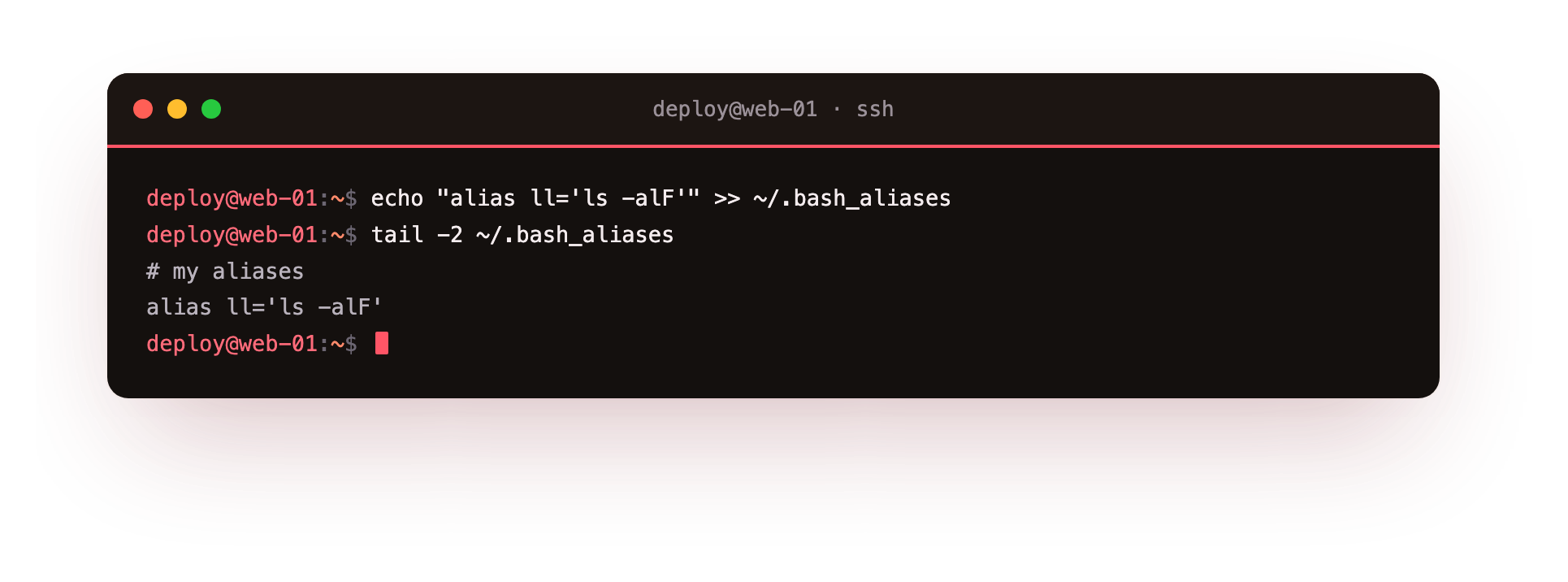
The screenshot shows the last two lines of ~/.bash_aliases, with your alias ll='ls -alF' line at the bottom. The >> operator is doing the important part: it appends its text to the file and leaves the existing contents alone. A single > would overwrite the whole file, so the doubled form is the one you want when adding to a config you care about. tail -2 then prints just the final two lines, which is a quick way to check that the write went where you expected without opening an editor.
Because the alias is now in a dotfile, it is part of your persistent setup. This is the general principle of dotfiles: they are plain text records of your configuration, so your environment is reproducible. Many people keep their dotfiles in a git repository and copy them onto each new server, so a fresh box feels familiar within a minute.
Reloading, functions, and history
Writing to ~/.bash_aliases does not change the shell you are already in, because startup files are read only at startup. Your current session still knows nothing about the new line until you either open a new shell or reread the file in place:
source ~/.bashrc
source runs the named file in your current shell rather than in a separate child process, so every export, alias, and setting inside it takes effect right now. Since the default ~/.bashrc pulls in ~/.bash_aliases, sourcing ~/.bashrc is enough to pick up the alias you just added.
Two related tools round this out. When a shortcut needs logic or arguments in more than one place, an alias is too blunt and you write a shell function instead. For example:
mkcd() { mkdir -p "$1" && cd "$1"; }
That function makes a directory and moves into it in one step, using $1 for the first argument, and it belongs in a dotfile just like an alias. The other tool is history. The shell records the commands you run, so typing history prints the numbered list while pressing the up arrow walks back through it. Searching your history with history | grep grep is a quick way to recover a long command you ran last week instead of retyping it.
A short table of what goes where:
| File or tool | Purpose |
|---|---|
~/.bashrc |
shell options and prompt, loaded per interactive shell |
~/.bash_aliases |
your aliases, read in by ~/.bashrc |
source |
reload a dotfile into the running shell |
history |
recall commands you have already run |
Troubleshooting aliases and dotfiles
A new alias is not available in your current shell. Startup files load only at startup, so the running shell has not read your change. Run source ~/.bashrc, or open a new session, to pick up the alias you just added.
You used a single > and wiped your dotfile. A single > overwrites the whole file, replacing everything with one line. Use >> to append. Restore from a backup if you keep one, which is a strong reason to track dotfiles in git.
The alias works when you type it but not inside a script. Non-interactive shells do not read ~/.bashrc and usually ignore aliases. Put the logic in a shell function, or call the full command in your scripts rather than relying on an alias.
~/.bash_aliases is ignored on login. An older ~/.bashrc may not include the block that sources it. Add the if test that reads ~/.bash_aliases to ~/.bashrc, or keep the aliases directly in ~/.bashrc.
Frequently asked questions
Why does my alias disappear when I open a new terminal?
An alias defined at the prompt lives only in that shell. To make it stick, write it into a dotfile such as ~/.bash_aliases, which is read every time a new interactive shell starts.
What is the difference between ~/.bashrc and ~/.bash_aliases?
~/.bashrc sets up your shell each interactive session, including the prompt and options. ~/.bash_aliases is a separate file just for aliases that the default ~/.bashrc reads in. Keeping them apart separates shell behaviour from your personal shortcuts.
When should I write a function instead of an alias?
Use a function when the shortcut needs arguments in more than one place, or any logic. An alias only prefixes text, so mkcd() { mkdir -p "$1" && cd "$1"; } needs a function because it uses its argument twice.
How do I apply dotfile changes without logging out?
Run source ~/.bashrc. source reads the file into your current shell rather than a child process, so every alias, export and setting inside it takes effect immediately.
Recap
You can now define bash aliases and dotfiles that persist, tell ~/.bashrc from ~/.bash_aliases, append safely with >>, reload with source, and reach for a shell function when an alias is not enough. On a server this is the difference between fighting the same long commands every session and having your tools ready the moment you log in. The next step beyond single shortcuts is joining commands into scripts, where the shell stops being only a place to type and becomes a place to automate the tasks you repeat.