The shell is a program that runs your commands
When you SSH into a server, you land at a blinking cursor waiting for text. That cursor belongs to the shell, and the linux command line basics you are about to learn all pass through it. The shell is a program like any other.
- The shell reads a line of text, works out which program you meant, runs it, prints the result, and waits for the next line.
- On Ubuntu 24.04 the default shell is Bash, and you reach it over SSH as the user deploy.
- Read the prompt first: it names your user, the host, your location, and whether the trailing symbol is $ for a normal user or # for root.
- whoami, pwd, uname and id only read and report, so they orient you on any server without changing a thing.
Its job is narrow and useful: read a line of text, work out which program you meant, run that program with whatever you handed it, print what comes back, and wait for the next line. On Ubuntu 24.04 the default shell is Bash, short for the Bourne Again Shell, and everything in this chapter runs inside it.
You do not talk to the kernel or the hardware directly. You talk to the shell, and it relays your instructions to the operating system. That layer is what makes a server manageable over a plain text connection: no mouse, no windows, just lines in and lines out. Once you are comfortable reading and writing those lines, a machine on the other side of the country feels as close as the one on your desk.
For these chapters you are signed in as the user deploy, working inside a small project directory called ~/lf-demo. It holds folders for source code, logs, config, docs, and backups. You will keep returning to it as the examples build up.
Prerequisites
- A running Ubuntu 24.04 LTS server that you can log into over SSH.
- A user account to log in as. The examples sign in as deploy, a normal non-root user.
- An SSH client on your own machine: the ssh command on macOS or Linux, or a terminal app on Windows.
Reading the prompt before you type
Before you run anything, read the line the shell already printed. It is called the prompt, and it is packed with information. A typical one looks like this:
deploy@web-01:~$
Break it into pieces:
deployis the user you are logged in as.web-01is the hostname of the machine, so you know which server you are on.~is your current location, where~is shorthand for your home directory.$marks the end of the prompt and tells you that you are a normal user, not the root administrator, who would see a#instead.
That last symbol matters. The gap between $ and # is the gap between a command that touches only your own files and one that can affect the whole system. Reading the prompt is a habit worth building on day one.
A command is a program plus options and arguments
Every line you type follows the same shape. First comes the command, which is the name of a program to run. After it you can add options, also called flags, which are usually a dash followed by one or more letters and change how the program behaves. After those you can add arguments, which are the things the program acts on, such as a filename or a path.
Take ls -lh logs. Here ls is the program, -lh is two options bundled together, and logs is the argument telling it which directory to list. Learn to see that structure in any line and the linux command line basics stop feeling like memorised spells and start reading like short sentences.
Linux command line basics: four orientation commands
When you arrive on a server, the first thing to do is nothing risky. You find out where you are standing before you move. These three commands answer the most basic questions: who am I, where am I, and what am I running on.
whoami
pwd
uname -srm
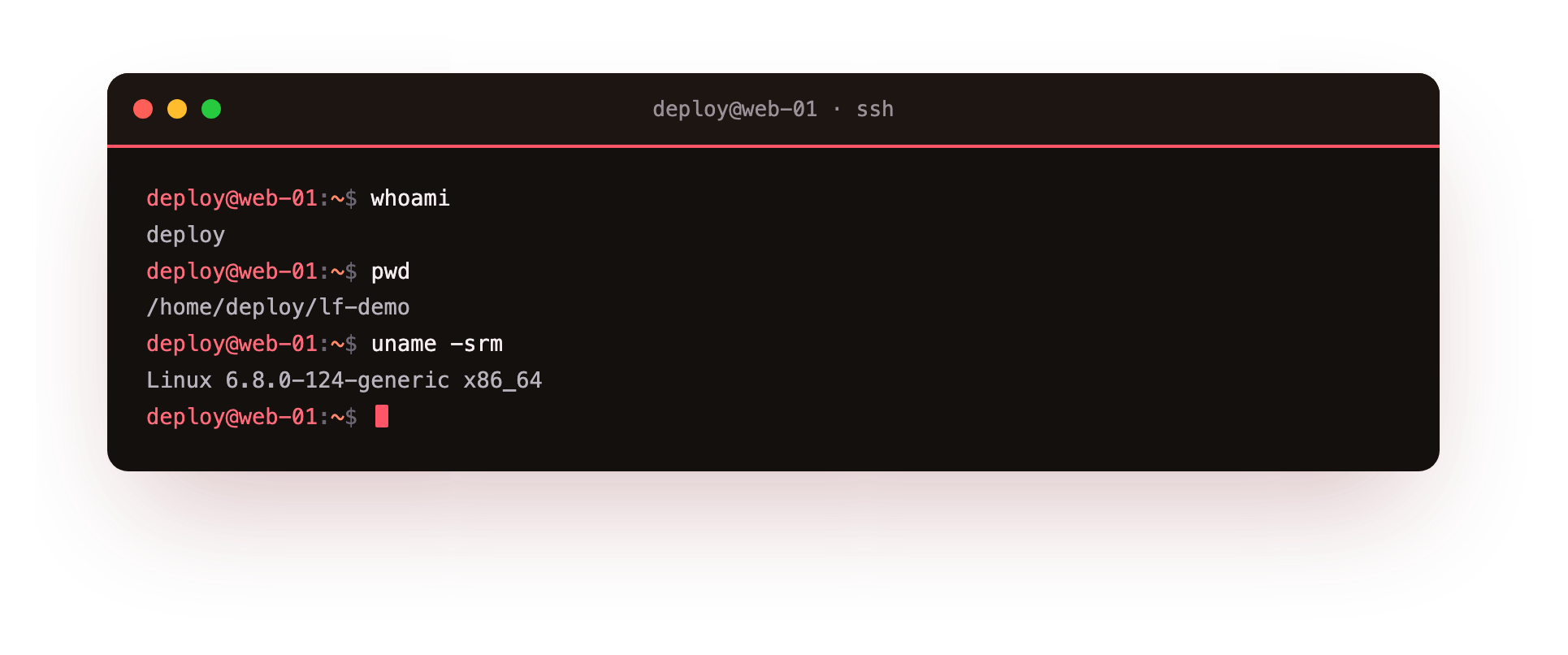
The screenshot shows three lines of output. whoami prints the username the shell is running as, which should be deploy. pwd, short for print working directory, prints the full path of the folder you are currently in, here the lf-demo project under your home directory. uname prints details about the operating system: the -s flag gives the kernel name (Linux), -r gives the kernel release version, and -m gives the machine hardware, such as x86_64. Together they confirm the account, the location, and the kernel in three quick lines.
There is one more question worth answering before you touch anything: what are you allowed to do?
id
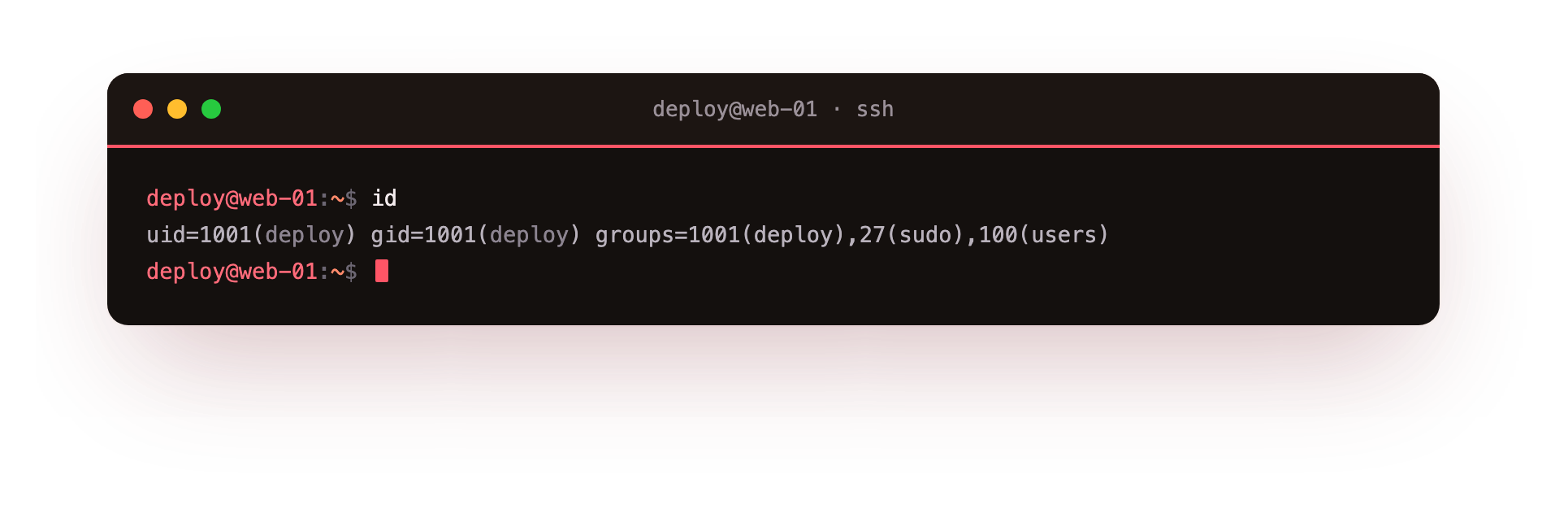
The screenshot shows a single line describing your identity to the system. It lists your user id number and name as uid, your primary group as gid, and every group you belong to under groups. Those groups decide which files you can read and write. If deploy is in a group like sudo, you have a path to administrator rights when you need them. Checking id tells you your reach before you test it against a real file.
Why check first on a server?
Running whoami, pwd, uname, and id costs nothing and changes nothing, which is the point. On your own laptop a wrong command is an annoyance. On a shared server it can take down a service other people depend on. Confirming the account, the directory, the kernel, and your group membership takes a few seconds and rules out the most common way people cause damage: acting on the wrong machine, or in the wrong place, without realising it.
| Command | Question it answers |
|---|---|
whoami |
Which user am I? |
pwd |
Which directory am I in? |
uname -srm |
Which kernel and architecture is this? |
id |
Which groups and permissions do I have? |
Frequently asked questions
What is the difference between the $ and # at the end of the prompt?
A $ means you are a normal user whose actions mostly touch your own files. A # means you are root, the administrator, so a wrong command can affect the whole system. That single symbol tells you how much a mistake could cost.
Is the shell the same thing as the terminal?
No. The terminal is the window or connection that shows text and takes your keystrokes, while the shell is the program inside it that interprets your commands. Over SSH the terminal is your local client and the shell, Bash here, runs on the server.
Do whoami, pwd, uname and id change anything on the server?
No. All four only read and report information, so they are safe to run on any machine at any time. Running them first is how you confirm the account, location and kernel before you touch a single file.
What do the letters in uname -srm mean?
Each letter asks for one field: -s prints the kernel name, which is Linux, -r the kernel release version, and -m the machine hardware such as x86_64. Together they give a one-line summary of what you are running on.
Recap
You now know what the shell is, how to read every part of the prompt, and how a command breaks down into a program, its options, and its arguments. You have four read-only commands that orient you on any server before you change a thing.
These are the linux command line basics that everything else builds on, and infrastructure engineers run them out of reflex every time they log into an unfamiliar box. In the next chapter you will start moving through the filesystem tree with cd and ls, and learn how Linux organises every file under a single root.