Linux filesystem navigation starts at one root
Windows scatters files across drive letters like C: and D:. Linux does not. Linux filesystem navigation starts from one fact: there is a single tree, and it begins at the root, written as a forward slash /. Every disk, folder, and file hangs somewhere off that root. A USB stick or a second drive does not become a new letter; it gets mounted onto a folder inside the same tree. Accept that one idea and the layout stops being confusing.
- Linux has one directory tree that begins at the root, /, and every disk mounts into it rather than getting its own drive letter.
- An absolute path starts from / and always means the same place; a relative path is read from wherever you are standing.
- The shorthands . for here, .. for the parent, ~ for home and / for the root appear in almost every command.
- ls -la lists every entry with its permissions, owner, size and time, and ls -lh rewrites sizes into K, M and G.
Your home directory as the deploy user is /home/deploy, and your project sits inside it at /home/deploy/lf-demo. That project holds the folders you will use all series: src with api and web inside it, logs, config, docs, backups, and a README.md at the top.
What are absolute and relative paths?
There are two ways to name a location, and getting the difference right early matters because linux filesystem navigation depends on it.
An absolute path starts from the root and spells out every step, so it always means the same place. /home/deploy/lf-demo/logs points to the same folder whether you run it from home or from deep inside another directory.
A relative path starts from wherever you are standing right now. If you are already inside lf-demo, then logs and config/nginx.conf are relative paths that only make sense from your current position. Relative paths are shorter to type; absolute paths are safer when you want to be certain. Knowing which one you are typing prevents a lot of mistakes.
Four shortcuts you will use constantly
Linux gives you shorthand symbols for common places. They appear in nearly every command you will read or write:
.means the current directory...means the parent directory, one level up.~means your home directory,/home/deploy, from anywhere./on its own means the root of the whole tree.
You can chain them: ../.. climbs two levels, and ~/lf-demo/logs jumps straight to your logs folder from anywhere on the system.
Listing a directory in full
The workhorse of linux filesystem navigation is ls, which lists what a directory holds. On its own it prints bare names. Add -l for a long, detailed listing and -a to include hidden files, whose names begin with a dot:
ls -la
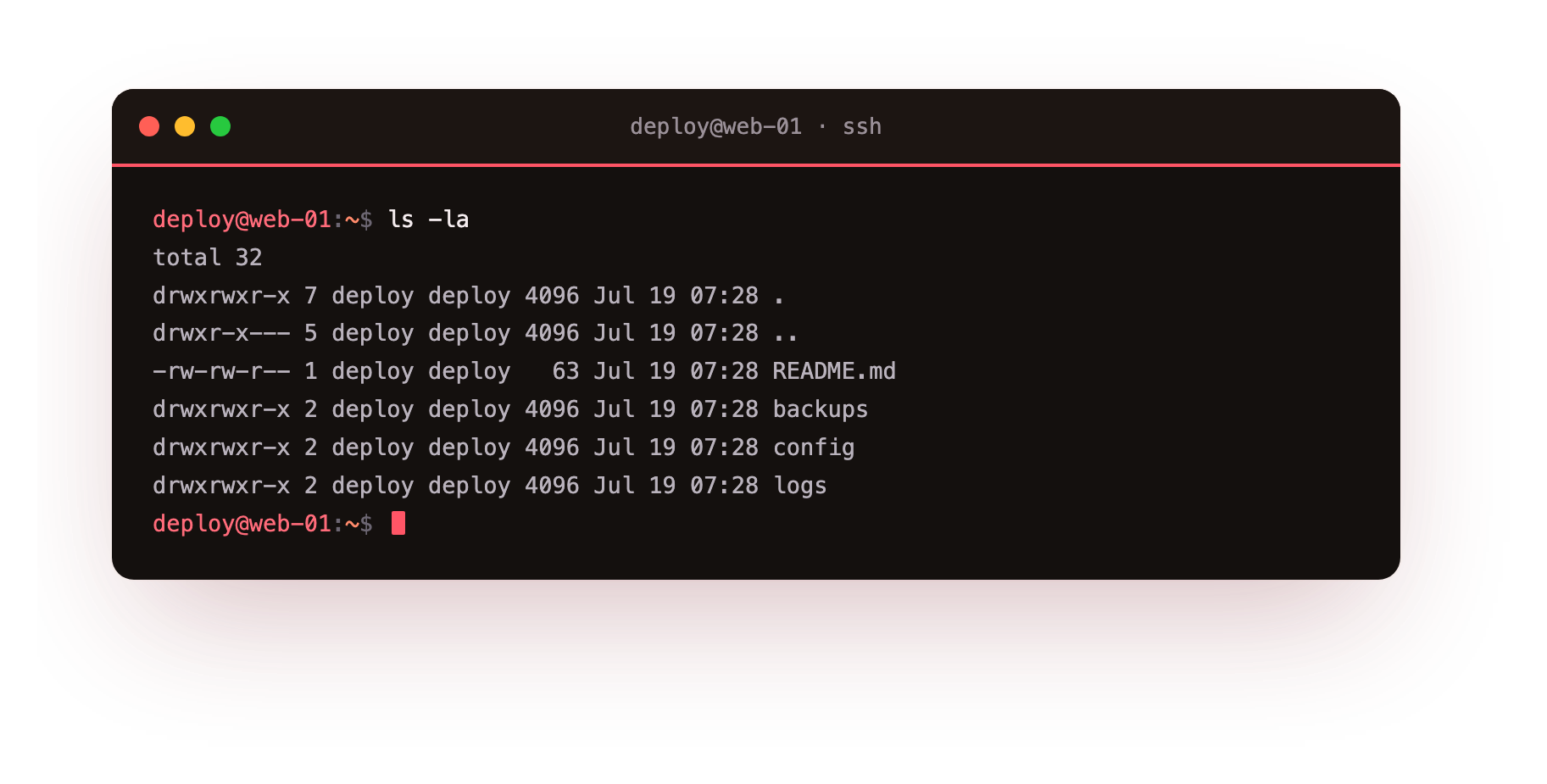
The screenshot shows one row per item, each with several columns. Read them left to right:
- The first block, such as
drwxr-xr-x, is the type and permissions. The first character is the type:dfor a directory,-for a regular file,lfor a link. The next nine characters are permissions in three groups of three, for the owner, the group, and everyone else. - The second column counts the links to that item.
- The third is the owner, here
deploy. - The fourth is the group the item belongs to.
- The fifth is the size in bytes.
- The sixth is the date and time it was last changed.
- The last is the name. Entries like
.,.., andapp.envshow only because you added-a.
That one line per file is the densest useful view on the system, and you will read it constantly.
Making sizes readable
Sizes in plain bytes are hard to judge at a glance. Is 18443 big? The -h flag prints human-readable sizes with units like K, M, and G instead. Point it at the logs folder:
ls -lh logs
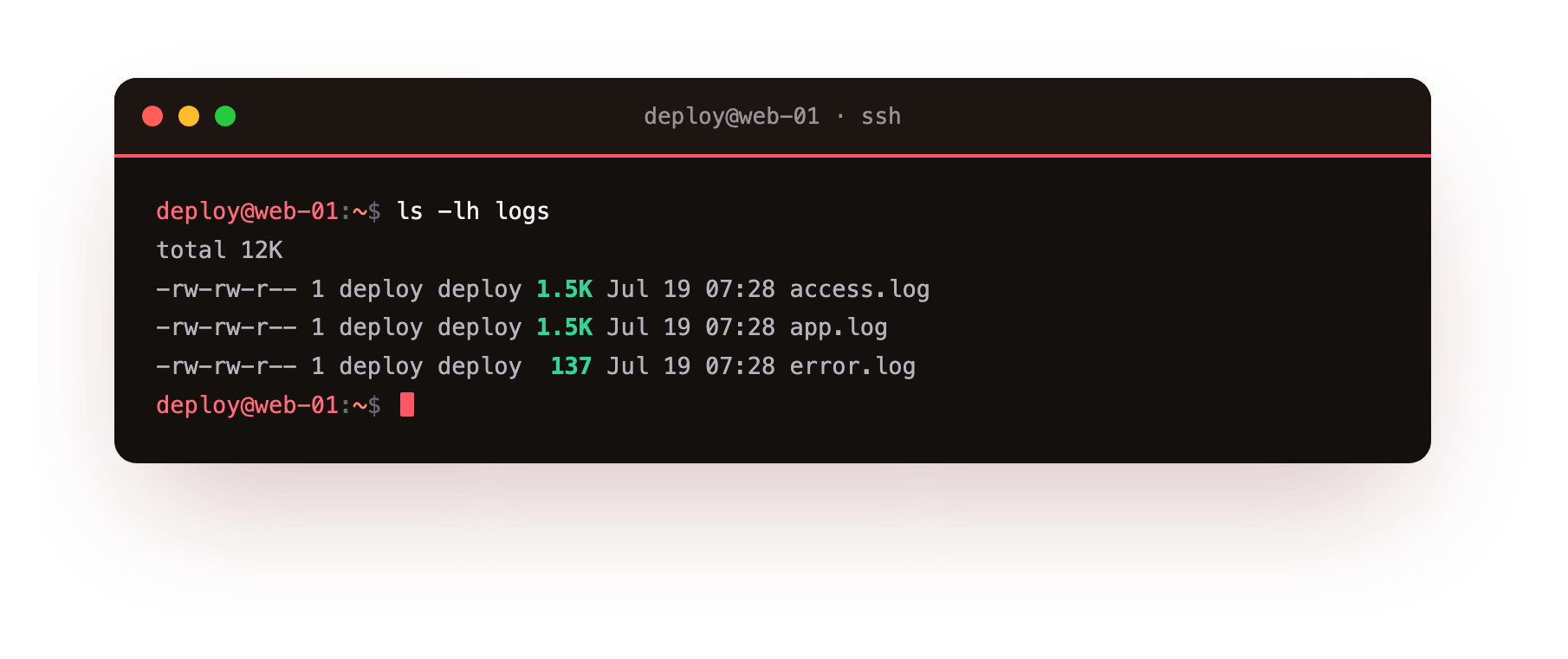
The screenshot shows the same long format, but the size column now reads something like 18K or 2.4M rather than a raw byte count. Here -l still gives the long listing and -h rewrites the sizes into readable units. For logs, where files such as access.log and app.log grow over time, seeing 2.4M at a glance beats counting the digits in a seven-figure number.
Moving around with cd
Listing shows what is there; cd, short for change directory, moves you into it. No screenshot is attached here, but the pattern is simple:
cd logs
pwd
cd ..
cd ~
cd logs steps into the logs folder by relative path. pwd confirms where you landed. cd .. steps back up to the parent. cd ~ returns you home from anywhere in the tree. Move with cd, confirm with pwd, and you can walk the whole tree without getting lost. This behaves the same way on Ubuntu 24.04 as on any other modern Linux.
Troubleshooting cd and ls
cd or ls reports "No such file or directory." The name is misspelled, or the case is wrong: Linux treats Logs and logs as different names. Run ls first to see the exact spelling, then move into it.
cd fails with "Not a directory." You pointed cd at a file rather than a folder. cd only moves into directories, so check with ls -l: an entry that starts with d is a directory, one that starts with - is a file.
"Permission denied" when entering a folder. You lack execute permission on that directory, which is what lets you step into it. Look at the permission block in ls -la; you may need to belong to the owning group or use an account that has access.
A bare ls looks empty but the folder is not. The entries are hidden dotfiles whose names begin with a dot. Add -a, as in ls -la, to reveal them.
Frequently asked questions
What is the difference between an absolute and a relative path?
An absolute path begins with / and spells out every step from the root, so it means the same folder from anywhere. A relative path is measured from your current directory, so logs only works while you are in the folder that contains it.
What does the ~ symbol mean?
The tilde is shorthand for your home directory, /home/deploy for the deploy user. You can use it from anywhere, so ~/lf-demo/logs jumps straight to that folder no matter where you currently are.
How do I get back to my home directory quickly?
Run cd with no arguments, or cd ~. Both return you home from any point in the tree, which is a fast way to reset after you have wandered deep into subfolders.
Why does ls -lh show sizes like 2.4M instead of a number?
The -h flag prints human-readable sizes with K, M and G units instead of raw bytes. Seeing 2.4M at a glance is easier to judge than counting the digits of a seven-figure byte count.
Recap
You now know that Linux keeps everything under one root, how absolute and relative paths differ, and what ., .., ~, and / stand for. You can list a directory in full with ls -la, read every column it prints, and switch to human-readable sizes with ls -lh.
This is the core of linux filesystem navigation, and on a real server it is how you find a config file, check whether a log is growing, or confirm your location before acting. In the next chapter you will change the tree yourself: creating folders, copying and moving files, and deleting them safely.