How to view files linux command line style, no GUI needed
To view files on the Linux command line, you use a small set of read-only commands: cat, less, head, tail, and wc. They let you read a config, page through a log, or watch one grow, all from the terminal without a graphical editor.
- cat prints a whole file at once and suits short files; a long file scrolls past faster than you can read it.
- less pages through a file one screen at a time, searches with /word, and quits with q, without loading it all into memory.
- head and tail read the first or last lines, ten by default, and tail -f follows a log live as new lines arrive.
- wc -l counts the lines in a file, answering how many requests or entries it holds without opening it.
You are SSH'd into an Ubuntu 24.04 server as the user deploy, sitting inside ~/lf-demo. A request failed, a service will not start, and the answer is almost always written down somewhere in a file.
Learning to view files linux command line style means you can read configuration, check logs, and confirm what is on disk without a graphical editor and without copying the file to your laptop first. This chapter covers the small set of commands you will reach for every day: cat, less, head, tail, and wc, plus a note on the two editors you use when you actually need to change a file.
cat prints the whole file at once
The plainest way to view files linux command line style is cat, which reads a file and writes its full contents to your terminal.
cat config/app.env
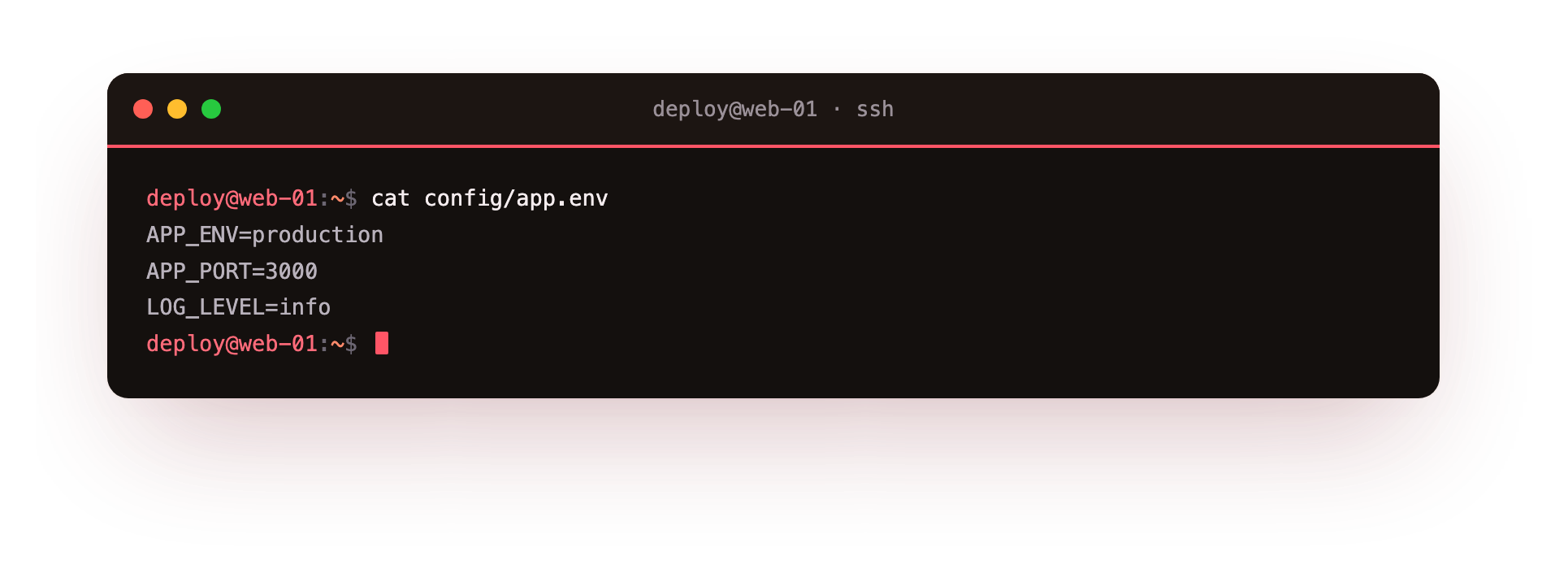
On the screenshot you see the entire app.env file printed straight into the terminal, top to bottom, with your shell prompt returning underneath. cat is short for concatenate, and it does exactly that: it sends the bytes of the file to standard output and stops. This is the right tool for a short file. app.env holds a handful of key and value pairs, so the whole thing fits on one screen and you can read the database URL or the port in one glance.
The catch is size. If you cat a two hundred thousand line access log, the whole thing scrolls past faster than you can read, and you are left staring at the last page with no way to scroll back. For anything longer than a screen, you want a pager.
less lets you scroll and search
less is a pager: it shows one screenful at a time and waits for you. You move with the arrow keys or Page Up and Page Down, you search by typing / followed by a word and Enter, and you quit by pressing q. It never loads the entire file into memory, so it opens a large log at once.
less logs/access.log
A few keys are worth memorising:
qquits and returns you to the prompt./errorsearches forward for the worderror; pressnfor the next match.Gjumps to the end of the file,gjumps back to the top.Shift+Ffollows the file as it grows, similar totail -fbelow.
Because less does not dump everything at once, it is the safe default when you are unsure how big a file is.
head and tail read the ends
Often you do not want the middle of a file, only the start or the finish. head prints the first lines, tail prints the last lines, and both default to ten lines unless you pass a number with -n or the shorthand -3.
head -3 logs/app.log
tail -2 logs/error.log
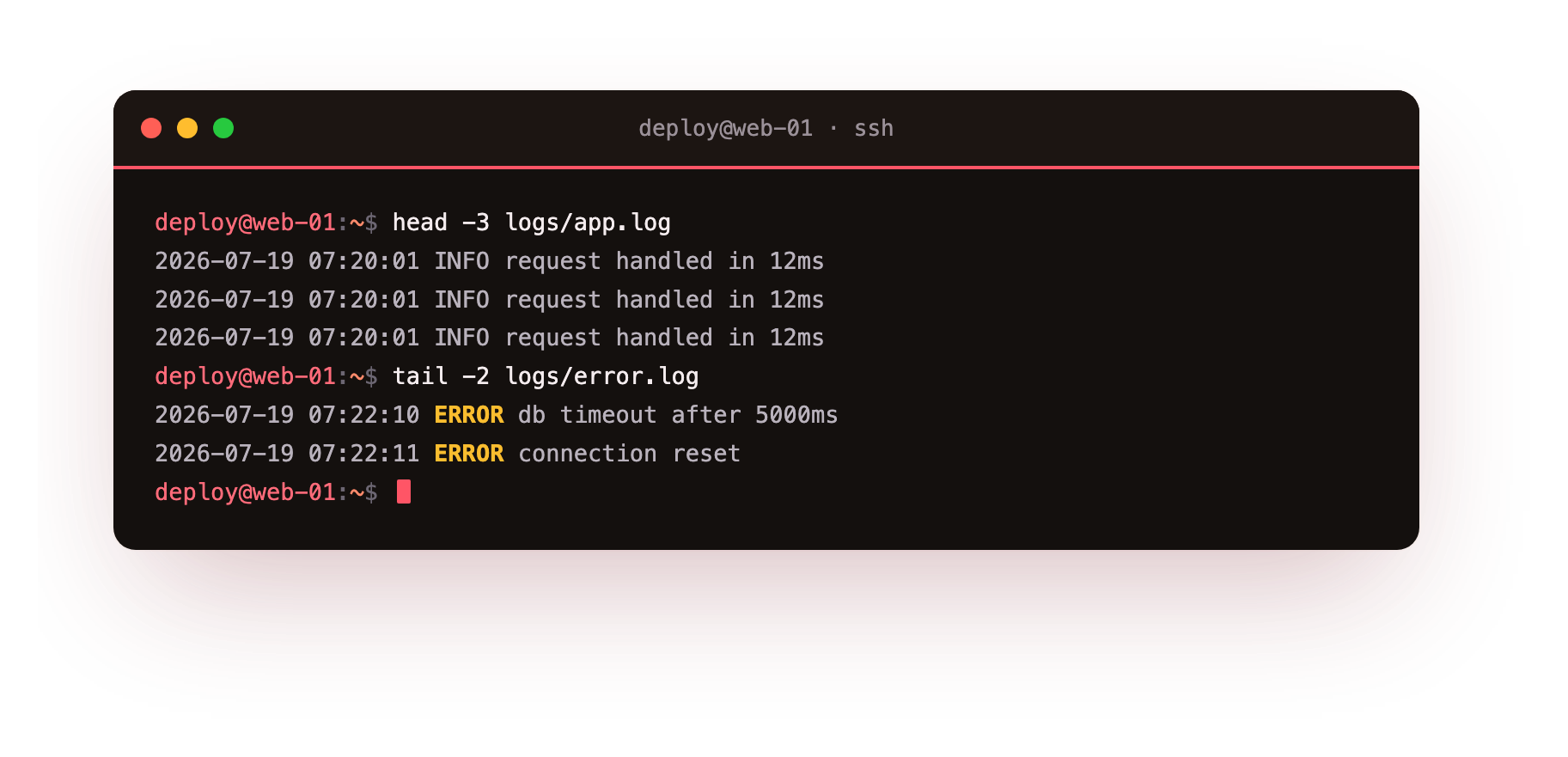
The screenshot shows two blocks of output. The first three lines of app.log appear first, which is useful when a log starts with a header or a startup banner you want to confirm. Below that, the last two lines of error.log appear, which is usually where the newest problem is, because logs append new events at the bottom. Reading the tail of an error log is often the quickest way to see what just broke.
tail -f watches a log while the incident is live
There is one form of tail that matters more than any other during an outage:
tail -f logs/app.log
The -f flag means follow. Instead of printing the last lines and exiting, tail -f stays open and prints each new line the moment it is written to the file. When a problem is happening right now, you run tail -f on the application log, then reproduce the request in another window, and you watch the error appear as it happens. Press Ctrl+C to stop following. This turns a static file into a live feed, which is why it is the command you leave running on one side of the screen during any incident.
wc counts lines, words, and bytes
wc stands for word count, but the flag you use most is -l for lines.
wc -l logs/access.log
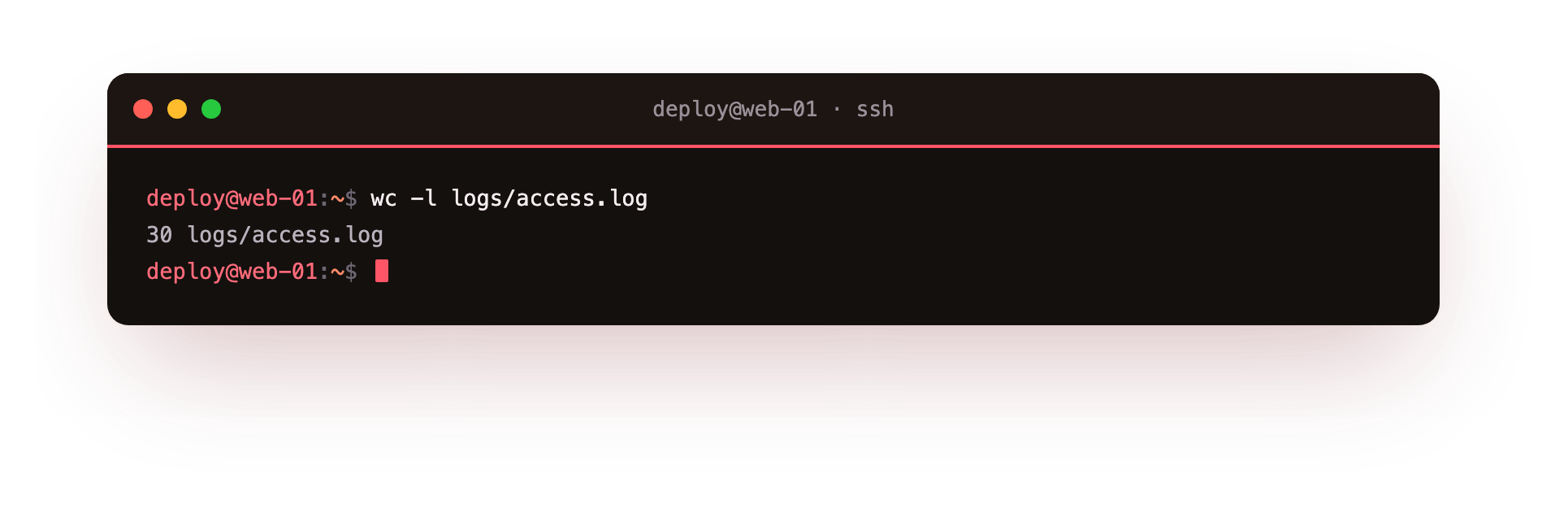
The screenshot shows a single number followed by the filename: the count of lines in access.log. This answers questions like how many requests were logged, or how many entries a file holds, without opening it. wc on its own reports three numbers, lines then words then bytes, and -l, -w, and -c ask for each individually.
How do you edit a file with nano or vim?
Everything above is read only. When you need to edit config/nginx.conf or fix a value in app.env, you open an editor:
| Editor | Start it with | Save and exit |
|---|---|---|
| nano | nano config/app.env |
Ctrl+O to write, Ctrl+X to quit |
| vim | vim config/app.env |
:wq then Enter |
nano shows its shortcuts along the bottom of the screen and is the gentler choice when you are new. vim is quicker once your fingers learn it and is installed on almost every server, so it is worth knowing enough to save and quit. Pick one, but recognise both, because you will land on servers that only have the other.
Troubleshooting file viewing
cat floods the screen and you cannot scroll back. You ran cat on a file larger than one screen. Open it with less instead, which pages through the file and lets you scroll and search, then press q to quit.
"Permission denied" when reading a file. The file is owned by another user or by root and your account cannot read it. Check ls -l, and read it with sudo, for example sudo less /var/log/syslog, only when you genuinely need to.
tail -f seems frozen and prints nothing. That is expected when the log is idle, because tail -f prints only new lines as they are written. Reproduce the request in another window and the lines appear; press Ctrl+C to stop following.
less shows a file full of odd symbols. You opened a binary file rather than text. Quit with q; cat and less are for text such as configs and logs, not compiled binaries or archives.
Frequently asked questions
When should I use less instead of cat?
Use cat for a short file that fits on one screen, and less for anything longer or of unknown size. less pages through the file and lets you scroll and search, so a large log will not rush past you.
How do I watch a log update in real time?
Run tail -f on the file, for example tail -f logs/app.log. It stays open and prints each new line the moment it is written, which is what you leave running during an incident. Press Ctrl+C to stop.
How do I quit less or vim once I am inside?
In less, press q to return to the prompt. In vim, press Escape and then type :wq to save and quit, or :q! to quit without saving. Knowing just these keys keeps you from getting stuck.
What is the difference between head and tail?
head prints the first lines of a file and tail prints the last, both defaulting to ten lines. The tail of a log is usually where the newest events, and the freshest error, are written.
Recap
You can now view files linux command line style on any server without a GUI: cat for short files, less to scroll and search long ones, head and tail for the ends, tail -f to watch a log while an incident unfolds, and wc -l to count lines. These are the commands you run first when a service misbehaves, before you touch anything. In the next chapter you will learn wildcards and globbing, so you can point these same commands at many files at once instead of naming each one.