Small tools joined by linux pipes and redirection
The Unix idea is that each program should do one small job and pass its result to the next program. Linux pipes and redirection are the plumbing that makes this work: they let you send the output of one command into a file, or straight into another command, without any temporary files or copy and paste. On your Ubuntu 24.04 server in ~/lf-demo, learning linux pipes and redirection is what lets you count log lines, filter for errors, and save results, all in one line.
- Every command has three streams: stdout for its normal output, stderr for error messages, and stdin for its input.
- > sends stdout to a file and overwrites it, while >> appends to the end and keeps what is already there.
- 2> redirects stderr on its own, so you can save errors to a file while normal output still reaches the screen.
- A pipe, written as |, feeds one command's stdout straight into the next command's stdin, with nothing written to disk.
Where does output go, stdout or stderr?
Every command you run has two output streams and one input stream:
- Standard output, or stdout, is the normal result of a command, for example the filenames
lsprints. - Standard error, or stderr, is a separate stream for error and warning messages, so that errors do not get mixed into the real result.
- Standard input, or stdin, is where a command reads its input from, usually your keyboard until you redirect it.
Keeping stdout and stderr separate is deliberate. It means you can save a command's real output to a file while still seeing its errors on the screen, or send each to a different place.
Redirecting output to a file with > and >>
The > character sends stdout to a file instead of the screen. >> does the same but appends to the end of the file rather than replacing it. The difference is worth stating plainly:
command > filecreates the file, or empties it first, then writes. Anything that was in the file is gone.command >> filekeeps what is there and adds the new output at the end.
Use > when you want a fresh file, and >> when you are collecting output over time, such as adding a line to a log. To capture errors instead of normal output, you redirect stream number 2 with 2>, as in command 2> errors.txt, which sends stderr to a file while stdout still goes to the screen.
The pipe sends one command into the next
A pipe, written |, connects the stdout of the command on its left to the stdin of the command on its right. Nothing touches the disk. The first command's output becomes the second command's input directly.
ls logs | wc -l
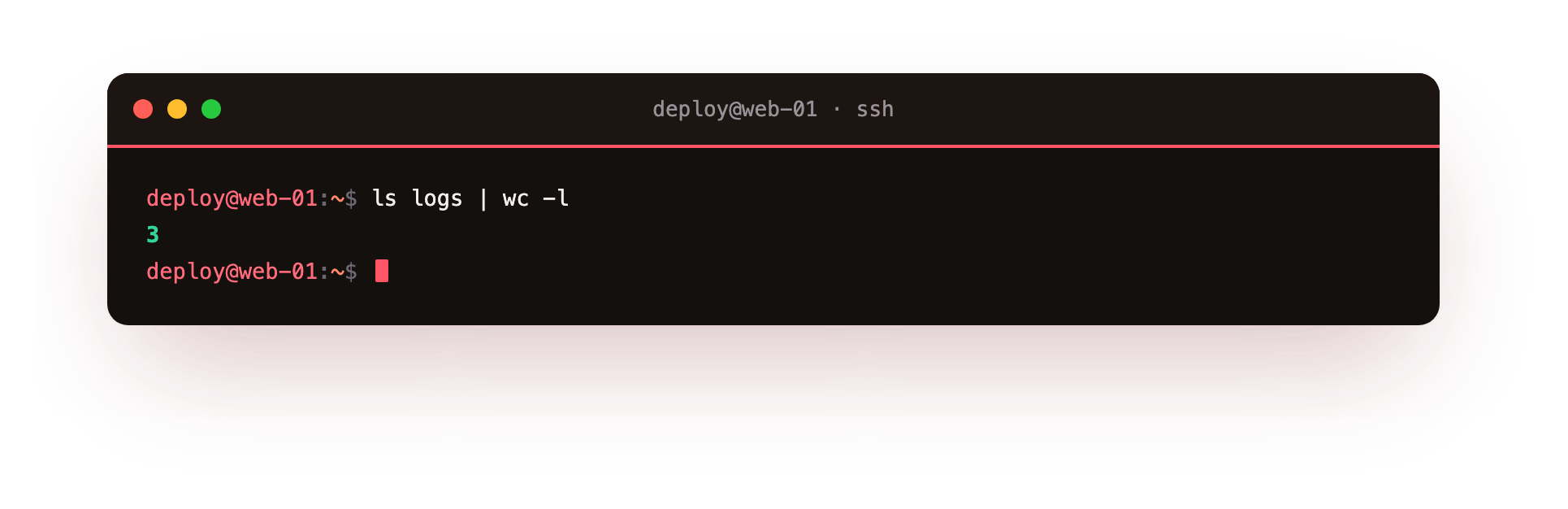
On the screenshot you see a single number. ls logs lists the files in the logs/ directory, and instead of printing them, the pipe feeds that list into wc -l, which counts the lines. Because ls prints one name per line here, the number is the count of files in logs/. You have combined two simple tools to answer a question neither could answer alone.
Chaining several commands
Pipes are not limited to two commands. You can chain as many as you need, each one refining what the previous produced.
cat logs/*.log | grep ERROR | wc -l
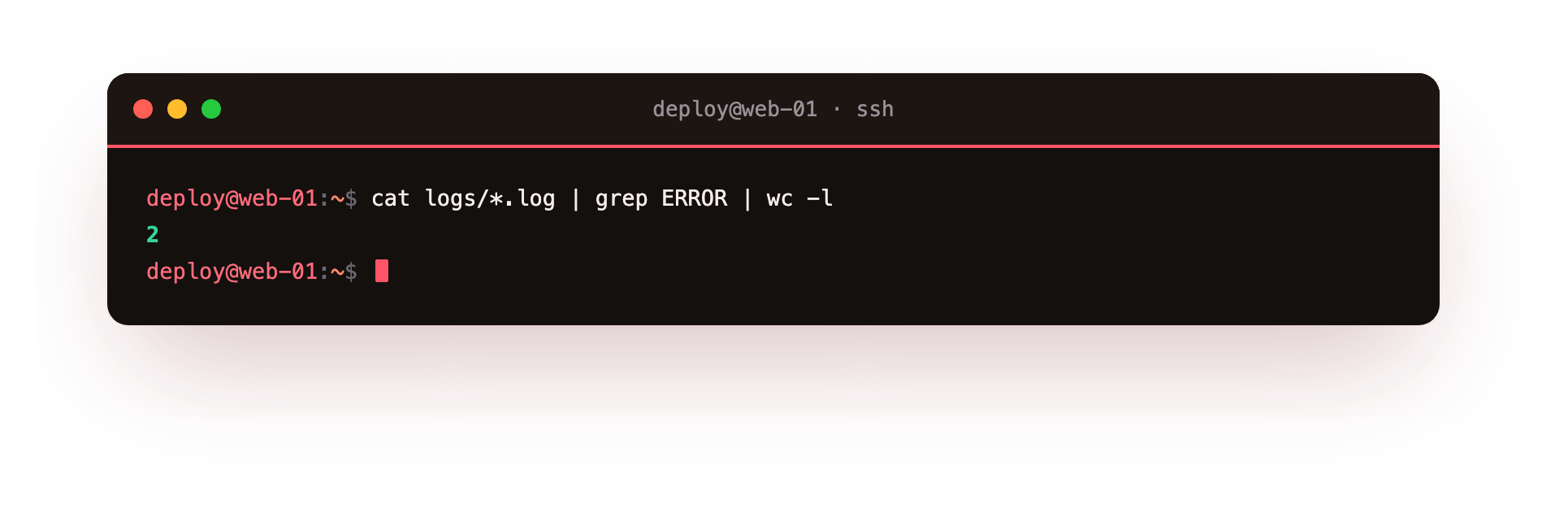
The screenshot again shows one number: the total count of error lines across every log. Read it left to right. cat logs/*.log prints the contents of all three log files. grep ERROR keeps only the lines containing the word ERROR and drops the rest. wc -l counts what survives. This three stage pipe answers a real operational question, how many errors are in the logs right now, and it is the kind of line you will type often during a shift.
Saving a result and checking it
Linux pipes and redirection work together. Here you save a listing to a file, then count it.
ls -1 > /tmp/listing.txt
wc -l /tmp/listing.txt
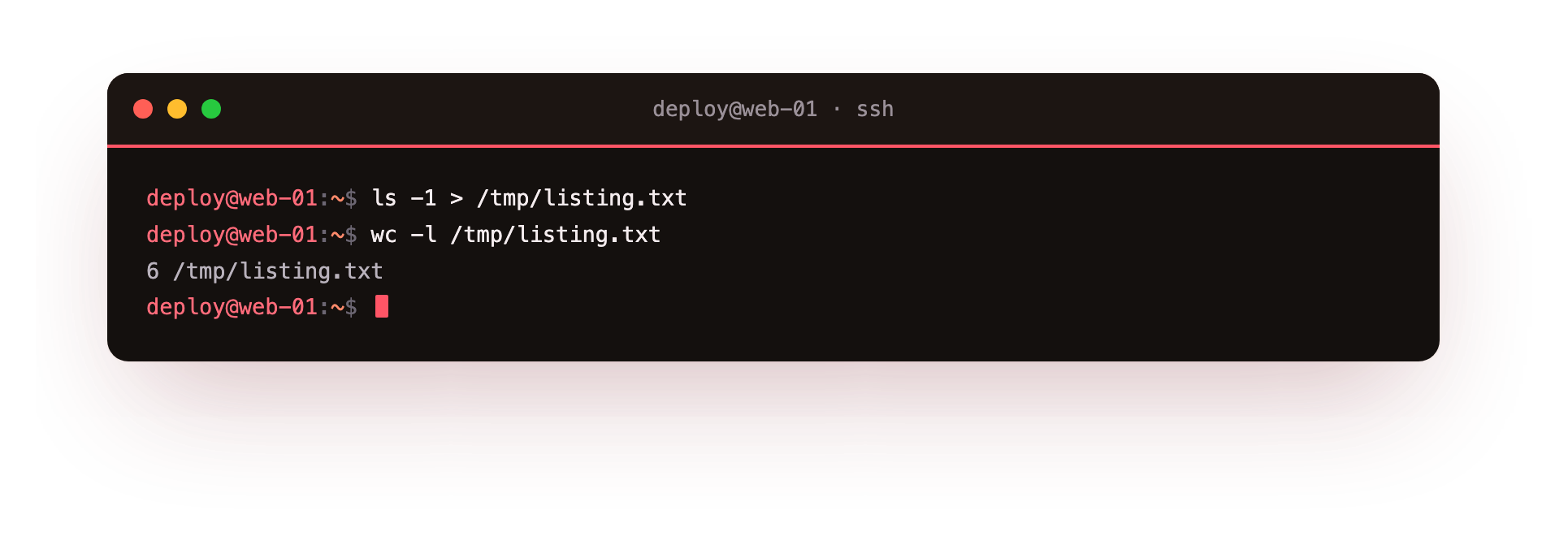
The screenshot shows the result of the second command: a line count followed by the path /tmp/listing.txt. The first command, ls -1, lists the current directory one entry per line, and > writes that list into /tmp/listing.txt instead of the screen, so the first command prints nothing. The second command reads the file back and counts its lines. This pattern, write output to a file now and process it later, is common when a listing is large or when another step needs it as input.
tee writes to a file and the screen at once
Sometimes you want output saved and shown at the same time. tee does both: it copies stdin to a file and also passes it on to stdout. For example, ls -1 | tee /tmp/listing.txt prints the listing and writes it to the file in one step, which is handy when you want to watch a command run while keeping a record of it.
A quick reference
| Symbol | Meaning |
|---|---|
> |
send stdout to a file, overwriting it |
>> |
send stdout to a file, appending |
2> |
send stderr to a file |
\| |
send stdout into the next command's stdin |
tee |
write to a file and pass output onward |
Troubleshooting redirection and pipes
> wiped a file you meant to keep. A single > truncates the target before writing, so its old contents are lost. Use >> to append, and turn on set -o noclobber so > refuses to overwrite an existing file.
"Permission denied" when redirecting to a file. The redirect is performed by your shell, not the command, so you need write permission on the target directory. To write into a root-owned path such as /etc, pipe to sudo tee instead.
Errors still appear on screen after redirecting with >. > captures only stdout; error messages travel on stderr. Add 2> to send them to a file, or 2>&1 after the redirect to fold both streams into one file.
A pipe produced no output. The command on the right may read arguments rather than stdin. Tools like rm and cp take filenames, not piped input, so use xargs to turn piped text into arguments when you need that.
Frequently asked questions
What is the difference between > and >>?
> creates the file or empties it first and then writes, so any previous contents are lost. >> keeps what is already in the file and adds the new output at the end, which is what you want when collecting output over time.
How do I save error messages to a file?
Redirect stream two with 2>, as in command 2> errors.txt. That sends stderr to the file while normal output still goes to the screen. To capture both together, use command > all.txt 2>&1.
How is a pipe different from redirecting to a file?
A pipe connects one command's output directly to the next command's input in memory, with nothing written to disk. Redirection with > sends output to a file instead. Reach for a pipe to chain tools, and redirection to keep a result.
How can I see output on screen and save it at the same time?
Use tee. Piping into tee, as in ls -1 | tee listing.txt, prints the output and also writes it to the file in one step, which is handy for watching a command run while keeping a record of it.
Recap
You now know how output flows on a Linux server: stdout and stderr are separate streams, > and >> write stdout to a file by overwriting or appending, 2> captures errors, and the pipe | joins small tools into one line so each does its part.
Linux pipes and redirection are the reason a handful of plain commands can answer questions that would otherwise need a script. In the next chapter you will look at file permissions and ownership, so you can see who is allowed to read, write, and run the files you have been listing and editing.