Creating directories with mkdir
Everything so far has been read-only. Now you start changing the tree, and to create and move files Linux gives you a small set of commands, none of them complicated. The first is mkdir, short for make directory. Give it a name and it creates an empty folder, so mkdir docs/drafts makes a drafts folder inside docs.
- mkdir makes folders, and mkdir -p also creates any missing parent folders in one step without erroring if the folder is already there.
- cp copies a file; cp -r copies a whole directory tree, and without -r cp refuses to copy a folder.
- mv both moves and renames: a folder destination moves the file, a new name in the same folder renames it.
- Deletion has no undo: rm removes a file, rm -r removes a folder and its contents, and rmdir removes only an empty folder.
That works only if docs already exists. If you ask for a folder several levels deep and the middle folders are missing, plain mkdir stops with an error. The -p flag fixes that: it creates every missing parent along the way and does not complain if the folder is already there. So mkdir -p releases/v1 creates releases and then v1 inside it in one step, even if neither existed before. The -p stands for parents, and it is the flag you will reach for most.
Copying with cp
cp, short for copy, duplicates a file. You give it a source and a destination, so cp README.md backups/ copies your readme into the backups folder and leaves the original in place. For a single file, plain cp is enough.
To copy a whole folder and everything inside it, you add -r, which stands for recursive: it tells cp to descend into the directory and copy every file and subfolder it finds. cp -r src backups/ would duplicate the entire src tree, api, web, and all, into backups. Without -r, cp refuses to copy a directory and prints an error, which is a deliberate guard against copying folders by accident.
Renaming and moving with mv
mv, short for move, does two jobs with one command, and the difference is only in the destination. If the destination is a different folder, mv moves the file there. If the destination is a new name in the same folder, mv renames it. Linux has no separate rename command; moving a file to a new name in the same place is how you rename.
So mv report.txt docs/ moves the file into docs, while mv report.txt summary.txt renames it to summary.txt where it already sits. Unlike cp, mv does not need -r for folders, because it is not descending and duplicating, only relinking the item to a new location or name.
The create and move files Linux workflow
Here are the three commands working as a sequence, followed by a listing to prove what happened. This is the create and move files Linux workflow in miniature:
mkdir -p releases/v1
cp README.md releases/v1/
mv releases/v1/README.md releases/v1/NOTES.md
ls -R releases
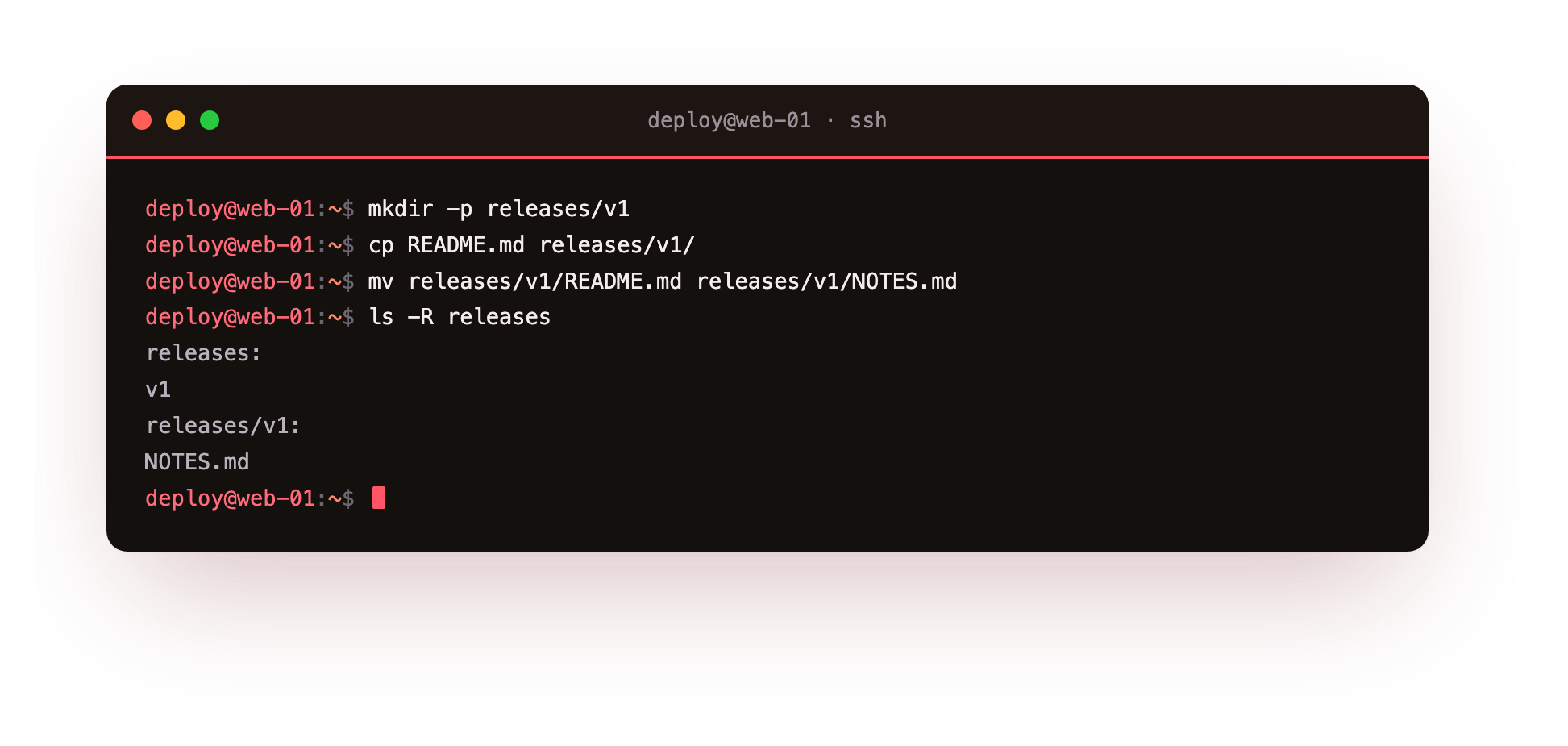
Read the screenshot from the top down. First mkdir -p releases/v1 builds a releases folder with v1 inside. Then cp README.md releases/v1/ copies your readme into that new folder, keeping the original in the project root. Then mv renames the copy from README.md to NOTES.md inside v1. Finally ls -R releases lists releases recursively, meaning it prints the folder and then walks into every subfolder beneath it. The output shows releases, then releases/v1, and inside it the single file NOTES.md. The recursive listing is how you confirm a nested change landed exactly where you meant.
Why is there no undo when you delete?
Removing things is where care matters most. There is no recycle bin on the command line. When you delete a file it is gone, with no undo and no confirmation unless you ask for one.
The commands are:
| Command | What it removes |
|---|---|
rm file |
A single file. |
rm -r folder |
A folder and everything inside it, recursively. |
rmdir folder |
A folder, but only if it is already empty. |
rmdir is the cautious option: because it refuses to delete anything that still has contents, it cannot wipe out files you forgot were there. rm -r is the opposite: it removes the folder and every file and subfolder under it without stopping to check. That reach is why you read the path twice before you press Enter. A stray rm -r on the wrong directory has ended more than one engineer's afternoon.
Cleaning up
To undo the demo from earlier, remove the whole releases folder and confirm it is gone:
rm -r releases
ls
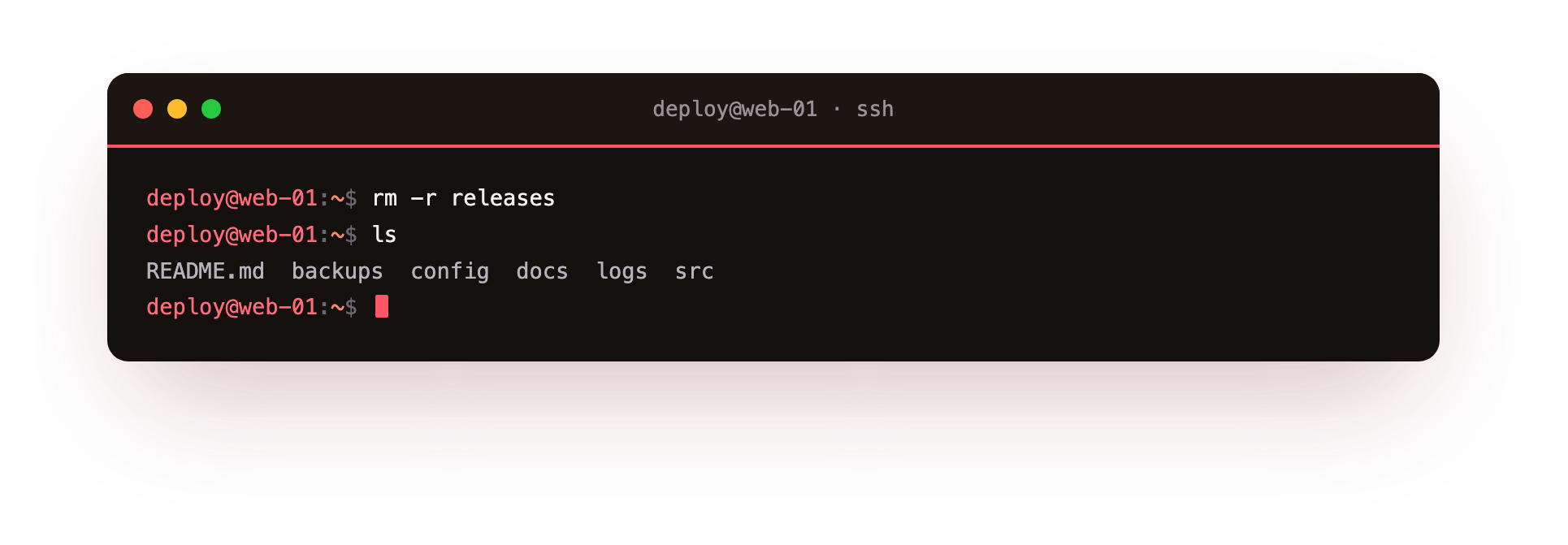
The screenshot shows the rm -r releases command producing no output, which on the command line means it worked without complaint. The ls that follows lists your project directory, and releases is no longer among the folders. Silence from rm is normal and expected: most commands that succeed say nothing and only speak up when something goes wrong. All of this behaves identically on Ubuntu 24.04.
Troubleshooting mkdir, cp, mv and rm
mkdir says "cannot create directory: File exists." The folder is already there, or a plain mkdir hit a missing parent. Use mkdir -p, which creates any missing parents and stays quiet when the folder already exists.
cp says "omitting directory." You tried to copy a folder without -r. Add the recursive flag, as in cp -r src backups/, to copy the directory and everything inside it.
mv overwrote a file without asking. By default mv replaces an existing destination silently. Pass -i to be prompted before an overwrite, or -n to refuse to overwrite an existing file.
rmdir says "Directory not empty." rmdir deletes only empty folders on purpose. If you truly mean to remove the contents too, use rm -r, and read the path twice first because there is no undo.
Frequently asked questions
What does the -p flag on mkdir do?
It creates every missing parent directory along the path and does not complain if the folder already exists. So mkdir -p releases/v1 builds both releases and v1 even when neither existed before.
How do I rename a file on the Linux command line?
Use mv with a new name in the same folder, as in mv report.txt summary.txt. Linux has no separate rename command, so moving a file to a new name in place is how renaming works.
Can I recover a file after rm deletes it?
Not from the command line: there is no recycle bin and no undo, so a deleted file is gone. The safe habit is to check the path and your prompt before every delete, and to keep backups of anything that matters.
Why did rm print nothing after I ran it?
An empty response means success. Commands that finish cleanly usually stay silent and speak up only when something goes wrong, so you confirm the result with a following ls rather than any message.
Recap
You can now create folders with mkdir and mkdir -p, copy files and whole trees with cp and cp -r, rename or move with mv, and remove things with rm, rm -r, and rmdir. Between them these commands are the core of how you create and move files Linux keeps under one tree, and they are the daily tools of real server work: staging a release, backing up a config before you edit it, or clearing out old build folders.
Because rm has no undo, the habit to carry forward is to check your path and your prompt before every delete. In the next chapter you will look inside these files, reading their contents with cat, less, and friends.