Meet the linux PATH and environment variables
Every command you run inherits a set of named values from the shell that started it. Those values are the linux PATH and environment variables that describe who you are, where your home directory is, and which language and settings programs should use. They are not stored in any one file at run time; they live in memory for the length of the session and are passed down to every process the shell launches.
- Environment variables live in memory for the session and are inherited by every process the shell launches.
- PATH is an ordered, colon-separated list of directories the shell searches left to right, stopping at the first match.
- "command not found" means the name matched no executable in any PATH directory, not that the program is missing from disk.
- export publishes a variable to child processes, and type reveals whether a name is a builtin, an alias or a binary.
Understanding them explains a lot of otherwise confusing behaviour, including the classic "command not found" error. The commands below were run on Ubuntu 24.04 as the user deploy in ~/lf-demo.
What is PATH and why does it matter?
PATH is the environment variable the shell reads on every command, so start with it. Print it:
echo $PATH
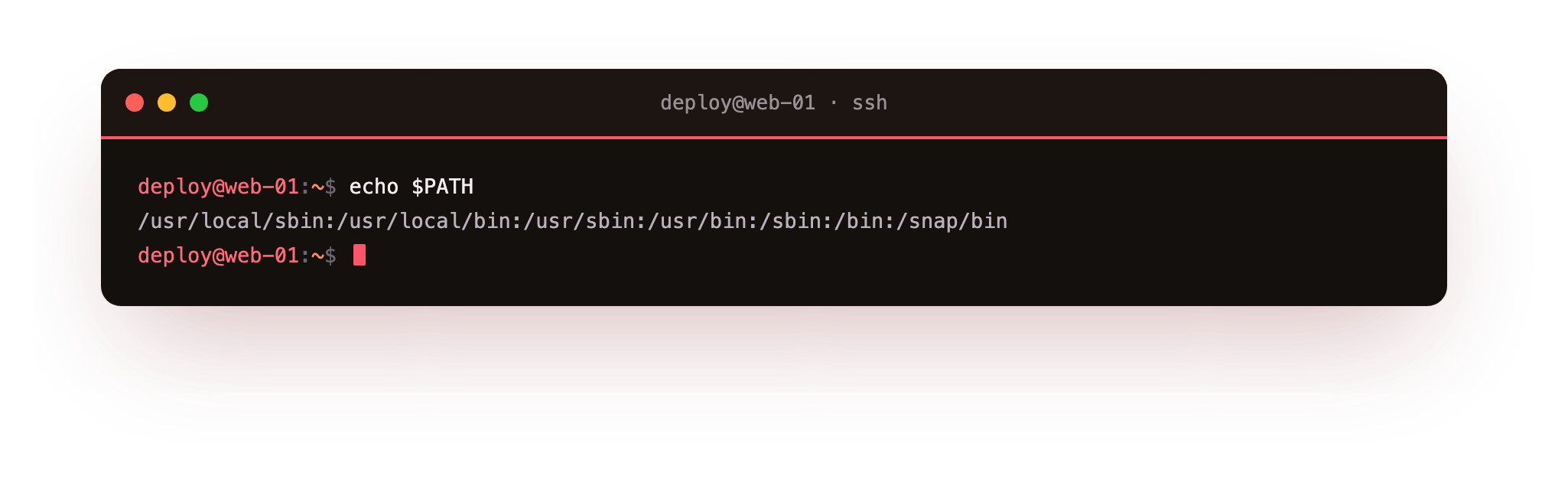
The screenshot shows one long line of directories joined by colons, something like /usr/local/sbin:/usr/local/bin:/usr/sbin:/usr/bin:/sbin:/bin. That is the whole of PATH: an ordered list of directories, separated by colons, that the shell searches whenever you type a command name that is not a full path. The $ in $PATH tells the shell to substitute the variable's value before running echo, so echo never sees the word PATH, only its contents.
The order matters because the search runs left to right and stops at the first match. If /usr/local/bin sits before /usr/bin and both hold a program called node, the one in /usr/local/bin wins. This is also the mechanism behind "command not found": the shell is not saying the program is missing from the disk, it is saying the name did not match any executable in any PATH directory. A binary sitting in ~/lf-demo/src will not run by bare name unless that folder is on PATH or you call it with a path like ./api.
Reading and setting environment variables
PATH is one variable among many; the linux PATH and environment variables together form the context each program runs in. To read specific ones by name, use printenv:
printenv HOME USER SHELL LANG
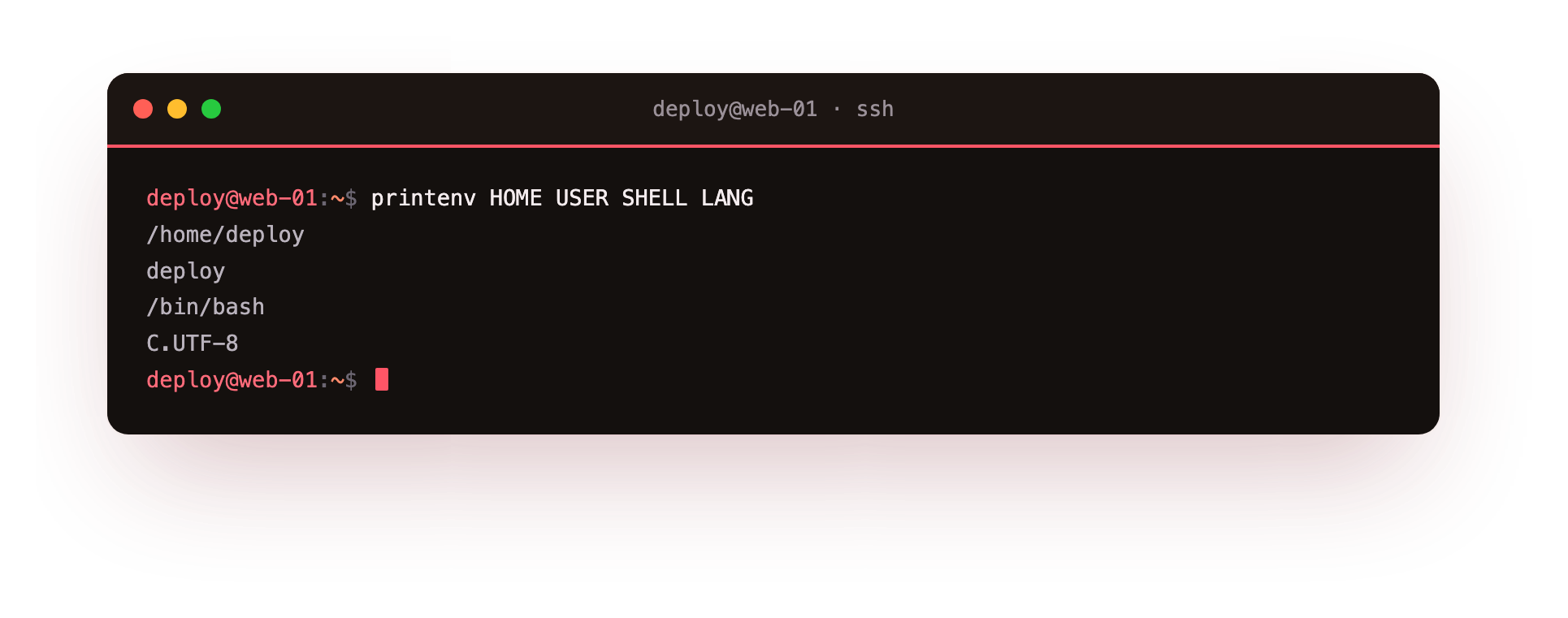
The screenshot shows four lines, one value per variable you asked for. Each is a piece of context that programs rely on:
HOMEis the absolute path to your home directory,/home/deployhere, and is what~expands to.USERis the login name the session is running as,deploy.SHELLis the path to your login shell, usually/bin/bash.LANGsets language and character encoding, which affects sorting, dates, and program messages.
To create or change a variable for the current shell and every command it launches, use export. For example export APP_ENV=staging sets a value that a program started afterwards can read, which is how the config/app.env style of configuration reaches a running process. A variable set without export stays local to the shell and is not passed to child processes.
Setting a variable at the prompt lasts only for that session; to make it permanent you write the export line into a startup file, which brings us to .profile and .bashrc. In short, ~/.profile runs for login shells, such as a fresh SSH connection, while ~/.bashrc runs for interactive non-login shells, such as a new terminal tab. On Ubuntu the default ~/.profile sources ~/.bashrc, so putting your export lines in ~/.bashrc covers both cases on most servers.
How a name resolves: builtin, alias, or binary
When you type a word, the shell does not always run a file on PATH. It might run something built into the shell itself, or an alias you defined. The type command tells you which. Ask about two everyday names:
type cd
type ls
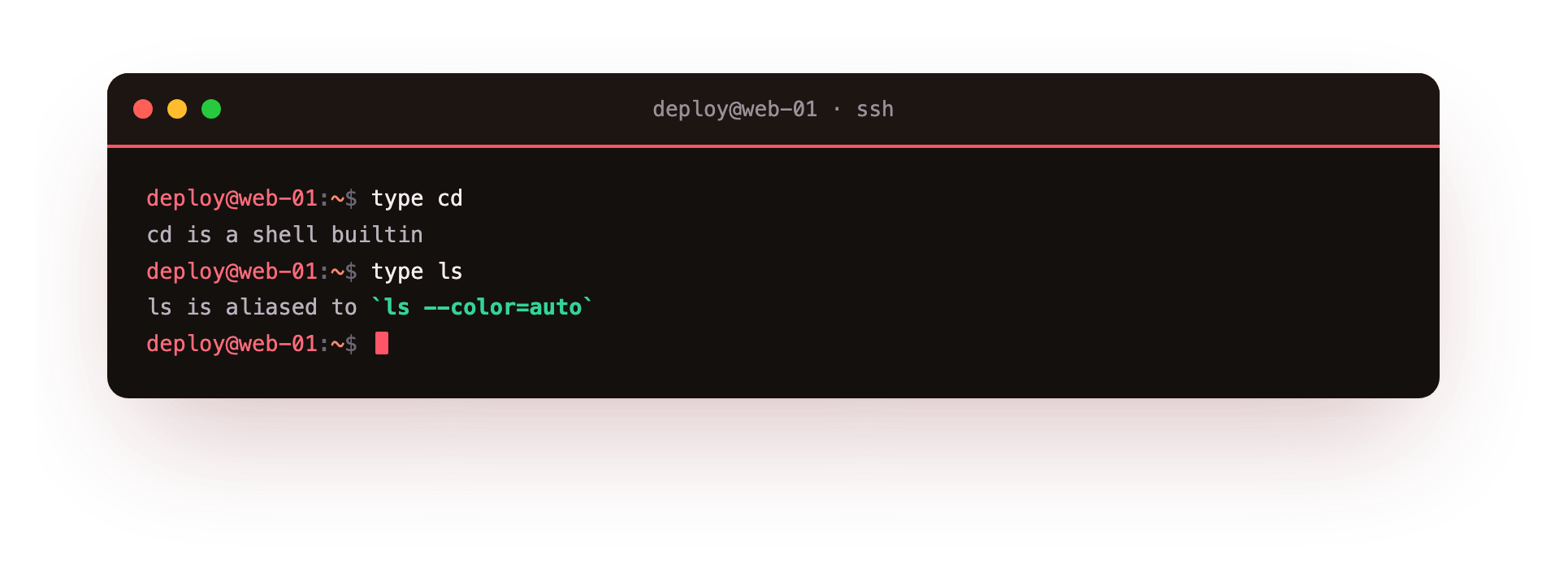
The screenshot shows two different answers. cd is reported as a shell builtin, because changing directory has to happen inside the shell process itself and could not work as a separate program. ls is reported as a file, /usr/bin/ls, or as an alias to ls with colour options if your dotfiles set one up. That difference matters:
| Kind | What it is | Found via |
|---|---|---|
| builtin | code inside the shell | not on PATH |
| alias | a name you defined as a shortcut | shell alias list |
| binary | an executable file on disk | PATH search |
type checks all three in the order the shell itself uses, so it is the honest answer to "what will actually run when I press Enter". When a command behaves unexpectedly, type name often explains it: the name was an alias, or a builtin was shadowing the binary you expected. This is the same resolution logic that produces "command not found" when nothing matches at all.
Troubleshooting PATH and variables
"command not found" for a program you just installed. Either its directory is not on PATH, or Bash cached the old lookup. Run hash -r to clear the command cache, and check that echo $PATH includes the install location.
A variable you set is not visible to a program. You set it without export, so it stayed local to the shell. Use export NAME=value so child processes inherit it, then start the program again.
A change to ~/.bashrc has no effect. Startup files are read only when a shell starts. Open a new session, or run source ~/.bashrc, to apply the change to the shell you are in.
The wrong version of a command runs. An earlier PATH directory holds another copy. Run which -a name to list every match in order; the first one wins, so reorder PATH or call the one you want by its full path.
Frequently asked questions
Why do I get "command not found" when the program is installed?
The shell searches only the directories in PATH. If the binary sits somewhere not on that list, the name matches nothing and you get the error even though the file exists. Add its directory to PATH, or run it with a full path.
What is the difference between a shell variable and an environment variable?
A plain variable set at the prompt is local to that shell. Once you export it, it becomes an environment variable and is passed down to every command the shell starts. Child processes see exported variables, not local ones.
How do I make an environment variable permanent?
Put the export line in a startup file. Adding export APP_ENV=staging to ~/.bashrc sets it for every new interactive shell. On Ubuntu ~/.profile sources ~/.bashrc, so that one place covers login shells too.
What does the type command tell me?
type reports how a name resolves: as a shell builtin, an alias, or a binary on PATH, in the order the shell itself checks. It is the honest answer to what will run when you press Enter, and it often explains surprising behaviour.
Recap
You now know that the linux PATH and environment variables travel with your shell, that PATH is an ordered, colon-separated search list read left to right, that export publishes a variable to child processes, and that type reveals whether a name is a builtin, an alias, or a binary on disk.
On a server this is what you check when a deploy script cannot find a tool or picks up the wrong version. The next chapter makes these settings stick by writing aliases and exports into your dotfiles so every login starts configured the way you want.