One pattern instead of ten filenames
Linux wildcards and globbing are the shell feature that turns one short pattern into the list of filenames it matches. The star, question mark, brackets, and braces let you act on many files at once instead of naming each one.
- The shell expands *, ?, [ ] and { } before the command runs, so the command receives real filenames and never sees the pattern.
- * matches any run of characters, ? matches exactly one character, and [ ] matches one character from a set or range.
- Brace expansion { } generates text whether or not the files exist, unlike the other three that match names on disk.
- Preview a pattern with echo before a destructive command, and quote it to pass the literal characters through unexpanded.
You are on your Ubuntu 24.04 server in ~/lf-demo, and you want to list every log file, or copy three backups whose names differ by one digit. Typing each filename by hand is slow and easy to get wrong.
Linux wildcards and globbing let you write a short pattern that the shell expands into the matching filenames for you. Understanding linux wildcards and globbing is what separates typing ten commands from typing one, and it is the same idea whether you are listing files, deleting old logs, or moving backups around.
The shell expands the pattern, not the command
Here is the single most important idea, and it surprises people: the star and the other glob characters are handled by the shell, before your command ever runs. When you type ls logs/*.log, the shell first looks in logs/, finds every name ending in .log, and replaces *.log with that list. Only then does it run ls, and ls receives the actual filenames as arguments. ls never sees a star. This is called globbing, and it works the same for every command because it happens one step earlier, in the shell.
ls logs/*.log
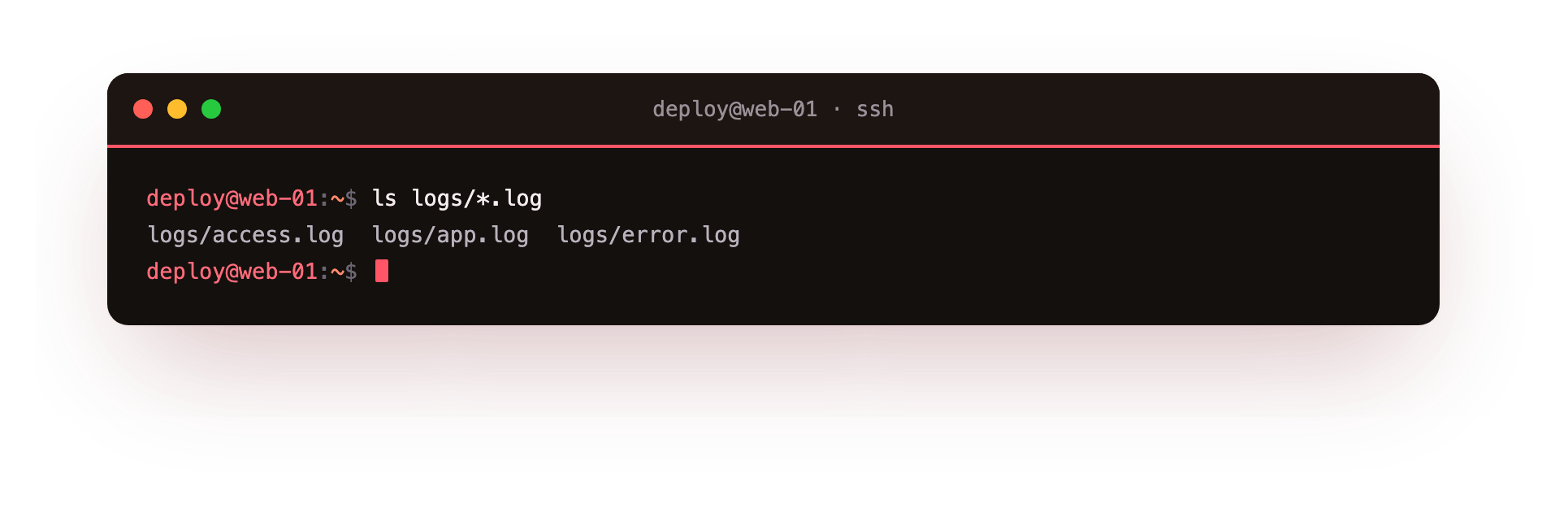
On the screenshot you see access.log, app.log, and error.log listed, each with its logs/ prefix. The shell matched *.log against the directory and handed the three real paths to ls. If you had a file named notes.txt in that folder, it would not appear, because it does not match the pattern.
The characters of linux wildcards and globbing
There are four pieces of pattern syntax you will use. This table is the whole vocabulary of linux wildcards and globbing:
| Character | Matches | Example |
|---|---|---|
* |
any number of characters, including none | *.log matches app.log and error.log |
? |
exactly one character | app.?og matches app.log |
[ ] |
one character from the set or range inside | [12] matches 1 or 2 |
{ } |
any of the comma separated words listed | {conf,env} matches conf or env |
The star and question mark match against characters that actually exist on disk. The braces are different: they are brace expansion, and they generate text whether or not the files exist. That distinction matters, so look at braces next.
Braces generate every combination
echo prints its arguments, which makes it a safe way to see what a pattern expands to before you run a real command against it.
echo config/*.{conf,env}
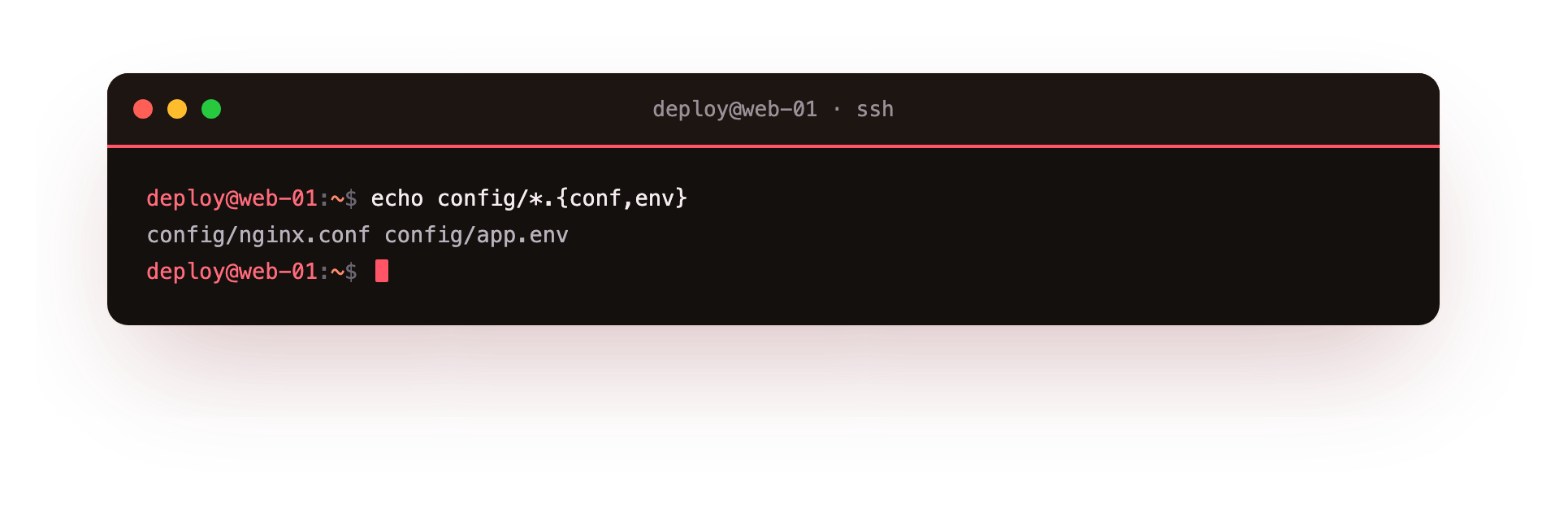
The screenshot shows config/nginx.conf config/app.env printed on one line. The shell took *.{conf,env} and expanded the braces first into two patterns, *.conf and *.env, then matched each against the config/ directory, and echo printed the results. Running echo before a destructive command is a habit worth keeping: you see exactly which files the pattern will hit before anything is changed or removed.
Character sets and ranges
Square brackets match a single character from a set. You can list characters, like [abc], or give a range with a dash, like [0-9] for any digit or [12] for just one or two.
ls backups/db-2026-07-0[12].sql.gz
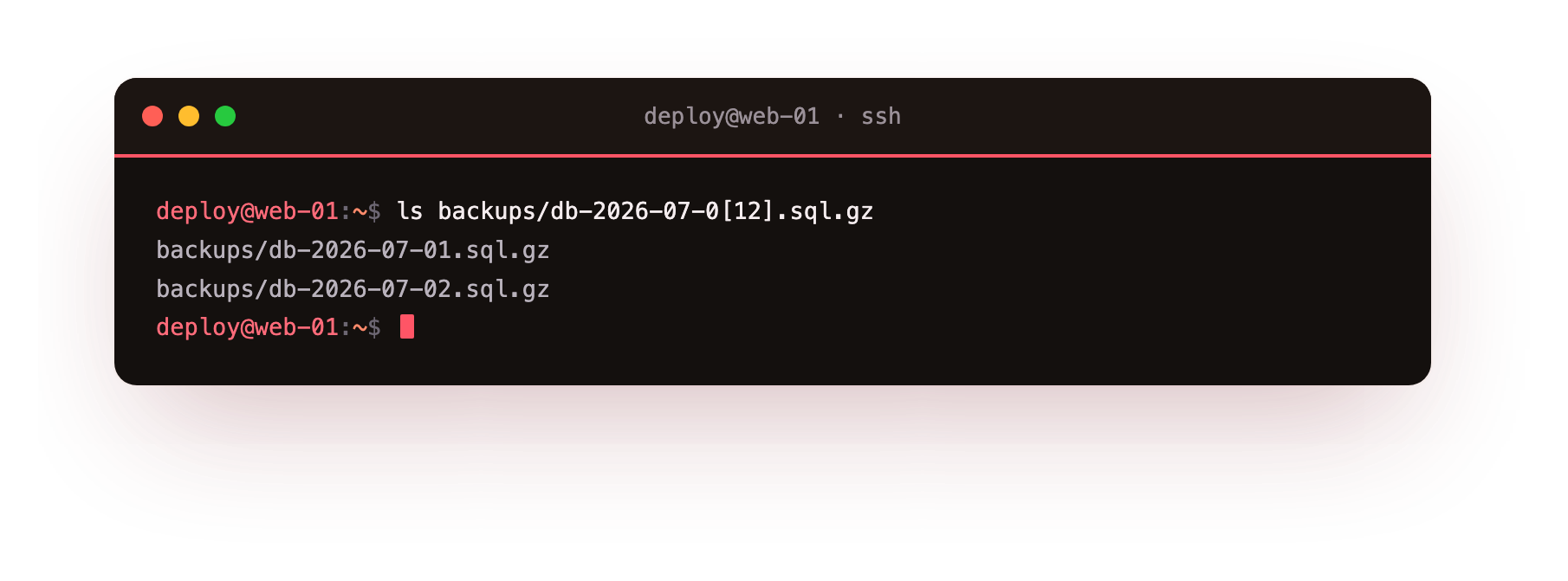
The screenshot shows backups/db-2026-07-01.sql.gz and backups/db-2026-07-02.sql.gz. The pattern 0[12] matched the day part of the filename: 01 and 02, but not 03 or 10. This is how you select a narrow slice of dated files, for example the first two backups of a month, without naming each one.
How does quoting turn globbing off?
Because the shell expands globs, there are times you must stop it. If you want a command to receive a literal star, you quote the pattern. Compare these:
echo *.log
echo "*.log"
The first prints the matching filenames. The second prints the text *.log unchanged, because quotes tell the shell to leave the characters alone. This matters when you pass a pattern to a program that does its own matching, such as find . -name "*.log". There you want find to receive the star, not the shell, so you quote it. A quick summary:
- Unquoted
*.log: the shell expands it into filenames. - Quoted
"*.log"or'*.log': the shell passes the literal text through. - No match: by default the shell passes the pattern through unchanged, so a command can receive a literal star it did not expect.
That last point causes real confusion. If *.log matches nothing, Bash hands the command the raw string *.log, and you get an error about a file called *.log. Knowing that globbing happened, or failed to happen, tells you where to look.
Troubleshooting globbing
A command complains about a file literally named *.log. The pattern matched nothing, so Bash passed the raw text through unchanged. Check that files matching the pattern exist in that folder, and that you are in the directory you think you are.
A leading * did not match a hidden file. A pattern that starts with * does not match names beginning with a dot. Match dotfiles explicitly, for example with a pattern that starts with the dot, such as .*rc.
A pattern matched fewer files than expected. Globbing is case-sensitive, so *.LOG does not match app.log. Use the exact case, or a set such as *.[Ll][Oo][Gg] when both cases are possible.
find with an unquoted pattern behaves oddly. The shell expanded the star before find ran. Quote it, as in find . -name "*.log", so find receives the star and does its own matching.
Frequently asked questions
Why does my command sometimes get a literal star instead of filenames?
When a pattern matches no files, Bash passes the raw pattern through unchanged by default, so the command receives the star itself. That is why a *.log that finds nothing produces an error about a file called *.log.
What is the difference between a wildcard and brace expansion?
Wildcards such as * and ? match names that already exist on disk. Braces generate text regardless of what exists, so echo file{1,2,3}.txt prints three names whether or not those files are there.
How do I stop the shell from expanding a pattern?
Quote it. Wrapping a pattern in single or double quotes, as in "*.log", tells the shell to leave the characters alone and pass them through literally, which is what tools like find expect.
How can I preview what a pattern will match before running a real command?
Put echo in front of it. echo *.log prints the filenames the shell would expand the pattern into, so you can confirm the list before you delete or move anything.
Recap
Linux wildcards and globbing let you name many files with one short pattern: * for any run of characters, ? for a single character, [ ] for a set or range, and { } for a list of alternatives. The key is that the shell expands the pattern before the command runs, so testing with echo first shows you exactly what will happen, and quoting turns expansion off when you want the literal characters. In the next chapter you will connect commands together with pipes and redirection, sending the output of one tool straight into the next.