Who owns a file?
Every file on your Ubuntu 24.04 server carries two labels baked into its metadata: one owning user and one owning group. This pair is what linux file ownership means, and the chown command is how you change it. When you are signed in as deploy in ~/perms-demo, the files you created belong to you and to your primary group. That is fine while you are the only one touching them. The moment a service account like appsvc needs to read a secrets file, ownership becomes the lever you reach for.
- Every file records one owning user and one owning group in its metadata, and chown edits both.
- Ownership decides who the owner and group are; permissions decide what they are allowed to do.
- chown user:group sets both at once, chown user sets only the user, and chgrp sets only the group.
- chown -R rewrites ownership through an entire directory tree, so name an exact path and verify with ls -l.
Ownership is not the same as permissions. Permissions, which the next chapter covers, decide what the owner, the group, and everyone else may do. Ownership decides who the owner and the group actually are. The two work together: a rule that says "the owner may read this" is meaningless until you know which account is the owner. Getting linux file ownership right with chown is therefore the step that makes permissions do what you intended.
The two labels: user and group
- The owning user is a single account, stored as a UID in the file's metadata. Usually it is whoever created the file.
- The owning group is a single group, stored as a GID. New files take the creator's primary group by default.
Only one user and one group can own a file at a time. If you want three people to share write access, you do not add three owners. You point the group label at a shared group they all belong to, such as webteam, and then set the group permission. That is the whole reason groups exist.
Prerequisites
- The appsvc user and webteam group from part 1 already exist on the server.
- The demo files reports/q1.txt, app.env, and deploy.sh sit in ~/perms-demo, owned by your deploy account.
- A login that can run sudo, since transferring ownership to another user requires root.
Reading linux file ownership with chown
Before you change anything, look at what you have. List the three files in the demo directory.
ls -l reports/q1.txt app.env deploy.sh
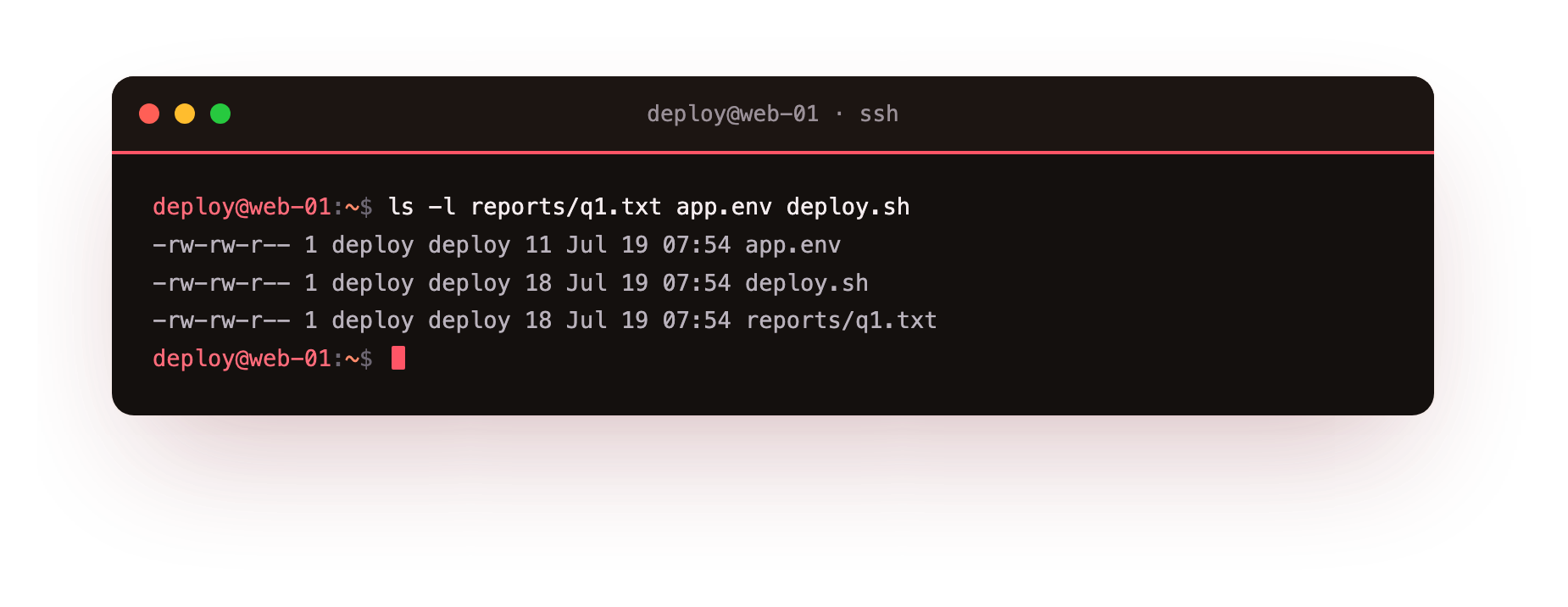
The ls command lists files, and -l asks for the long format, one file per line with full detail. In the screenshot, read the columns left to right. The first block of ten characters is the type and permission bits. After that come the link count, then the owning user, then the owning group, then the size, then the modification time, then the name.
The third and fourth columns are the ones this chapter cares about. For a file deploy created, both will read deploy, because your account and your private group share the name. Naming the three files explicitly, rather than listing the whole directory, keeps the output focused on the paths you are about to work with.
chown, chgrp, and the user:group form
There are two tools for this job:
| Command | Changes the user | Changes the group |
|---|---|---|
chown |
yes | yes, when you add :group |
chgrp |
no | yes |
chown can set the user, the group, or both. The form chown user:group path sets both at once: the part before the colon is the new owning user, and the part after is the new owning group. Write chown user path with no colon to change only the user. Write chown :group path with a leading colon to change only the group, which gives the same result as chgrp group path. chgrp exists because changing only the group is common, and a dedicated command reads more clearly in scripts.
Handing a file to a service
Now assign the secrets file to the service account and the shared group. Run these two lines.
sudo chown appsvc:webteam app.env
ls -l app.env
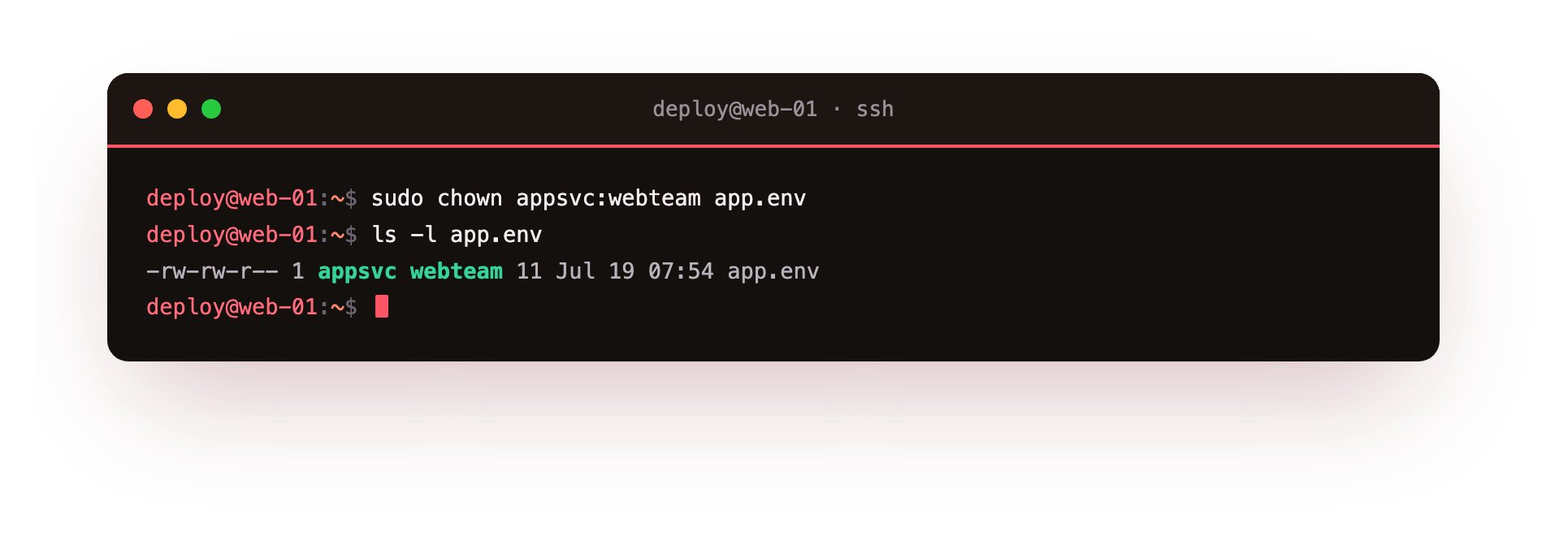
The first line does the work. sudo is required because you are giving away ownership, and only root may transfer a file to another user. chown appsvc:webteam app.env sets appsvc as the owning user and webteam as the owning group of app.env. The second line, ls -l app.env, reads the file back so you can confirm the change.
In the screenshot the third column now shows appsvc and the fourth shows webteam, where both used to say deploy. Always read a file back after changing its ownership, because chown fails quietly on a mistyped username, and you want to catch that before a service does.
Recursion with chown -R
Directories carry ownership too, and every file inside carries its own. To retag a whole tree at once, add -R for recursive:
sudo chown -R appsvc:webteam reports
This walks reports and every file and subdirectory inside it, setting the same owner and group on each. The flag is broad and unforgiving. Run chown -R against / or a home directory by accident and you will rewrite ownership across the system, so always name a specific path and check it twice before you press Enter.
Why the correct owner matters for a service
A daemon started as appsvc can open app.env only if appsvc owns it or belongs to a group allowed to read it. If the file still belongs to deploy with tight permissions, the service fails to start and the logs fill with permission denied. Matching the file's owner to the account the service runs as is what lets you keep permissions narrow and still have the service work. That is the practical payoff of linux file ownership done with chown.
Troubleshooting ownership changes
chown fails with "invalid user." The user or group you named does not exist. chown never creates accounts, so confirm the target first with getent passwd appsvc or getent group webteam, then retry with the exact name.
chown reports "Operation not permitted." Giving a file to another user is a root-only action, so the command needs sudo. Re-run it as sudo chown appsvc:webteam app.env and read the file back with ls -l.
The service still cannot open the file after chown. Ownership is only half of access. The permission bits may still deny the owner or group, and a daemon that is already running may need a restart. Check ls -l, then set the bits in the next chapter.
Frequently asked questions
What is the difference between chown and chgrp?
chown can change the owning user, the owning group, or both through the user:group form. chgrp changes only the group. chgrp exists because changing just the group is common, and a dedicated command reads more clearly in a script than chown with a leading colon.
Can a file have more than one owner?
No. Exactly one user and one group own a file at any time. To let several people share write access, point the group label at a shared group they all belong to, such as webteam, then grant the group permission bit.
Do I always need sudo to change ownership?
To give a file to a different user, yes, because only root may transfer ownership. Changing only the group can succeed without sudo when you own the file and belong to the target group. If a command is refused, the error names what is missing.
Why did chown succeed but the service still fail to start?
chown fixes who owns the file, not what they may do with it. Read the file back with ls -l and confirm the permission bits let the owner or group read it. A long-running daemon may also need restarting so it re-opens the file as the right account.
Recap
You inspected ownership with ls -l, learned the user:group form, and handed app.env to appsvc and webteam so a service can reach it. On a live server this is the routine before enabling a daemon: put the files under the right account, verify with a second ls -l, and only then start the process. Next we decode the permission bits themselves, the ten characters at the front of every ls -l line, and see what read, write, and execute really mean.