Why Linux users and groups exist
Every process on your server runs as someone. When you are signed in as deploy on your Ubuntu 24.04 box, the shell you are typing into belongs to you, and so does every command it starts. Linux users and groups are the mechanism that decides who that someone is and what they are allowed to touch.
- A user owns files and runs processes; a group grants shared access to several users at once.
- The kernel identifies accounts by number: UID for users, GID for groups, with root fixed at UID 0.
- Every user has one primary group plus any number of secondary groups, set by useradd, groupadd, and usermod.
- id reads an account's live identity, while getent passwd reads its stored record from /etc/passwd.
Get this model right and the rest of file ownership, permissions, and service isolation falls into place. Get it wrong and you end up running a web app as root, which is the security mistake that keeps infrastructure engineers awake.
A user is an account that can own files and run processes. A group is a named collection of users, used to grant shared access to something without handing it to everyone. Both are just entries in text files that the kernel reads. There is no magic here. A user has a numeric identity called a UID, and a group has a numeric identity called a GID. The names you see, like deploy or webteam, are a convenience for humans. The kernel itself works with the numbers.
UID and GID
Every account has a UID, which stands for user ID. The root account is always UID 0, and that single number is what grants root its authority. Regular human accounts on Ubuntu usually start at UID 1000 and count upward. Service accounts created for daemons often sit in a lower system range, below 1000, so you can tell them apart from people at a glance.
Groups work the same way with a GID, the group ID. When Ubuntu creates a normal user, it also creates a group with the same name, and that becomes the user's primary group. This one-user-one-group default is called a user private group, and it stops newly created files from being readable by unrelated accounts by accident.
Primary and secondary groups
Each user has exactly one primary group and any number of secondary groups.
- The primary group is written into the user's account record. New files the user creates are owned by this group by default.
- Secondary groups are extra memberships layered on top. They grant access to shared resources, and a user can belong to many at once.
The distinction matters in practice. You put a service account into a secondary group like webteam so it can read shared web files, while its primary group stays private to its own files.
Prerequisites
- Shell access to an Ubuntu 24.04 LTS server, since you will create real accounts on it.
- A login that can run sudo, either root or an account already in the sudo group, since creating users and groups writes to system files.
How do you create a service account and a group?
The linux users and groups model gets concrete once you create some. Build the accounts this series relies on with these four commands.
sudo useradd -m -s /bin/bash appsvc
sudo groupadd webteam
sudo usermod -aG webteam appsvc
id appsvc
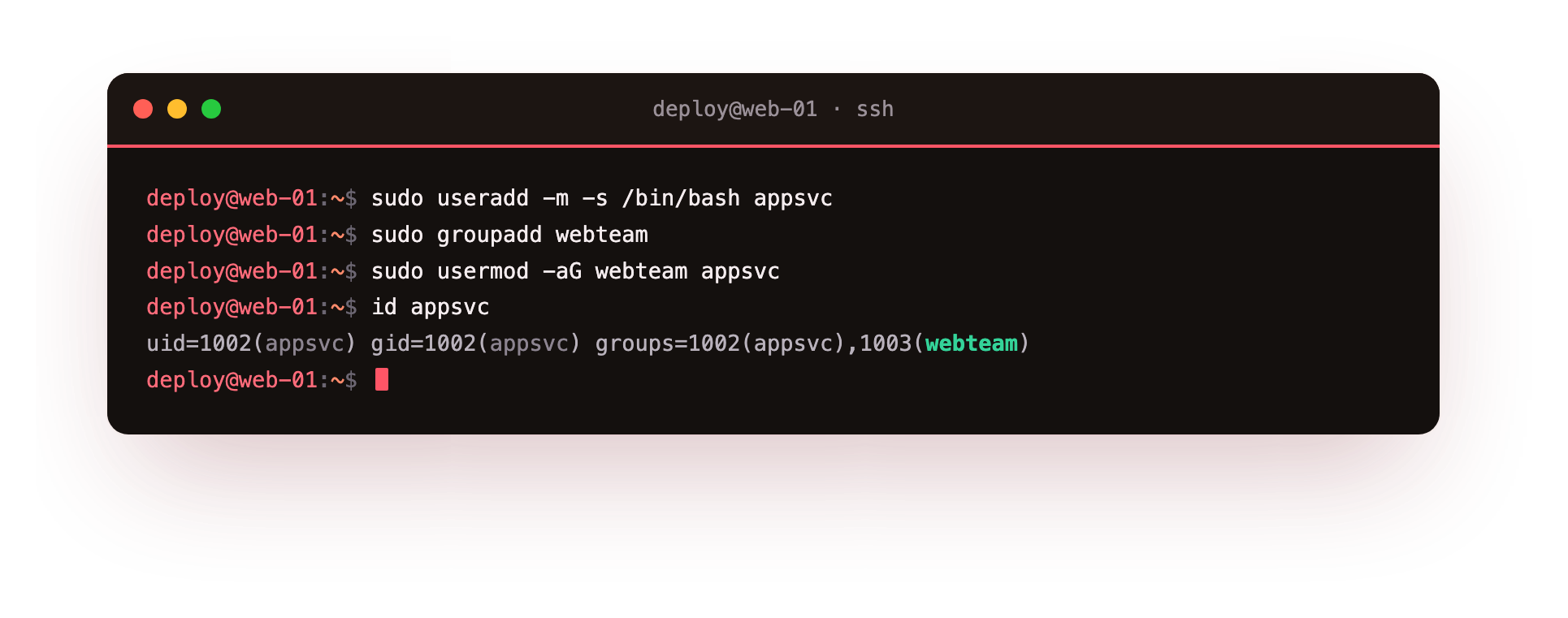
Read that block one line at a time. sudo useradd -m -s /bin/bash appsvc creates the user appsvc. The -m flag makes a home directory at /home/appsvc, and -s /bin/bash sets the login shell to Bash. The sudo is required because creating accounts writes to system files that only root may change.
The second line, sudo groupadd webteam, creates the webteam group with a fresh GID. The third line, sudo usermod -aG webteam appsvc, modifies the existing appsvc user: -G names a secondary group and -a means append, so appsvc joins webteam without being dropped from any group it already had. Forgetting the -a is a classic mistake, because -G on its own replaces the whole secondary list.
The final line, id appsvc, prints the identity the kernel now holds for that account. The screenshot shows three fields: uid= with the number and name of the user, gid= with the primary group, and groups= listing every membership including the webteam line you just added. This is how you confirm a change actually landed instead of trusting that it did.
Why services get their own account
A daemon should never run as you and never run as root. Give it a dedicated account like appsvc and you gain three things:
| Benefit | What it means |
|---|---|
| Blast radius | A compromised service can only touch files that appsvc owns |
| Clear audit | Log lines and process listings name appsvc, so you know what did what |
| Clean permissions | You grant access to the group the service is in, not to individual people |
Reading the passwd entry
Names and numbers for every user live in one file, /etc/passwd. Rather than open it in an editor, ask for a single record.
getent passwd appsvc
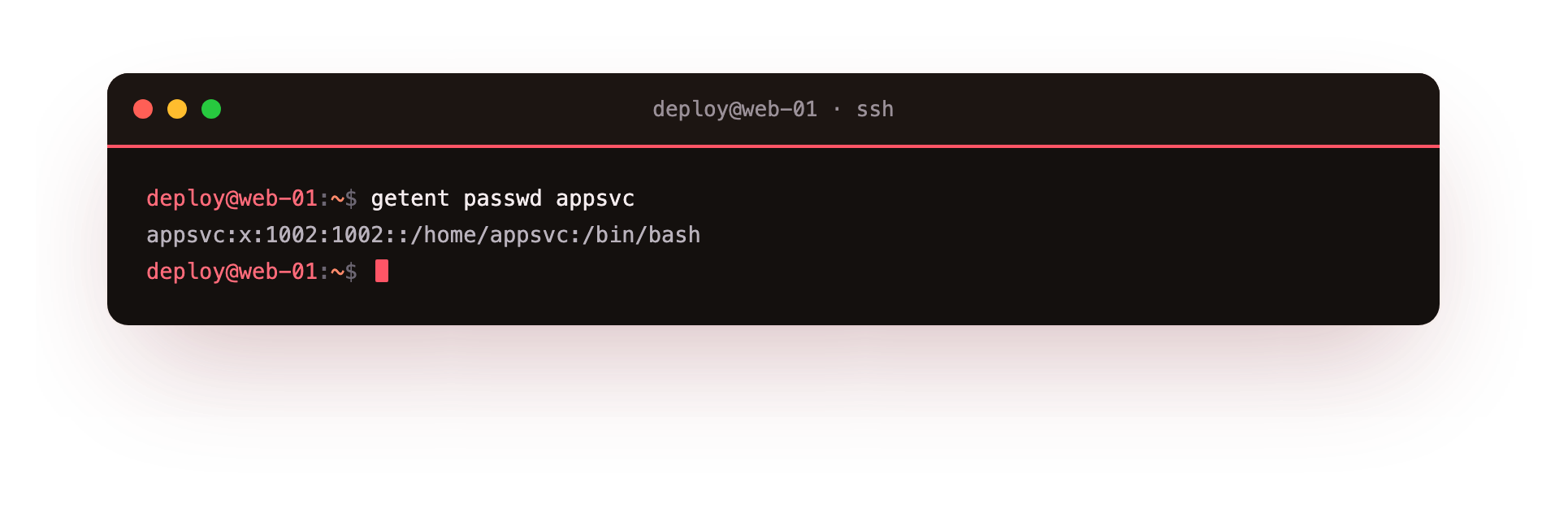
getent queries the system account databases the same way a login does, and passwd appsvc asks for that one user's line. The screenshot shows a colon separated record: the username, an x standing in for the password (the real hash lives in /etc/shadow), the UID, the primary GID, an optional comment field, the home directory, and the login shell.
Reading this line fluently is a core skill, because it tells you at a glance who an account is and where it lands when it logs in. Understanding linux users and groups at this level is what lets you reason about everything built on top of them.
Troubleshooting user and group changes
usermod dropped the account's other groups. Running usermod -G without -a replaces the entire secondary list instead of adding to it. Always append with -aG, and if you lost a membership, restore it with sudo usermod -aG webteam appsvc.
The new group is not visible after usermod. Group membership is read when a session starts, so a shell that was already open still shows the old set. Log out and back in, or run newgrp webteam in the current shell, then confirm with id.
useradd made no home directory. useradd creates /home/appsvc only when you pass -m. Without it the account exists but has no home. Recreate the user with -m, or add the directory afterwards and set its owner with chown.
Frequently asked questions
What is the difference between a user and a group?
A user is a single account that owns files and runs processes. A group is a named set of users who share access to something. You put accounts into a group to grant them the same rights at once, rather than repeating a permission for each person.
Why give a service its own account instead of running it as me?
A dedicated account like appsvc limits what a compromised service can reach, names it clearly in logs and process listings, and lets you grant access to a group rather than to a person. Running a daemon as your login or as root removes all three of those boundaries.
What is the difference between useradd and adduser?
useradd is the low-level command shown here and needs flags like -m for a home directory. adduser is a friendlier Debian and Ubuntu wrapper that prompts you and fills in sane defaults. Either creates the account; useradd is the portable one to know across distributions.
How do I see which groups an account belongs to?
Run id appsvc for the live identity, which lists every secondary group, or groups appsvc for just the names. To read the stored account line instead, use getent passwd appsvc and look at the primary GID field.
Recap
You created a service account and a shared group, added appsvc to webteam as a secondary member, and read both the live identity with id and the stored record with getent. On a real server this is the groundwork before you hand any files to a daemon: the account exists, its groups are set, and you can prove it. In the next chapter we put those accounts to work by changing who owns files, using chown and chgrp.