The one account that can do anything
On every Linux system there is a superuser called root, and understanding Linux sudo and root together is the difference between administering a server safely and painting yourself into a corner. Root is the account with user ID 0, and the kernel grants UID 0 permission to do anything: read any file, kill any process, change any setting, delete anything at all.
- Root is UID 0 and bypasses every permission check, which is why you work as an ordinary user instead.
- Membership in the sudo group is what lets an account run commands as root on Ubuntu.
- sudo runs a single command as root after checking your own password, then drops back at once.
- sudo -l lists your rights, /etc/sudoers.d/ holds per-command rules, and visudo edits them safely.
There are no permission checks for root, because root is the account that the checks are measured against. You are logged in as deploy, an ordinary user in ~/perms-demo, and that is deliberate.
Start by looking at who you are. Run this:
id deploy
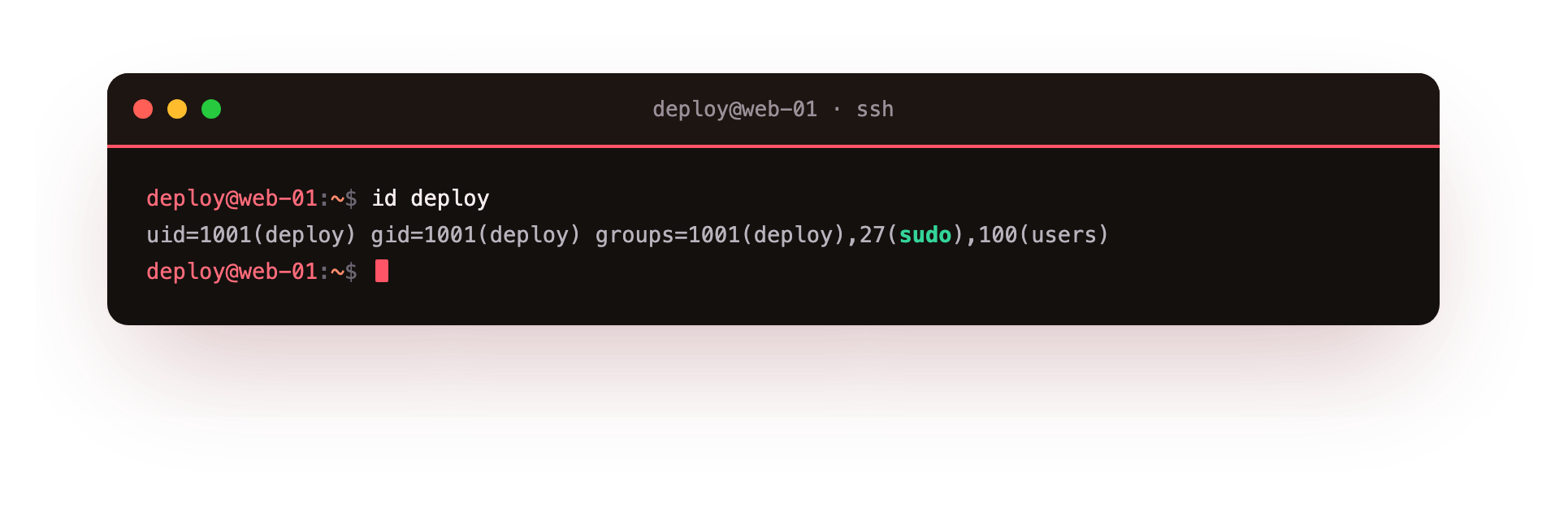
The id deploy command prints the numeric user ID, the primary group, and every supplementary group for the deploy account. In the screenshot, note the uid= value is not 0, which confirms you are an ordinary user, and then scan the groups= list. If sudo appears there, this account is allowed to borrow root's powers on demand. Membership in that one group is the whole mechanism on Ubuntu 24.04: the sudo group is granted broad rights in the sudoers policy, so adding a user to it is how you hand out administrative access.
Prerequisites
- An Ubuntu 24.04 server where your deploy account is a member of the sudo group, so sudo commands are allowed.
- Knowing your own login password, since sudo asks for yours and not the root password.
Why not log in as root?
It is technically possible to log in as root directly and run every command with full power all the time. You should not, for a few plain reasons.
- A typo as root can wipe the system with no safety net, since root is exempt from the permission checks that would otherwise stop it.
- Every action is attributed to "root", so an audit log cannot tell you which human actually ran a command.
- Software bugs and pasted commands run with unlimited reach, turning a small mistake into a large one.
- A root shell left open is a standing risk if you step away from the keyboard.
The safer pattern is to work as yourself and raise your privilege only for the single command that needs it. That is exactly what sudo is for.
How Linux sudo and root fit together
sudo means "substitute user do". It runs one command as another user, and by default that user is root. You stay logged in as deploy, you type your own password the first time (not root's), and sudo checks the sudoers policy to decide whether you are allowed. If you are, it runs that one command with root's powers and then drops straight back. Nothing stays elevated after the command finishes. See it directly:
whoami
sudo whoami
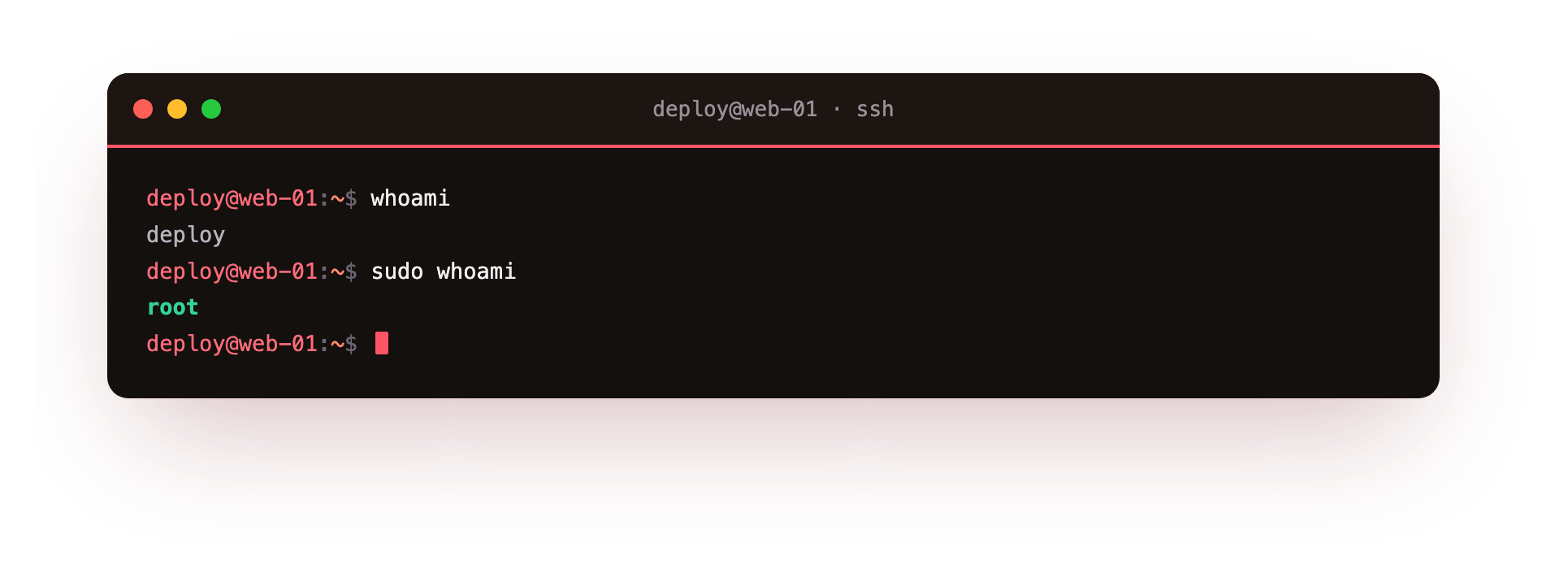
The whoami command prints the user running the current shell, which is deploy. The sudo whoami command runs the very same whoami, but as root, so it prints root. In the screenshot the two lines differ by exactly this: your shell is still yours, but the single command you prefixed with sudo ran as the superuser. That is the whole idea of Linux sudo and root working together, borrow the power, use it once, give it back.
A few tools make this practical to manage:
sudo -llists exactly which commands your account may run through sudo, and as whom. Run it when you are unsure what you are allowed to do, rather than guessing and hitting a denial.- Files under
/etc/sudoers.d/hold granular rules. Instead of granting blanket access, you can drop a small file there that lets a user run one specific command, for example restarting a single service, and nothing else. Edits should always be made withsudo visudo, which checks your syntax before saving so a mistake cannot lock everyone out of administration.
su versus sudo
You will also meet su, which is older and works differently. su switches you into another account for a whole session, and su with no name means become root until you type exit. Crucially, su asks for the target account's password, so su to root needs the root password itself. sudo asks for your own password and runs a single command.
That difference matters: with sudo you never need to know or share the root password, you can revoke one person's access by editing the policy, and every elevated command is logged against a real human. On Ubuntu servers the root password is often left unset for exactly this reason, which makes sudo the only supported door in.
Keeping Linux sudo and root clear in your head pays off every day. Root is the raw power, the account that can do anything and answers to no permission check. sudo is the controlled, logged, revocable way to touch that power for one command at a time, without ever handing out the master key. When you scope access with /etc/sudoers.d/ and check yourself with sudo -l, you get the work done while keeping a clean record of who did what.
Troubleshooting sudo access
sudo says the account "is not in the sudoers file." The user has not been granted sudo. From a login that already has it, add them with sudo usermod -aG sudo deploy, then have them log out and back in so the new group takes effect.
sudo asks for a password you think is wrong. sudo wants your own login password, not the root password. If you have never set a password for your account, an admin can set one with sudo passwd deploy.
An edit to sudoers locked everyone out. This is why visudo exists. If you still have a root shell open, fix the file there. Otherwise boot to recovery mode, remount read-write, and correct the syntax before rebooting.
Frequently asked questions
What is the difference between su and sudo?
su switches you into another account for a whole session and asks for that account's password, so su to root needs the root password. sudo runs one command as root after checking your own password. sudo means you never have to know or share the root password.
How do I see exactly what I am allowed to run with sudo?
Run sudo -l. It lists the commands your account may run through sudo and as which user, straight from the sudoers policy. Check it when you are unsure rather than guessing and hitting a denial.
Why is the root password often unset on Ubuntu servers?
Leaving root without a password means nobody can log in as root directly, so sudo becomes the only supported door in. Every elevated command is then logged against a real person, and you can revoke one account's access by editing the policy.
Can I grant someone permission to run just one command as root?
Yes. Drop a small file under /etc/sudoers.d/ that names the user and the single command, for example restarting one service, and nothing else. Edit it with sudo visudo so a syntax mistake cannot lock out administration.
Recap
Root is UID 0 and bypasses every permission check, so you work as an ordinary user like deploy instead. Membership in the sudo group grants access to run commands as root. sudo runs one command as root after checking your own password, sudo -l lists your rights, and /etc/sudoers.d/ holds granular per-command rules. su switches whole sessions and needs the target account's password, while sudo needs only yours.